Disclaimer
All screenshots in the article were taken in the Dutch version of Nmbrs Accounting.
In a domain, each user can set his or her personal preferences; these have little impact on the operation of the Nmbrs Accounting software. In addition, settings can be set that do affect the operation of the software.
Which settings you can specify in a domain depends on the selected bundle (and any additional features added) and the role(s) you have as a user in the domain.
FOR FREQUENTLY ASKED QUESTIONS ABOUT THE SETTINGS, SEE SETTINGS FAQ!
All captured settings are grouped and categorized in one place in your domain.
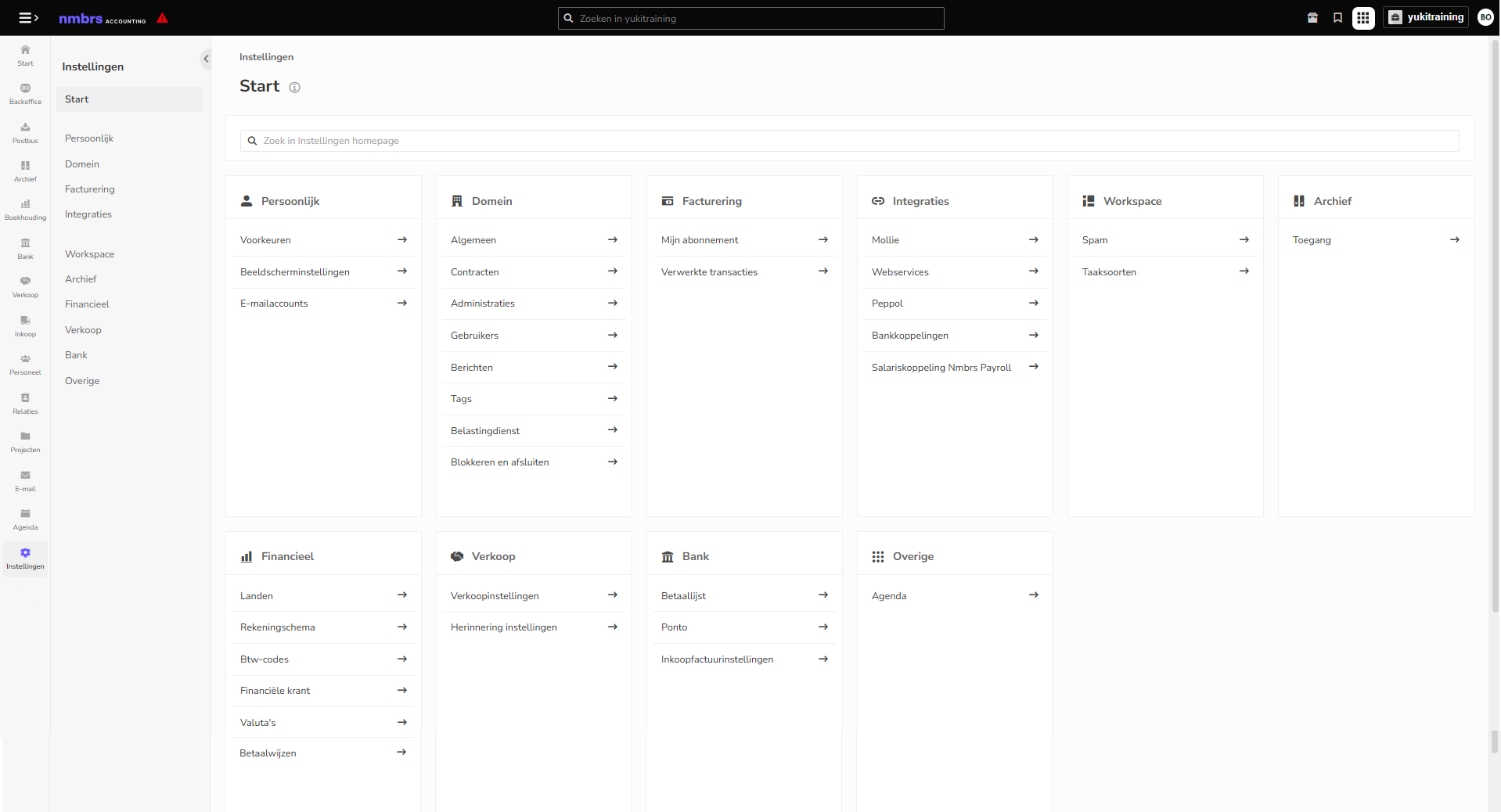
Click on the Settings icon in the navigation bar and the Settings screen is opened:
ATTENTION!
The screenshot above shows the settings that can be configured by a user with a 'Back office' role in the domain.
The settings you can define in a domain are grouped into the following categories:
- Personal
- Domain
- Billing
- Integrations
- Workspace
- Archive
- Financial
- Sales
- Bank
- Other.
These settings are briefly described by category below.
Personal
These settings will not affect the operation of Nmbrs Accounting:
- Preferences
Personal preferences regarding your desktop, the Archive, your mail, etc., among others. - My profile (not available to user with 'Back office' role in the domain)
Your contact card with all associated data. - Display settings
Personal settings regarding your navigation bar and menu bars in all your screens. - Email accounts
Overview of your created email accounts.
Domain
The settings below will affect the operation of Nmbrs Accounting:
- General
Some general information about the domain such as domain owner, domain language, etc. - Contracts
The details of your contract with Nmbrs Accounting. You can cancel or reactivate an administration's contract here. - Companies
An overview of the companies (administrations) included in the domain. - Users
An overview of all users with access to the domain. For each user in a domain, you can define which administration(s) he or she has access to. Each user has certain basic rights. By assigning someone a role, you can give someone additional rights. - Messages
Questions about administration, messages about VAT returns or points of interest. - Tags (operation of Nmbrs Accounting is not affected)
Active and inactive tags - Tax authorities
Whether or not required approval of VAT return by entrepreneur (customer) before sending VAT return to Tax Office. - Block and close
Overview of blocked and/or closed administrations.
Billing
These settings will not affect the operation of Nmbrs Accounting:
- My subscription
All details of your bundle's subscription such as details of your current bundle, usage (number of invoices processed), payment method and billing history of the bundle can be viewed here. - Processed transactions
In this view, you can see which transactions have been processed in Nmbrs Accounting over a given period.
Integrations
The settings below will affect how Nmbrs Accounting works:
- Mollie
You can set up Mollie as the online payment provider for your digital sales invoices. This requires a number of steps:- Link administration in Nmbrs Accounting with your existing account with Mollie or create a new account with Mollie that is directly linked
- Add Mollie payment link to the invoice layout of your sales invoices
- Your clients pay your sales invoices via Mollie
- Import bank statements from Mollie into your administration
- Import purchase invoices from Mollie into your administration
- Process transactions from Mollie in your administration.
- Web services
Settings for exchanging information with applications/services of external parties - Peppol
PEPPOL is a European initiative to standardize e-invoicing. It allows you to more securely send e-invoices to and receive them from your relations who are also in the secure Peppol network. An e-invoice is an electronic invoice. On an e-invoice, the required data is always in a fixed place with its own coding. This makes it possible for Nmbrs Accounting to process an e-invoice automatically.Here is an overview of all administrations currently registered in Peppol.
You can register or unregister an administration in Peppol if you wish. - Bank links
Here you can find all accounting links currently implemented in the domain. You can add a new Rabobank accounting link by following these steps:- Activate 'Rabobank link' feature in Nmbrs Accounting (by accountant)
- Provide one-time authorization to retrieve bank transactions
- Link bank account(s)
- If necessary, manually import bank transactions via accounting link.
- Nmbrs Payroll link
To import pay slips, payroll journal entries, payroll reports, and annual statements from Nmbrs Payroll, the Nmbrs Accounting domain and/or the administration(s) must be properly configured, among other things.
Workspace
These settings will not affect the operation of Nmbrs Accounting:
- Spam settings
Overview of email addresses that have been blacklisted or whitelisted back from Digital Mail. - Task type
In Nmbrs Accounting, you can use different types of tasks with each document. A task is an action, question or assignment for a user within Nmbrs Accounting.
Archive
This setting will not affect how Nmbrs Accounting works:
- Access
For the documents in the Archive, you can set which users have access to the default documents in the gray folders (top shelf in the Archive).
Financial
The settings below will affect how Nmbrs Accounting works::
- Countries
Active and inactive countries - Chart of accounts
Active and inactive general ledger accounts - VAT rates
Active and inactive VAT rates - Financial newspaper (operation of Nmbrs Accounting is not affected)
Subscribers of financial newspaper. - Currencies
Active and inactive currencies - Payment methods
Create own payment methods for payment of sales invoices.
Sales
The settings below will affect the operation of Nmbrs Accounting:
- Sales settings (Sales Advanced)
Here you can define the following settings for your sales invoices and quotations:- Invoice
- Invoice delivery
- Quotations
- Contracts
- Invoice layouts
- Quotation layouts.
- Reminder settings (only available in Sales Advanced)
Here you can define the following settings for reminders and reminders of your sales invoices:- Manual reminders
- Automatic reminders (reminder and reminder service)
- Blocked contacts (reminder and reminder service)
- Layouts.
Bank
The settings below will affect the operation of Nmbrs Accounting:
- Payment list settings
Here you can set the payment list security so that documents to be paid will not directly enter the payment list, but must first be approved, as it were. In addition, you can specify whether or not to work with payment discounts for documents to be paid. - Ponto PSD2 links
Ponto makes it possible to securely and reliably link bank accounts from more than thirty banks to Nmbrs Accounting in accordance with PSD2 and GDPR regulations. - Purchase invoice settings (only available to user with the 'Backoffice' role in the domain)
Disable mandatory bank account entry when processing purchase invoices with the payment method 'Bank transfer'.
Other
These settings will not affect the operation of Nmbrs Accounting:
- Calendar
Personal preferences for Calendar display.
Was this article helpful?
That’s Great!
Thank you for your feedback
Sorry! We couldn't be helpful
Thank you for your feedback
Feedback sent
We appreciate your effort and will try to fix the article