Disclaimer
All screenshots in the article were taken in the Dutch version of Nmbrs Accounting.
Which settings you can specify in a domain depends on the selected bundle (and any additional features added) and the role(s) you have as a user in the domain.
In Nmbrs Accountng, you can record the following financial settings:
- Countries
Active and inactive countries - Chart of accounts
Active and inactive GL accounts - VAT codes
Active and inactive VAT codes - Financial newspaper
Subscribers of financial newspaper - Currencies
Active and inactive currencies - Payment methods
Create your own payment methods for payment of sales invoices.
Chart of accounts
A domain has only one chart of accounts. Thus, there is no chart of accounts per administration. Some GL accounts are created automatically if you define, for example, a shareholder, director or participation when setting up an administration.
Chart of accounts template
It is possible to work with a fixed office scheme (so-called template chart of accounts) with which you can easily update GL accounts in other domains. You can use a so-called 'demo' domain within the portal for this purpose, define in that domain the chart of accounts you wish to use within the office.
Permissions and roles
Only a user with the 'Back office' role in the domain or the 'External accountant' role has the rights to set up the chart of accounts, create GL accounts, or change them.
Access to Chart of accounts
To access:
- click on the Financals icon in the navigation bar
- then, in the now-opened screen, click on Chart of accounts under Edit.
OR - click on the Back office icon in the navigation bar
- then, in the now-opened screen, click on Chart of accounts under Actions
.
OR - click on the Settings icon in the navigation bar
- then, in the now-opened screen, in the Financial section click on Chart of accounts.
Chart of accounts of Nmbrs Accounting

In this screen you can see in the chart of accounts, among other things, which GL accounts are currently activated, VAT deductible, the VAT percentage of a GL account, the RGS code of a GL account, etc.
AVAILABLE USER ACTIONS
From the chart of accounts, a user can:
- update the chart of accounts from another domain
- activate or deactivate a GL account
- create (duplicate) a GL account
- change the settings of a GL account
- delete a GL account.
Update chart of accounts from another domain
To update the chart of accounts from another domain, click on the Update from another domain button a tthe top right of the screen.
For a detailed description see article Update chart of accounts from other domain.
Activate or deactivate GL account
Deactivated GL accounts cannot be selected (found) when entering entries. Nmbrs Accounting does not allow a new entry to be posted to a ‘Not activated’ GL account.
Check or uncheck the Active column behind a GL account if necessary.

It is possible to deactivate a GL account that has been posted to in the past. That GL account remains visible in the report but can no longer be used for new entries.
Create (Duplicate) GL account (dynamic account)
This creates an additional GL account in the chart of accounts. That GL account is reported under the same heading as the GL account from which it is copied.
GL accounts that have a black GB icon in the Type column can be duplicated.

A pop-up also appears when you hover the mouse over a GB icon:

To duplicate a GL ccount:
- hover over the line of the GL account you want to duplicate
- click on the Create GL account button.

The following screen is opened:
A code (number) within a predetermined range can be given to the new GL account. This range is indicated under the Code field.
You can also set the following for that GL account:
- Description (required)
TIP!
Click on the arrow behind the GL account description to translate the description into English or French. - Applicable VAT: is VAT applicable (should entries on this ledger account be included in the VAT return?).
- Deductible VAT: to what % are entries on the ledger account deductible for VAT (This is a suggestion and can be changed per entry)
- Grouping code. set only for revenue and cost accounts.
ATTENTION!
This only affects the web service link for Visionplanner and CaseWare: the balances of these GL accounts are grouped by grouping code during export. - Customer-specific remarks: special instructions for the back office, they will be notified if the GL account is selected in an input screen.
Set up GL account
To change the settings (see above) of a GL account:
- hover the mouse over the line of the corresponding GL account
- click on the button with the three dots
- then select the GL account settings menu option from the dropdown menu.

The following screen is opened:
- If necessary, change one or more settings
ATTENTION!
Yuki provides the ability to change the description of certain GL accounts. However, some GL accounts have fixed descriptions that cannot be changed by users.
For CA (current account) accounts, there is the option to link them to a specific contact. However, Nmbrs Accounting often already automatically links the correct contact to the relevantCA account. - then click on the Save button.
Delete GL account
To change the settings (see above) of a GL account:
- hover the mouse over the line of the corresponding GL account
- click on the button with the three dots
- then select the GL account settings menu option from the dropdown menu.
The following screen is opened:
- click on the Delete GL account button.
The following message appears on the screen: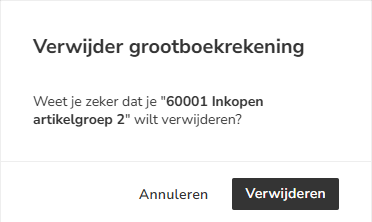
- click on the Delete button to actually delete the GL account.
ATTENTION!
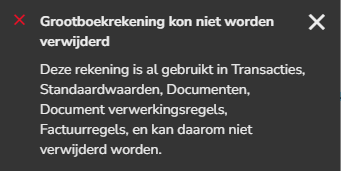
The GL account cannot be deleted if it is still being used in transactions, documents, default values, document processing rules and/or invoice lines.
Was this article helpful?
That’s Great!
Thank you for your feedback
Sorry! We couldn't be helpful
Thank you for your feedback
Feedback sent
We appreciate your effort and will try to fix the article