Disclaimer
All screenshots in the article were taken in the Dutch version of Nmbrs Accounting.
Which settings you can specify in a domain depends on the selected bundle (and any additional features added) and the role(s) you have as a user in the domain.
In Nmbrs Accounting, you can set the following domain settings:
- General
General information such as the owner and language of the domain, among others. - Contracts
View contract details, add or remove features to contract, cancel or reactivate contract. - Companies
All administrations included in this domain, create new administration and set up Fiscal unity if applicable. - Users
All users with access to this domain, grant or deny additional user access, delete user, assign role(s) to additional user, assign ‘Back office’ role to user if feature ‘Self-accounting’ is activated. - Messages
Which user per administration will receive messages from Nmbrs Accounting about VAT returns, points of interest, pay slips if applicable, and Peppol. - Tags
Put a “label” (tag) on specific data in the domain for easier retrieval.. - Tax authorities
Whether or not required approval of VAT return by entrepreneur before sending VAT return to tax authorities. - Block and close
Blocking and/or closing administration for audit or year-end purposes.
Users (domain settings)
The settings of your users determine, among other things, which users have access to one or more administrations in the domain and which role(s) they currently possess.
Add extra user(s) to domain
Adding one or more extra users to a domain (additional costs per added user per month) is only available when a user with the 'Management' role has selected the Medium, Large, or Unlimited bundle via the Store within the domain.
For a detailed description, see article Create user(s) in my domain or Create user(s) in domain.
Rights and roles
A user with the role 'Management' role has full control over who has access to the administration and what users are allowed to do there:
- grant or deny an additional user access to an administration
(see article Create user(s) in my domain or Create user(s) in domain) - delete user(s)
(see article Delete user(s) from domain) - view contacts
- assign one or more roles to an additional user
(see article Rights per user role in domain) - assign the role 'Back office' role to a user if the feature 'Self-accounting' is activated by the accountant
(see article Assign 'Back office' role (self-accounting) to user(s) in your domain).
Access to Users (domain settings)
To access:
- click on the Settings icon in the navigation bar
then, in the now-opened screen, in the Domain section click on Users.
Users with access to domain overview
The screen with all users with access created in this domain is always opened in the Default view.

Views
You can also indicate in the user's with access overview that one of the other views must be shown:
- User roles log
In the domain, a log is available that allows you to view which user at what time created a new user with one or more roles, deleted an existing user, or assigned or deleted a role with an existing user.
Only a user with the role ‘Management’ role can view the data in the log.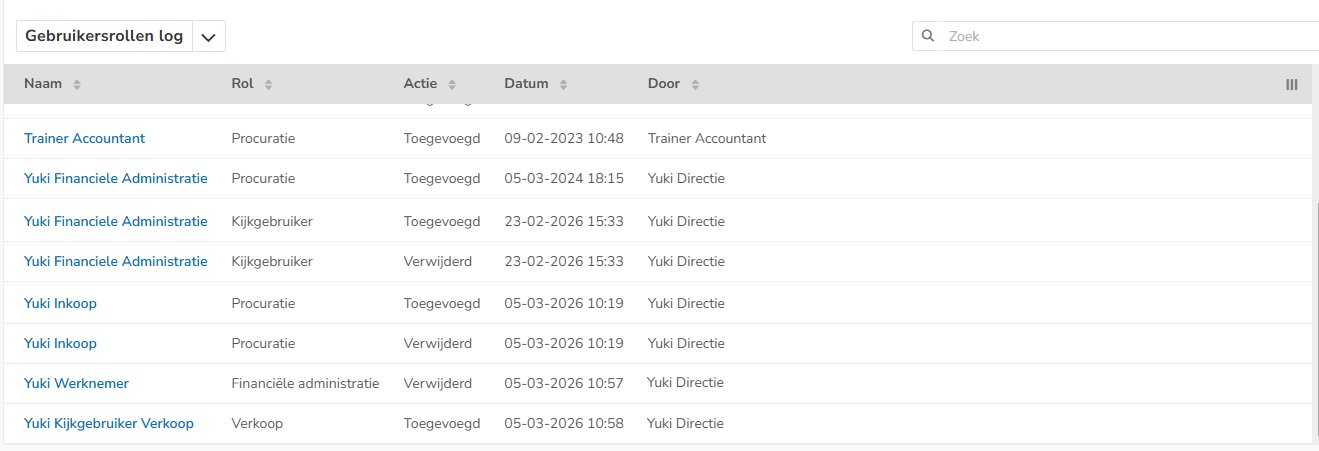
- Administration rights
This is the overview of which users have access to which administration(s) in the domain.
View contact
To view the contact of a document:
- hover over the line of that document
- click on the button with the three dots
- then select the View contact menu option from the dropdown menu.
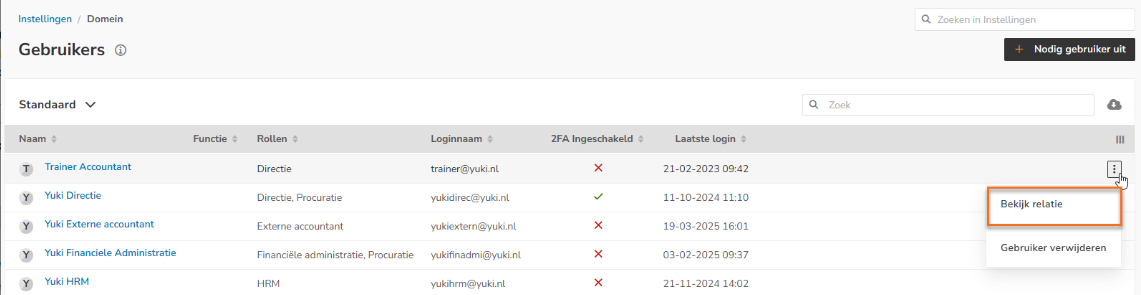
The contact card of the contact is opened.
Was this article helpful?
That’s Great!
Thank you for your feedback
Sorry! We couldn't be helpful
Thank you for your feedback
Feedback sent
We appreciate your effort and will try to fix the article