Disclaimer
All screenshots in the article were taken in the Dutch version of Nmbrs Accounting.
Which settings you can specify in a domain depends on the selected bundle (and any additional features added) and the role(s) you have as a user in the domain.
In Nmbrs Accounting, you can define the following personal settings:
- Preferences
Personal preferences regarding your desktop, the Archive, your email, etc. - My profile
Your contact card with all associated information. - Display settings
Personal settings regarding your navigation bar and the menu bars in all your screens. - Email accounts
Overview of your created email accounts.
Email account(s)
Within Nmbrs Accounting, you can use the Office functionality. This allows you to link your own external email address(es) to Nmbrs Accounting, enabling you to receive and send email directly from your domain. In this way, Nmbrs Accounting functions as a full-fledged web alternative to programs such as Microsoft Outlook.
Email handling in Nmbrs Accounting is based on the standard protocols POP3 (for retrieving email) and SMTP (for sending email).
Privacy and accessibility
Email is strictly personal. Nmbrs Accounting is therefore configured so that an email account is only visible to the owner of that specific account.
ATTENTION!
An accountant or back-office employee cannot configure this for another user. Because other users in the domain do not have access to your personal mailbox, every user is required to go through these settings themselves.
Access to Email account(s)
To access:
- click on the Settings icon in the navigation bar
- then, in the now-opened screen, in the Personal section click on Email accounts.
OR - click on the Email icon in the navigation bar
- then, in the nw-opened screen, click on Email accounts.
Set your email account
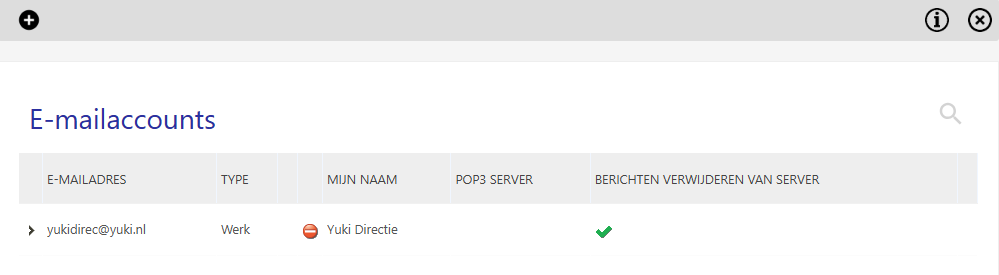
Here you can see an overview of your email accounts in Nmbrs Accounting.
This email account is separate from the email address from which Nmbrs Accounting sends the sales invoices, for a description of this see article Email sending options (email account and mail server) .
Create or change email account
Change email acount
To change the settings of the email account click on > in front of an email account.
Create email account
To create a new email account click on the + (New) button.
The following screen is opened:
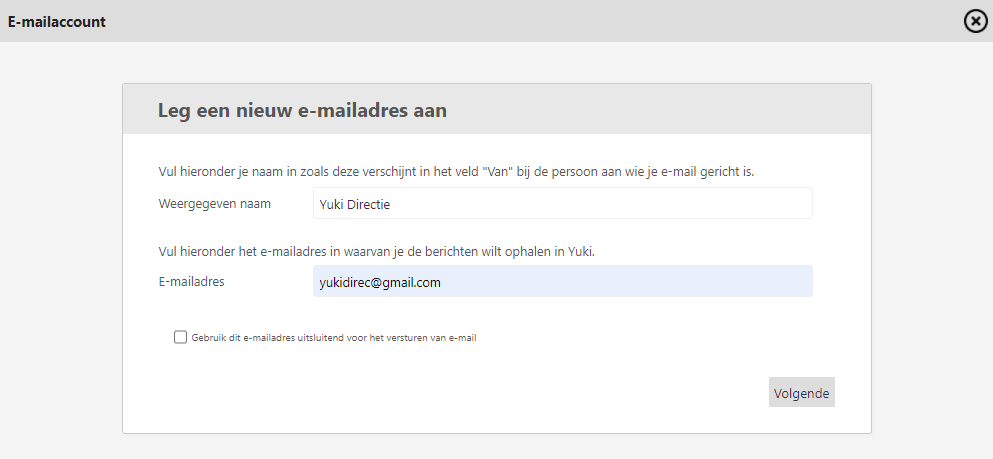
To create an email account, follow these steps.
Step 1. Use this e-mail address only for sending e-mail can be checked, in which case Nmbrs Accounting will not retrieve any email and will use this address only for sending email.
Click on the Next button which opens the following screen:
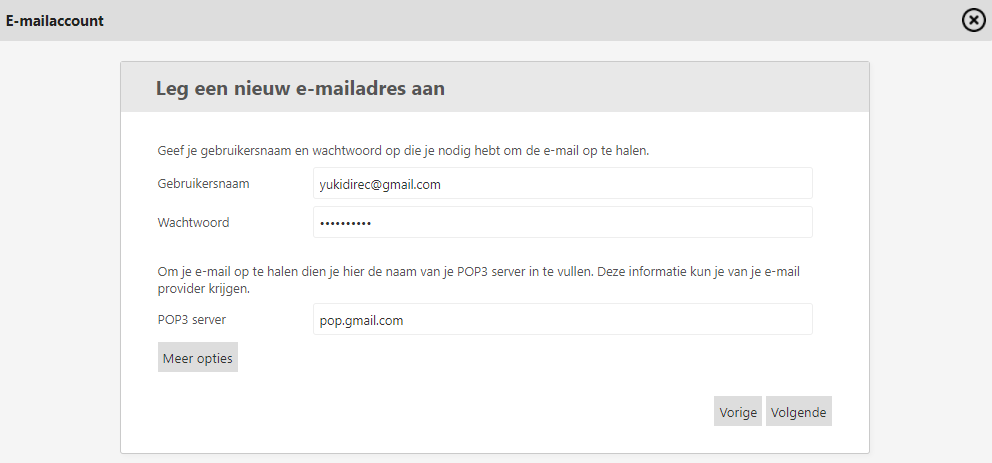
Step 2. This is where you enter the username and password. The username can be the same as the email address but it does not have to be. Using the email address you entered on the first screen, the software determines which POP3 server to use to retrieve the mail. It may happen that Nmbrs Accounting doesn't know which POP3 server to use and you will be asked to enter this yourself. Should this happen, first try mail."Your websitename".nl if that doesn't work, you should contact your provider.
Step 3. Click on the More options button so you can enter the advanced POP and SMTP settings.
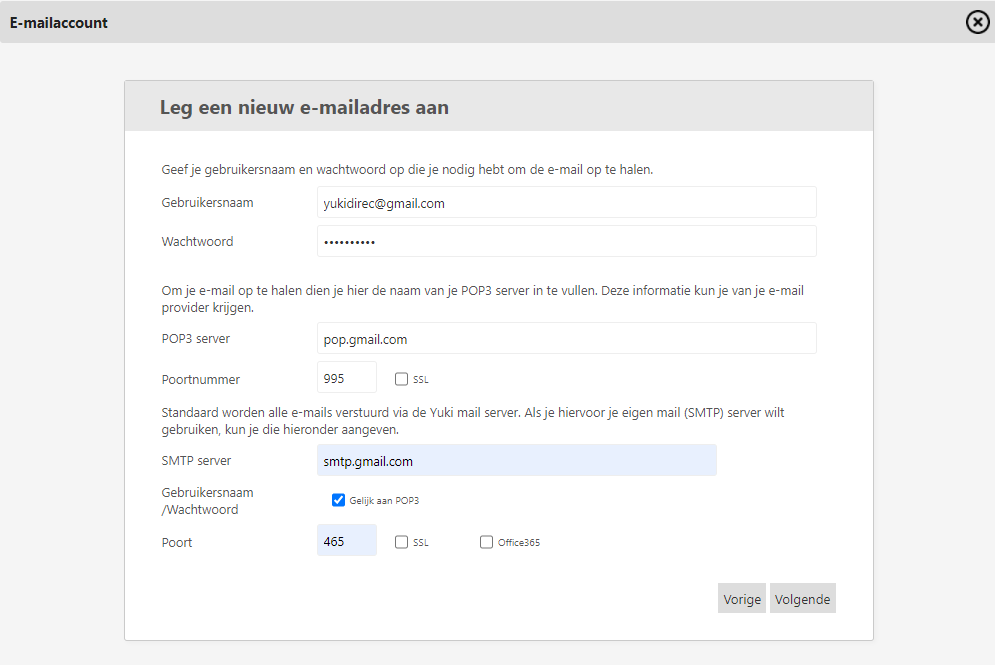
Step 4. Once you've entered your settings, the next screen allows you to specify whether you want all attachments included with the email to be saved directly to the archive. You can choose between the 'To be handled by Nmbrs' folder or the "Tp be filed by me" folder. You can also choose to have your messages deleted from the server after you receive them, but only if your provider allows this.
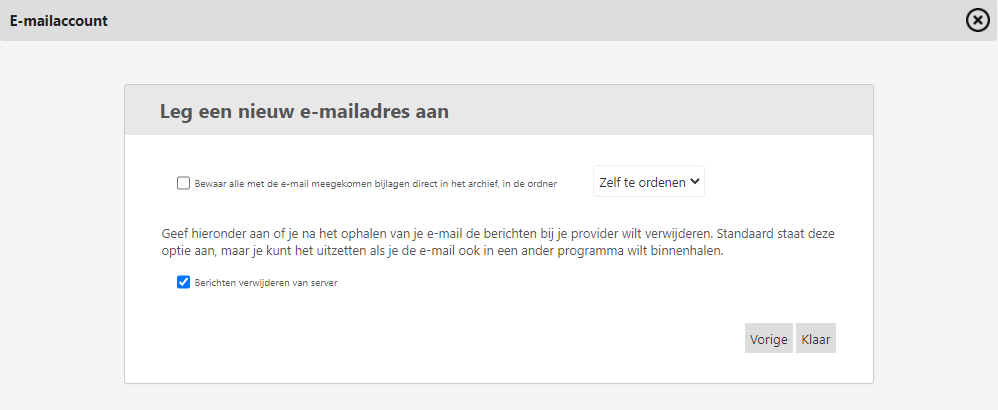
Step 5. If you click on the Done button, Nmbrs Accounting will verify the email settings and then send an email to the set email account to activate the account. After confirmation, you can use your email address.
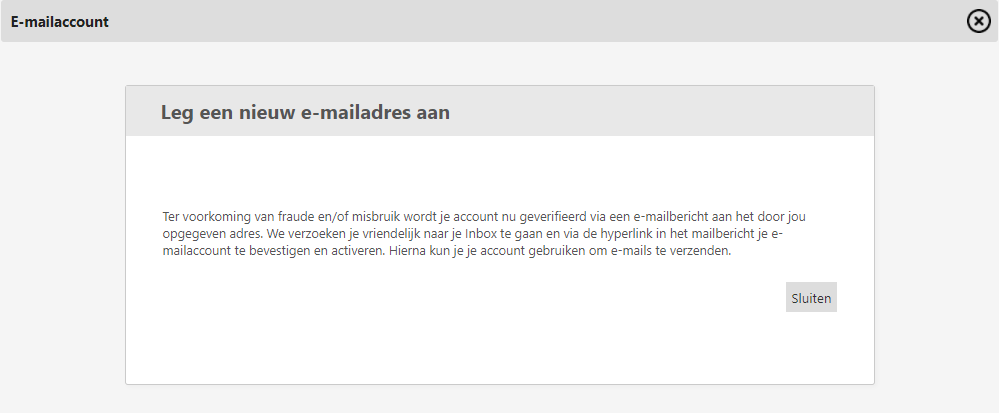
If you have chosen to only send your mail with Nmbrs Accounting, you will not get the mail in Nmbrs Accounting and you will have to do the verification from another place, e.g. Outlook.
Was this article helpful?
That’s Great!
Thank you for your feedback
Sorry! We couldn't be helpful
Thank you for your feedback
Feedback sent
We appreciate your effort and will try to fix the article