Disclaimer
All screenshots in the article were taken in the Dutch version of Nmbrs Accounting.
The Sales functionality consolidates all information about customers and invoices.
The Sales functionality is only available when a user with the 'Management' role has selected the Small, Medium, Large or Unlimited bundle via the Store in the domain.
FOR FREQUENTLY ASKED QUESTIONS ABOUT THE SALES FUNCTIONALITY, SEE SALES ADVANCED FAQ!
Sales features
In the Sales functionality, you can use various features to generate invoices directly from Nmbrs Accounting:
- Quotations
In Nmbrs Accounting, you can create digital quotations based on your own quotation templates and send them directly to your customers via email or mail. You can view the status of each quotation at a glance: sent, pending, rejected, accepted, and invoiced. Additionally, if desired, you can convert an accepted quotations directly into a sales invoice.
Work lists and reports
You can also view a number of work lists, including draft quotations, sent quotations, and quotations to be invoiced. Reports are also available for items such as quotation history, the activity log, etc.
For a detailed description, see article Quotations. Invoices
Here, you can create sales invoices based on your own invoice templates and then send them to your customers by mail, email, or via Peppol.Work lists and reports
You can also view a number of wirk lists, including draft invoices, sent invoices, and overdue invoices.Reports are also available for items such as invoice history, bulk activity, etc.
For a detailed description, see article Invoices.Contracts
You can use contracts to automatically prepare and send recurring invoices.
Work list and reports
In addition, you can view a work list and several reports of all contracts created in an administration to prepare recurring invoices for a customer and, if required, send them automatically.
For adetailed description, see article Contracts.Before you start creating sales invoices, you must first add the sales items here.
You can also view several overviews here, including a list of all sales items created, sales history, and total sales per item.Price lists
Here you can see an overview of all price lists created in the domain. In Nmbrs Accounting, you can create additional price lists and change, delete, import, and/or export existing price lists.
You can also add sales items to a price list, change a sales item’s price status, and view a sales item’s price history.
Finally, you can also set up price agreements for a customer or a sales item.
Reports in Sales
The following overviews are available:
- Invoiced revenue per contact
Here you can see your total sales in a certain period per customer. - Invoiced revenue per project
Here you can see your total sales in a certain period per project.
Create sales invoices automatically
In addition to uploading and processing sales invoices or using the Sales functionality to create and send sales invoices, you can also create your sales invoices automatically via the Sales web service.
This web service allows you to create sales invoices in Nmbrs Accounting based on an imported XML message.
For example, this could involve importing sales invoices from an online store.
For a detailed description, see article Sales web service.
Access to Sales
To access the Sales home screen, click on the Sales icon in the navigation bar.
Sales home screen
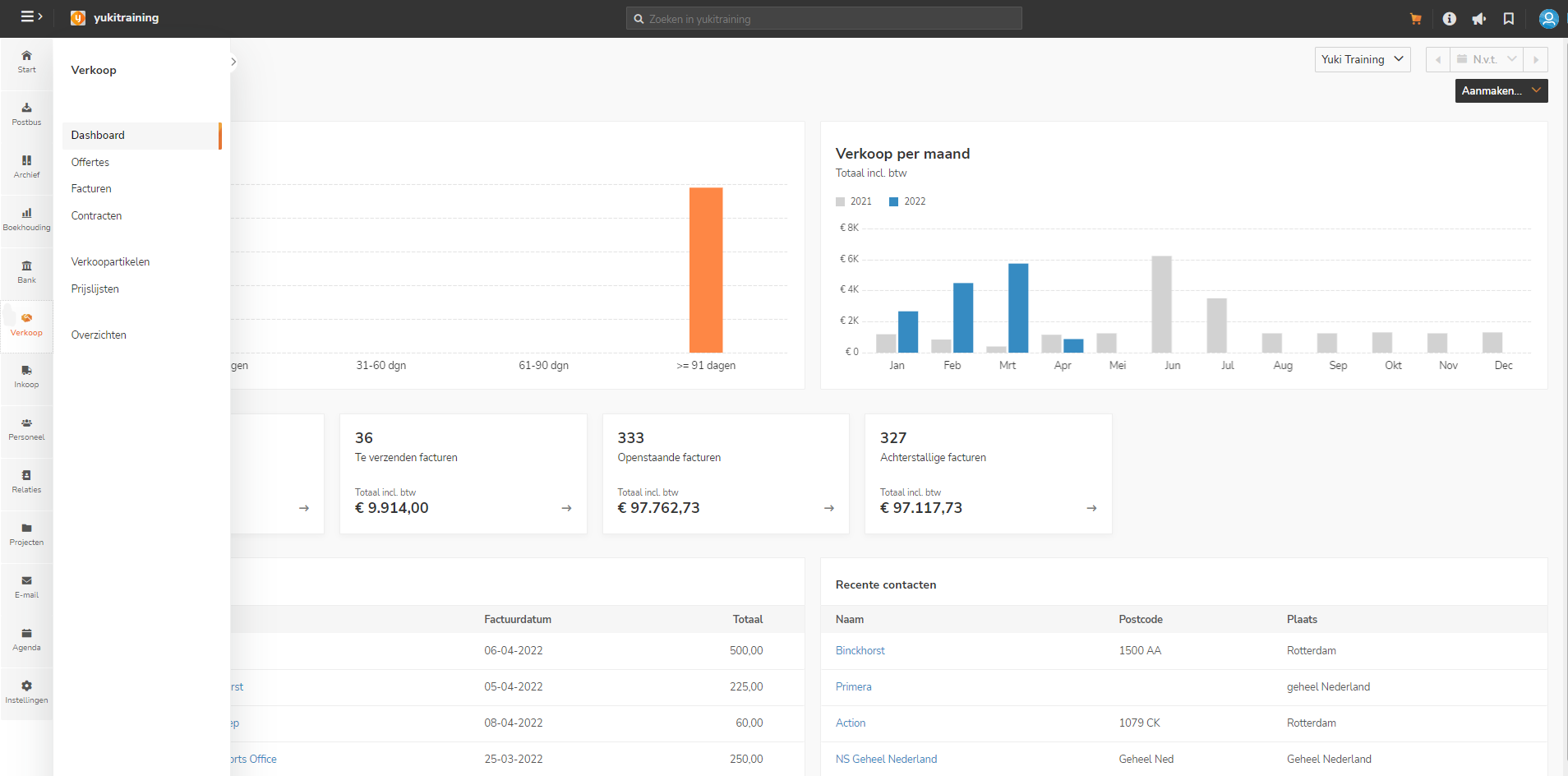
On the home screen of this functionality, you’ll see your sales ashboard.
The dashboard provides an up-to-date overview of what you still need to invoice, which invoices are pending, the total amount still outstanding, and your average DSO (an indication of how old your outstanding invoices are).
Was this article helpful?
That’s Great!
Thank you for your feedback
Sorry! We couldn't be helpful
Thank you for your feedback
Feedback sent
We appreciate your effort and will try to fix the article