Disclaimer
All screenshots in the article were taken in the Dutch version of Nmbrs Accounting
In Nmbrs Accounting, you can create sales invoices based on your own invoice templates and then send them to your customers by mail, email, or via Peppol.
You can also use a number of work lists, including draft invoices, sent invoices, and overdue invoices.
Reports are also available for items such as invoice history, bulk activity, etc.
Access to Invoices
To access:
- click on the Sales icon in the navigation bar
- then click on Quotations.
Invoices work lists and reports
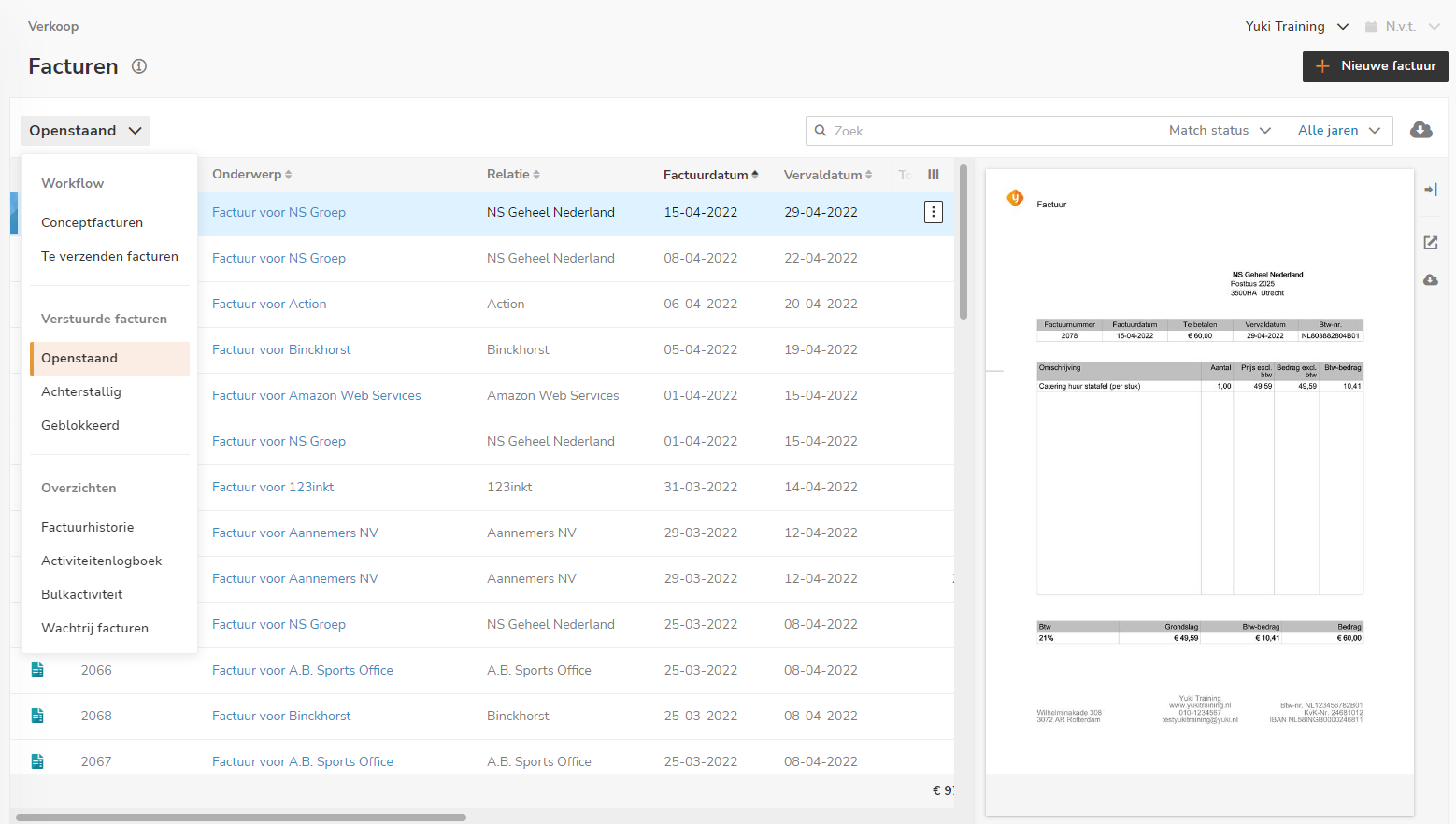
On this screen, select the workflow or sent invoices work list you want to use or the invoices report you want to view
Work lists of sales invoices worklow
The following work lists are available:
Work lists of sent sales invoices
The following work lists are available:
Invoices reports
The following reports are available:
Document viewer
Click on the line for the relevant invoice, then click on the Show/Hide button (the icon with the right/left arrow) to show or hide the document preview on the screen.
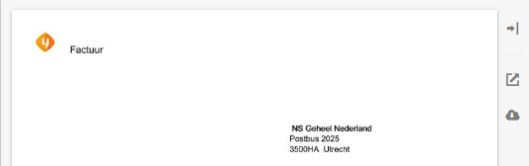
In addition, in the document viewer, you can:
- open the document in your browser (square icon with an arrow pointing to the top right)
- download the document (cloud icon with a downward arrow).
AVAILABLE USER ACTIONS
In a work list or report, a user can:
- create a new invoice
- download all data in the shown columns as a CSV file (Excel) or copy to clipboard
- search for data.
Create new invoice
To create a new sales invoice, click on the New invoice button.
For a detailed description, see article Create, send and handle sales invoice.
Download data as CSV file or copy to clipboard
To download all data in the shown columns:
- click on the Download button (Cloud icon with down arrow)
- then select Download as CSV or Copy to clipboard from the dropdown menu.
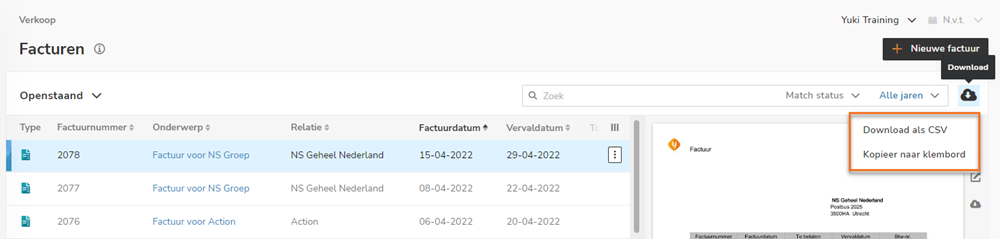
The name of the downloaded CSV file is:
- SalesInvoicesDatalist_Draft-invoices_[Today's date].csv
- SalesInvoicesDatalist_Invoices-ready-to-be-sent_[Today's date].csv
- SalesInvoicesDatalist_Outstanding_[Today's date].csv
- SalesInvoicesDatalist_Overdue_[Today's date].csv
- SalesInvoicesDatalist_Blocked _[Today's date].csv
- SalesInvoicesDatalist_Invoice-history_[Today's date].csv
- LogInvoicesDatalist_Activity-log_[Today's date].csv
- LogBulkInvoicesDatalist_Bulk-activity_[Today's date].csv.
Search for data
The search bar can be used to search for:
- (part of a) name
The search result now shows all data in which this name has been entered in, for example, the 'Description', 'Subject', 'Name', 'Company name' or 'Contact' field. - number
The search result now shows all data where the number is entered in, for example, the 'Description', 'Subject', 'Name', 'Company name' or in a numeric field such as 'Invoice number'. - amount
You can search for an exact amount by entering this amount in the search field, for example, '54,45' or '54.45'. - date
You can search for a specific date by entering it as:- 31/08/2020
- 31-08-2020
- 310820
- 31082020.
Targeted search
You can also perform a targeted search using different search terms. After each search, the search result can be further specified by adding a new search term.
Was this article helpful?
That’s Great!
Thank you for your feedback
Sorry! We couldn't be helpful
Thank you for your feedback
Feedback sent
We appreciate your effort and will try to fix the article