Disclaimer
All screenshots in the article were taken in the Dutch version of Nmbrs Accounting.
From a domain, you can view the details of your contract with Nmbrs Accounting.
Permissions and roles
Viewing contract data is a privacy-sensitive matter. Therefore, only the following roles are authorized to view the contract:
- Domain qwner (must have the 'Management' role)
- Management
- Financial administration
- External accountant
- Back office.
Access to contract
To access:
- click on the Switch domain icon above the navigation bar
- click on My domain.
OR - click on the Settings icon in the navigation bar
- then, in the now-opened screen, in the Domain section click on Contracts.
Contract details overview
The domain contract details screen is always opened in the Active contracts view.
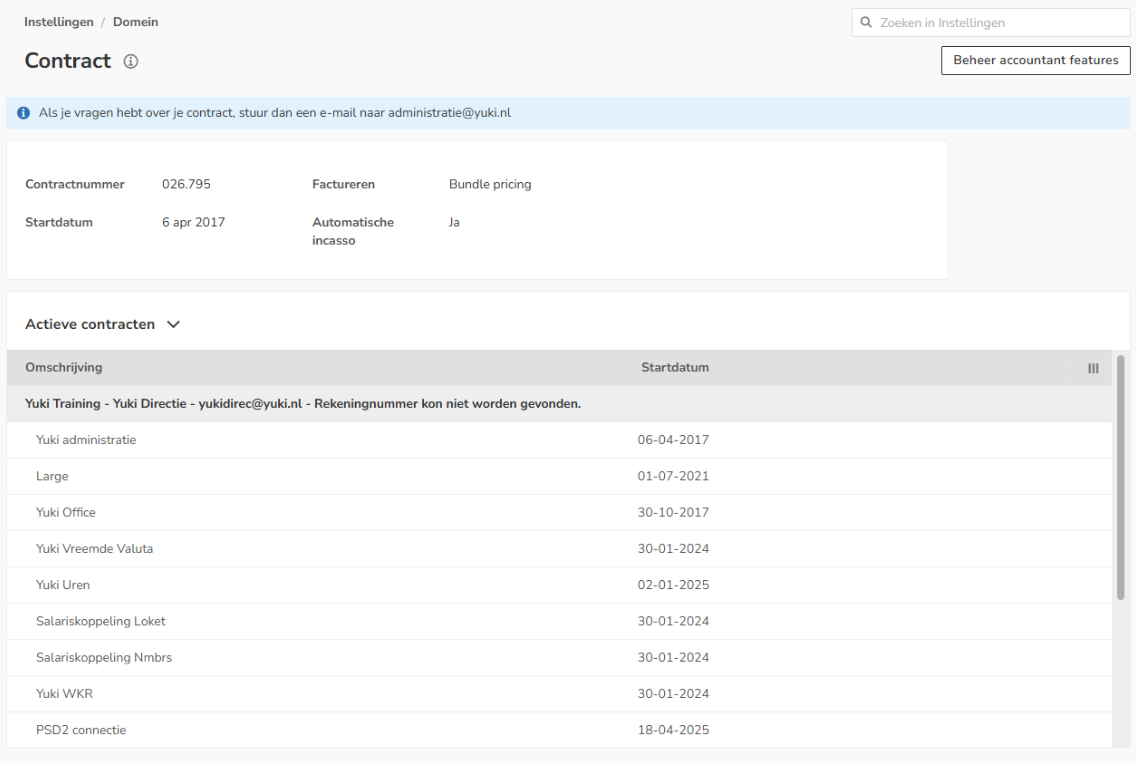
In this screen the following domain contract details are shown:
- contract number
- start date
- invoicing
To whom is the invoice addressed, email address for the invoice, direct debit details - active contracts / inactive contracts
Per contract, the following details are shown:- the administration name
- the addressee of the invoice (contact person of administration)
- the email address to which the invoice is sent (email address of contact person)
- the bank account number to be used for billing
- the chosen bundle
- any additional features such as Foreign currency, Hour registration, etc.
AVAILABLE USER ACTIONS
From this screen, a user can:
- view the company profile.
From this screen, a user with the 'Backoffice' role in the domain or a user with the 'Management' role can:
- add or remove features from the contract.
From this screen, a user with the 'Portal administrator' role or the domain owner with the 'Management' role can:
- cancel or reactivate an administration's contract.
View company profile
To view the company profile of an administration:
- hover your mouse over the contract line for that administration
- click on the button with the three dots
- then select the View company profile menu option from the dropdown menu.

The company profile is now opened.
Add to or remove features of contract
To add to or remove additional functionality or features of the contract:
- click on the Add accountancy features button at the top right of the screen
- in the now-opened screen, you can add to or remove the respective features of the contract by checking or unchecking them respectively.

- Then click on the Save button.
Cancel or reactivate contract for administration
To cancel the contract for an administration:
- hover your mouse over the contract line for that administration
- click on the button with the three dots
- then select the Cancel contract menu option from the dropdown menu.
ATTENTION!
This can only be done when there is more than one administration in the domain.

For a detailed description, see article Cancel or reactivate contract for administration.
Was this article helpful?
That’s Great!
Thank you for your feedback
Sorry! We couldn't be helpful
Thank you for your feedback
Feedback sent
We appreciate your effort and will try to fix the article