Disclaimer
All screenshots in the article were taken in the Dutch version of Nmbrs Accounting.
In the bank account overview, the Consistency check column indicates with an icon whether there is a bank inconsistency in the transactions of a bank account.
TIP!
Before you start looking for the cause of a bank inconsistency, Nmbrs Accounting always has the inconsistency redefined first. To do this, click on the red triangle with the exclamation mark in the top left corner of the screen.
Types of bank inconsistencies
Nmbrs Accounting knows two inconsistencies at the bank:

Nmbrs Accounting cannot check the balance because the bank does not include balance information in the bank files you provided. Check your balance regularly using the paper statements you still receive from the bank. Contact the Nmbrs Accounting Support team if there are missing transactions.
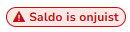
Nmbrs Accounting has found that transactions are missing. The balance likely differs from the actual balance.
Check if you are missing transactions from certain days and re-export them from your bank's website.
View bank inconsistency
Hover your mouse over the Bank icon in the navigation bar and click on Bank accounts. In the now-opened screen, click on the name of the relevant bank account and open the Statements view.
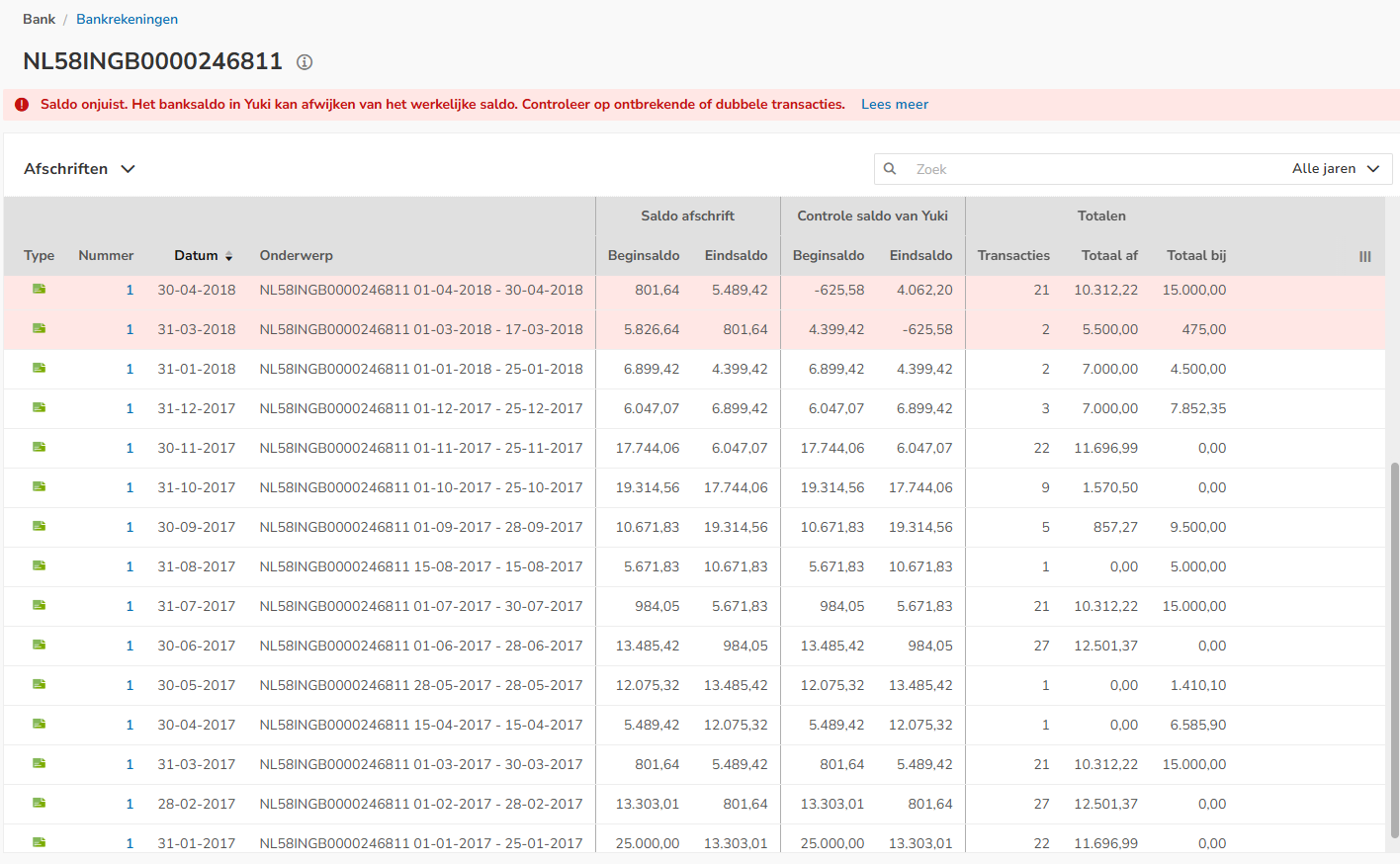
If all the statement lines are white, there is no bank inconsistency present. This is in contrast to the example shown below.
The columns Check balance from Nmbrs (Opening and Closing balance) is only visible to a user with a 'Back pffice' role in the domain.
Color usage
If the opening and/or closing balance of the statement differs from the balances on the GL account number on the same day, the statement lines will be colored red:
- White: the opening and closing balances calculated by Nmbrs Accounting are equal to the balance provided by the bank.
- Red: The opening balance calculated by Nmbrs Accounting does not match the closing balance of the line below, or the closing balance calculated by Nmbrs Accounting does not match the opening balance of the line above.
Even though all the transaction lines in the overview are red, there is no bank inconsistency as long as the bank's closing balance matches Nmbrs Accounting's control closing balance. The problem usually lies where the final balances differ.
TIPS!
To detect possible duplicate transactions, you can follow these steps:
- Calculate the difference between Nmbrs Accounting's latest check closing balance and the bank's latest closing balance.
- Search for this amount using the search bar.
- Hover your mouse over the Bank icon in the navigation bar, then click on Electronic statements. In the now-opened screen, click on the Duplicate lines button. See if you can find the amount there.
Possible causes of bank inconsistencies
- Unsubmitted statements
- Duplicate transaction lines on statement
- Inconsistency that isn't an inconsistency
- Missing transaction lines (on the same day)
- Transaction lines incorrectly marked as duplicates
- Import skips transaction line
- Combination of transactions provided in CSV and MT940 format
- Combination of automatically and manually provided transactions (ABN AMRO).
Was this article helpful?
That’s Great!
Thank you for your feedback
Sorry! We couldn't be helpful
Thank you for your feedback
Feedback sent
We appreciate your effort and will try to fix the article