Disclaimer
All screenshots in the article were taken in the Dutch version of Nmbrs Accounting.
The Workspace in the Nmbrs Accounting app continuously monitors your administration. It instantly displays any action items requiring your attention to keep your bookkeeping up to date.
Review these items carefully and resolve them after viewing. Take action where necessary so that your Workspace always reflects what needs to be done to keep your accounts in order.
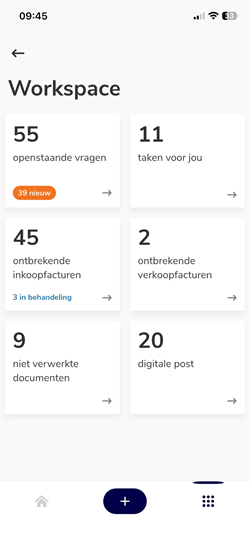
Outstanding questions
This overview shows questions addressed to you, questions for your accountant (currently being processed), or all questions within a selected period.
You can filter by specific periods (year, quarter, month) or search by the question's creator or content.
Ask new general question
To ask a new general question:
- tap the question mark in the top right corner
- type your message
- optionally add an attachment using the paperclip icon (via Archive, gallery, folder, or photo)
- tap Send.
Resolve question or notification
To resolve a question or notification:
- Notification from Nmbrs Accounting or your accountant: select Completed or Forward at the bottom of the screen.
- Question from your accountant: select Forward or Reply.
- Question answered by your accountant: select Completed or Reply.
Approve VAT return
Is the 'Customer approval for VAT return' setting enabled? Tab Approve to send the return directly to the tax authorities.
Tasks for you
An overview of tasks assigned to you, created by you (pending), or already completed (history).
You can filter by priority, task type, or date.
ATTENTION!
Absence requests submitted by an employee that require manager approval will also appear in the relevant manager's list of open tasks (under the 'Approve absence' task).
For a detailed description of how to use the various task types in Nmbrs Accounting, see article Tasks.
Create new task
To create a new task:
- tap the plus sign (+) in the top right corner
- select the type (Task or Release for payment)
- enter the details (optionally add a document or photo)
- tap Create.
For a detailed description of task types, see article Task types.
Complete tasks
Open a task to view its details, subtasks, and attachments.
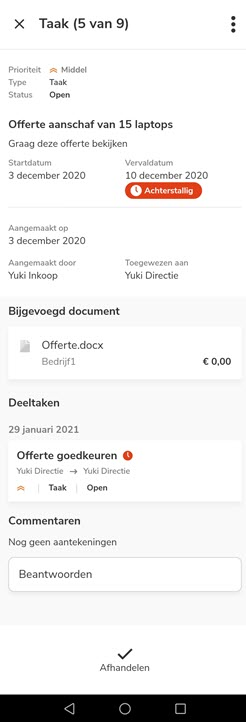
Then, select one of the following options at the bottom of the screen or via the menu (three dots):
- Complete: mark the task as finished.
- Edit: modify the task details.
- Assign (Forward): assign the task to a colleague, for example, for review.
- Delete: delete the task.
- Add comment: type a note under Comments and click Send. This remains visible to anyone who opens the task.
Process absence registration
Open the absence registration.
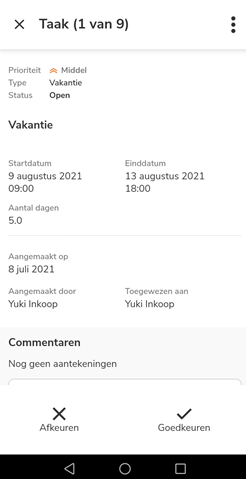
Then, select Approve or Reject (including an optional reason) at the bottom of the screen.
You can also Edit, Assign, or Delete the absence registrarion.
Missing purchase and sales invoices
Here, you can see, per contact, which payments are missing a corresponding invoice, or which uploaded invoices still need to be matched with a payment.
Process outstanding payment
Open the payment.
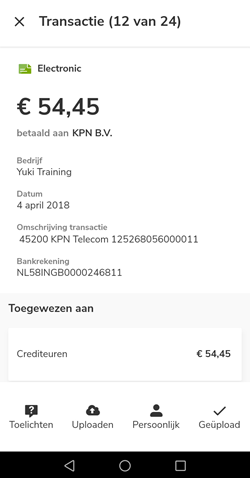
Then, select from the bottom of the screen:
- Explain: provide an explanation to your accountant (e.g., if the invoice has been booked incorrectly).
- Upload: immediately upload the missing purchase or sales invoice.
- Personal: (Purchases only) mark the expense as a private transaction.
- Uploaded: indicate that the document has now been submitted.
For a detailed description of the completeness of purchases or sales, see the article Completeness of purchase or Completeness of sales.
Unprocessed documents
Documents or bank files that the back office could not process for various reasons:
- the document is incomplete
- the file contains multiple invoices or receipts
- the document is wholly or partially illegible
- the document has already been submitted and processed
- the file cannot be opened by Nmbrs Accounting
- the import file contains incorrect data
- according to Nmbrs Accounting, the document does not need to be processed in the administration
- the document has been marked as spam.
Handle unprocessed document
Open the document.
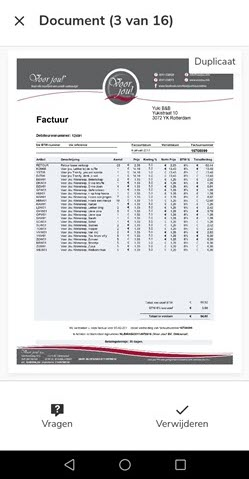
Then, select one of the following options at the bottom of the screen:
- Ask: ask a question or provide an explanation to your accountant if you disagree with the rejection.
- Upload: submit a new, complete, or corrected document (not available for duplicates).
- Remove: delete the document if the rejection was justified or after you have resubmitted it.
For a detailed description of the not processed documents, see the article Files not processed.
Digital mail
This is a list of documents received via external sources (such as email, Dropbox, or Google Drive). Documents that have been processed are assigned the status "Handled."
Process received file
Open the file.
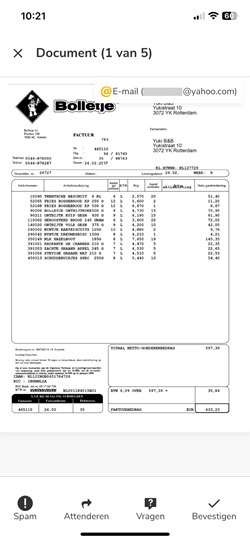
Then, select one of the following options at the bottom of the screen:
- Spam: mark emails as spam. The sender is immediately added to a blacklist.
(see articles Spam and Spam settings). - Notify: forward the file to a colleague to draw their attention to it.
- Ask: ask your accountant a question about the file.
- Confirm: approve the file. The document is removed from the alert list.
Was this article helpful?
That’s Great!
Thank you for your feedback
Sorry! We couldn't be helpful
Thank you for your feedback
Feedback sent
We appreciate your effort and will try to fix the article