Disclaimer
All screenshots in the article were taken in the Dutch version of Nmbrs Accounting.
When you open your Nmbrs Accounting app on your smartphone to log in to your domain in Nmbrs Accounting, the following login screen is opened:
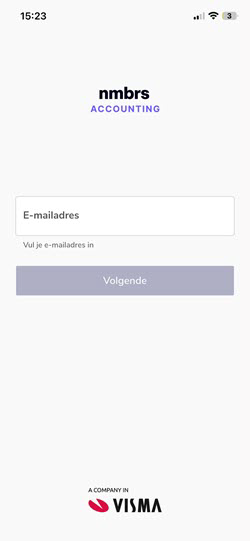
Step 1. Enter username
Enter a valid email address (username) here that identifies you as a user across all portals, domains, and administrations within Nmbrs Accounting.
ATTENTION!
If you are a user with the 'Management' role and wish to log in to Nmbrs Accounting for the first time, you can only do so via the web version of Nmbrs Accounting.
Click on the Next button.
You will then be automatically redirected to Visma Connect.
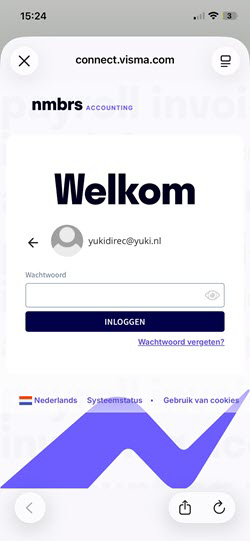
Step 2. Enter password
Enter the password here. and then click on the LOG IN button.
If you have forgotten your password, click on Forgot password? on this screen.
For a detailed description of how to set a new password, see article Forgot password.
Specific password requirements
Nmbrs Accounting has specific password requirements to ensure security. These guidelines ensure your password is strong enough to prevent unauthorized access.
For a detailed description of these guidelines, see article Password policy.
TIP!
You can also use a PIN instead of a password when logging in. You set this PIN once in the Nmbrs Accounting app settings.
For a detailed description, see article Nmbrs Accounting app settings.
Step 3. Enter the six-digit code from the Authenticator app
When logging in with Visma Connect, after entering your username and password, you must also enter the 6-digit code generated by the Google, Microsoft, or Visma Authenticator app on your mobile phone.
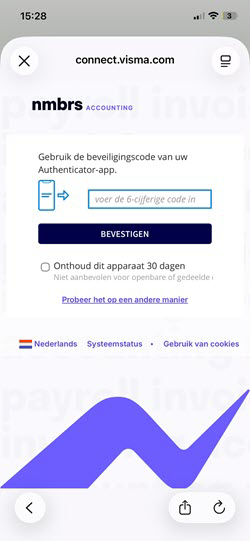
Enter your six-digit code and click on the CONFIRM button.
You are now logged into the Nmbrs Accounting app.
Use fingerprint or facial recognition instead of a password or PIN code (not available for Android)
You can also use fingerprint or facial recognition (iPhone) in the Nmbrs Accounting app instead of a password or PIN code if your smartphone supports it.
To set up fingerprint or facial recognition on your Nmbrs Accounting app:
- log in to the Nmbrs Accounting app
- tap the gear icon in the top-right corner of the screen to open the Nmbrs Accounting settings
- under Login options, enable fingerprint or facial recognition (or fingerprint authentication).
From now on, to log in to the Nmbrs Accounting app immediately, without having to type in a password or 2FA code, simply place your finger on the scanner or look into the camera.
Was this article helpful?
That’s Great!
Thank you for your feedback
Sorry! We couldn't be helpful
Thank you for your feedback
Feedback sent
We appreciate your effort and will try to fix the article