Disclaimer
All screenshots in the article were taken in the Dutch version of Nmbrs Accounting.
With the Nmbrs Accounting app for your smartphone, you as an entrepreneur have instant access to your own domain and administrations at all times. Depending on your user role and bundle, you can easily view your accounts, submit documents, and perform tasks while on the go.
FOR FREQUENTLY ASKED QUESTIONS ABOUT THE NMBRS ACCOUNTING APP, SEE NMBRS ACCOUNTING APP FAQ!
Download and install
The Nmbrs Accounting app is available for free for iOS and Android:
- iPhone: Download via the Apple App Store.
- Android: Download via the Google Play Store.
Important for first-time use
When launching the app for the first time, grant it permission to access your device's camera and files/media. This is necessary to take and upload photos of receipts and invoices.
Log in
Open the app and use the same login credentials you use for the web version of Nmbrs Accounting.
Biometric login
You can also log in using Face ID / Touch ID (iPhone) or fingerprint authentication (Android), provided your device supports this.
ATTENTION!
Users with the 'Management' role who are logging in for the first time must do so via the web version of Nmbrs Accounting.
For a detailed description, see article Log in via Nmbrs Accounting app.
Key features
Depending on your role and permissions, you can use the app to:
- View data:
- Outstanding questions (for you and your accountant).
- Points of attention in your domain (e.g., missing purchase or sales invoices).
- Outstanding tasks.
- Documents in your Archive folders.
- Charts in the financial Monitor.
- Contacts in your Address Book.
- Bank accounts, credit cards, and online payment providers.
- Submit documents: directly upload photos of receipts and invoices.
(See article Submit documents via Nmbrs Accounting app) - Approve invoices: directly approve invoices using the Workflow function.
(See article Approve invoices via Nmbrs Accounting app) - Copy text: quickly copy data such as question texts, bank transactions, task comments, and document and contact details.
Integrated payment features
Nmbrs Accounting Pay
What is it? A free digital business payment card with an associated Dutch IBAN payment account.
Capabilities: Contactless payment via your phone. All transactions are automatically processed directly into your accounting records.
For a detailed description, see article Pay (pay business expenses with digital Pay payment card).
Nmbrs Accounting Pay with Pay
What is it? A built-in feature for paying purchase invoices directly from the app.
Benefit: You no longer need to create separate payment files (SEPA/PAIN); invoices can be settled individually from within the app.
For a detailed description, see article Pay with Pay (pay invoices via Nmbrs Accounting app).
Navigation & Home screen
The home screen gives you immediate access to the app's key features.
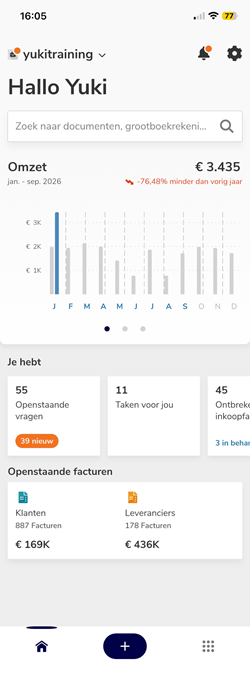
Select domain (Top left)
Do you have access to multiple domains? Easily switch between different domains here to view the relevant data, points of attention, and documents.
Notifications (Top right – bell icon)
View push notifications regarding questions or tasks assigned to you.
VAT return
If a VAT return is ready for the tax authorities, a notification for it will appear on the home screen.
Settings (Top right – gear icon)
Manage your profile, general preferences, notifications, login options, subscription, and legal information. You can also log out here.
For a detailed description, see article Nmbrs Accounting app settings.
Financial Monitor (Charts)
Instantly view key financial metrics, such as:
- Revenue & Operating expenses
- Assets & Liabilities
- Accounts receivable & Accounts payable (including aging analysis)
- Bank balance & Working capital
- Financial health (Solvency and Profitability).
TIP!
A maximum of 3 charts are displayed on the home screen. You can choose which 3 charts appear and in what order via the settings. Tap a chart to refresh the data or change the financial year.
Points of attention
Four tiles provide immediate insight into the status of your administration:
- Outstanding questions
- Tasks for you
- Missing purchase invoices
- Missing sales invoices.
For a detailed description, see article Nmbrs Accounting app Workspace.
Outstanding invoices
View the outstanding balances for customers and suppliers at a glance. Click on a balance to view the breakdown (grouped by age or by business relation).
Search function
Search your entire domain by keyword, name, number, amount, or date.
TIP!
The available categories and search results depend on your role(s) within the domain. Any data in the search results that you do not have access to based on your role(s) will not be displayed on your screen.
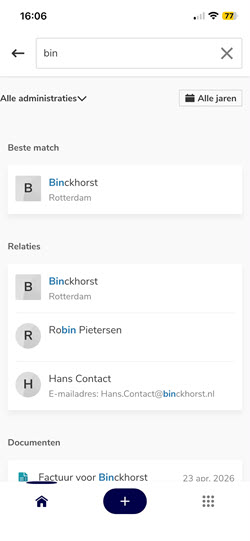
- Search categories: Contacts, Documents, General ledger accounts, Statement lines, Tasks, and Back-office questions/answers.
- Filters: Further filter search results by administration or specific period.
- Best match: Nmbrs automatically displays the most relevant search result at the top.
For a detailed description, see article How does Search function work within domain?
Home button (House icon – Bottom left)
Return directly to the home screen from any screen.
Upload new files (Orange button – Bottom center)
Tap the orange button to instantly upload a photo or document to your administration.
Discover (9 dots – Bottom right)
Quickly navigate to your Archive, Accounting, Contacts, or Bank details.
For a detailed description, see article Discover data via Nmbrs Accounting app.
Was this article helpful?
That’s Great!
Thank you for your feedback
Sorry! We couldn't be helpful
Thank you for your feedback
Feedback sent
We appreciate your effort and will try to fix the article