Disclaimer
All screenshots in the article were taken in the Dutch version of Nmbrs Accounting.
It may happen that certain documents or files you send to Nmbrs Accounting cannot be processed by the back office. If this occurs, the back office will mark these files as 'Cannot be processed'. You can then find them in your PO Box under 'Unclear transactions', so you can determine for yourself what action is needed.
Why was a document not processed?
The back office may reject a document or bank file for various reasons:
- Incomplete: The document is not complete (for example, a page is missing).
- Multiple documents in a single file: The file contains multiple separate invoices or receipts that must be submitted individually.
- Unreadable: The document is wholly or partially illegible (for example, a blurry photo or a poor-quality scan).
- Duplicate: The document has already been submitted and processed in the administration.
- File damaged: Nmbrs Accounting cannot open or read the file.
- Incorrect data: The (bank) import file contains incorrect or incomplete data.
- Not relevant: According to Nmbrs Accounting’s rules, the document does not belong in or does not need to be processed in this administration.
Permissions and roles
Processing files
Only users with one of the following roles can actually change and process not processed files:
- Management
- Financial administration
- External accountant.
View Only (Read permissions)
Users with the Back office role in the domain have read-only access. They can view the not processed files but do not have the rights to process them.
Access to Not processed
To access:
- click on the PO Box icon in the navigation bar
- in the now-opened screen, under Needs attention click on Not processed.
Not processed
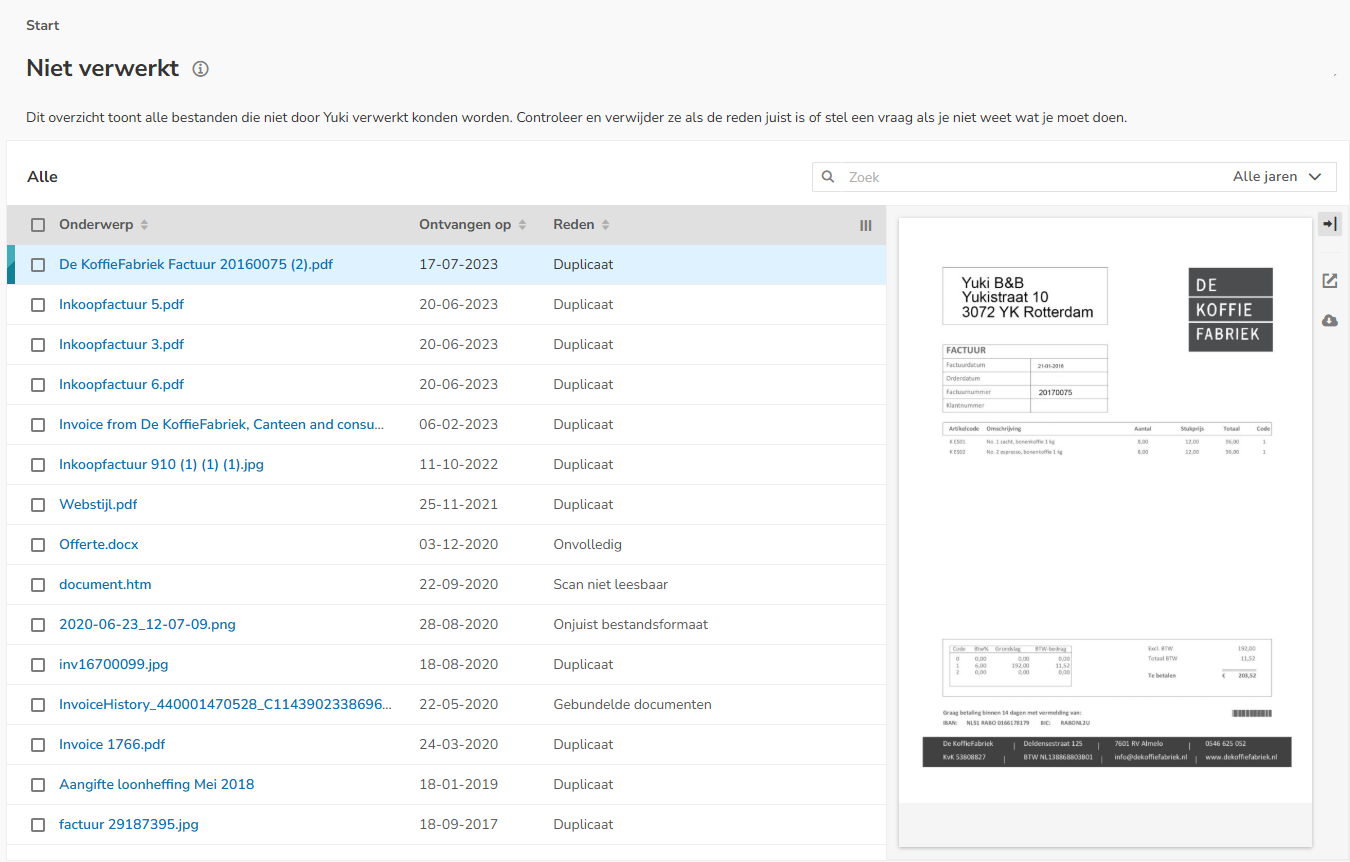
When you open the list of not processed documents, you’ll immediately see a preview of the selected document on the right side of the screen. You can easily scroll through the list using the arrow keys on your keyboard.
'Reason' column
The Reason column indicates why the back office or accountant was unable to process the document.
AVAILABLE USER ACTIONS
- handle not processed documents
- ask a question about a file
- upload one or more files
- delete one or more files.
Handle not processed documents
| Reason | Problem | Action |
| Incomplete | A page is often missing, such as a continuation page or the back of the document. | Rescan the entire document (all relevant pages) and resubmit it. |
| Bundled documents | Multiple receipts have been scanned at once, or several invoices have been combined into a single PDF file. | Submit receipts or invoices separately. Exception: under certain conditions, this is permitted (see article Scan multiple receipts as single document). |
| Scan unreadable | The scan or photo is blurry or unclear, making it impossible to read or record the relevant information. | Rescan the receipt or invoice. Check beforehand to make sure all text and amounts are clearly readable. |
| Duplicate | The document closely resembles an invoice or receipt that has already been posted (likely a duplicate submission). | Check the Archive to see if the document has already been processed. Note: it may also be a reminder or an order form. Does the document still need to be entered? If so, please contact the back office. |
| Incorrect file format | The file cannot be opened because its format is unknown or unsupported. | Check the file extension. A common mistake is using a double extension, such as document.march.pdf. Change this to a standard format. |
| Incorect data | The import file (for the bank or a journal entry) does not meet the strict formatting requirements. | Bank file: Check whether the format is supported. Journal entry: Check whether the content and columns comply with the import rules. |
Ask question about file
If you disagree with Nmbrs Accounting or the accountant's conclusion that the document cannot be processed, you can ask a question to bring the document back to the attention of Nmbrs Accounting or the accountant.
To ask a question about a file:
- hover your mouse over the line of the file in question
- click on the button with the three dots
- then select the Ask a question menu option from the dropdown menu.
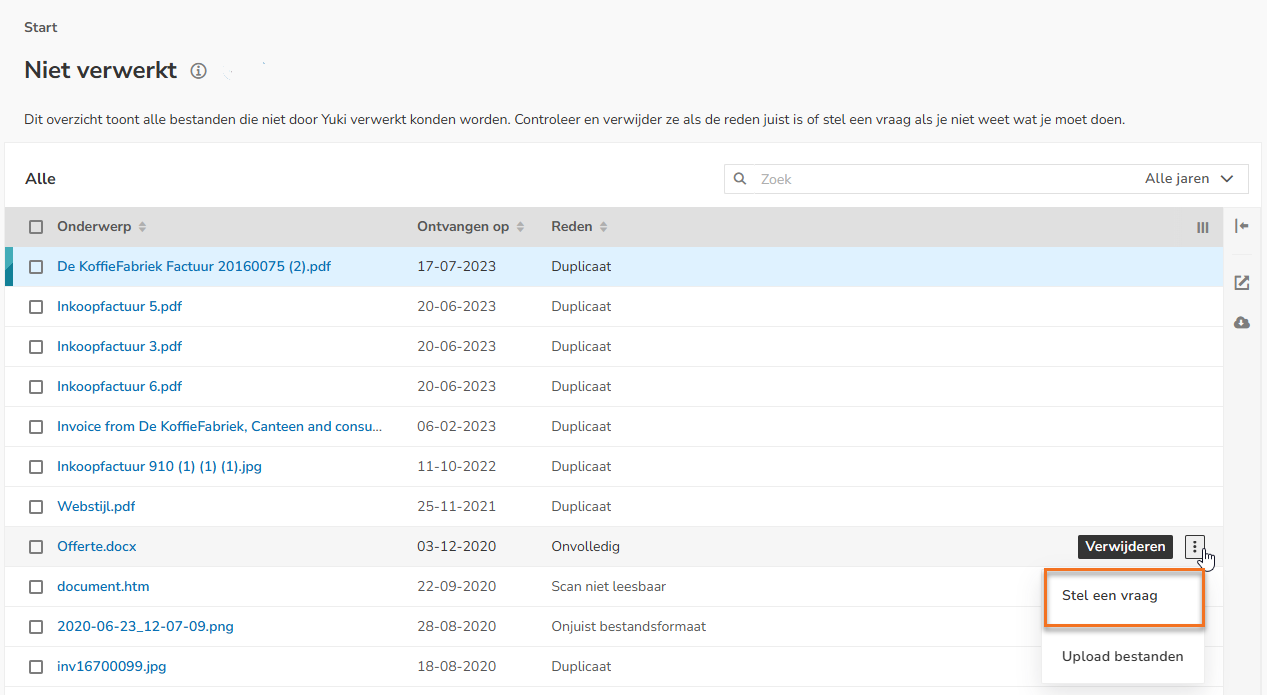
The following screen is opened: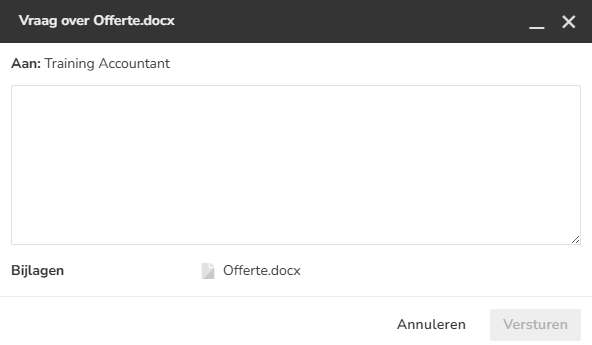
- in the text box, provide a brief explanation or additional information about the document
- then click on the Send button so that it can still be processed.
Upload file(s)
You can submit a new, complete or enhanced version of the document, if necessary.
To upload one or more files:
- hover your mouse over the line of the file in question
- click on the button with the three dots
- then select the Upload files menu option from the dropdown menu.
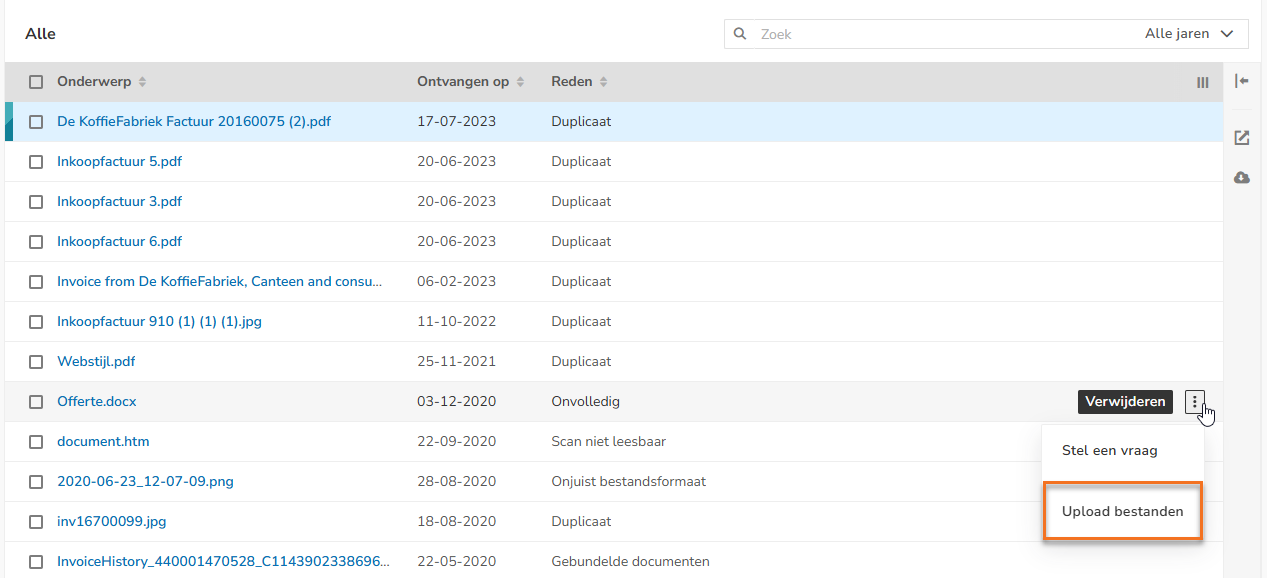
The following screen is opened: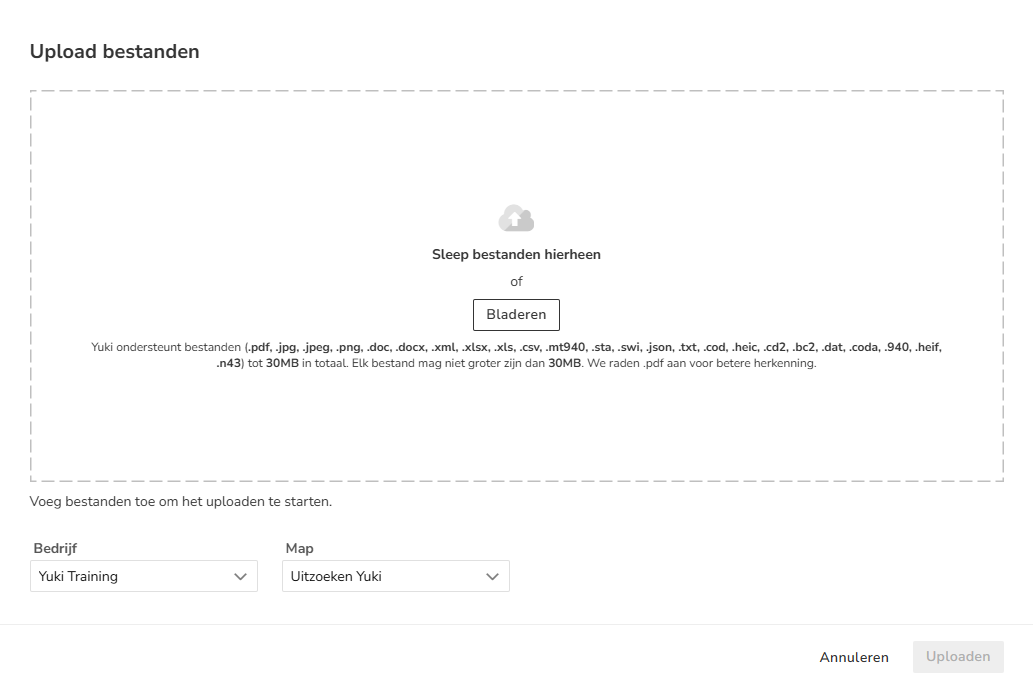
- find and select the file you want to upload
- then click on the Upload button.
If you have uploaded one or more files, you can delete the corresponding documents from this list.
Delete file(s)
To delete documents because you have uploaded them again:
- select the documents that you want to delete
- then click on Delete at the top of the screen to actually delete the documents.
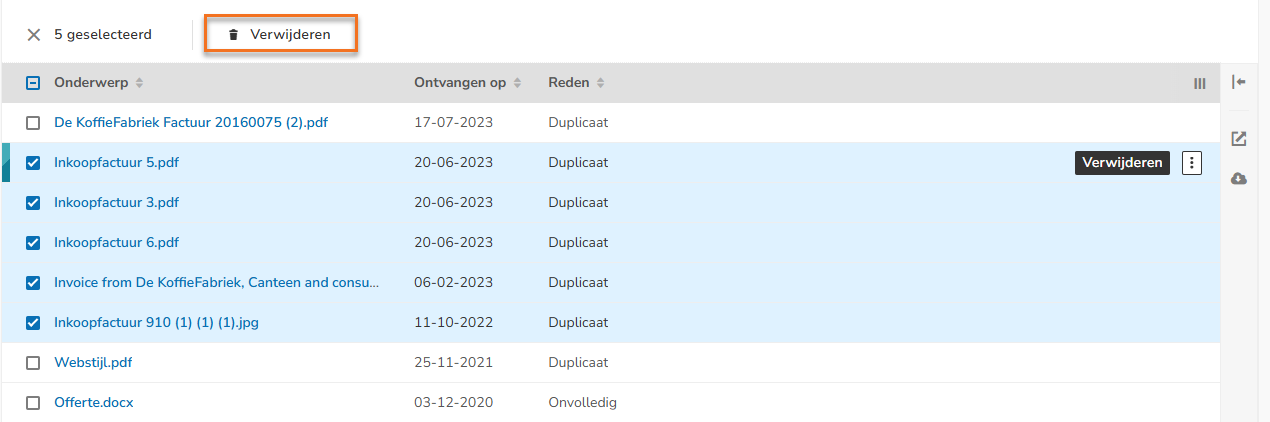
The following message appears on the screen: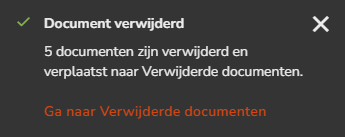
The documents disappear from the list of not processed documents.
Delete one document
To delete one document:
- hover your mouse over the line of the file in question
- then click on the Delete button.

The following message appears on the screen: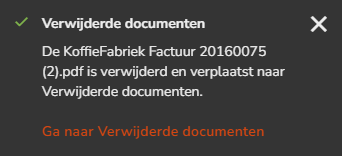
The document disappears from the list of not processed documents.
Was this article helpful?
That’s Great!
Thank you for your feedback
Sorry! We couldn't be helpful
Thank you for your feedback
Feedback sent
We appreciate your effort and will try to fix the article