Disclaimer
All screenshots in the article were taken in the Dutch version of Nmbrs Accounting.
n the Nmbrs Accounting app, you can adjust various preferences, security options, and display settings via the gear icon (in the top-right corner of the home screen).
ATTENTION!
- Inactivity: The app remembers your recently changed settings if you are automatically logged out due to inactivity.
- Manual logout: If you manually end your session using the 'Log out' button, your recently changed settings will not be saved.
Overview of categories
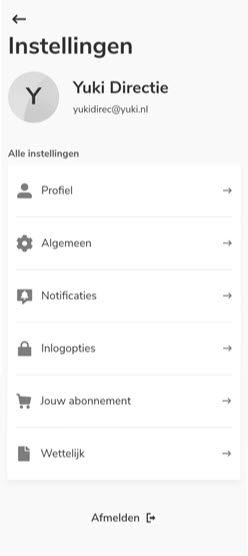
Profile
You manage your profile details and security via your Visma Connect account.
- Change profile (name & photo): only possible via the web version of Nmbrs Accounting.
- log in to the web version of Nmbrs Accounting
- click on the user button in the top-right corner of the screen
- click on My profile
- in the now-opened screen, click on the link Go to Visma Connect for your profile and security settings link
- then, in the now-opened screen, click on the Edit name or Add photo button.

- Change password: Tap on Change password in the app and follow the on-screen instructions.
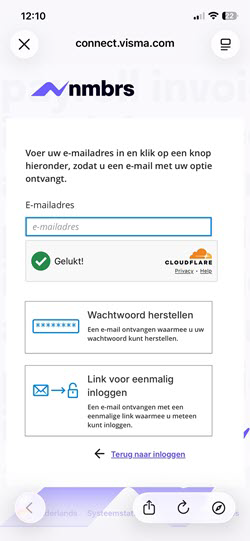
General
App settings
Language: choose from English, Dutch, Dutch (Belgium), Spanish, or French.
Display settings
- Domains: select which domains should be visible in the app (at least one required).
- Home screen: choose up to 3 charts to display on the home screen. Drag the charts to change the order.
- Financials: determine which charts are displayed in your accounting financial monitor (at least one required). Here, too, you can change the order by dragging.
Notifications
Manage the push notifications you receive on your phone. By default, you are set up to receive a notification whenever a question or task is assigned to you.
Login options
- Fingerprint or facial recognition (Face ID / Touch ID): enable or disable (only visible if your smartphone supports this).
(not available for Android) - PIN (6 digits:
- Set a 6-digit code for quick login instead of using your password.
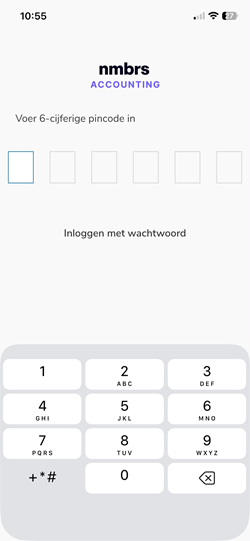
- Forgot your PIN? If you have forgotten your PIN and want to set a new one, click on Change PIN and then, in the now-opened screen, click on Forgot your PIN?.
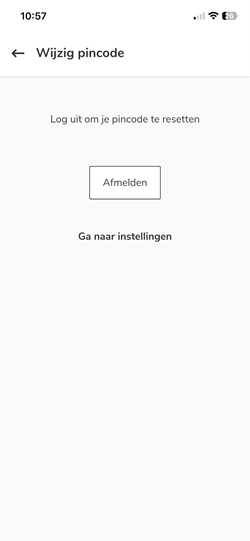
To enter (reset) a new PIN, click on the Log out button; this logs you out of the Nmbrs Accounting app and disables the current PIN.
- Set a 6-digit code for quick login instead of using your password.
- Automatic lock: choose the period of inactivity after which the app locks automatically:
Immediately, after 2 minutes, after 10 minutes, after 20 minutes, or never.
Your subscription (Android only)
View details of your current plan and your current usage.
Legal
Consult legal documentation and terms:
- General Terms and Conditions: Nmbrs Accounting user terms.
- Privacy: the privacy statement.
- Open source licenses: overview of open source licenses used.
Log out
Use this option to log out of the app, for example, if you want to log in with a different account or email address.
Was this article helpful?
That’s Great!
Thank you for your feedback
Sorry! We couldn't be helpful
Thank you for your feedback
Feedback sent
We appreciate your effort and will try to fix the article