Disclaimer
All screenshots in the article were taken in the Dutch version of Yuki.
To send electronic sales invoices (e-invoices) via Peppol to, for example, the tax authorites, the OIN number must be used.
An OIN number stands for Organization Identification Number and is a unique, 20-digit number for digital messaging with the government. The number is mandatory on electronic invoices to Dutch government and government organizations and serves as a digital address for secure information exchange.
Where can you find the OIN number of Dutch government agency?
- The OIN number can be found via the Central OIN Consultation Facility (COR)
- Government organizations publish their OIN numbers so that suppliers can find them for sending e-invoices.
The following steps must be completed to send an e-invoice via Peppol to a Dutch government agency:
|
Step 2. Add OIN number to contact
To add the OIN number to a contact:
- click on the Contacts icon in the navigation bar
- open the contact card of the receiving Dutch government agency
- in the now-opened screen, open the Extra tab
- then click on the Edit button.
The following screen is opened:
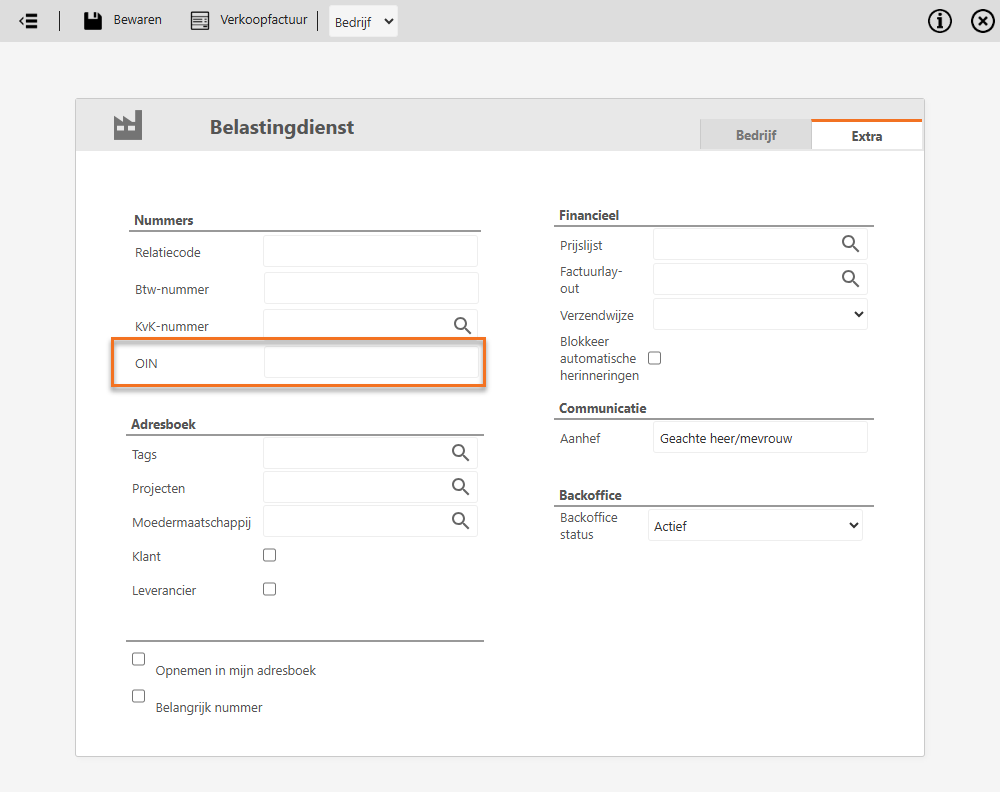
Enter the 20-digit OIN number (without the scheme code ‘0190’) and then click on the Save button.
ATTENTION!
While creating a new sales invoice, you can click on the + New contact button to create a new contact (government agency with OIN number).
For a detailed description, see article Sales Standard - Create customer (business/private person) via sales invoice.
Atep 3. Add sender email address to administration
In order to send a sales invoice via Peppol to a government agency, a sender email address must be defined in the administration profile.
ATTENTION!
When no sender email address is present in the administration profile, Yuki uses the email address as set under ‘Sending method’ in the ‘Sales settings’.
For a detailed description, see article Sales Standard - Sending method (Sales settings).
Go through the following steps to add the sender email address:
- above the navigation bar, click on the Switch domain icon
- click on My domain.
- click on the name of the administration from which you want to send e-invoices via Peppol.
- on the left side of the screen, click on Email addresses
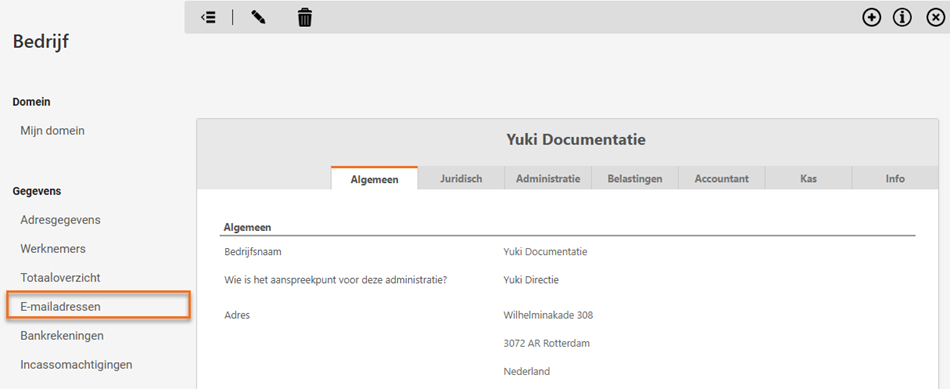
- in the now-opened screen, click on the + button to. create a sender email address if necessary.
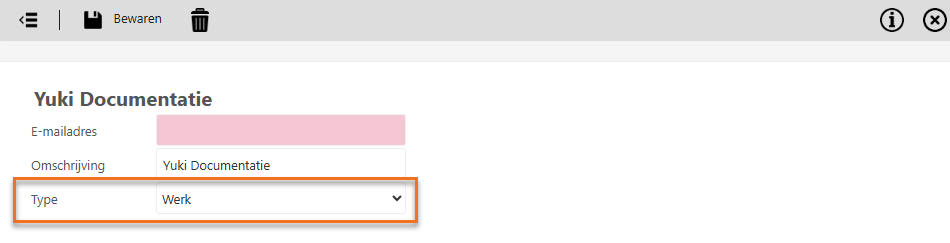
ATTENTION!
The pre-existing or new sender email address must be of the 'Work' type.
Step 4. Create sales invoice with order number
To create a new sales invoice with order number:
- click on the Sales icon in the navigation bar
- click on Invoices
- in the now-opened screen, click on the New invoice button.
Go through the following steps to create a new sales invoice
|
Then select the Send via Peppol sending method and click on the Finalize and send button.
ATTENTION!
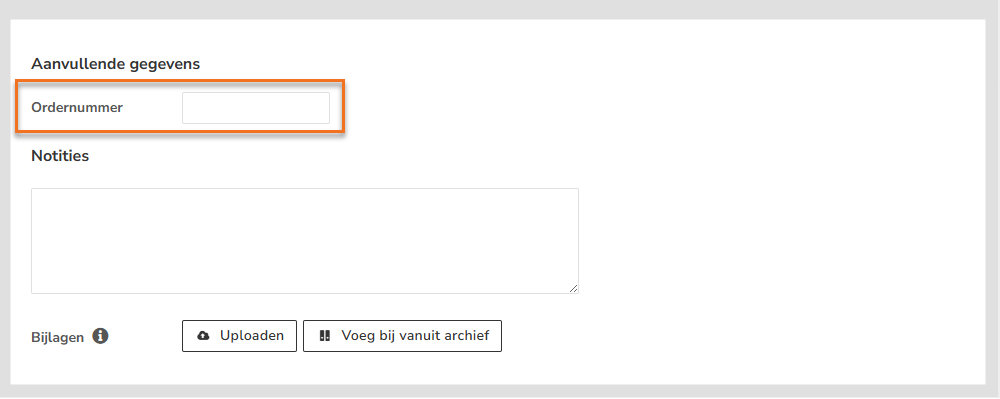
In order to send the sales invoice via Peppol, the field ‘Order number’ is required to be filled. You can find this field under the ‘Additional details’.
Was this article helpful?
That’s Great!
Thank you for your feedback
Sorry! We couldn't be helpful
Thank you for your feedback
Feedback sent
We appreciate your effort and will try to fix the article