Disclaimer
All screenshots in the article were taken in the Dutch version of Nmbrs Accounting.
In Nmbrs Accounting, it is possible to manually create a sales invoice and then send it to your customer by mail, email or via Peppol. Then, if necessary, the invoice can be handled correctly.
To send a new sales invoice to your customer, the following steps must be completed:
- enter invoice delivery details
- finalize and process the invoice in the administration
This actually sends the invoice to the customer.
Access to draft invoice
To access
- click on the Sales icon in the navigation bar
- click on Invoices
- in the now-opened screen, select the Draft invoices view.
Finalize and send invoice
Open the invoice you want to finalize and send by clicking on the subject of that invoice. Then click on the Next button.
The following screen is opened:

After checking the invoice date, sending method and the preview, the invoice can then be processed directly in the administration and sent to the customer by clicking on the Finalize and send button.
At the bottom right of the screen, a notification appears that the sales invoice is created and a screen preview (pdf) of the processed sales invoice is generated:
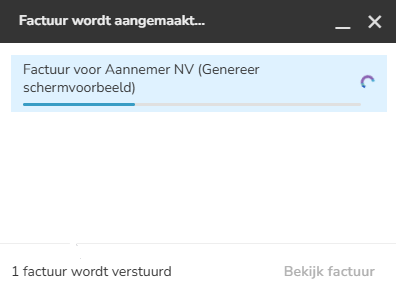
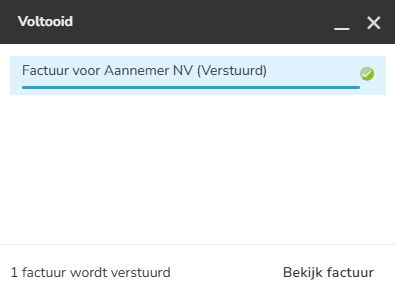
After creating and processing the sales invoice, a message then appears saying that the sales invoice has been sent to the customer.
The invoice disappears from the ‘Draft Invoices’ overview and is moved to the ‘Finalized invoices’ overview.
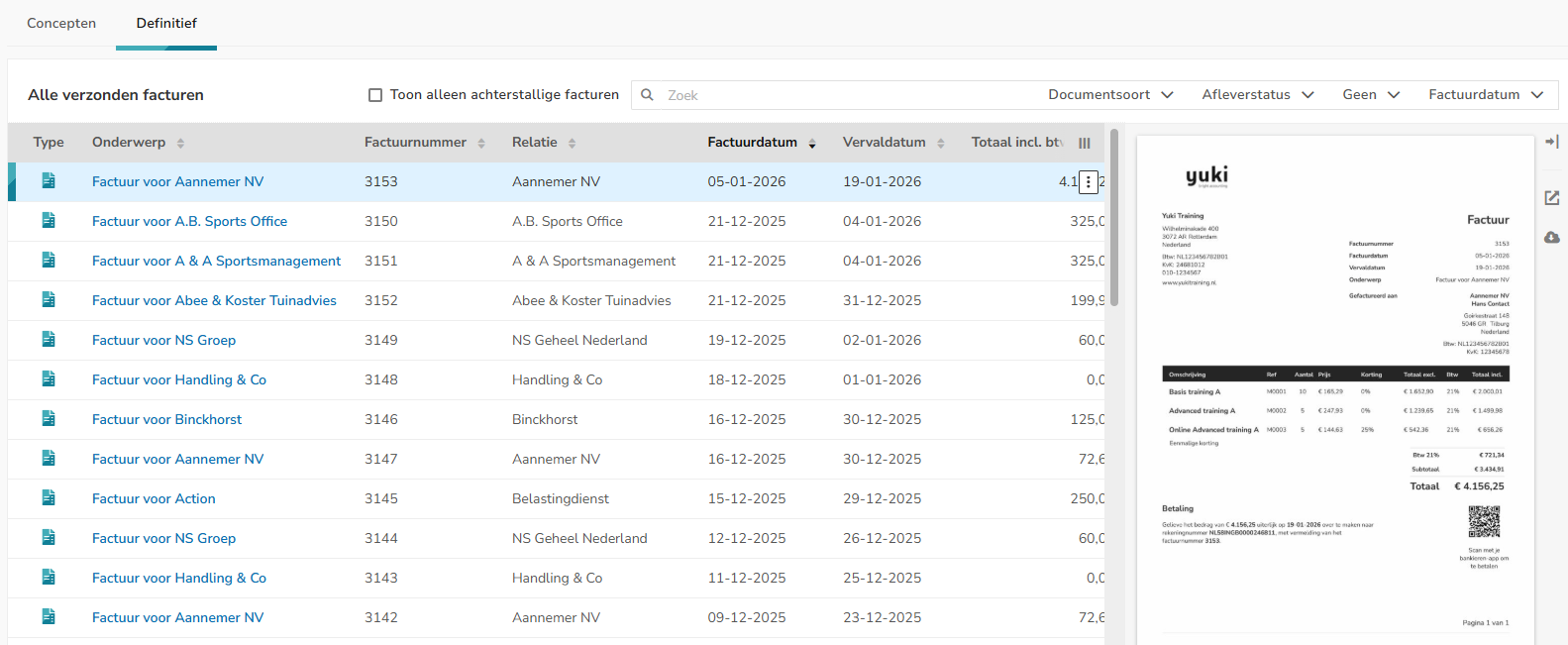
In the 'Via' and 'Delivery status' columns, you can find the sending method and delivery status of each sales invoice sent.

TIP!
The processed invoice can also be found in the Sales folder, on the Invoices tab in the Archive.
ATTENTION!
If screen preview generation failed, click on the Retry button.

Invoices sent
Depending on the sending method, the invoice is:
- sent by email (see article Email addresses for sending sales invoices)
The customer receives an email with the sales invoice as an attachment in PDF and XML format.
In the Email addressfield of the customer, the email address already entered with the customer is shown:- if this email address is of type 'Work' and you enter a new email address here, then the new email address will be added to the contact card as email address of type 'Invoice'.
- if this email address is of type 'Invoice' and you enter a new email address here, then the shown (old) email address on the contact card will be replaced by the new email address.
- if there is no email address entered with the customer then the new email address will be saved as type ‘Invoice’.
- sent via Peppol
The customer will receive the sales invoice in their software in XML format with an embedded PDF. - manually sent
The invoice is processed in the administration but not automatically sent by Nmbrs Accounting to your customer.
Was this article helpful?
That’s Great!
Thank you for your feedback
Sorry! We couldn't be helpful
Thank you for your feedback
Feedback sent
We appreciate your effort and will try to fix the article