Disclaimer
All screenshots in the article were taken in the Dutch version of Nmbrs Accounting.
In Nmbrs Accounting, it is possible to manually create a sales invoice and then send it to your customer by mail, email or via Peppol. Then, if necessary, the invoice can be handled correctly.
To create a new sales invoice, the following steps must be followed:
- enter the invoice details (including customer, payment term and method).
- add one or more invoice lines (sales items)
- if necessary, change the payment details (QR code and invoice text about payment)
- if necessary, add additional details (order number, notes, and attachment)
- save the invoice as a draft invoice.
Access to new sales invoice
You can create a sales invoice from three places in Nmbrs Accounting:
- click on the Sales icon in the navigation bar
- click on Dashboard if necessary
- select the Invoice menu option from the dropdown menu of the Create... button.
OR - click on the Sales icon in the navigation bar
- click on Invoices
- then in the now-opened screen, click on the New invoice button.
OR - Click on the Contacts icon in the navigation bar
- open the relevant contact card in the now-opened screen
- then in the now-opened screen, click on the Sales invoice button.
Add additional details
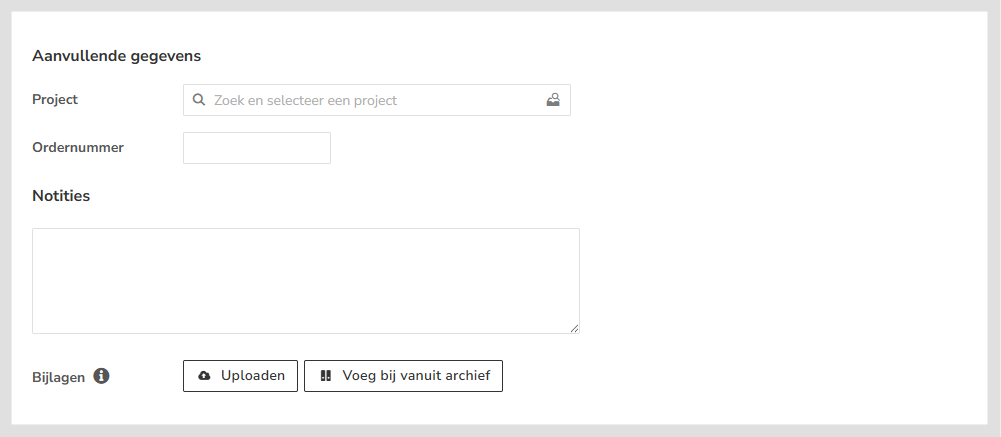
Additional information can be added to the fields described below, if necessary.
Project
It's possible to link a project to the sales invoice. This is for internal use only and will not be included on the sales invoice.
Order number
It is possible to have a PO/order number mentioned on the sales invoice. If no order number is entered, the 'Order number' field will not appear on the sales invoice.
This number will also be automatically included on the UBL invoice.
ATTENTION!
To be able to send the sales invoice via Peppol to a Dutch government agency, the 'Order number' field must be filled in.
Notes
If necessary, you can add notes to the invoice here.
These notes are internal and therefore will not be shown on the invoice
Attachments
You can add one or more attachments to the invoice you want to send to the customer by searching for them, selecting them, and then uploading them:
- from your device by clicking on the Upload button
- from the archive in Nmbrs Accounting by clicking on the Attach from Archive button.
The following file types can be attached:
- doc(x)
- xls(x)
- ppt(x)
- txt
- jpg
- png
- bmp
- gif.
The total size of the attached file(s) must not exceed 5 MB.
You can find the attachment(s) in the Archive in the Sales folder (All tab).
You can remove an attached file by clicking on the cross icon behind the file name.
ATTENTION!
An attached file is not included when duplicating an invoice.
Was this article helpful?
That’s Great!
Thank you for your feedback
Sorry! We couldn't be helpful
Thank you for your feedback
Feedback sent
We appreciate your effort and will try to fix the article