Disclaimer
All screenshots in the article were taken in the Dutch version of Nmbrs Accounting.
In Nmbrs Accounting, you can view an overview of all sent sales invoices that have been paid or collected in full or in part, or that have not yet been paid or collected.
TIP!
The Delivery status column shows whether or not the invoices sent have been delivered.
Access to Finalized sales invoices
To access:
- click on the Sales icon in the navigation bar
- click on Invoices
- then, in the now-opened screen, select the Finalized view.
Finalized sales invoices overview
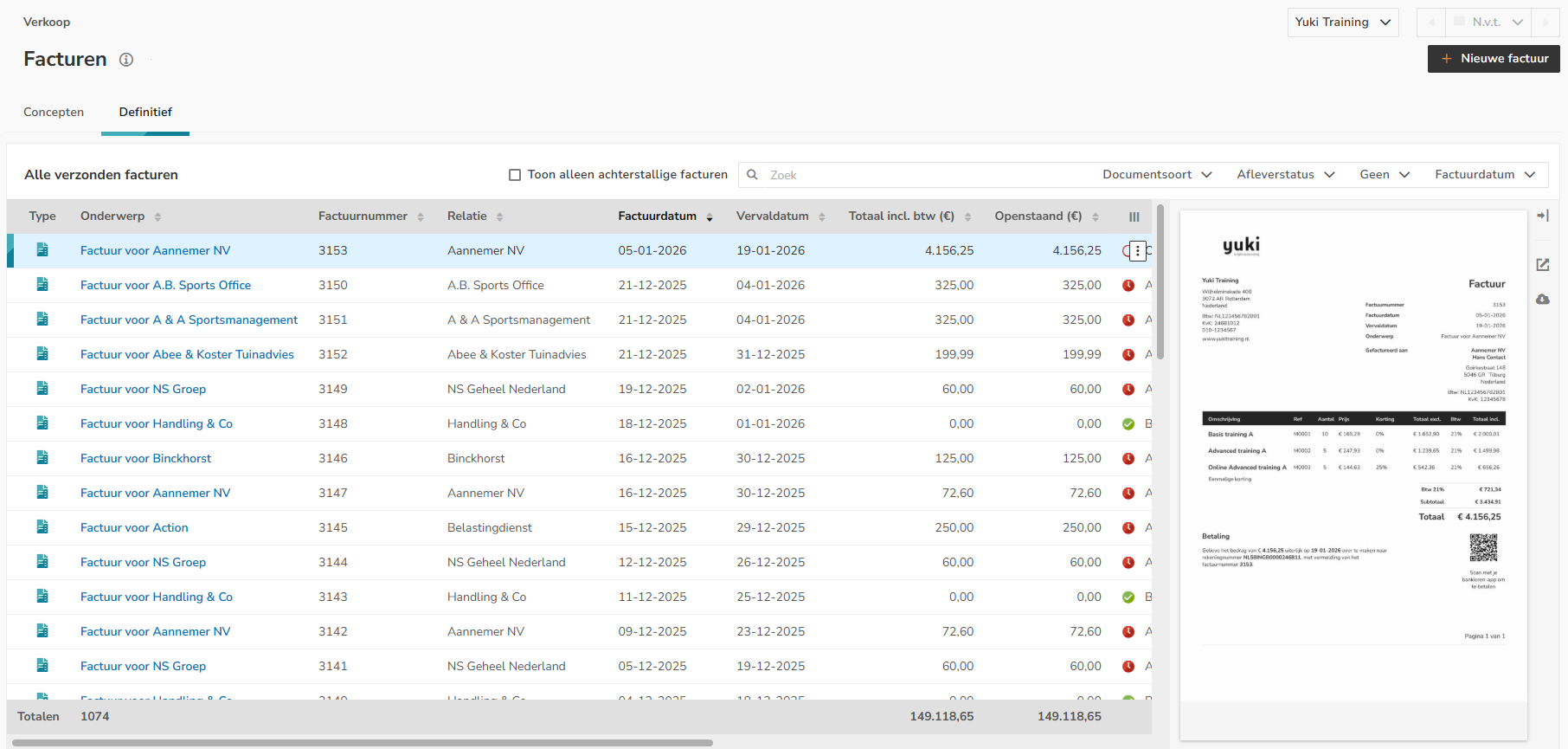
This screen shows the details of all sales invoices that have been sent and processed in the administration.
Filters
To filter the data shown in the overview you can use the following filters:
- Show only overdue invoices
- Document type: sales invoice or sales credit invoice
- Delivery status: Sent or Not delivered
- Payment status: Unpaid. Partially paid or Paid.
Document viewer
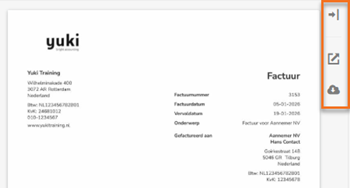
In this overview, you can use the so-called document viewer to:
- to hide or show a preview of the document
- to open the document in the browser
- to download the document.
Click on the line of the relevant invoice and then click on one of the buttons on the right side of the screen:
AVAILABLE USER ACTIONS
From this overview, a user can:
- view the document
- view the contact
- create a duplicate of a finalized invoice
- create a credit note
- send the invoice via email
- send the invoice via Peppol
- send a reminder.
View document
To view a document:
- click on the subject of the document
OR - hover your mouse over the line of the relevant invoice
- click on the button with the three dots
- then select the View document menu option from the dropdown menu.
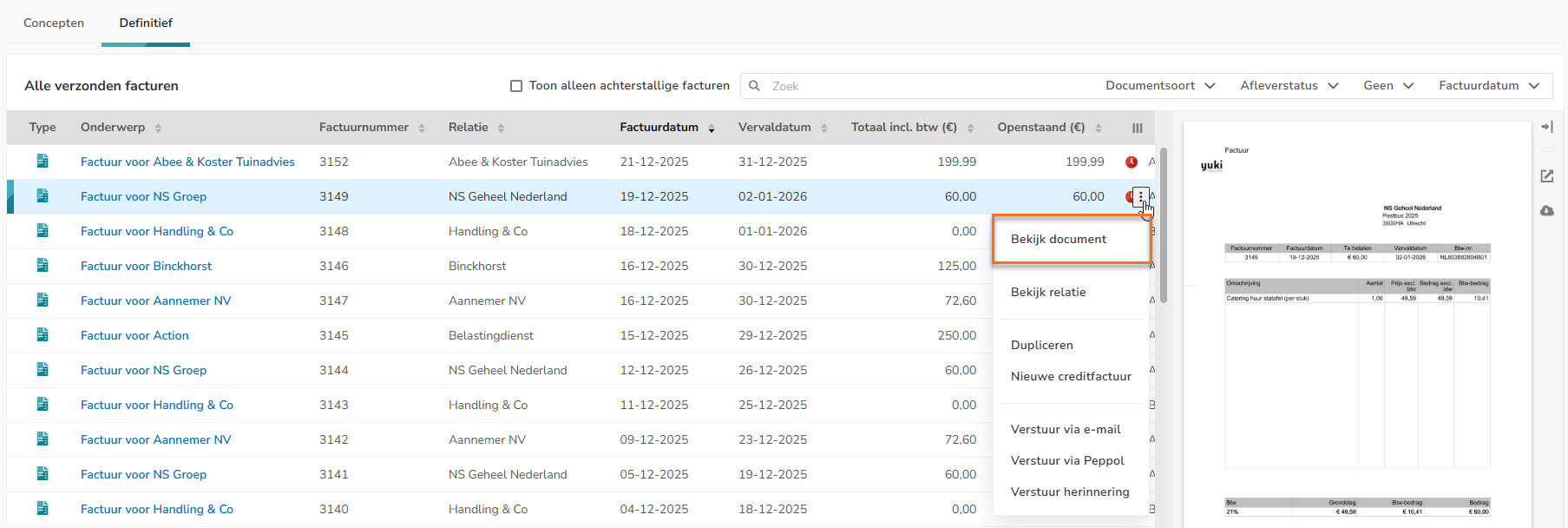
In the now-opened screen, the (outstanding) sent invoice can be viewed.
View contact
To view the invoice contact:
- hover your mouse over the line of the relevant invoice
- click on the button with the three dots
- then select the View contact menu option from the dropdown menu.
The contact card for the relevant contact is opened.
Create duplicate of finalized invoice
To create a duplicate of the finalized invoice:
- hover your mouse over the line of the relevant invoice
- click on the button with the three dots
- then select the Duplicate menu option from the dropdown menu.
The duplicate of the finalized invoice is immediately created and placed at the top of the ‘Draft invoices’ view.
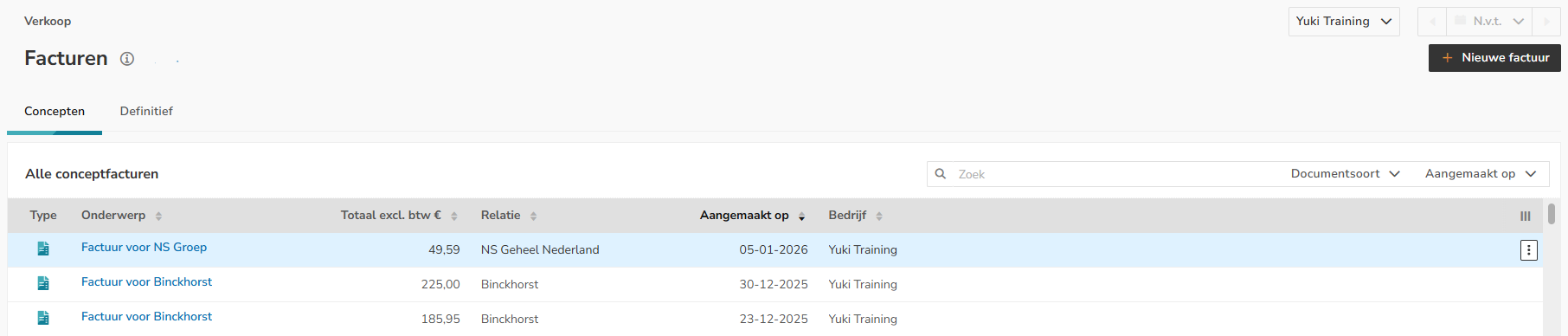
The duplicate concept invoice can now be changed if required and then saved as a concept invoice or finalized and sent immediately.
Create credit note
To create a credit note:
- hover your mouse over the line of the relevant invoice
- click on the button with the three dots
- select the Create credit note menu option from the dropdown menu.
The following screen is opened: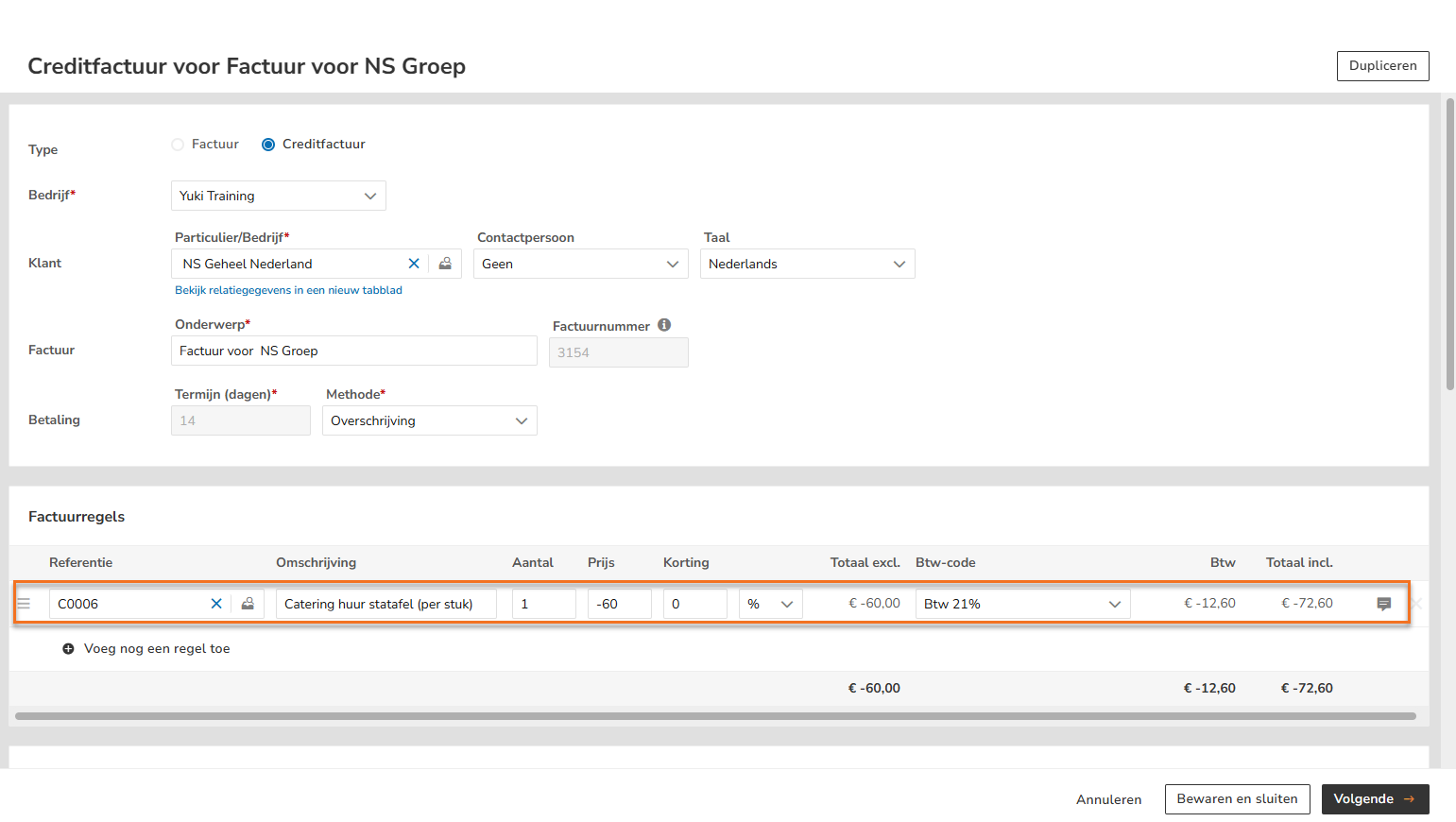
The price of the sales item is now credited.
For a detailed description, see the article Sales Standard - Create, send and handle credit note.
Send invoice via email
To send an invoice via email:
- hover your mouse over the line of the relevant invoice
- click on the button with the three dots
- select the Send via email menu option from the dropdown menu.
The following screen is opened: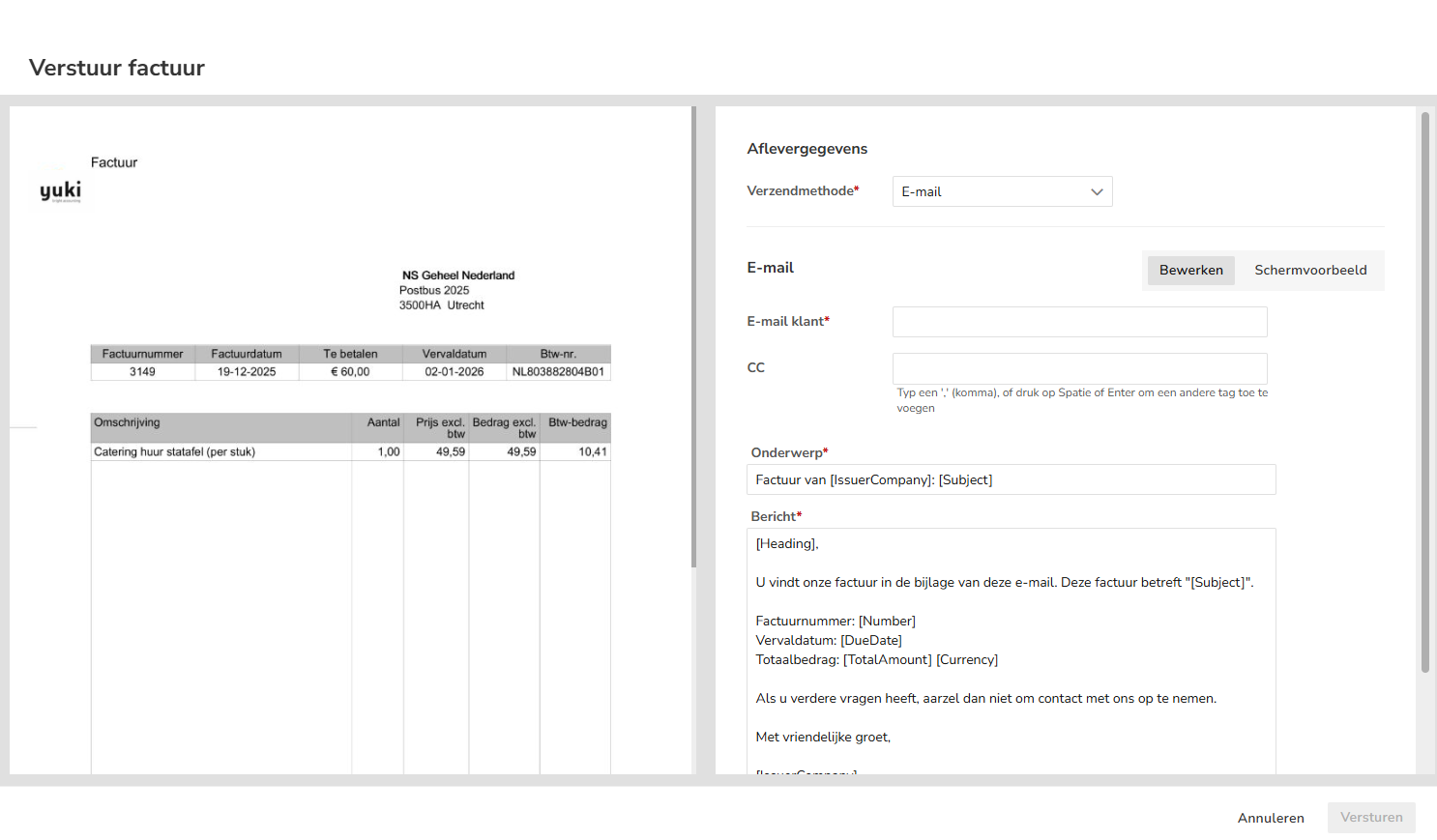
- enter the delivery details for the invoice
- then click on the Send button.
For a detailed description, see the article Sales Standard - Enter invoice delivery details.
Send invoice via Peppol
To send an invoice via Peppol:
- hover your mouse over the line of the relevant invoice
- click on the button with the three dots
- select the Send via Peppol menu option from the dropdown menu.
The following screen is opened: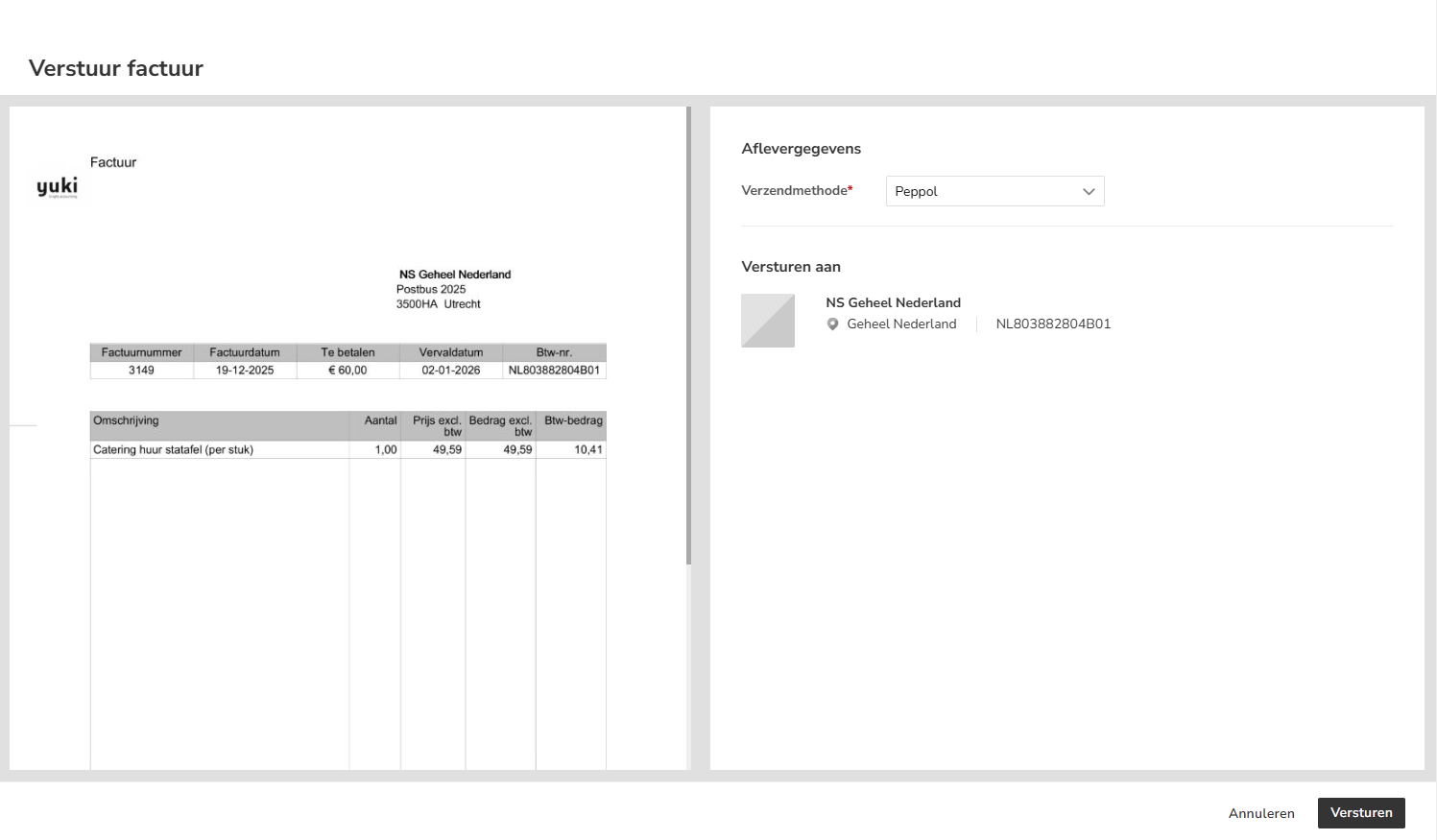
For a detailed description, see the article Sales Standard - Enter invoice delivery details.
Send reminder
To send a reminder:
- hover your mouse over the line of the relevant invoice
- click on the button with the three dots
- select the Send reminder menu option from the dropdown menu.
The following screen is opened: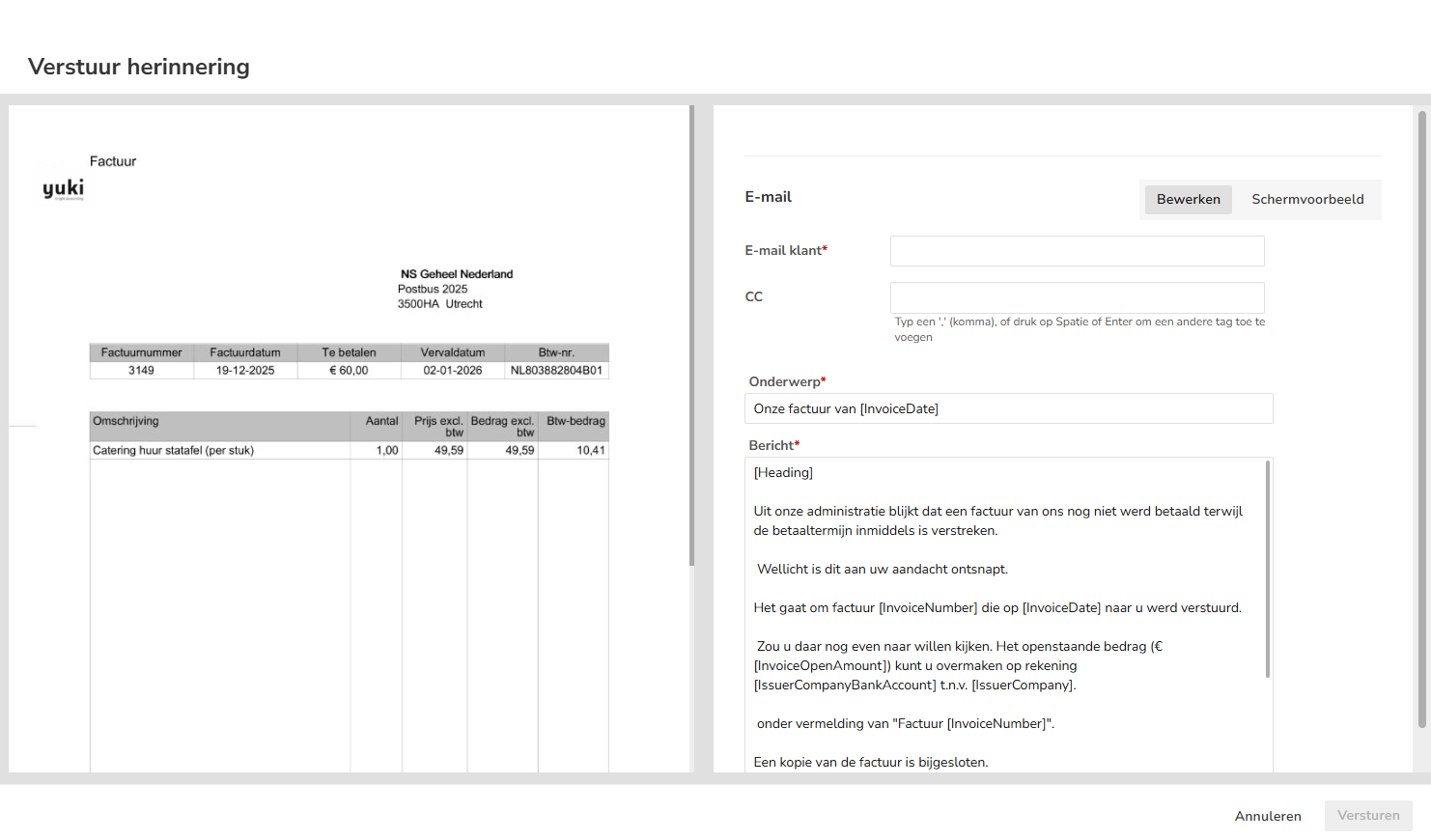
For a detailed description, see the article Sales Standard - Manually send reminder via email.
Was this article helpful?
That’s Great!
Thank you for your feedback
Sorry! We couldn't be helpful
Thank you for your feedback
Feedback sent
We appreciate your effort and will try to fix the article