Disclaimer
All screenshots in the article were taken in the Dutch version of Nmbrs Accounting.
In Nmbrs Accounting, it is possible to manually create a sales invoice and then send it to your customer by mail, email or via Peppol. Then, if necessary, the invoice can be handled correctly.
To create a new sales invoice, the following steps must be followed:
- enter the invoice details (including customer, payment term and method).
- add one or more invoice lines (sales items)
- if necessary, change the payment details (QR code and invoice text about payment)
- if necessary, add additional details (project, order number, notes, and attachment)
- save the invoice as a draft invoice.
Access to new sales invoice
You can create a sales invoice from three places in Nmbrs Accounting:
- click on the Sales icon in the navigation bar
- click on Dashboard if necessary
- select the Invoice menu option from the dropdown menu of the Create... button.
OR - click on the Sales icon in the navigation bar
- click on Invoices
- then in the now-opened screen, click on the New invoice button.
OR - Click on the Contacts icon in the navigation bar
- open the relevant contact card in the now-opened screen
- then in the now-opened screen, click on the Sales invoice button.
Change payment details
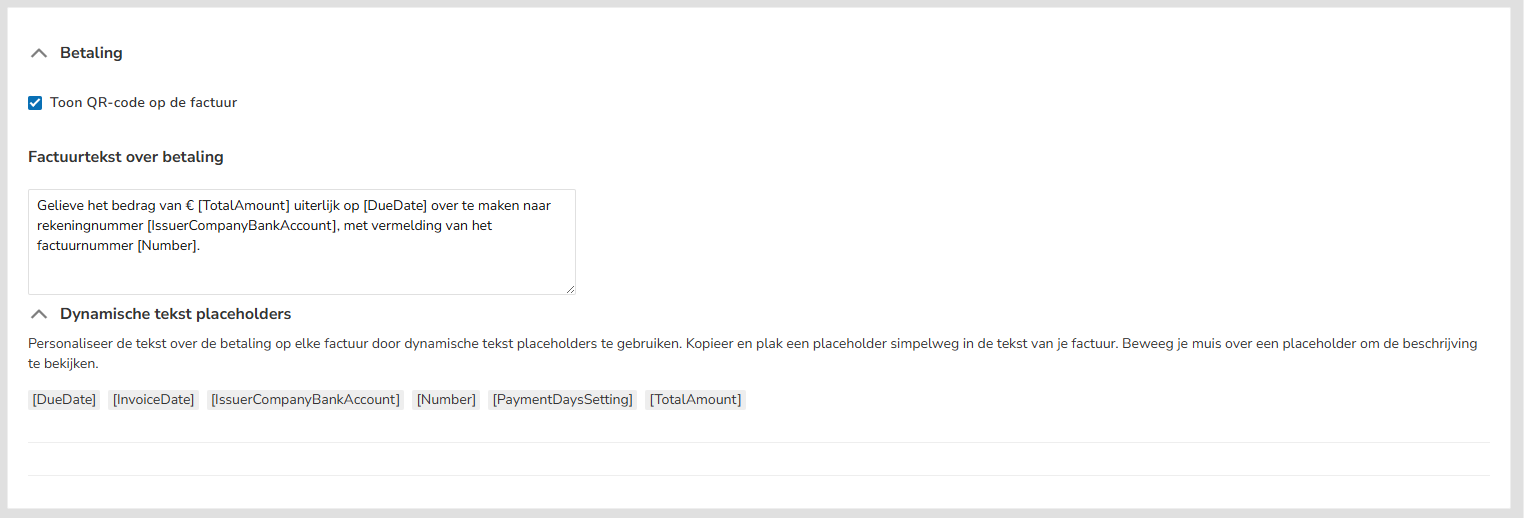
The payment details below can be changed.
Display QR code on the invoice
Specify here whether or not the QR code should be displayed on the invoice.
ATTENTION!
When using the standard QR code ((or the EPC QR code), a bank account must be set up on the Payment details tab in the Sales settings.
Invoice text about payment
If required, change the text about payment on the invoice here.
Dynamic text placeholders
You can use so-called dynamic text placeholders in the invoice text about the payment. A placeholder is a special reference to invoice details that can be used in the invoice text. A placeholder is always enclosed in square brackets.
The following placeholders can be used:
- [DueDate]: invoice due date
- [InvoiceDate]: invoice date
- [IssuerCompanyBankAccount]: your company's default bank account number
- [Number]: invoice number
- [PaymentDaysSetting]: default payment term
- [TotalAmount]: total amount of the invoice (to be paid).
Was this article helpful?
That’s Great!
Thank you for your feedback
Sorry! We couldn't be helpful
Thank you for your feedback
Feedback sent
We appreciate your effort and will try to fix the article