Disclaimer
All screenshots in the article were taken in the Dutch version of Nmbrs Accounting.
Which settings you can specify in a domain depends on the selected bundle (and any additional features added) and the role(s) you have as a user in the domain.
In Nmbrs Accountng, you can record the following financial settings:
- Countries
Active and inactive countries - Chart of accounts
Active and inactive GL accounts - VAT codes
Active and inactive VAT codes - Financial newspaper
Subscribers of financial newspaper - Currencies
Active and inactive currencies - Payment methods
Create your own payment methods for payment of sales invoices.
VAT codes
The following VAT codes are not activated by default in a VAT-liable administration within a domain in Nmbrs Accounting:
- Payable / Sale
- VAT, high rate - type 1 (old 19%)
- VAT, low rate - type 2 (old 6%)
- VAT, other rates - type 3
- Export within the EU - type 17
- Installation/Distance sales within the EU - Type 8
- Exempt from VAT - type 0
- Deductible / Purchase
- VAT reverse-charge - type 5 (old 19%)
- VAT reverse-charge - type 5 (old 6%)
- Import outside the EU - type 12 (old 19%)
- Acquisitions within the EU - type 13 (old 19%)
- Input tax - type 11 (old 6%)
- Input tax - type 11 (old 19%).
- Other
- Private use - type 14 (old 19%)
(not recommended to mention because it's a code Nmbrs Accounting uses when creating an automatic booking)
- Private use - type 14 (old 19%)
Permissions and roles
Only a user with a 'Back office' role within the domain or the role of 'Management', 'Financial administration', or 'External accountant can view the set VAt codes and add, change, or delete VAT codes.
Access to VAT codes
To access:
- click on the Settings icon in the navigation bar
- then in the now-opened screen, click on VAT codes in the Financial section.
VAT codes overview
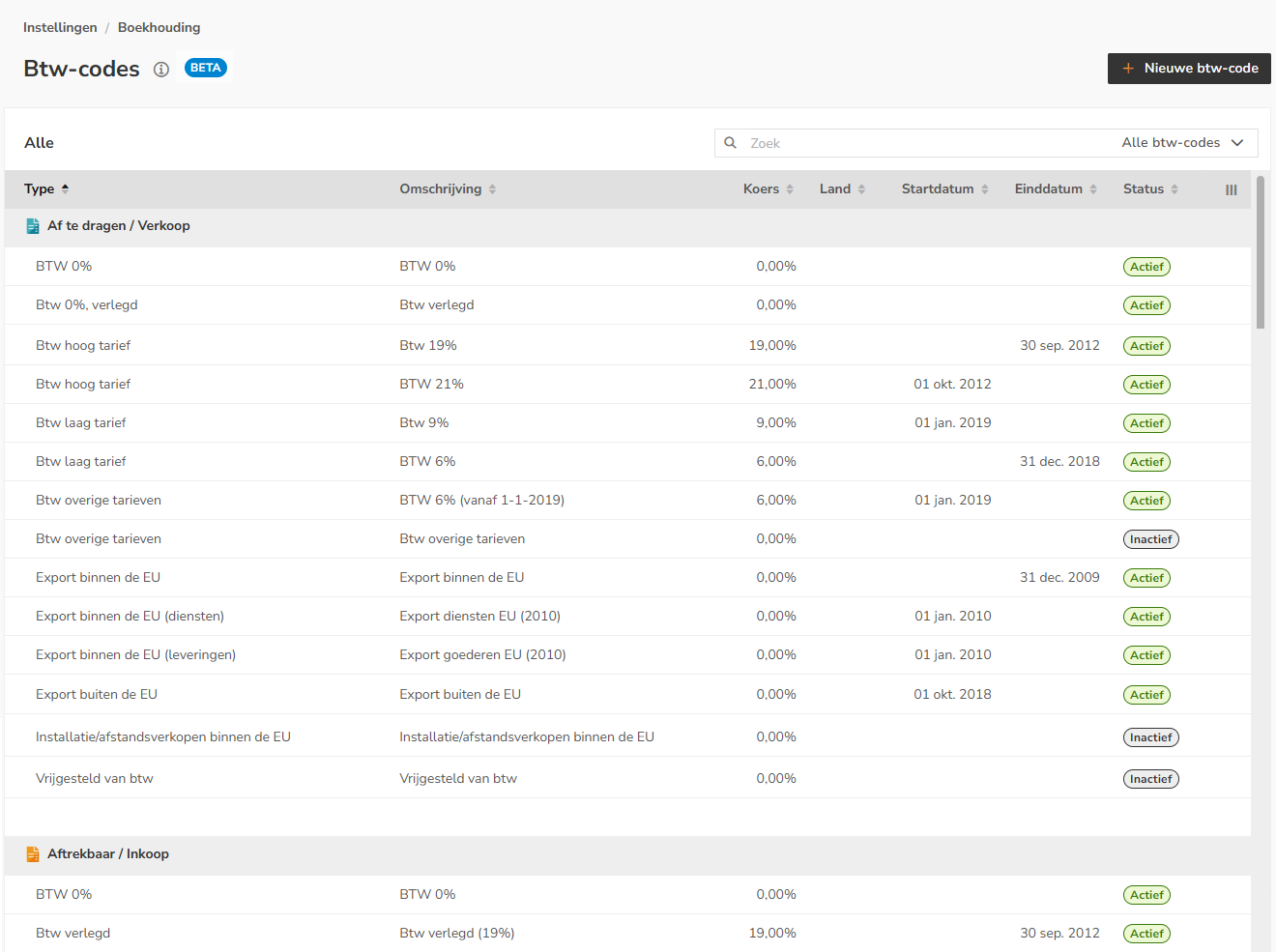
In this overview, you can view all VAT codes that are currently active or inactive within the domain.
For each VAT code, the following information is shown, among other things: the type of document for which the code is available, the description (VAT type), the VAT rate, the country, the date from which the VAT code is valid, and the status of the VAT code (active or inactive).
AVAILABLE USER ACTIONS
From this screen, a user can:
- create a new VAT code
- change a VAT code
- delete a VAT code.
Create VAT code
To create a VAT code in the domain, click on the New VAT code button in the top right corner of your screen.
The following screen is opened:
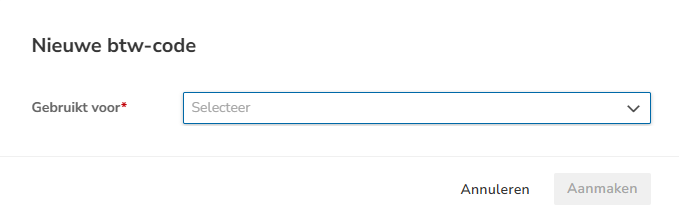
Specify what the VAT code can be used for:
- Deductible / Purchases
- Payable / Sales
- Other.
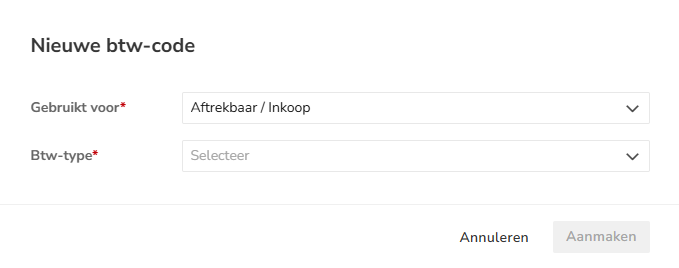
Then select the appropriate VAT type:
The following screen is opened:
The following screen is opened:
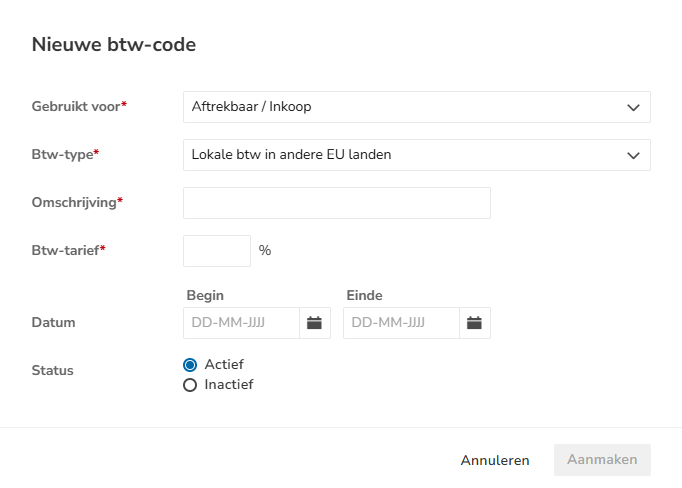
Then enter the remaining details of the VAT code.
Description (required)
This description is displayed when booking a purchase or sales invoice.
VAT rate (required)
Enter the correct VAT rate here.
Date
Start date
From this date, the VAT code is valid.
End date
The VAT code is valid until this date.
Status
Indicate whether this VAT code should be active or inactive in the domain.
Then click on the Create button to add the VAT code to the domain.
Change the VAT code
To change a VAT code, hover your mouse over the line of the relevant VAT code. Then click on the button with the three dots and select the Edit menu option from the dropdown menu.
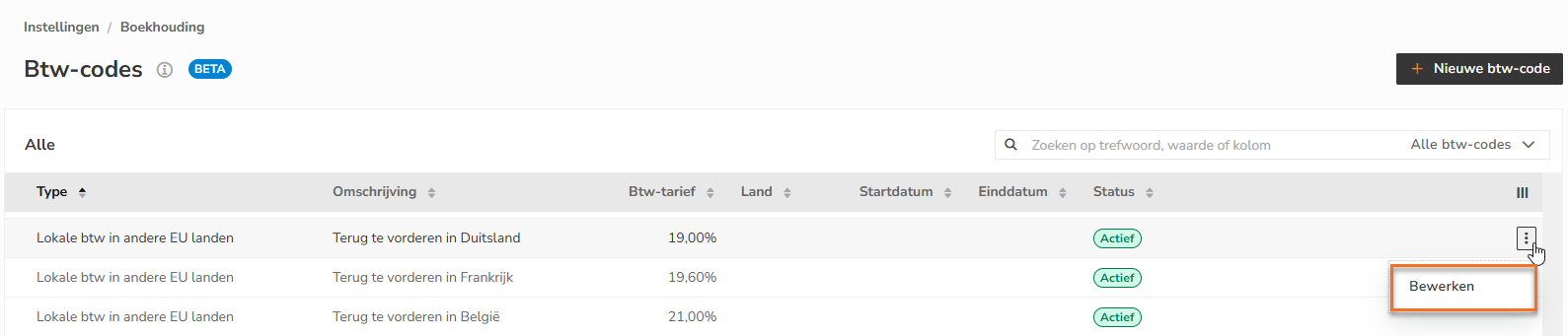
The following screen is opened:
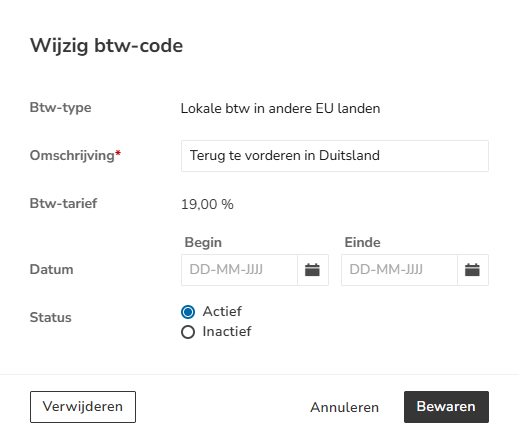
Edit the relevant information and then click on the Save button.
Delete VAT code
To delete a VAT code, hover your mouse over the line of the relevant VAT code. Then click on the button with the three dots and select the Edit menu option from the dropdown menu.
The following screen is opened:
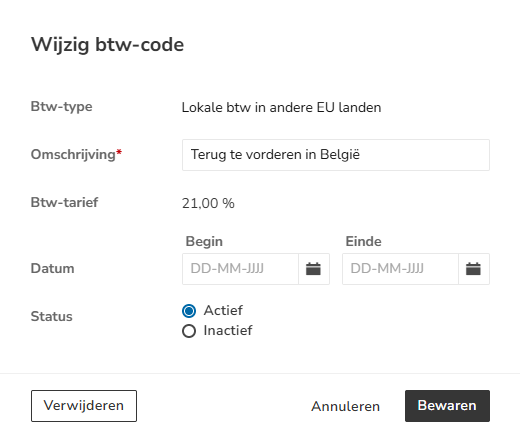
Then, click on the Delete button.
The following message appears on the screen:
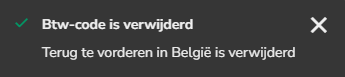
Was this article helpful?
That’s Great!
Thank you for your feedback
Sorry! We couldn't be helpful
Thank you for your feedback
Feedback sent
We appreciate your effort and will try to fix the article