Pay (free of charge) and the additional feature Pay with Pay are both payment options within the Nmbrs Accounting app.
Business Nmbrs checking account
After your registration for Pay with Swan is approved, a business Nmbrs checking account is created for you in your administration in Nmbrs Accounting.

TIP!
You can mention this Nmbrs checking account on your sales invoices. This makes it easier for customers to make payments directly to this account.
Nmbrs checking account functionality
- There is no minimum amount required for transferring or depositing money.
- Expenses are immediately deducted from your balance, unlike credit card payments, which are settled at the end of the month.
Nmbrs checking account restriction
The Nmbrs checking account works similarly to a credit card, with the crucial difference that you cannot go into the red. You must always have sufficient balance in your Nmbrs checking account before you can make payments.
Transfer money from Nmbrs checking account
ATTENTION!
- Money can only be transferred to a bank account created in the same domain in Nmbrs Accounting.
This bank account may be either action or inactive. - If the Nmbrs checking account is the only bank account in the domain, you must create a private account in the same domain in Nmbrs Accounting so that the money can be transferred to this bank account.
To transfer money from your Nmbrs checking account to another bank account, follow the steps below.
Step 1. Click on the Transfer button in the Pay home screen.
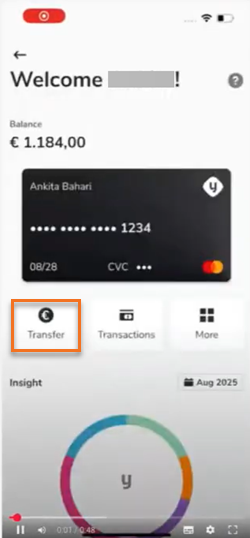
The following screen is opened:
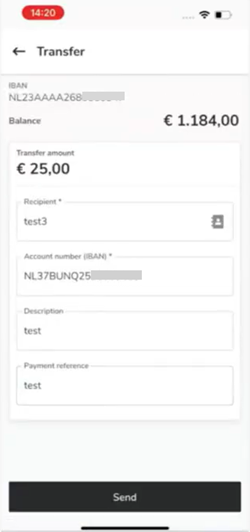
Step 2. Enter the amount you want to transfer and then select the beneficiary's bank account.
ATTENTION!
When you enter an amount to be transferred that exceeds the balance in the Nmbrs checking account, the following message appears at the bottom of the screen.

Step 3. Then click on the Send button.
The following screen is opened:
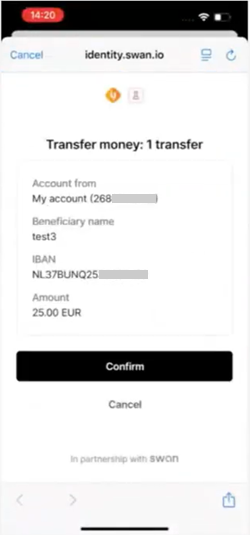
Step 4. To confirm the transfer, click on the Confirm button in the now-opened screen.
Step 5. Now enter the 6-digit passcode that you use to definitively confirm the transfer from the Nmbrs checking account.
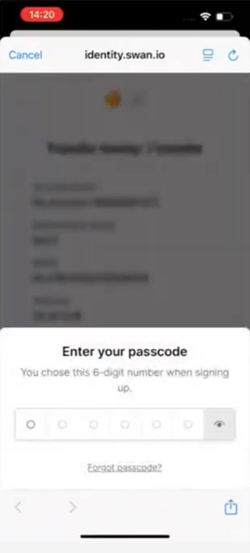
The following message appears on the screen upon successful transfer:
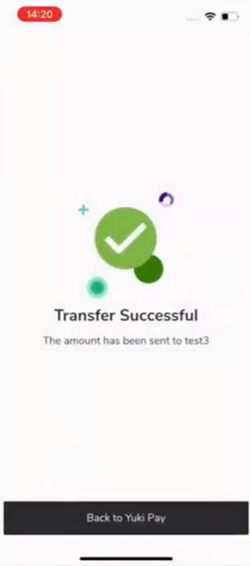
To return to Pay, click on the Back to Pay button.
Deposit money to Nmbrs checking account
To deposit money into your Nmbrs checking account from another bank account, follow the steps below.
Step 1. Click on the More button in the Pay home screen.
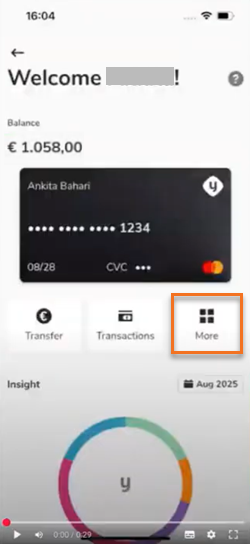
The following screen is opened:
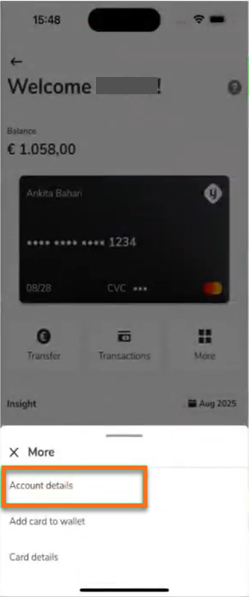
Step 2. Click on Account details to view the account details you need to use to deposit money from each bank account to the Nmbrs checking account.
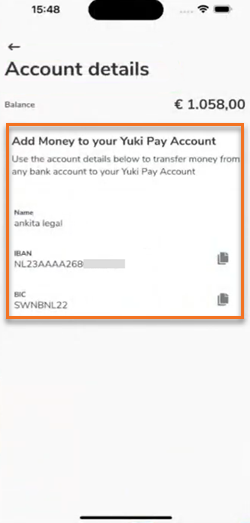
The deposit of the money is immediately visible in the Nmbrs Accounting app.
Copying payment details
By clicking on the icon behind IBAN or BIC, you can quickly and easily copy these details.
Receiving payments
Anyone can transfer money to your Nmbrs checking account using the business IBAN number associated with this account. This makes receiving payments from customers easy and immediate.
Was this article helpful?
That’s Great!
Thank you for your feedback
Sorry! We couldn't be helpful
Thank you for your feedback
Feedback sent
We appreciate your effort and will try to fix the article