What is Pay?
Pay (free of charge) and the additional Pay with Pay feature are both payment options within the Nmbrs Accounting app.
The Pay with Pay feature is only available when a user with the ‘Management’ role has selected the bundle Small, Medium, Large or Unlimited via the Store in the domain.
ATTENTION!
Pay can only be used for one administration per domain at this time.
Advantages ofPay:
- Offers a free, business, digital Pay payment card for contactless payments in stores and online via your phone.
- Transactions appear immediately in the business Nmbrs checking account (with a Dutch IBAN) in the administration and are automatically booked in Nmbrs Accounting.
- After each transaction, you will receive a notification in the Nmbrs Accounting app as a reminder to upload the corresponding invoice or receipt.
- Invoices and receipts can be uploaded directly via notifications or outstanding invoices in the Nmbrs Accounting app, which ensures automatic linking to the correct transaction.
- Your transactions in your Pay are automatically categorized, giving you a better understanding of your spending.
Features of Pay with Pay:
- This allows you to quickly and easily pay purchase invoices from outstanding supplier invoices in the Nmbrs Accounting app.
- Creating payment files is no longer necessary, as you can select and pay each invoice individually for complete control over your outgoing payments.
For a detailed description, see article Pay with Pay.
Security and cooperation
Pay was set up in collaboration with Swan, an internationally regulated electronic money institution. Swan is not a credit institution. Legally required funds are kept in a protection account, which ensures that your funds are always secure and can be retrieved at any time.
For more information on the privacy and security of Pay, see article Pay - Privacy & Security.
Who can register for Pay?
Only the owner of the domain with the ‘Management’ role can complete the registration for Pay from the Nmbrs Accounting app.
You can start the registration at any time by clicking on the Pay button.
However, it is essential that the person who starts the registration is also the person who will actually use the Nmbrs payment card.
If the registration is paused or canceled, another user cannot restart or complete the registration process.
To check who is currently the owner of the domain:
- click on the Settings icon in the navigation bar
- in the now-opened screen, in the Domain section click on General.
The following screen is opened: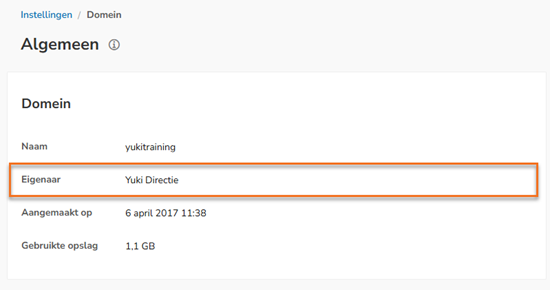
Contact your accountant when you want to start using Pay and you are not the owner of the domain.
How do you get started with Pay?
To start using Pay, you must first register for Pay via the Nmbrs Accounting app:
- Click on the Pay icon to register for Pay
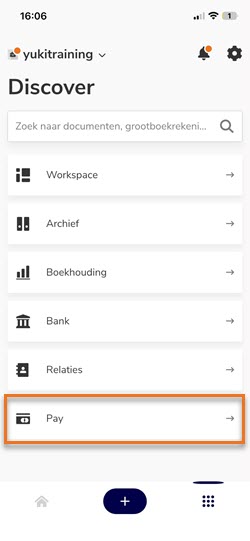
- Go through a few steps in the Nmbrs Accounting app to register for Pay
(see article Register sole proprietorship for Pay or Register BV, NV or VOF for Pay)
ATTTENTION!
Only for the verification of your identity, you will be temporarily directed to an external page supported by Swan to complete this part of the registration for Pay.
- You will receive a notification in the Nmbrs Accounting app about the status of your registration
(see article Status of registration for Pay).
How do you set up Pay?
After the initial login the Pay home screen is opened:
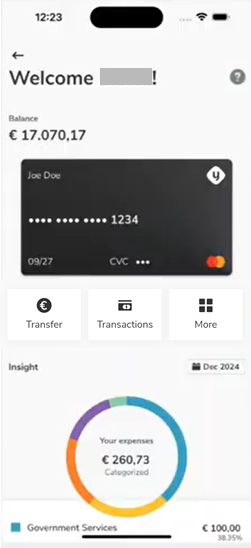 pay
pay
To use the digital Pay payment card for contactless payments via your cell phone, you will now need to arrange the following from this screen:
- Activate your Pay payment card
(see article Activate digital Pay payment card) - Add your Pay payment card to the Google or Apple Wallet
(see article Add digital Pay payment card to Google or Apple Wallet) - Deposit or refund money to your Nmbrs checking account
(see article Transfer from or deposit money to Nmbrs checking account).
How do you use Pay?
Make payments using your digital Pay payment card.
- Submit all invoices and receipts of these expenses directly via Pay
(see article Upload invoices and receipts via Pay).
Was this article helpful?
That’s Great!
Thank you for your feedback
Sorry! We couldn't be helpful
Thank you for your feedback
Feedback sent
We appreciate your effort and will try to fix the article