Disclaimer
All screenshots in the article were taken in the Dutch version of Nmbrs Accounting.
In the File cabinet, all submitted and processed documents are clearly organized into folders and subfolders.
Archive structure
The Archive Cabinet is organized into different levels:
- Top shelf (Bookkeeping folders): contains the standard folders for all financial and non-financial documents, both those to be processed and those already processed, that are essential for the administration.
- Bottom shelf(s): contains folders for documents that are private or do not directly pertain to the financial administration.
Default folder security
- By default, all users have access to non-financial (standard) documents in the accounting folders (top shelf).
- Only a user with the Management role can change this general archive security.
(See article Archive settings)
Security of 'Human Resources' Folder
- Employees: by default, employees can only view their own pay slips, expense claims, HR documents, and assessments.
- Managers: by default, a manager linked to an employee’s contact card does not have access to that employee’s personnel documents.
- Adjust security: users with the Back office, Management, or HRM role can change the access rights of employees and managers for the 'Human Resources' folder.
Add, change, or delete (sub)folders
- Top shelf (Bookkeeping folders)
You can only add an additional subfolder and rename or delete it. - Bottom shelf(s)
You can add an additional (sub)folder and rename or delete a (sub)folder.
An additional folder can only be created by clicking on the 'unnamed' folder.
Permissions and roles
Back office (in domain), Management, or HRM
A user with this role can configure access permissions for the Human Resources folder.
Back office (in domain) or Management
A user with this role can:
- create, change, or delete (sub)folders
(See article Add, change or delete (sub)folder in Archive) - export one or more documents
(See article Export documents from Archive)
HRM
A user with this role can only add an additional subfolder within the 'Human Resoures' folder.
All users in domain
Every user can:
- upload files
(See article Upload files from Archive) - manually create new documents (e.g., a statement)
(See article Create document (bank statement) manually) - move, download, or delete documents in (sub)folders (depending on the specific user role)
(See article Move, download or delete documents in Archive)
Access to File cabinet
To access;
- clock on the Archive icon in the navigation bar
- then click on File cabinet.
File cabinet
The File cabinet is opened in the Folders view by default.
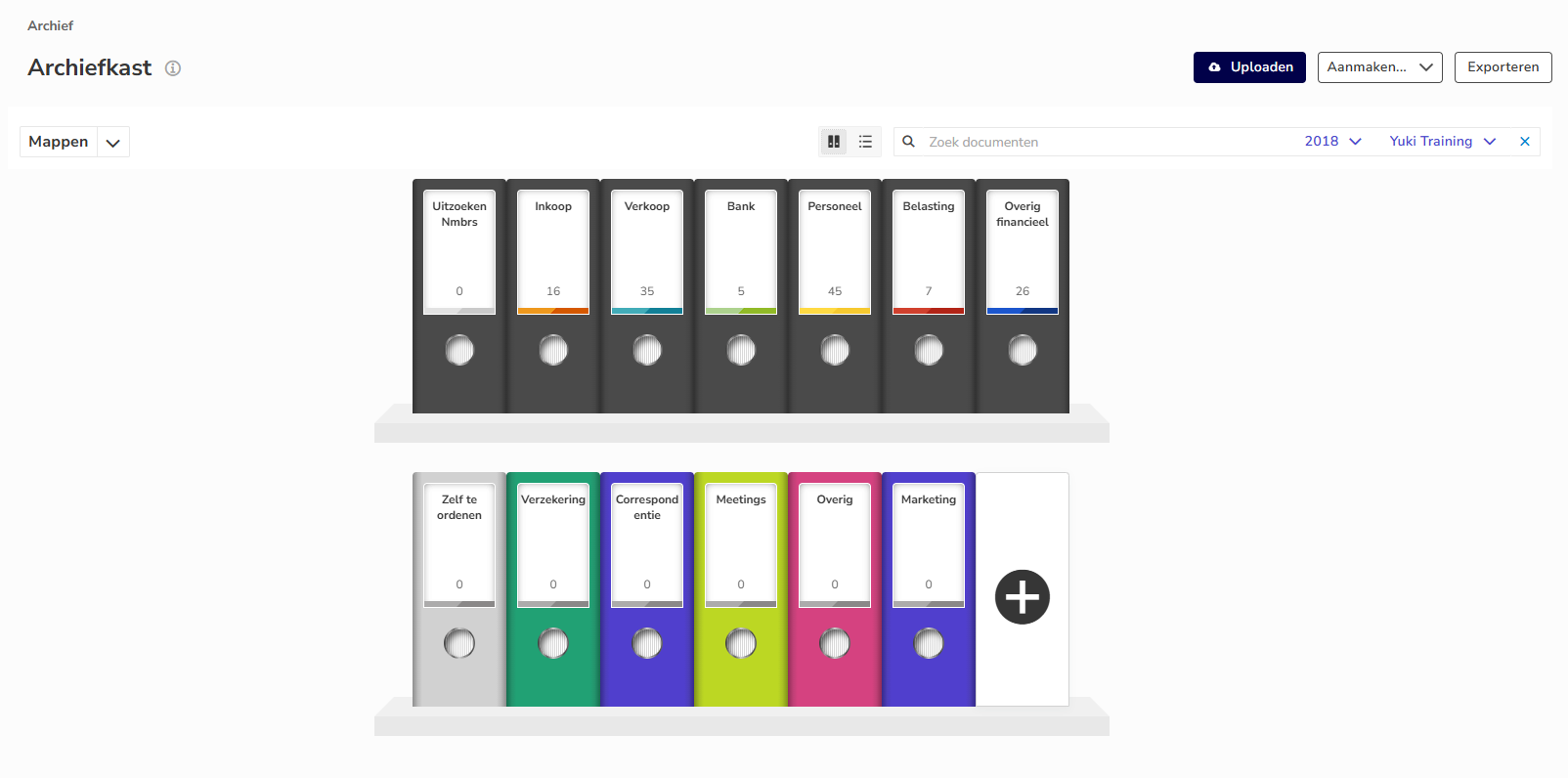
All documents that still need to be processed by the Back office are in the To be handled by Nmbrs folder.
Views
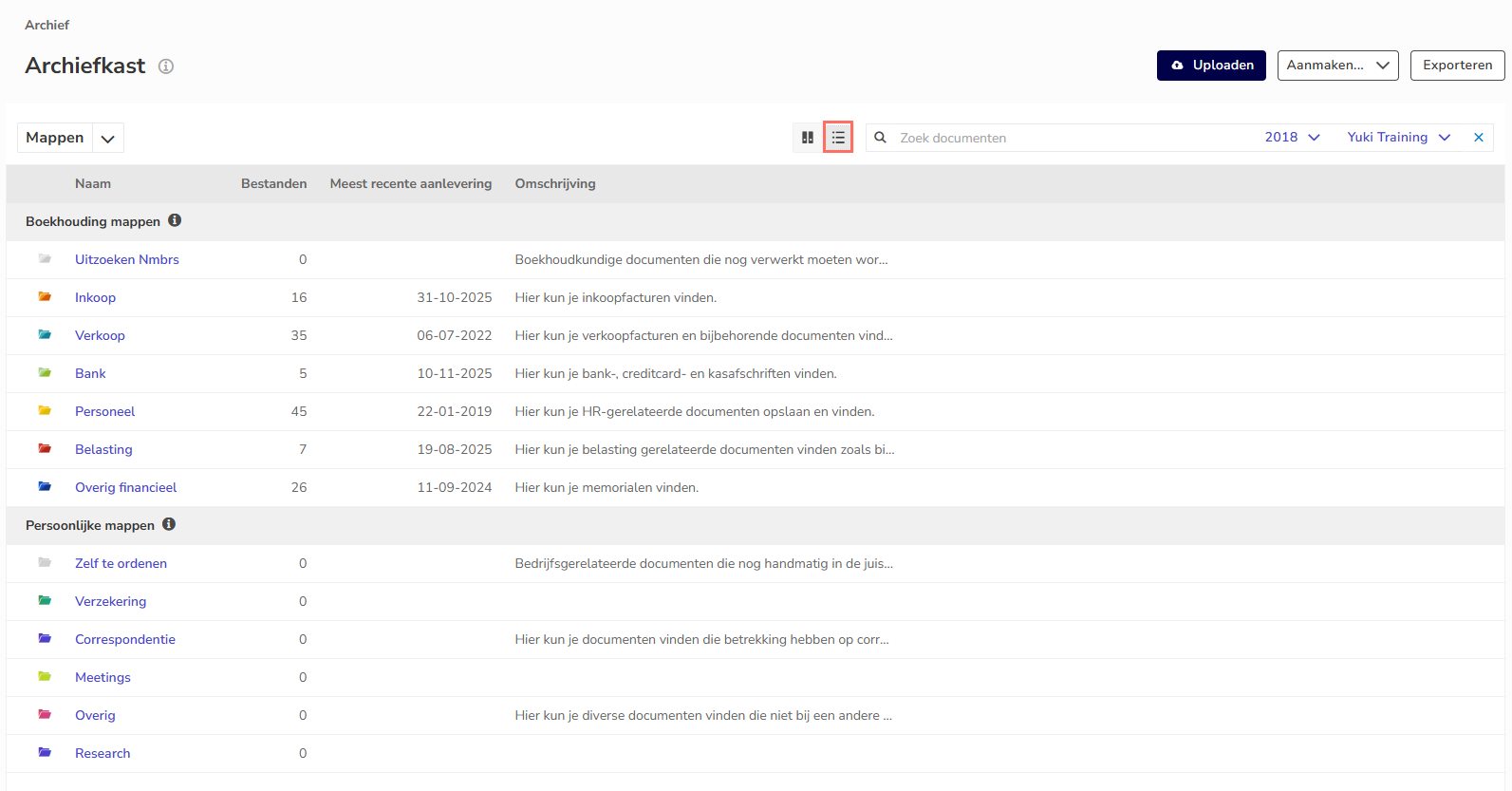
The folders in the File cabinet can also be shown as a list of folders by clicking on the List button:
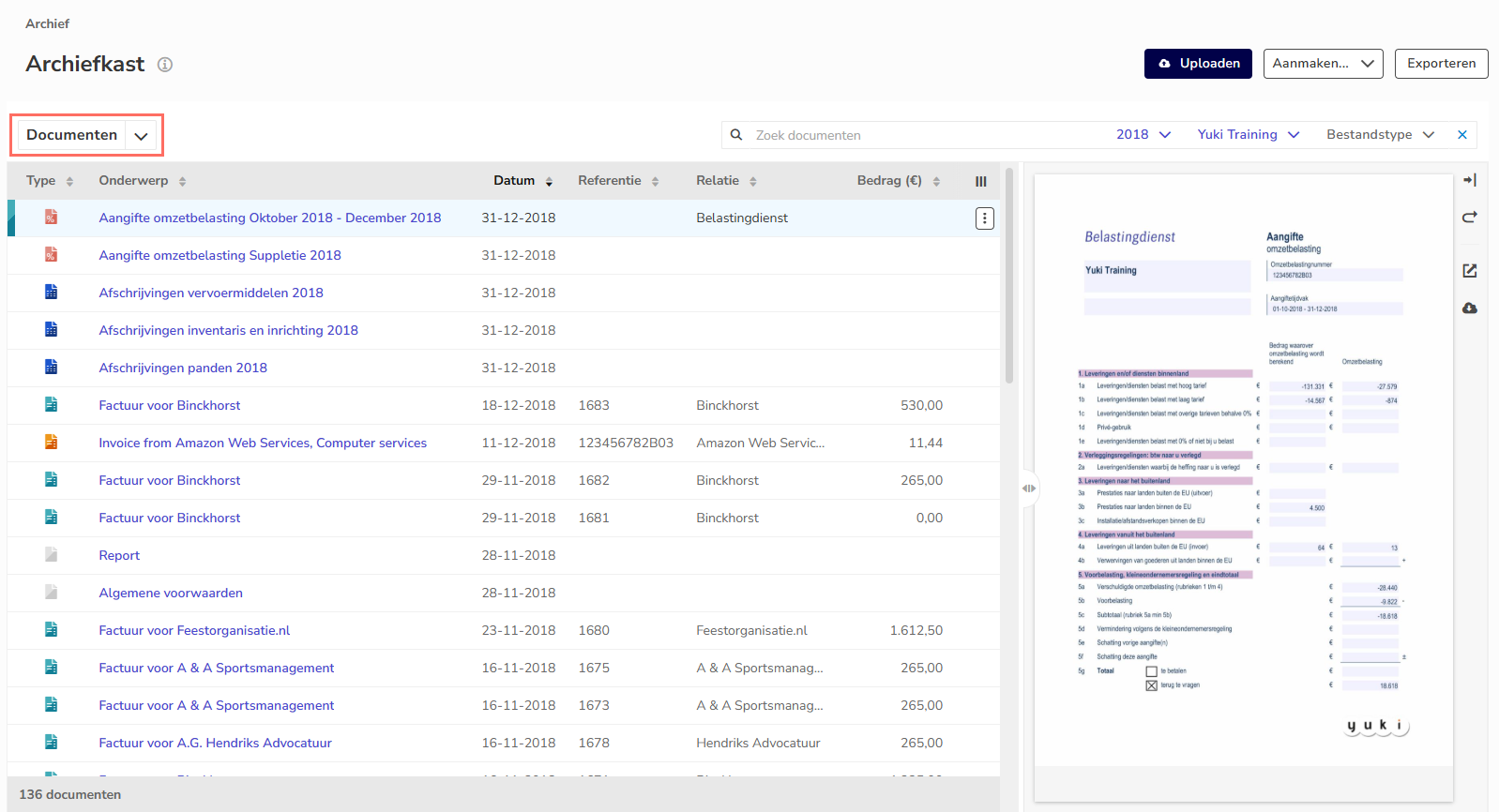
You can also specify in this screen that the Documents view should be shown:
Document viewer
In an opened (sub)folder as well as in the Documents view, you can use the so-called document viewer to:
- Hide or show a preview of the document by clicking on the document's line
- open the document in the browser
- download the document.
Search and filter
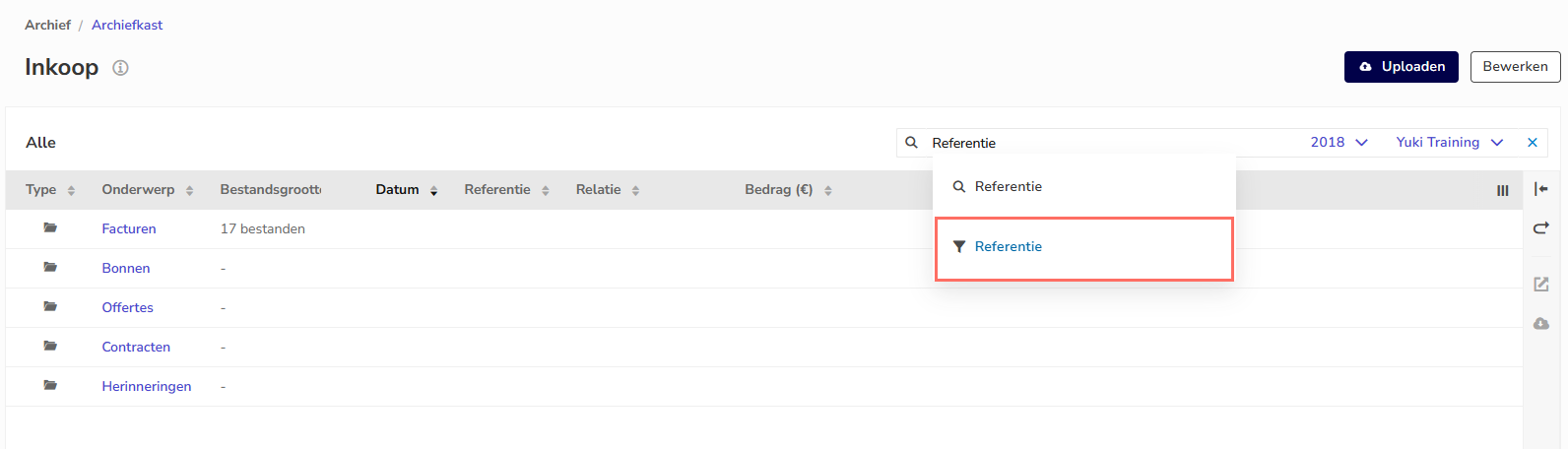
You're searching within the data in the columns currently visible on your screen:
- select the desired column (the filter), such as the Reference column.
- type your search term in the input field.
TIP!
You can add columns, such as the Tags column, to quickly search for all documents with a specific tag.
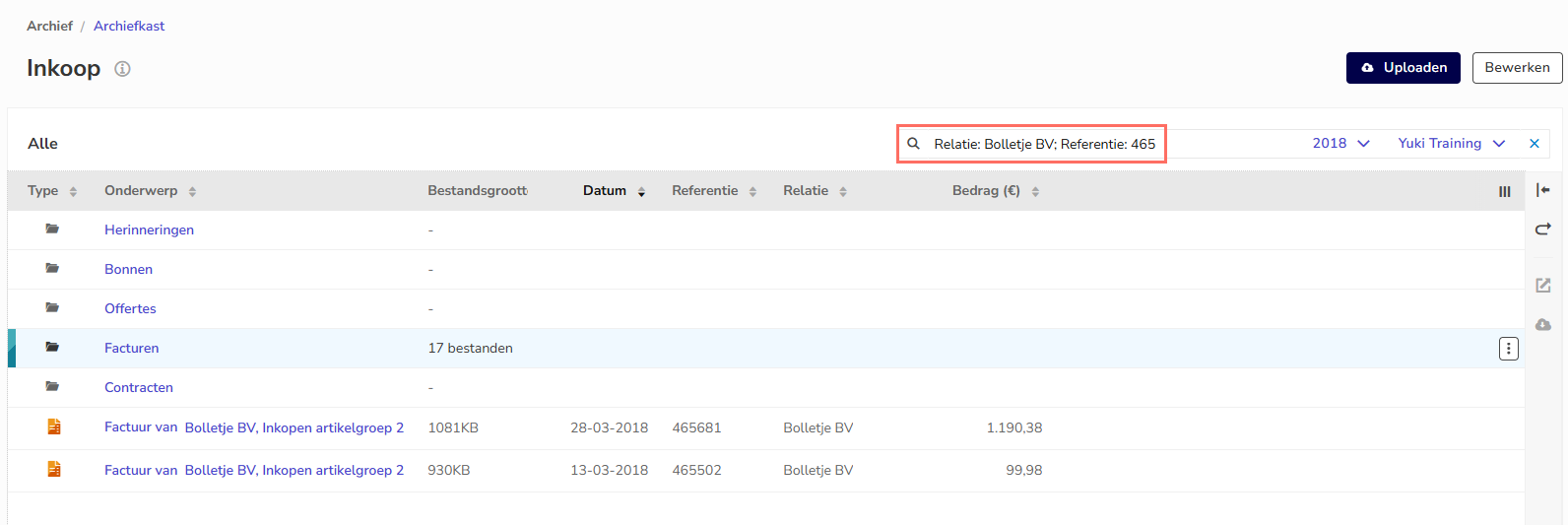
Combined search
Use a semicolon (;) as a separator to search two columns at the same time. Nmbrs Accounting will then display only the documents that match both search terms.
Set security of Human Resources folder
To change the default security of the Human Resources folder:
- move your mouse over the Hunan Resources folder line
- click on the button with the three dots
- then select the Edit menu option from the dropdown menu.
- OR
- click on the Human Resources folder
- then click on the Edit button.
The following screen is opened: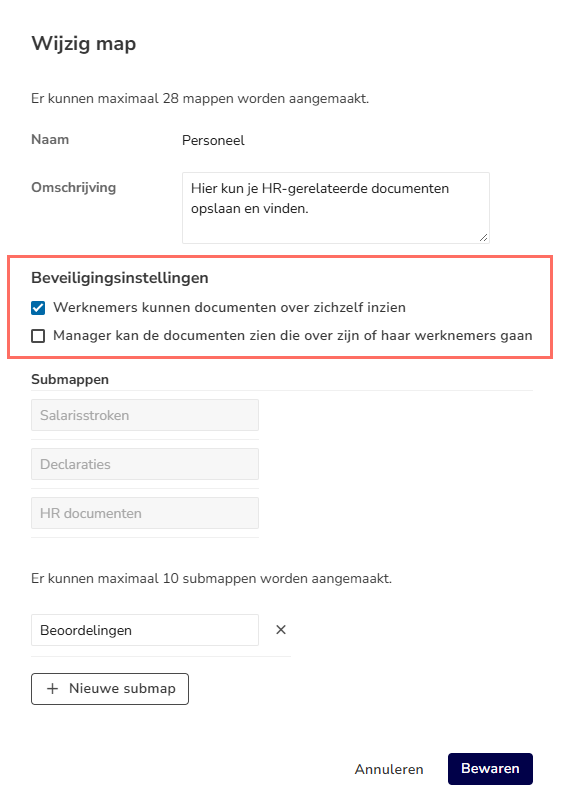
- specify which security to set
- then click on the Save button.
Was this article helpful?
That’s Great!
Thank you for your feedback
Sorry! We couldn't be helpful
Thank you for your feedback
Feedback sent
We appreciate your effort and will try to fix the article