Disclaimer
All screenshots in the article were taken in the Dutch version of Nmbrs Accounting.
Once a financial year has been closed, you can use the Export feature to easily download all linked documents from an administration at once. This allows you to save a complete digital annual file locally on a computer, server, USB drive, or external hard drive.
Permissions and roles
Management
A user with this role can export the documents from all folders in the Archive.
Back office in domain
A user with this role can only export the documents from the bookkeeping folders (gray folders).
Access to Export documents
To access:
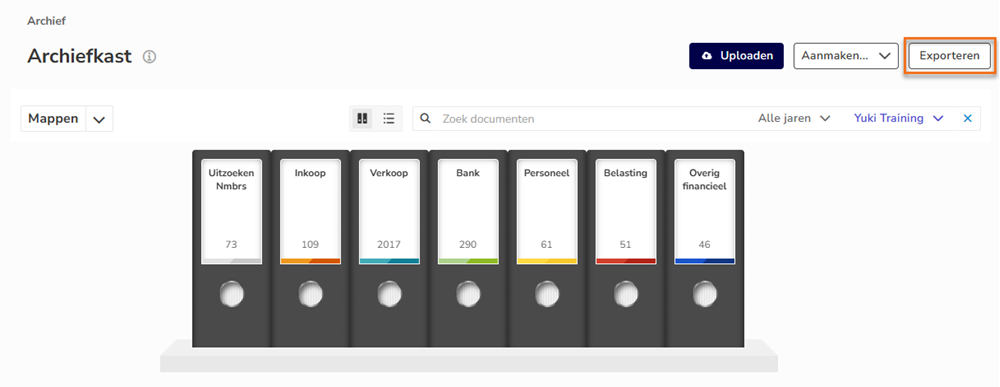
- click on the Archive icon in the navigation bar
- then click on File cabinet.
Export documents
To export documents:
- in the now-opened screen, click on the Export button
The following screen is opened: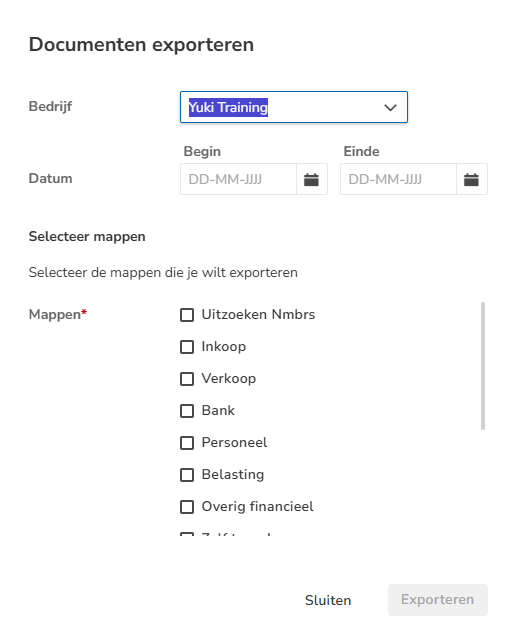
- in this screen, select the correct administration and period start and end dates
- select all folders you want to export from the Archive
- then click on the Export button.
The following message appears on the screen: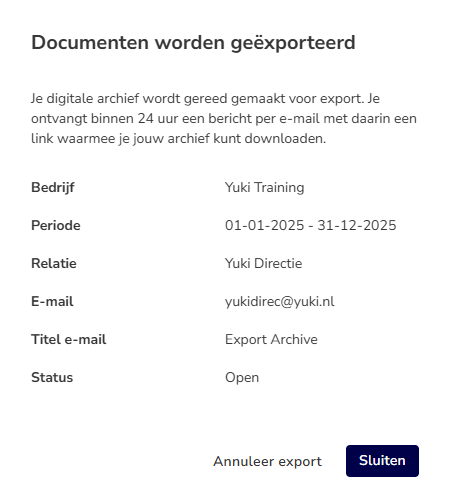
Because archive files (such as financial statement folders) are often very large, an export is not downloaded immediately but is processed in the background.
Processing and download process
- Request submitted: after the request is submitted, the export is assigned the status 'Open'.
- File generation: the ZIP file is created overnight within 24 hours. It contains all selected archive folders neatly bundled together.
- Email notification: as soon as the file is ready, you’ll receive an email with a direct download link.
- Download: click the link in the email and log in to your domain to download the file.
ATTENTION!
The link in the notification email remains valid for 14 days. Download the file within this timeframe.
Cancel export
As long as the export status is still set to Open, you can cancel the request by clicking on the Cancel export button.
Important when terminating your contract
Request an archive export at least 2 days before your contract’s end date.
Why? If you request the export on the very last day of your contract, the file won’t be ready until after your contract has already expired. You will then no longer be able to log in via the email link and will have to renew your contract for at least one month to gain access to the download.
Was this article helpful?
That’s Great!
Thank you for your feedback
Sorry! We couldn't be helpful
Thank you for your feedback
Feedback sent
We appreciate your effort and will try to fix the article