Disclaimer
All screenshots in the article were taken in the Dutch version of Nmbrs Accounting.
When you use the Workflow feature, it is possible to approve, reject or forward the invoice to a colleague via the Nmbrs Accounting app on your Smartphone anywhere in the world.
Go straight to your tasks
Tap the Tasks for you tile on your app's home screen. The following screen is opened
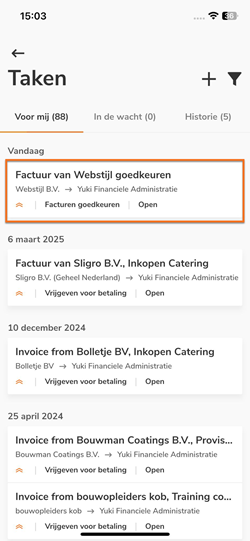
In the For me tab, you see an overview of all outstanding tasks. For each task, the following information is displayed:
- Task name
- Creator & assigned user (who created the task and to whom it is assigned)
- Task type (e.g., Invoice approval)
- Task status.
View invoice and check details
Open the task containing the invoice you want to view and subsequently process.
The following screen is opened:
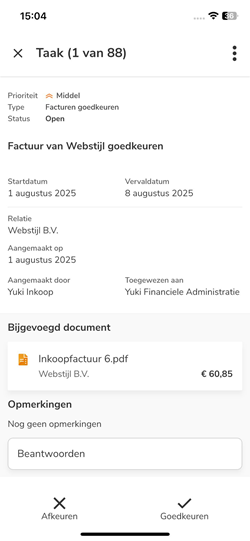
The invoice to be reviewed is attached to the task.
Tap the invoice name to view the preview and the associated details.
Process invoice
You will find options to process the task at the bottom and in the top-right corner of the screen:
- Approve: tap Approve at the bottom of the screen to give final approval for the invoice.
- Reject: tap Reject at the bottom of the screen. You can provide a reason why the invoice is not approved.
- Reassign (Forward): Do you want a colleague to review the invoice?
- tap the three dots (...) in the top-right corner.
- select Assign.
- search for and select the colleague to whom you want to forward the invoice, then tap Reassign.
- Edit: tap the three dots (...) in the top-right corner and select Edit to modify the task details.
- Delete: tap the three dots (...) in the top-right corner and select Delete to remove the task.
Add internal note
Do you want to record a comment on the task for yourself or a colleague?
- Type your text in the Comments section at the bottom of the screen.
- Tap Send.
- Then process the task (Approve, Reject, Assign) or close the screen using the 'X' in the top-left corner.
The note is saved and remains visible whenever you reopen the task.
Was this article helpful?
That’s Great!
Thank you for your feedback
Sorry! We couldn't be helpful
Thank you for your feedback
Feedback sent
We appreciate your effort and will try to fix the article