Disclaimer
All screenshots in the article were taken in the Dutch version of Nmbrs Accounting.
If you've forgotten your Nmbrs Accounting app password, you can set a new one via the login screen on your smartphone.
In the login screen, click on the link Forgot your password?
The following screen is opened:
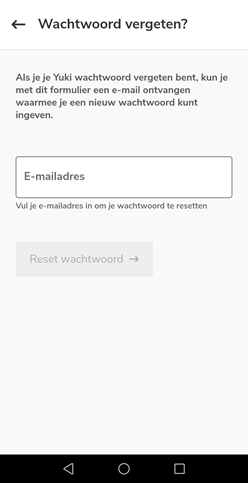
Enter the email address (username) you use to log in to Nmbrs Accounting here. The email will be sent to this address, containing a link (valid for 12 hours) that will allow you to create a new password directly.
Then click on the Reset password button.
ATTENTION!
When resetting your password, you'll also need to enter the six-digit code from the Authenticator app because two-factor authentication is enabled.
The following screen is opened:
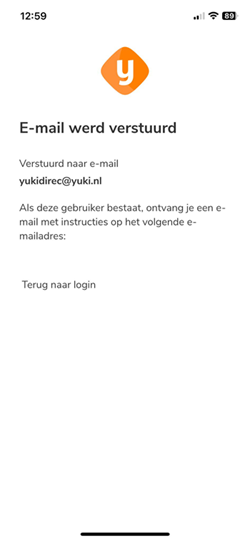
After resetting your password, you can then log in to your Nmbrs Accounting app with your new password.
Visma Connect has defined a rule stating that a sufficiently strong password must consist of at least 15 characters. This means that the password cannot be easily guessed or cracked using so-called dictionary attacks.
The character types you can use are: lowercase letters, uppercase letters, numbers, accented characters, and symbols.
For a detailed description of this set of rules, see the article Password policy.
Was this article helpful?
That’s Great!
Thank you for your feedback
Sorry! We couldn't be helpful
Thank you for your feedback
Feedback sent
We appreciate your effort and will try to fix the article