Disclaimer
All screenshots in the article were taken in the Dutch version of Nmbrs Accounting.
You can set up a phone number to receive the 6-digit code via SMS as well. This is not mandatory, but it serves as a backup option if you don't have your authenticator app handy.
Access to SMS code
To access:
- click on the user button in the top right corner of your screen
- then click on My profile.
OR - click on the Settings icon in the navigation bar
- then in the now-opened screen, click on My profile.
OR - click on the Contacts icon in the navigation bar
- in the now-opened screen, find and open your own contact card
- then click on the Password button.
Set up SMS code as backup method
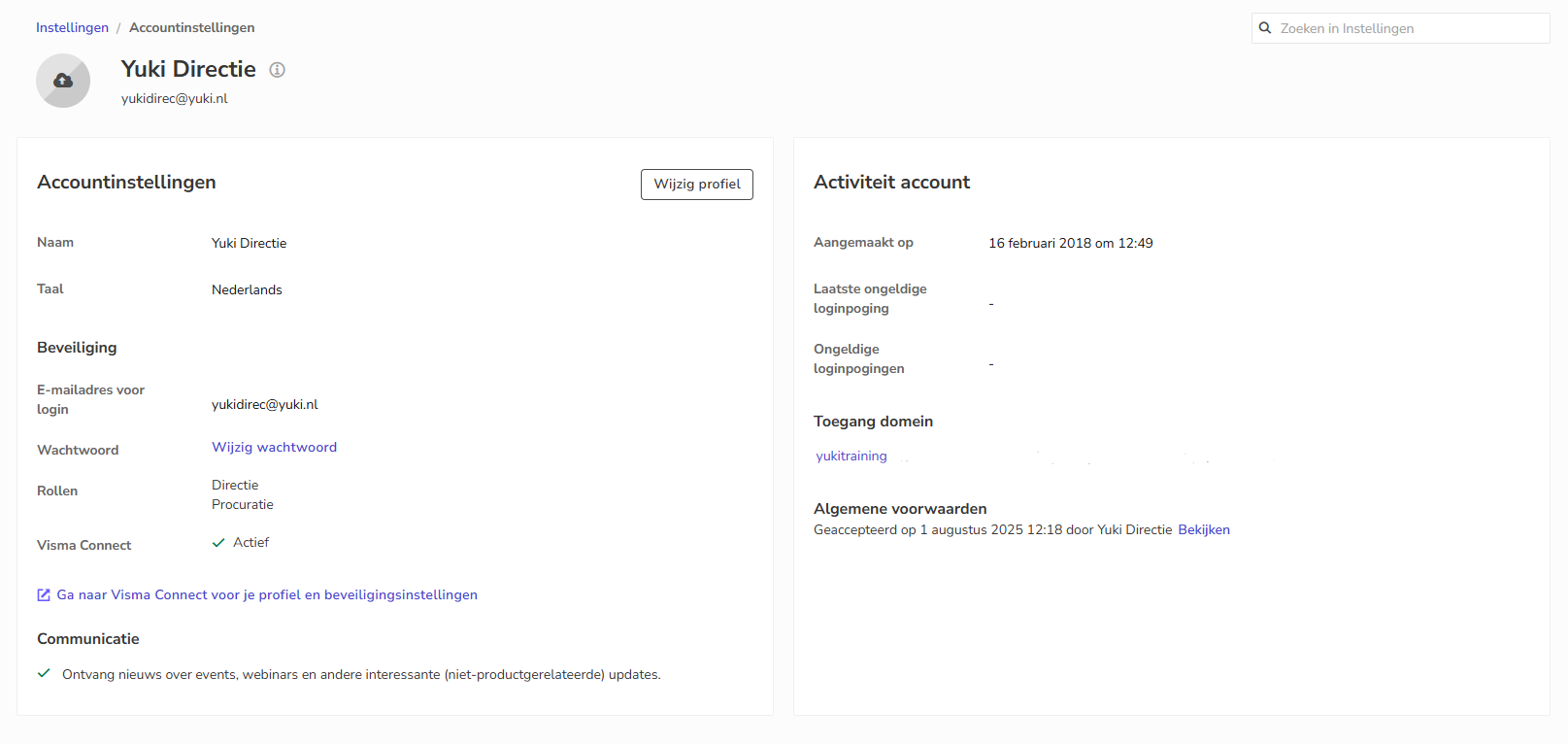
To set up a SMS code as backup method:
- click on the Go to Visma Connect for your profile and security settings link
- if necessary, click on the Sign-in and security section
The following screen is opened: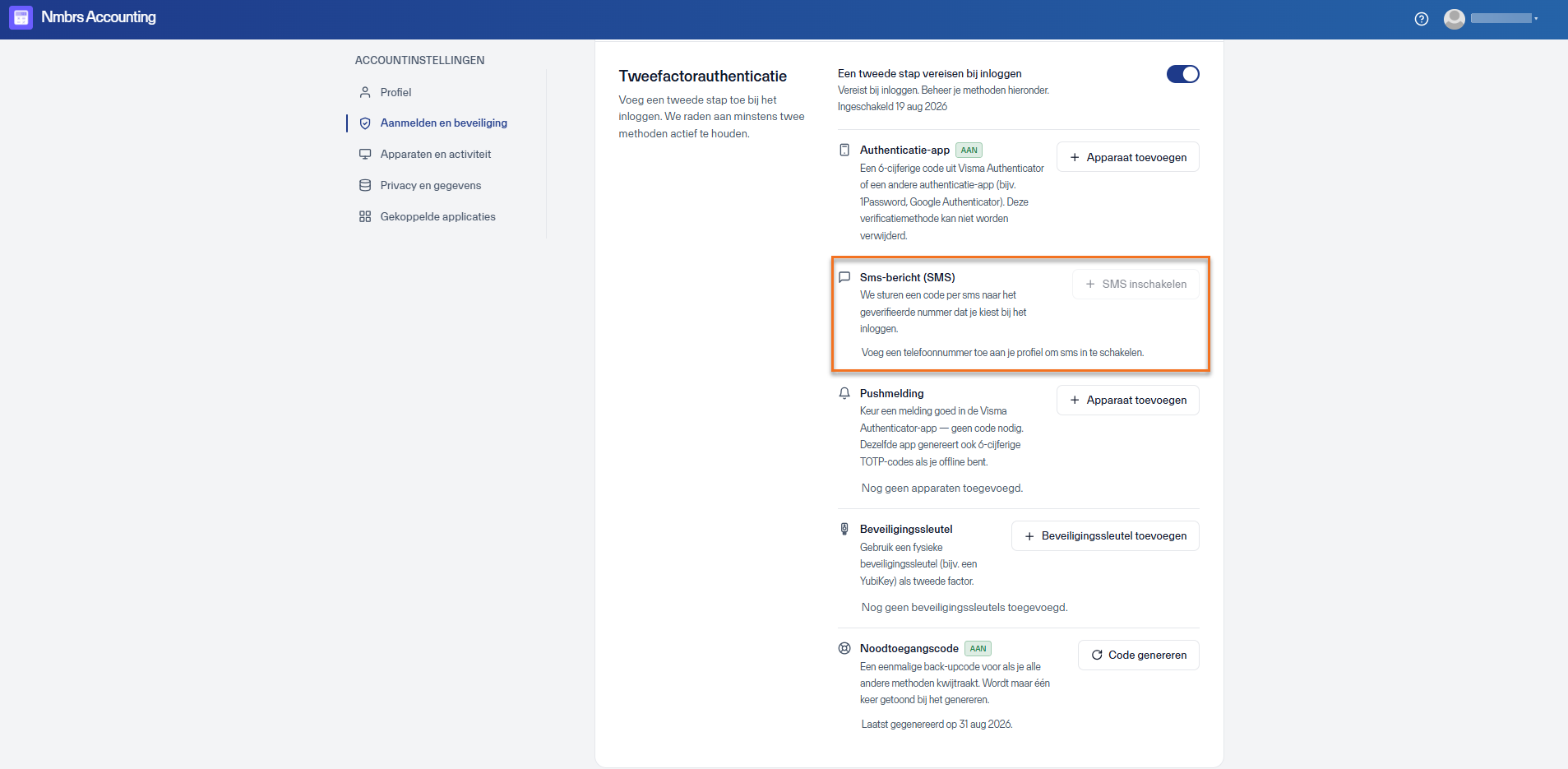
The Enable SMS button is inactive as long as no verified phone number has been added under Phone numbers in the Profile section.
To add a verified phone number - click on the Profile section
- click on the Add phone number button
- complete the authentication process again
- check the option Also enable SMS two-step verification
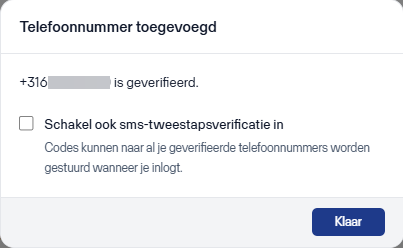
- then click on the Ready button.
- hen, in the Sign-in and security section, click on the Enable SMS button
- complete the authentication process again.
Was this article helpful?
That’s Great!
Thank you for your feedback
Sorry! We couldn't be helpful
Thank you for your feedback
Feedback sent
We appreciate your effort and will try to fix the article