Disclaimer
All screenshots in the article were taken in the Dutch version of Nmbrs Accounting.
From now on, you'll log in to Nmbrs Accounting using Visma Connect.
The login process is managed by a specialized entity within the Visma Group, which makes it more secure—in part because two-factor authentication (2FA) is required.
You’ll set this up once. After that, you’ll log in as usual.
For the frequently asked questions about logging in with Visma Connect see Log in with Visma Connect FAQ.
What you’ll need:
- Your current Yuki password.
- Your phone, to set up an Authenticator app.
- About five minutes, and a safe place to store your backup code.
Follow these five steps to log in with Visma Connect:
- Go to login
- Set up two-factor authentication (2FA)
- SMS as a backup method (optional)
- Save your backup code
- Done.
Step 1: Go to the login page
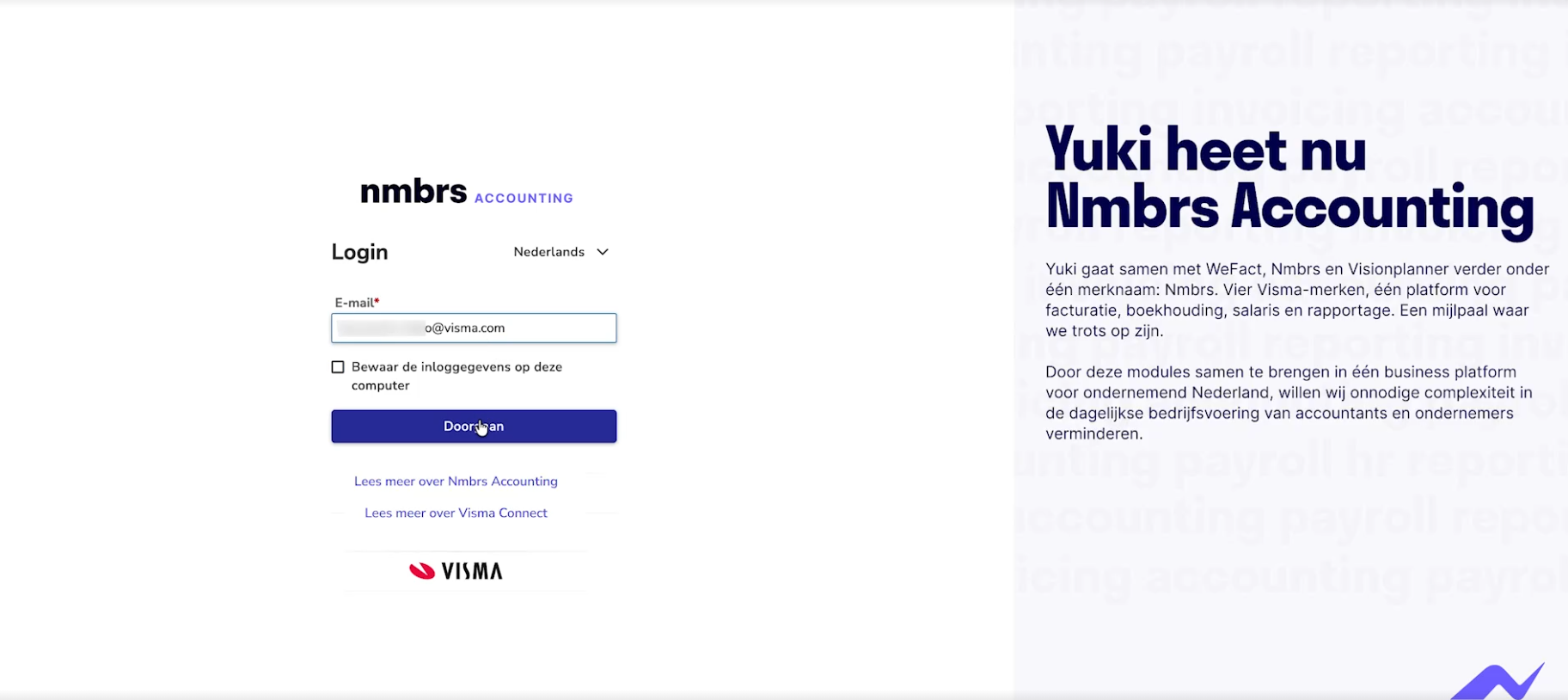
Go to the Nmbrs Accounting login page and enter your email address. This will automatically take you to Visma Connect.
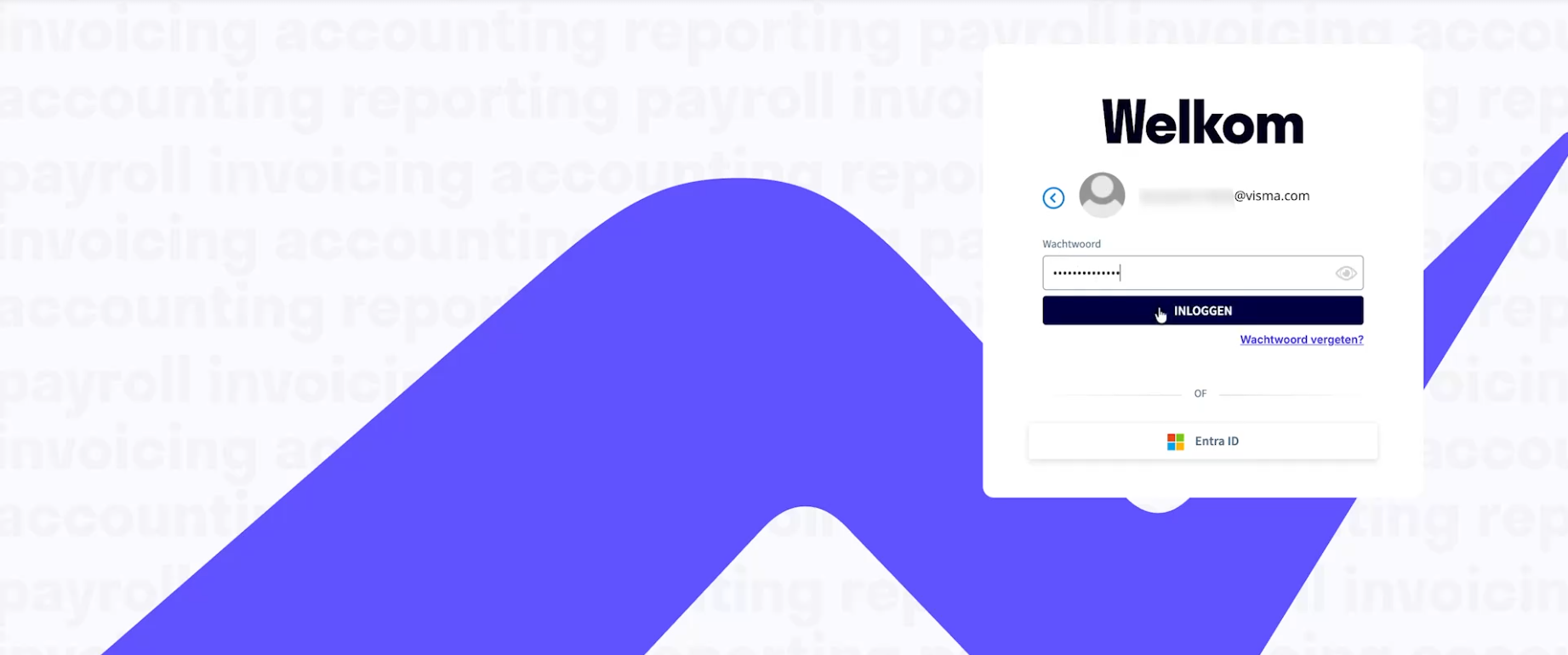
Then enter the password you currently use for Yuki and click on Log In. You don’t need to create a new password.
Is your password already strong enough? If so, proceed directly to Step 2.
Is Visma Connect asking for a new password?
If so, your current password does not meet the new security requirements. This is not an error message.
- Enter your current Yuki password.
- Below that, enter your new password twice.
- Click on the Change password button.
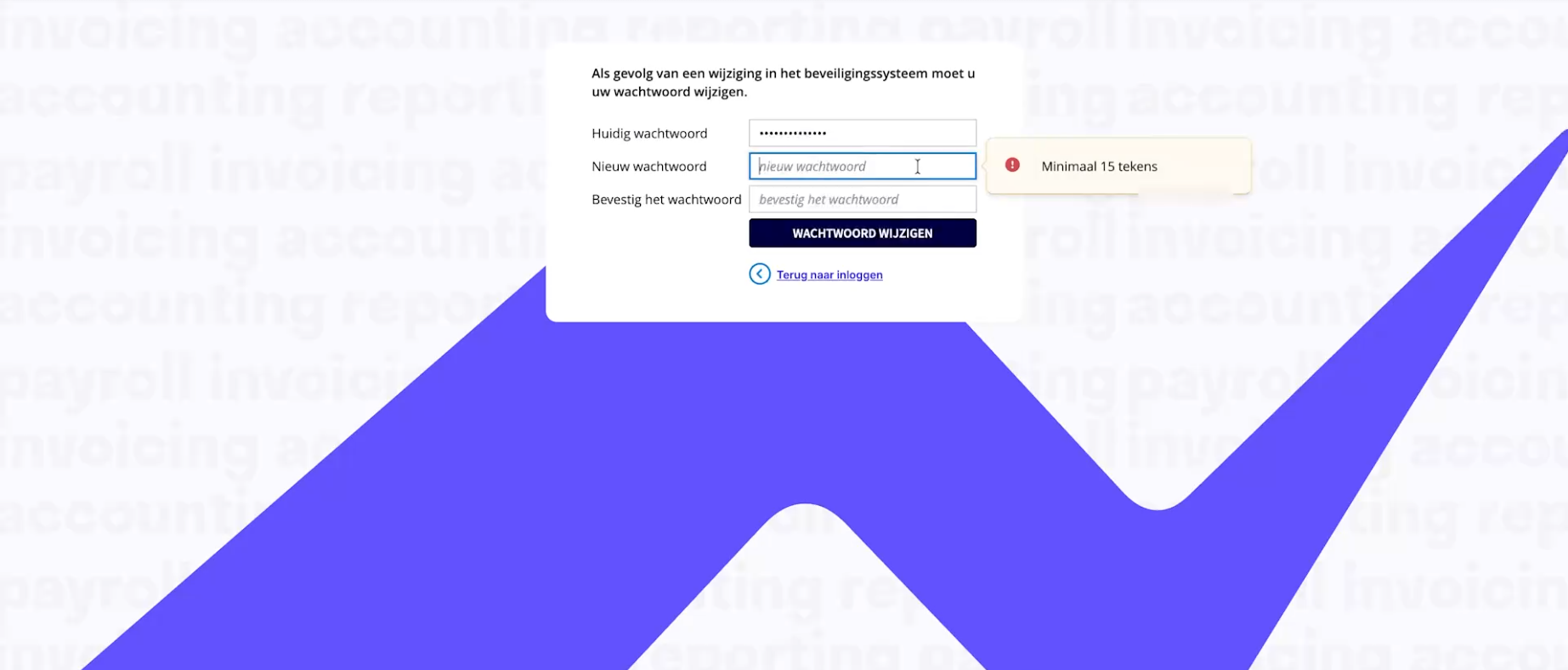
Visma Connect has defined a rule stating that a sufficiently strong password must consist of at least 15 characters. This means that the password cannot be easily guessed or cracked using so-called dictionary attacks.
For a detailed description of all the rules a password must meet, see article Password policy.
Step 2: Set up twofactor authentication (2FA)
Visma Connect will now ask you to set up two-factor authentication, also known as 2FA.
With two-factor authentication, you essentially add an extra layer of security when you log in to Nmbrs Accounting. This means that your identity is verified based on two factors when you log in. The first factor is your password; the second factor is a 6-digit code generated on your cell phone.
This means that someone who only has your password cannot log in to Nmbrs Accounting. Think of it as two locks on the same door.
This step is mandatory and cannot be skipped.
Did you already have two-factor authentication set up in Yuki?
If so, enter your usual 6-digit code and click on the Confirm button. You’ll proceed directly to step 4.
Don't have two-factor authentication yet?
Then the next screen is opened:
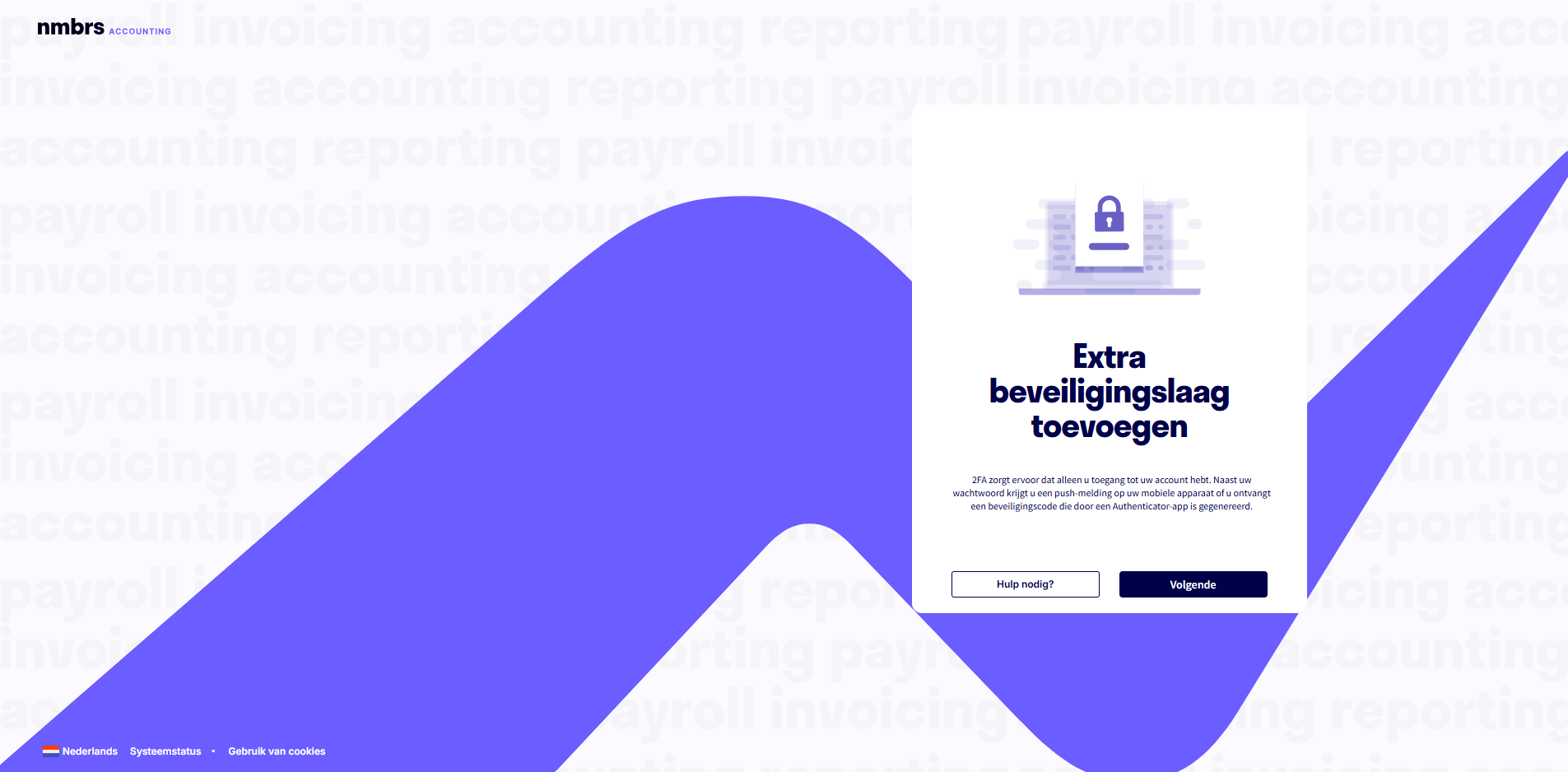
Click on the Next button and set up two-factor authentication on the next screen:
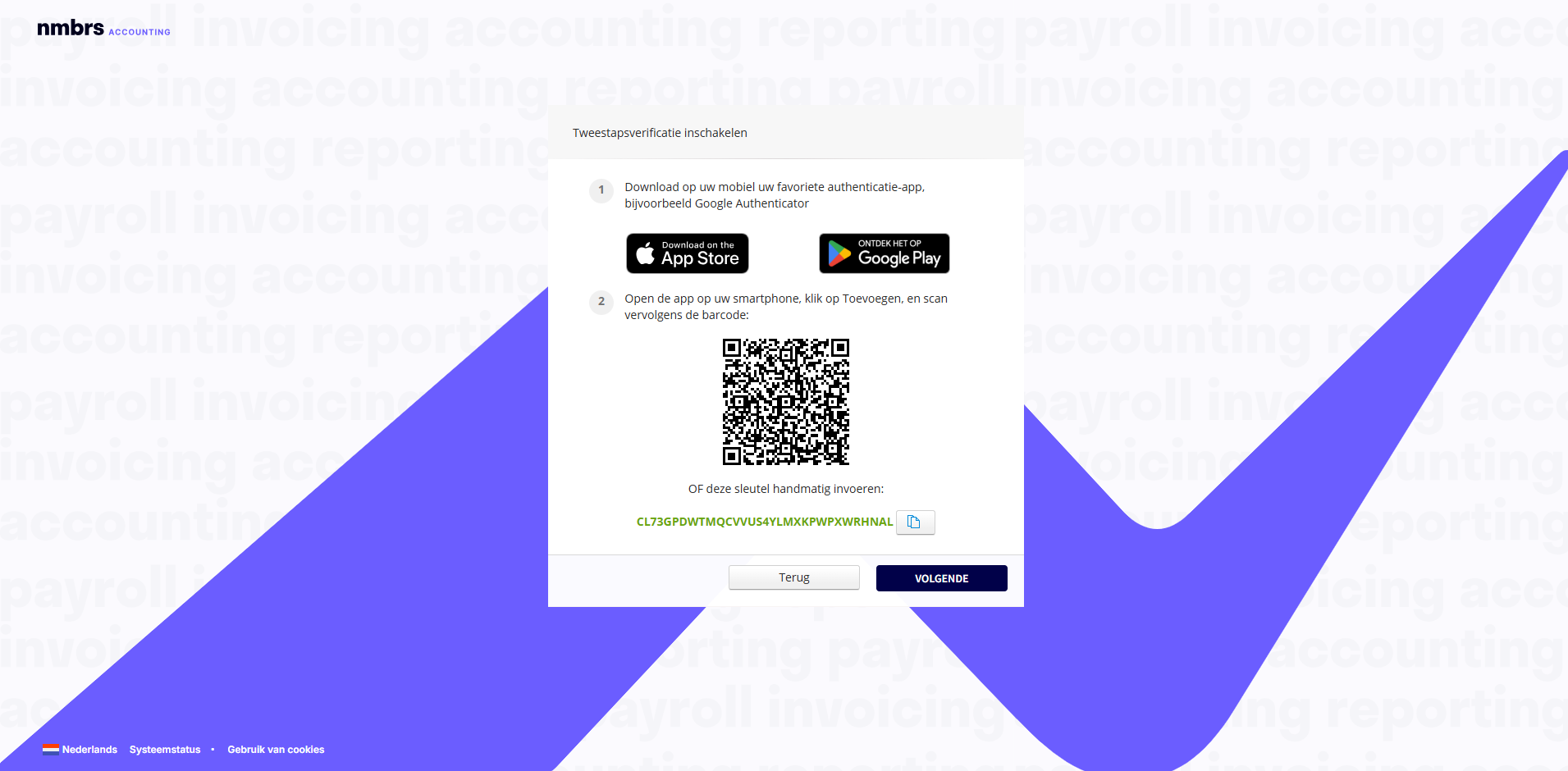
To do this, you’ll need an “Authenticator” app on your cell phone. Use the Authenticator app you already have, or download an Authenticator app such as the Google Authenticator app or the Microsoft Authenticator app.
Open your Google or Microsoft Authenticator app and scan the QR code on your screen.
Enter the 6-digit code generated by the Authenticator app.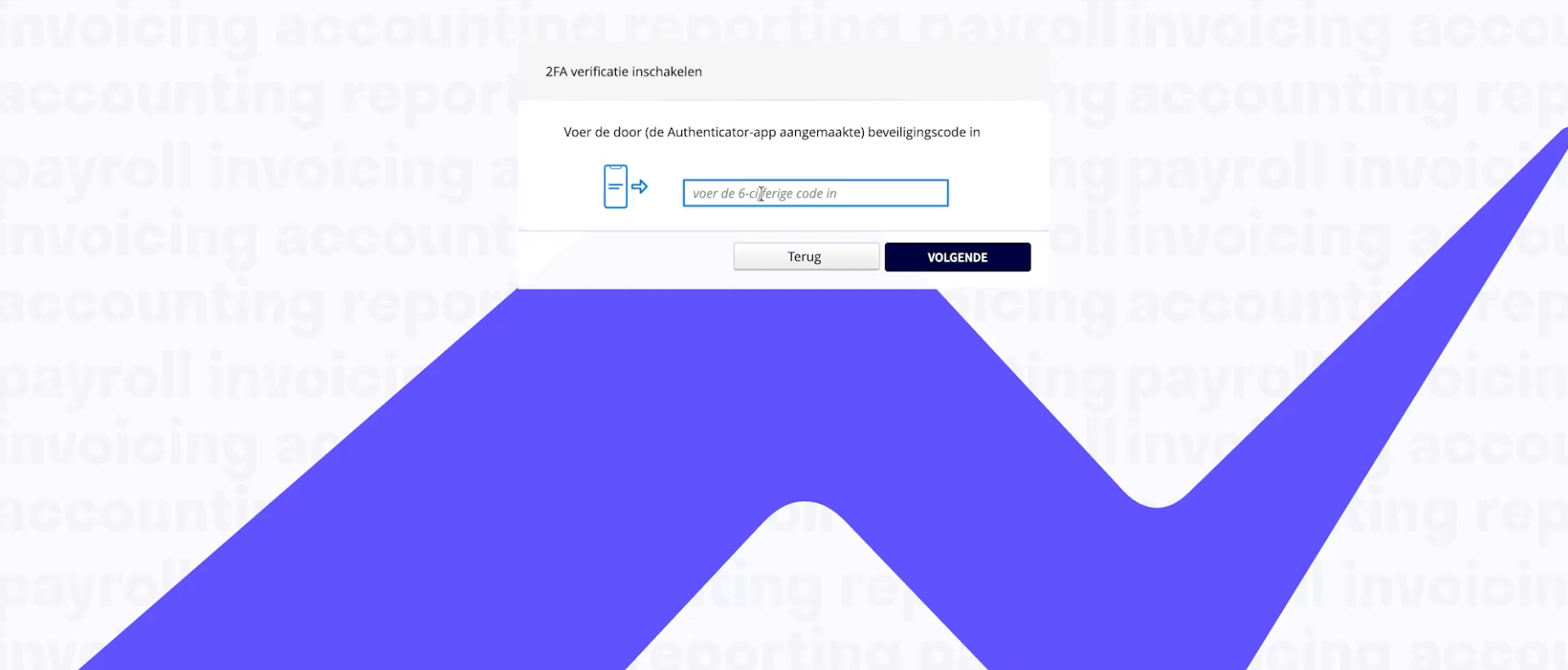
Step 3: SMS as a backup method (optional)
You can set up a phone number to receive the 6-digit code via SMS. This step is optional, but it serves as a backup in case you don’t have your Authenticator app handy.
Set SMS as backup method
- Select your country code and enter your number.
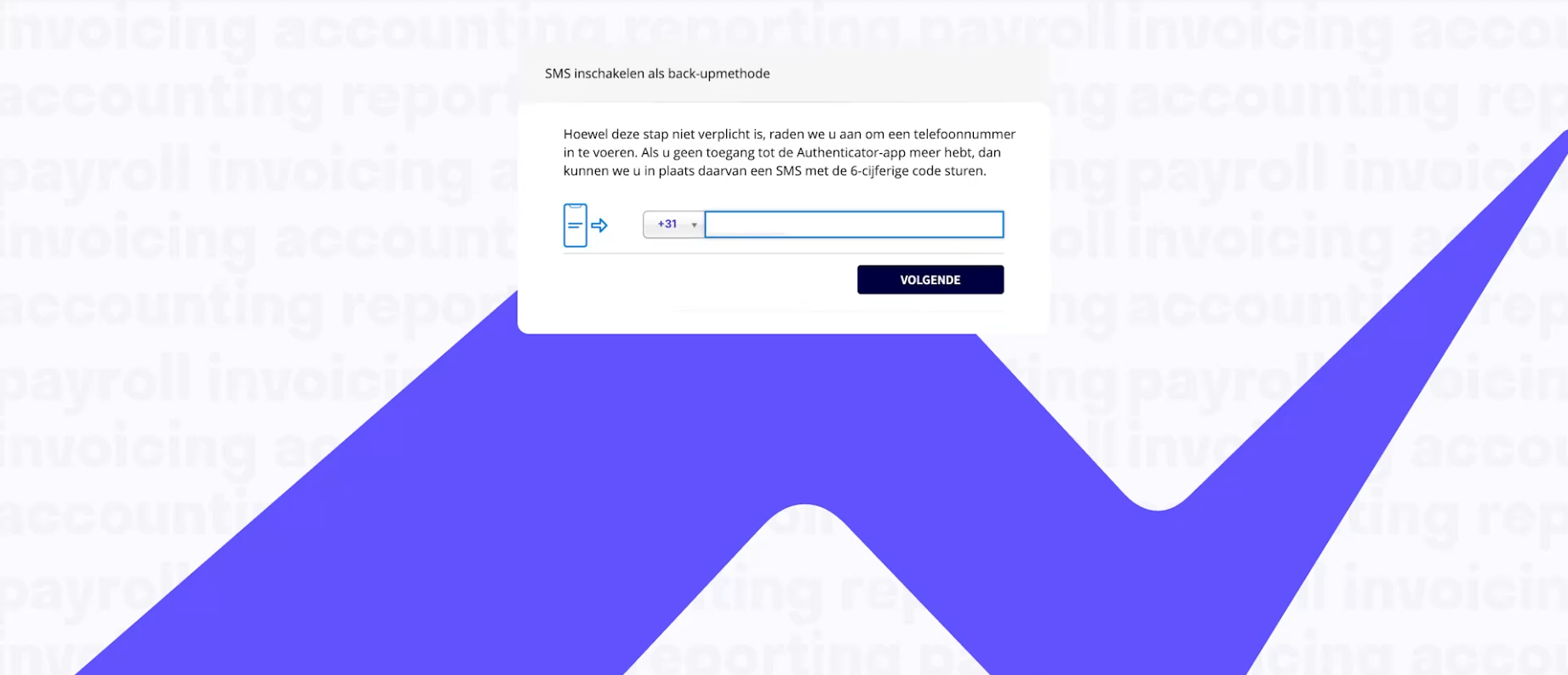
- Click on the Next button.
- You’ll immediately receive a text message with a verification code. Enter it.
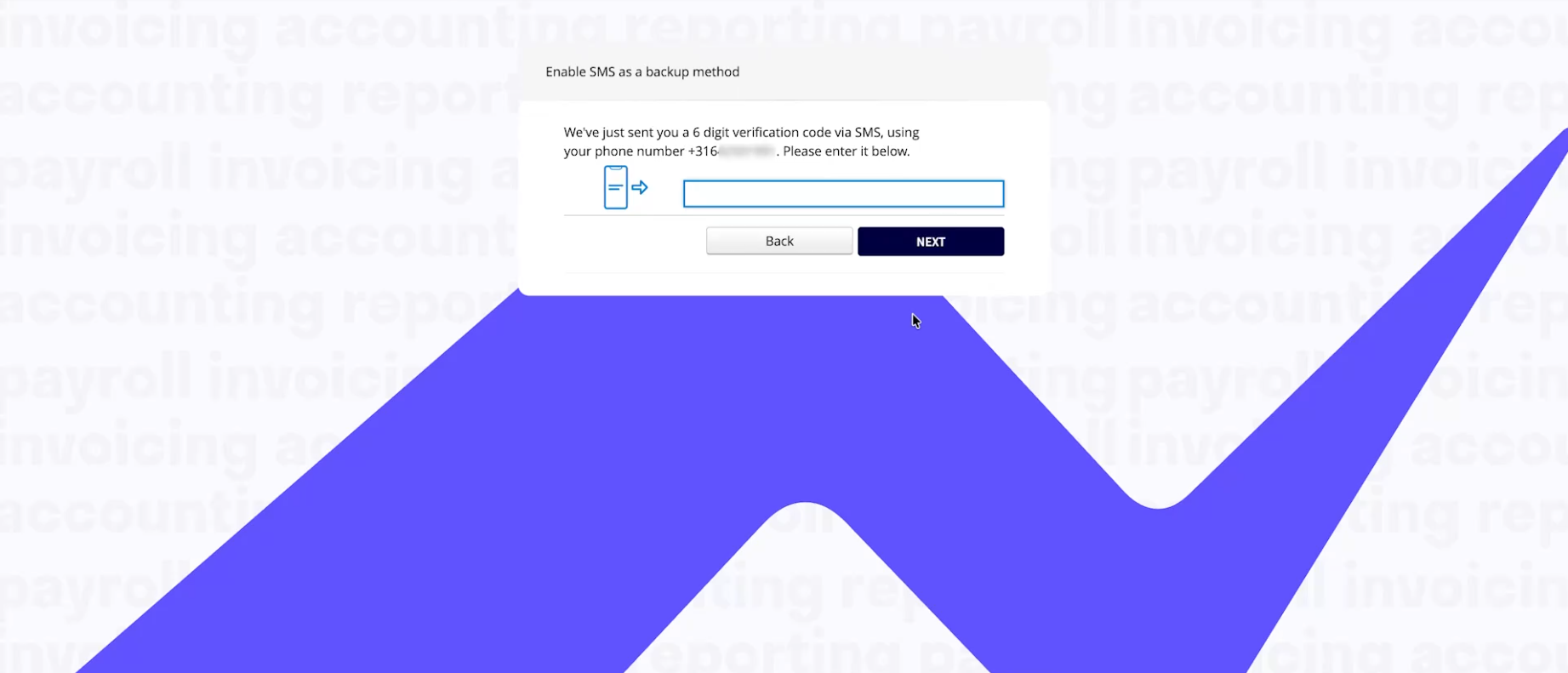
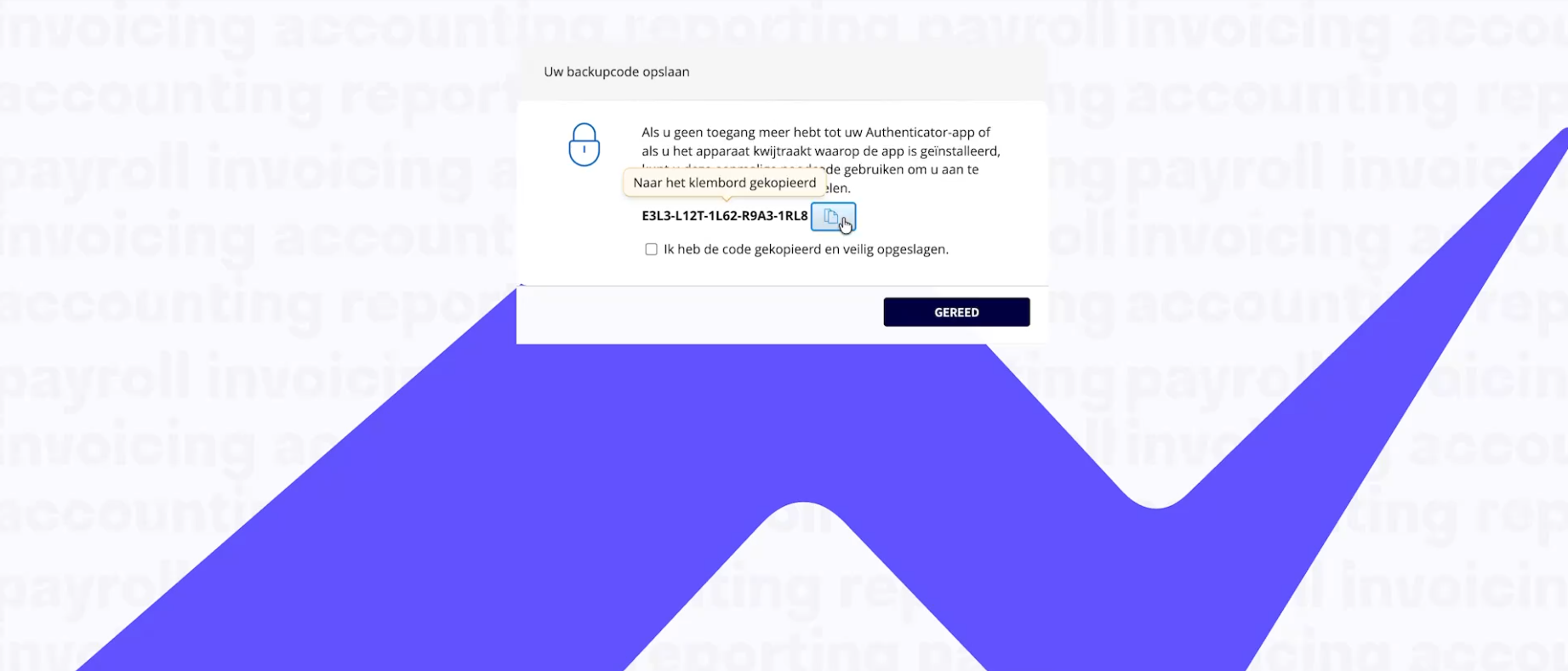
Step 4: Save your backup code
Finally, you’ll see a unique backup code. Don’t skip this step. You’ll only see the code once.
If you lose your cell phone or can no longer access your Authenticator app, this is your emergency code to regain access.
Save backup code
- Copy the code and store it in a safe place: in a password manager, or printed out and kept somewhere no one else can access it.
- Check the box next to I have copied the code and stored it safely.
- Click on the Done button.
Step 5: Done
You’re registered via Visma Connect and logged in to Nmbrs Accounting. From now on, when you log in, enter your email address, then your password, and then the code from the Authenticator app.
Having trouble?
- You can’t log in. Log out completely and try again, or try it in an incognito window.
- It still isn’t working. Email support.accounting@nmbrs.com with your email address, your domain name, and a screenshot of the error message you’re receiving.
Was this article helpful?
That’s Great!
Thank you for your feedback
Sorry! We couldn't be helpful
Thank you for your feedback
Feedback sent
We appreciate your effort and will try to fix the article