Revolut allows you to export or download bank statements (transactions) for a selected period via online banking and save them as an export file. This electronic file can then be uploaded to Nmbrs Accounting, so that the transactions are automatically processed in the administration.
Check date of most recently imported transaction
Before exporting transactions, it’s important to check the date up to which bank transactions have already been processed in Nmbrs Accounting. You can find this date in the last column of the overview of all bank accounts in Nmbrs Accounting.
If the bank account in question does not yet exist in Nmbrs Accounting, it will be created automatically when you upload the file. After that, you only need to specify which ledger the bank account belongs to.
Supported file formats
To import Revolut bank transactions into Nmbrs Accounting, you must submit the export file in one of the following formats:
- CAMT.053.
Download Revolut bank file
The following steps explain how to download a bank statement from Revolut for your business account:
- Open the Revolut Business app
Go to ‘Home’
Select the account from which you want to export transactions
Tap ‘Overzicht'
Select the desired time period
You can download transactions starting from the day the account was openedSelect CAMT.053 (or .xml) as the file format
Tap ‘Download’.
ORLog in in je Revolut Business Web-app (desktop)
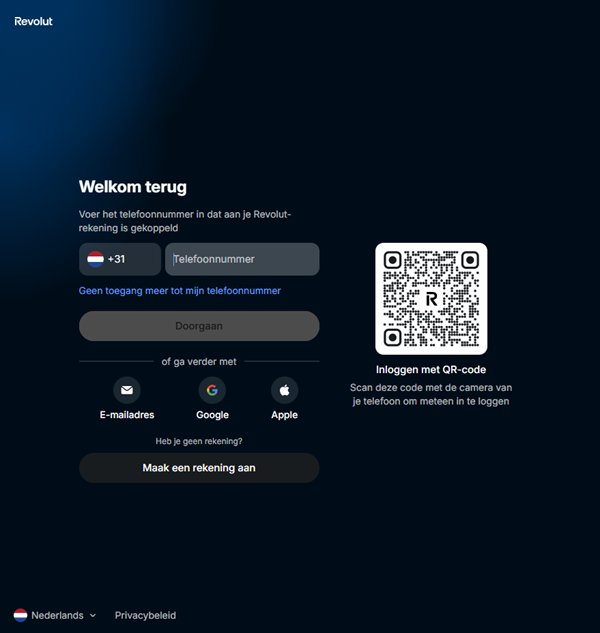
Go to 'Home' tab
Select the account from which you want to export transactions
Click on the ‘...’ (Meer) button or directly on ‘Overzicht’ (Statement)
Select the desired time period
You can download transactions starting from the day the account was openedSelect CAMT.053 (or .xml) as the file format
Click 'Genereren' or 'Downloaden'.
Upload Revolut bank file to Nmbrs Accounting
We recommend that you do not open or edit the bank file. This ensures that the file structure remains intact and allows Nmbrs Accounting to process the file correctly.
You can then upload the downloaded bank file to Nmbrs Accounting via the PO Box or send it as an attachment by email to <yourdomainname>@accounting.nmbrs.com.
The electronic bank file will be automatically processed in your administration.
For a detailed description of uploading files in Nmbrs Accounting, see article Upload files from PO Box.
Was this article helpful?
That’s Great!
Thank you for your feedback
Sorry! We couldn't be helpful
Thank you for your feedback
Feedback sent
We appreciate your effort and will try to fix the article