Disclaimer
All screenshots in the article were taken in the Dutch version of Nmbrs Accounting.
In Nmbrs Accounting, you can export the address book to various file formats. This is useful for exchanging data with Excel, Outlook, mobile devices, or another Nmbrs Accounting domain.
ATTENTION!
There is no automatic synchronization feature available with external programs or mobile devices. Contact data is always exchanged via manual import and export.
Permissions and roles
Only a user with the 'Back office' role in the domain or the 'Management', 'Financial administration' or 'External accountant' role can export contacts.
Access to Export contacts
To access:
- click on the Contactsicon in the navigation bar
- then click on Import & Export.
The following screen is opened:
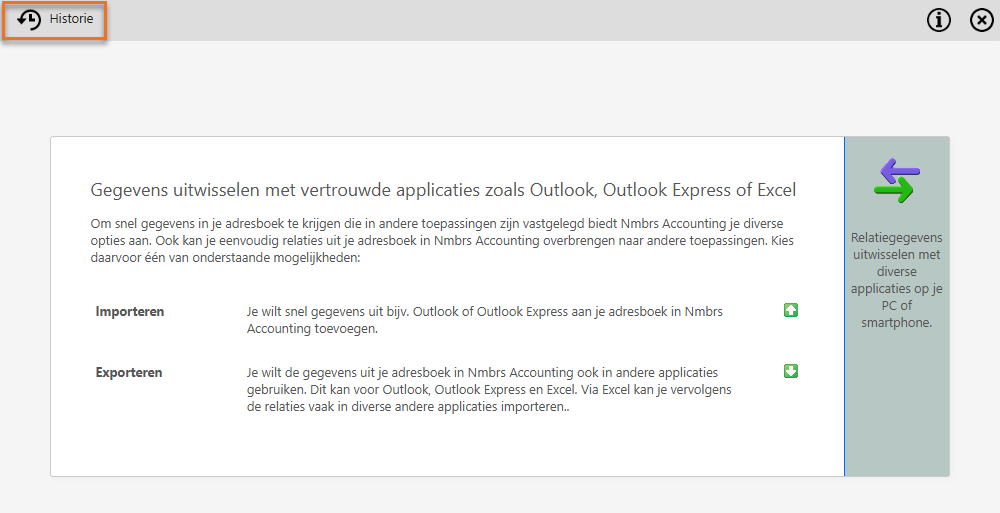
Would you like to view a list of previously exported files? If so, click ON the History button at the top of the screen.
Export contacts
To start exporting contacts;
- click on Export to start the process
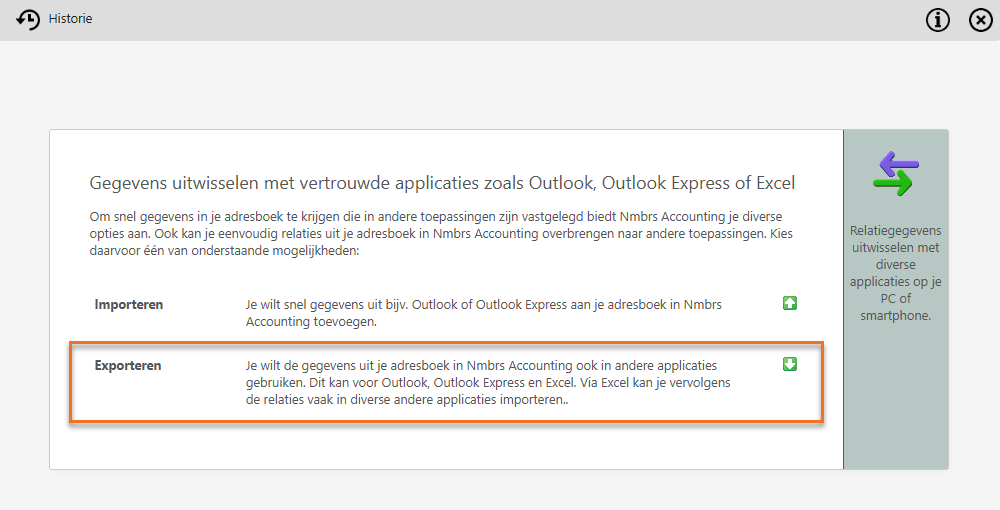
The following screen is opened: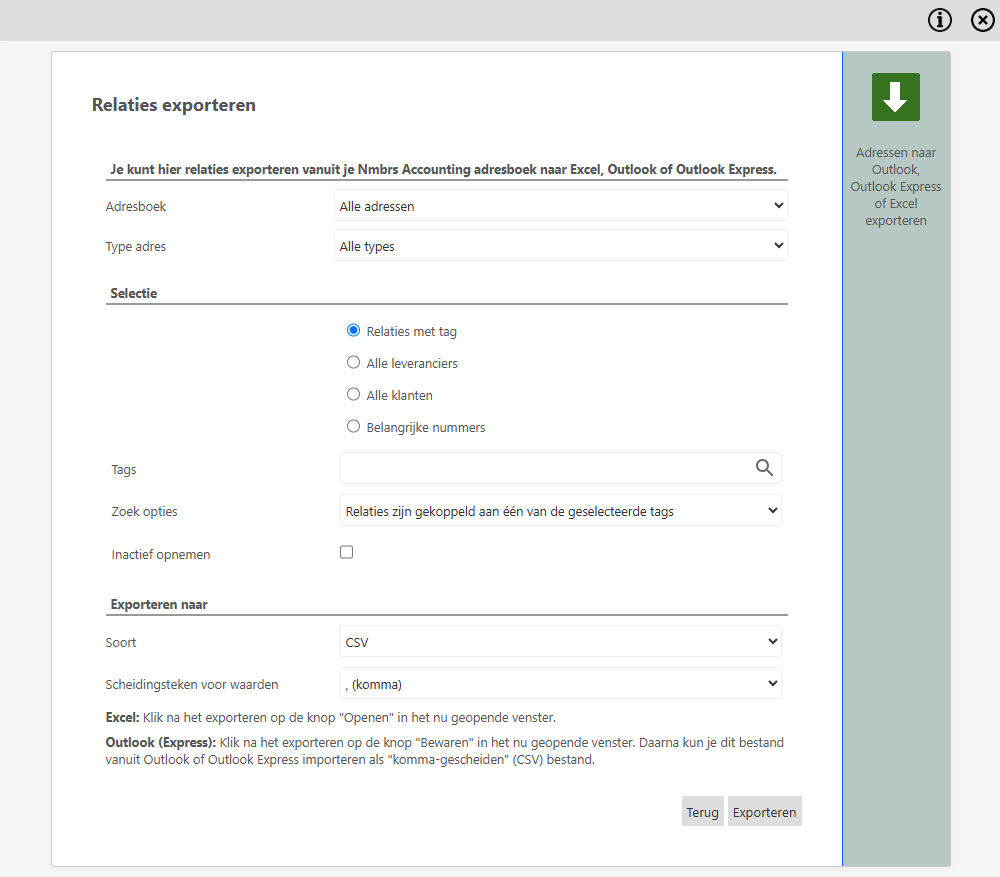
- set the desired export parameters (see the table below)
- click on the Export button to create and download the file.
The file is saved with the default name: ExportAddresses [date].csv.
Settings and filter options
Before exporting, configure the following fields as required:
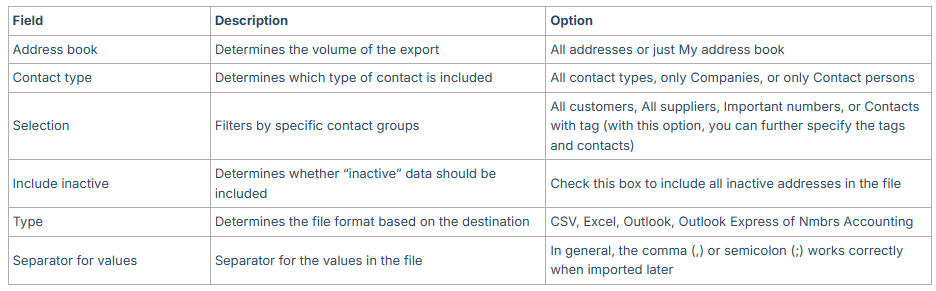
Migration between Nmbrs domains
Do you want to transfer contacts from one Nmbrs domain to another?
- under Type, select the Nmbrs Accounting option.
- first, export the Companies and then the Contact persons from the source domain.
- import them in the same order (Companies first, then Contact perosns) into the destination domain.
What data is exported?
The export includes all known contact information:
- Name data: first name, infixes, last name, nickname
- Company data: company name, department, address, fax, phone
- Person data: name, address, extra address, phone at work, fax private, phone private, mobile phone, special date, name of assistant, date of birth, email address, email address 2, gender, SSN, job title, name of manager, notes, partner, webpage.
Was this article helpful?
That’s Great!
Thank you for your feedback
Sorry! We couldn't be helpful
Thank you for your feedback
Feedback sent
We appreciate your effort and will try to fix the article