If you don’t have an original export file from the bank (such as CAMT.053 or MT940) to import historical transactions, use the standard Nmbrs Accounting bank import format. You can easily create this file yourself in Excel and save it as a .csv file.
ATTENTION!
This standard import format is not suitable for transactions from online payment providers such as Mollie or PayPal. For those, use the specific integrations or export formats provided by the respective provider.
Example file
At the bottom of this article, you’ll find a sample of the Nmbrs Accounting bank import format as an attachment,
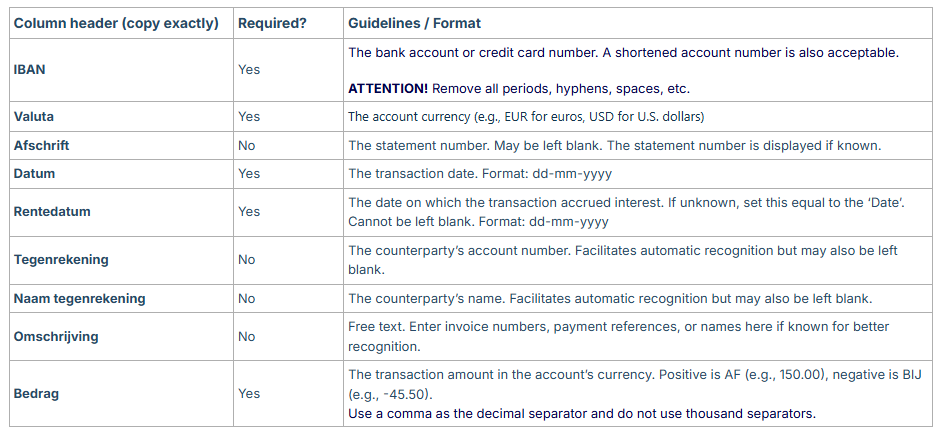
Column specifications for import file
The first line (row 1) of the file serves as the header row and must contain exactly the column titles listed below:
Save and submit import file
To successfully import the file into Nmbrs Accounting, it must meet the following requirements:
- Correct column headers: make sure the column headings on the first line (row 1) match exactly the names in bold in the table above.
- File type: save the Excel file as a comma-separated file (.CSV).
- Delimiter: use a semicolon (;) as the column separator (the default in the Dutch-language Excel environment).
TIP!
In Nmbrs Accounting, this universal CSV format is also ideal for manually importing cash registers, journal entries, or various miscellaneous entries.
Was this article helpful?
That’s Great!
Thank you for your feedback
Sorry! We couldn't be helpful
Thank you for your feedback
Feedback sent
We appreciate your effort and will try to fix the article