Pay (free of charge) and the additional feature P:ay with Pay are both payment options within the Nmbrs Accounting app.
After approving your registration for Pay with Swan, a business Pay checking account is created in your administration in Nmbrs Accounting and you have access to a business digital Pay payment card.
You have the option to add your Pay payment card to the Google or Apple Wallet on your cell phone.
ATTENTION!
Currently, the Pay payment card can only be added to Apple Wallet manually. This means that you have to perform a few steps yourself to add the card to this specific wallet.
Add Pay payment card to Google Wallet
To add the Pay payment card to Google Wallet, follow the steps below.
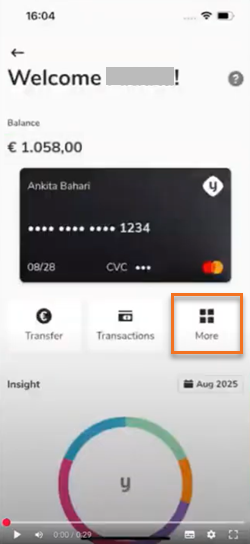
Step 1. Click on the More button in the Pay home screen.
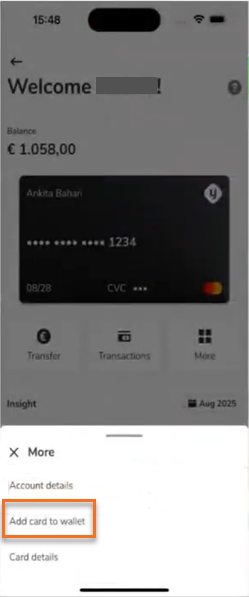
Step 2. In the now-opened screen, click on the Add card to wallet button.
Step 3. Then, in the now-opened screen, click on the Add to Google Pay button and go through the necessary steps.

Your Pay payment card has now been added to your Google Wallet.
Manually add your Pay payment card to Google Wallet
You also have the option to manually add the Pay payment card to your Google Wallet by clicking on the Add card manually button.
You then go through the same steps as described below for adding the Pay payment card to the Apple Wallet.
Manually add Pay payment card to Apple Wallet
To add your Pay payment card to your Apple Wallet, follow the steps below.
To add your Pay payment card to your Apple Wallet, click on the Add card to wallet button.
Step 1. Click on the Add card to wallet button in the Pay home screen.
The following screen is opened:

Step 2. Follow the instructions in this screen and then click on the Next button.

Step 3. Follow the instructions in this screen and then click on the Next button.

Step 4. Finally, enter the number of your Pay payment card.
The Pay payment card is now added to the Apple Wallet.
TIP!
If you don't have the card number handy, click on the Retrieve your card number link to retrieve your Pay payment card number.

Click on the indicated icon to easily copy the Pay payment card number.
Was this article helpful?
That’s Great!
Thank you for your feedback
Sorry! We couldn't be helpful
Thank you for your feedback
Feedback sent
We appreciate your effort and will try to fix the article