Disclaimer
All screenshots in the article were taken in the Dutch version of Nmbrs Accounting.
The Recently viewed feature in the Archive shows a list of your recently opened files. This allows you to reopen or retrieve the desired document with a single click.
Permissions and roles
Management
A user with this role can:
- move documents
- download documents
- only delete non-financial documents.
Back office (in domain)
A user with this role can:
- move documents
- download documents
- delete financial and non-financial documents.
Access to Recently viewed
To access:
- click on the Archive icon in the navigation bar
- then click on Recently viewed.
Recently viewed overview
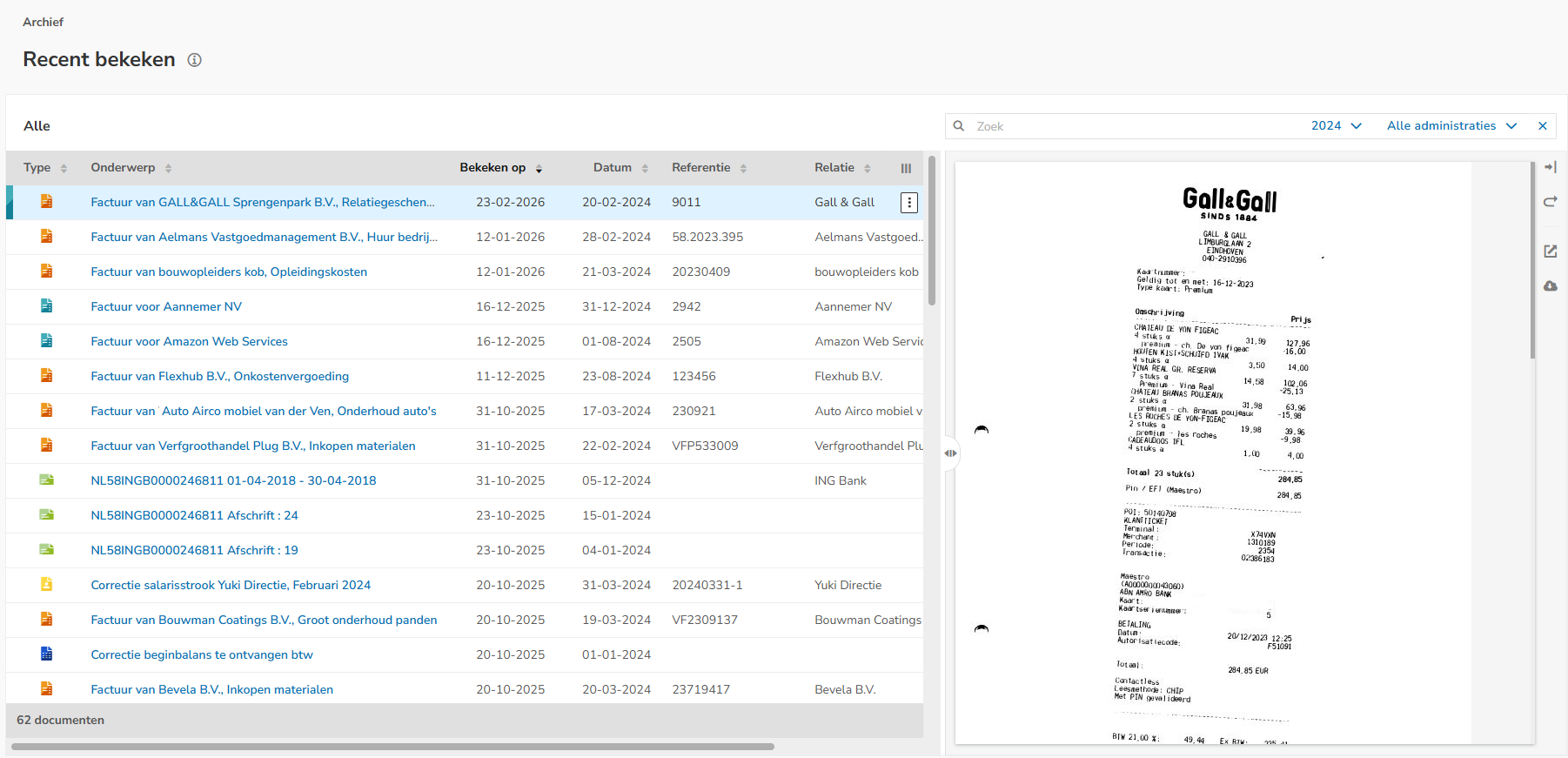
By default, this overview is sorted by the Viewed column.
Resizeable document viewer
Click on the relevant invoice line and then on the Show / Hide button (icon with a right / left arrow) to show or hide the document preview on the screen.
To enlarge the displayed document preview, move your mouse over the two arrows to the left of the document preview and resize it to the final size.
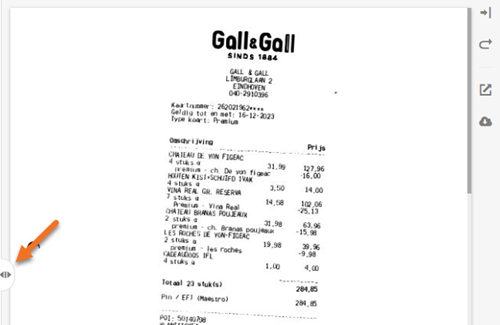
Additionally, in the document viewer you can:
- reset the document preview to the default size (curved arrow icon)
- open the document in the browser (square icon with a top-right arrow)
- download the document (cloud icon with a down arrow).
AVAILABLE USER ACTIONS
From this screen a user can:
- view a document
- view a contact (not available for all document types)
- move a document (not available for all document types)
- download a document
- delete a document.
View document
To view a document.
- click on the subject of the document
OR - hover your mouse over the line of the document in question
- click on the button with the three dots
- then select the View document menu option from the dropdown menu.
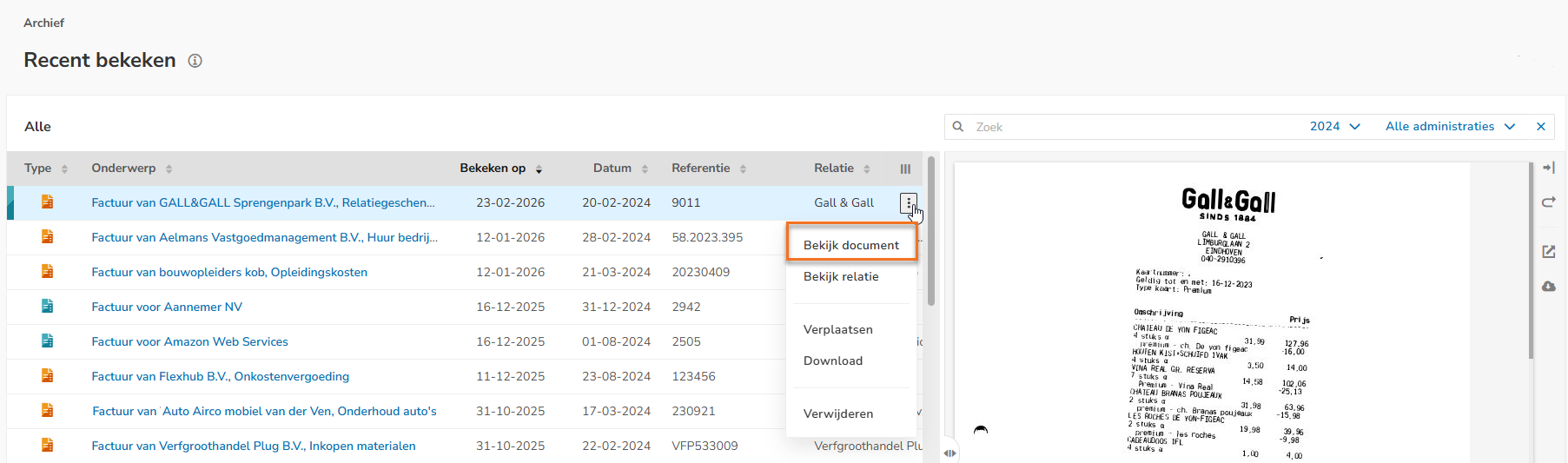
In the now-opened screen, the document can be changed, if necessary, or actions can be performed on the document.
View contact
To view the contact of a document:
- hover your mouse over the line of the document in question
- click on the button with the three dots
- then select the View contact menu option from the dropdown menu.
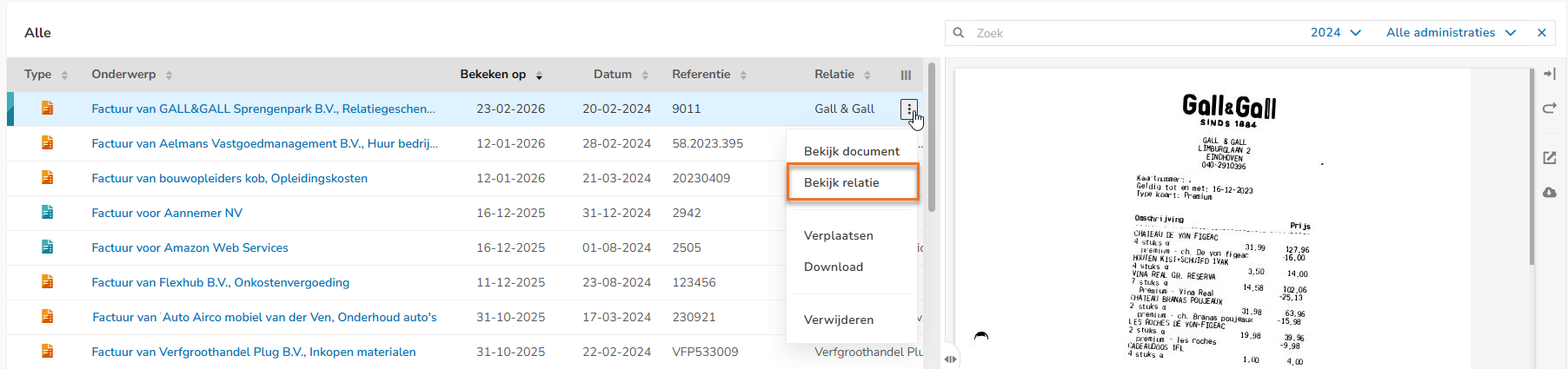
The contact card of the corresponding contact is now opened.
Move document
To move a document:
- hover your mouse over the line of the document in question
- click on the button with the three dots
- then select the Move menu option from the dropdown menu.
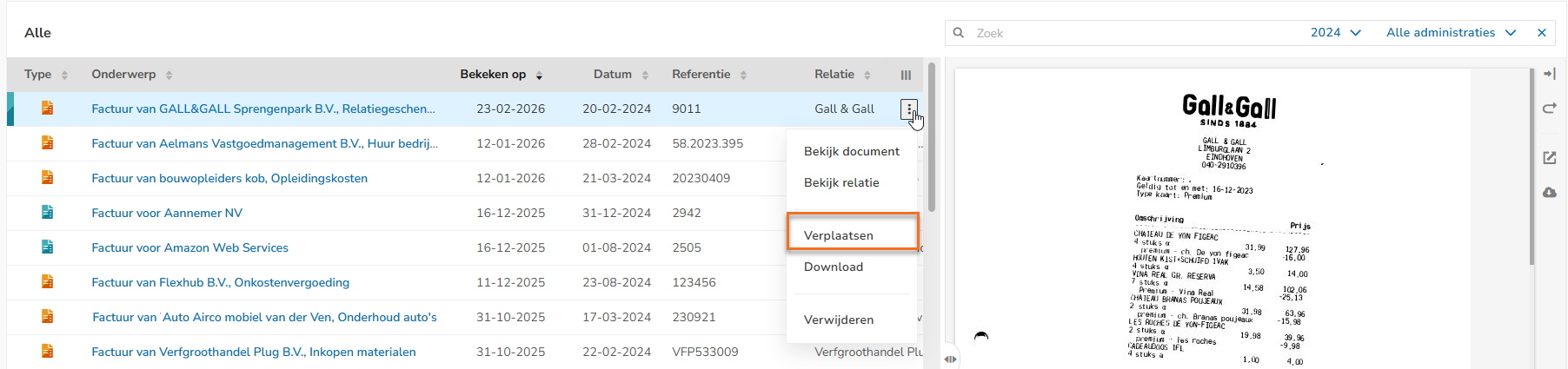
The following screen is opened: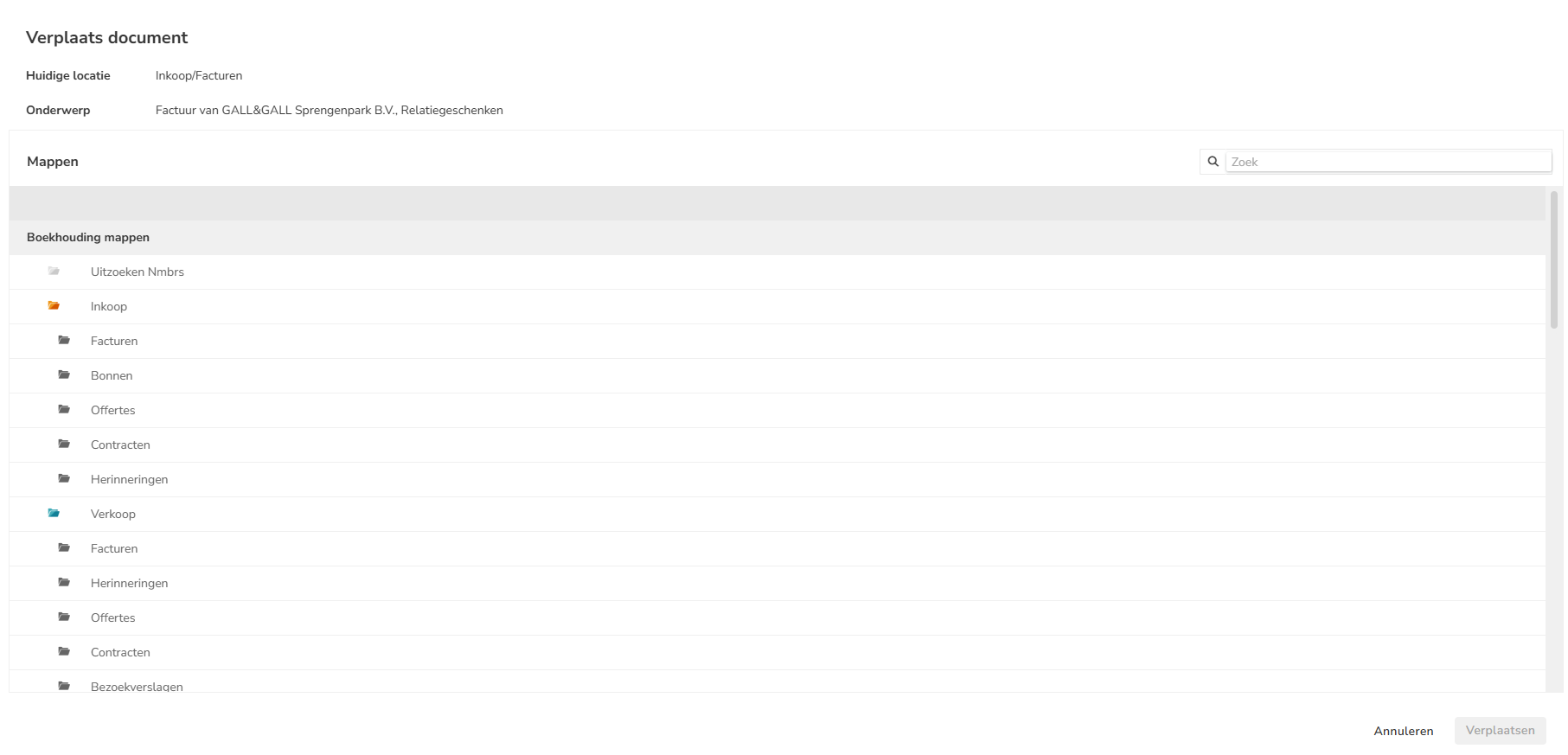
- select the (sub)folder to which to move the document
- then click on the Move button.
Download document
To download a document:
- hover your mouse over the line of the document in question
- click on the button with the three dots
- then select the Download menu option from the dropdown menu.
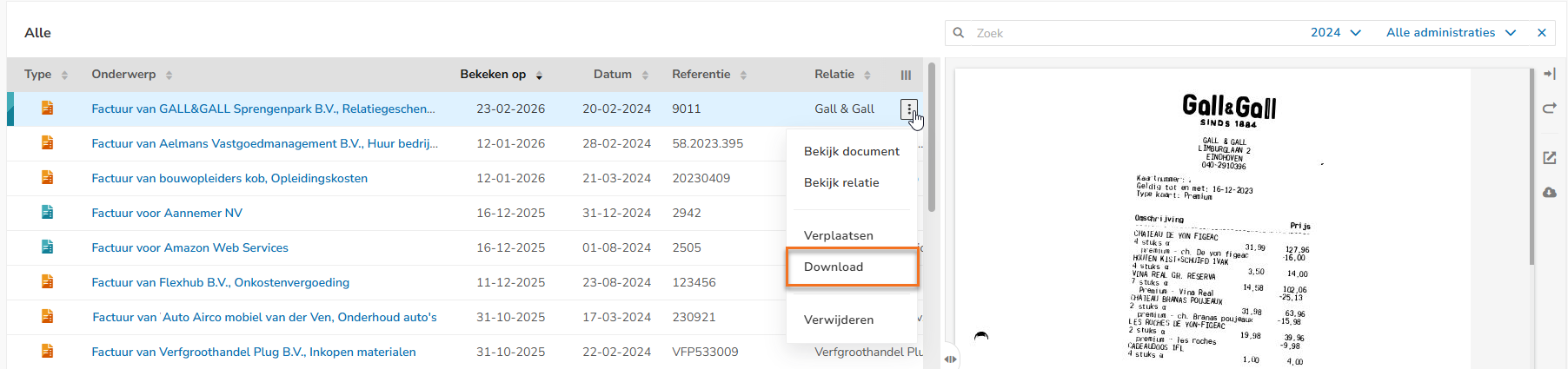
The document will now be downloaded to the hard disk of your laptop or computer.
Delete document
To delete a document:
- hover your mouse over the line of the document in question
- click on the button with the three dots
- then select the Delete menu option from the dropdown menu.
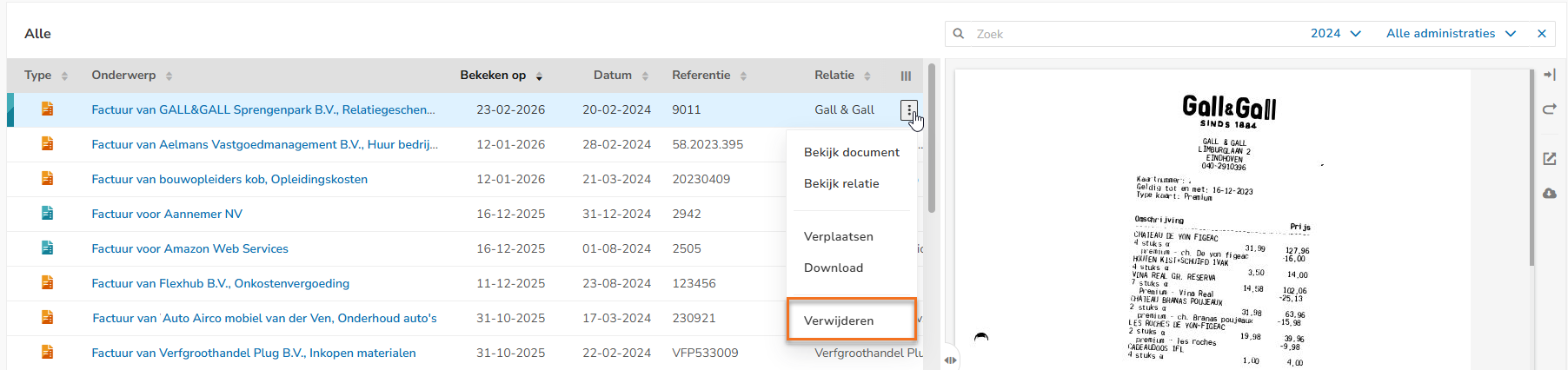
The following screen is opened: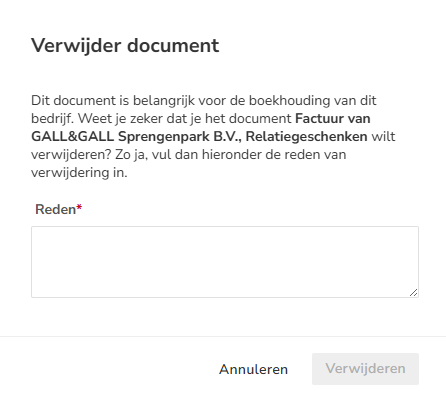
- enter a mandatory reason why the document is being deleted
- then click on the Delete button.
The document will now end up in the trash bin (Deleted documents).
Was this article helpful?
That’s Great!
Thank you for your feedback
Sorry! We couldn't be helpful
Thank you for your feedback
Feedback sent
We appreciate your effort and will try to fix the article