Disclaimer
All screenshots in the article were taken in the Dutch version of Nmbrs Accounting.
In Nmbrs Accounting, you can view a list of documents you have recently viewed. This is useful if you want to open a document again.
A user with the role 'Back office' role in the domain can move, download or delete documents.
A user with the role 'Management' role can move, download documents or delete only non-financial (standard) documents.
From this screen a user can:
- view a document
- view a contact (not available for all document types)
- move a document (not available for all document types)
- download a document
- delete a document.
Hover your mouse over the Archive icon in the navigation bar, then click on Recently viewed.
The following screen is opened:
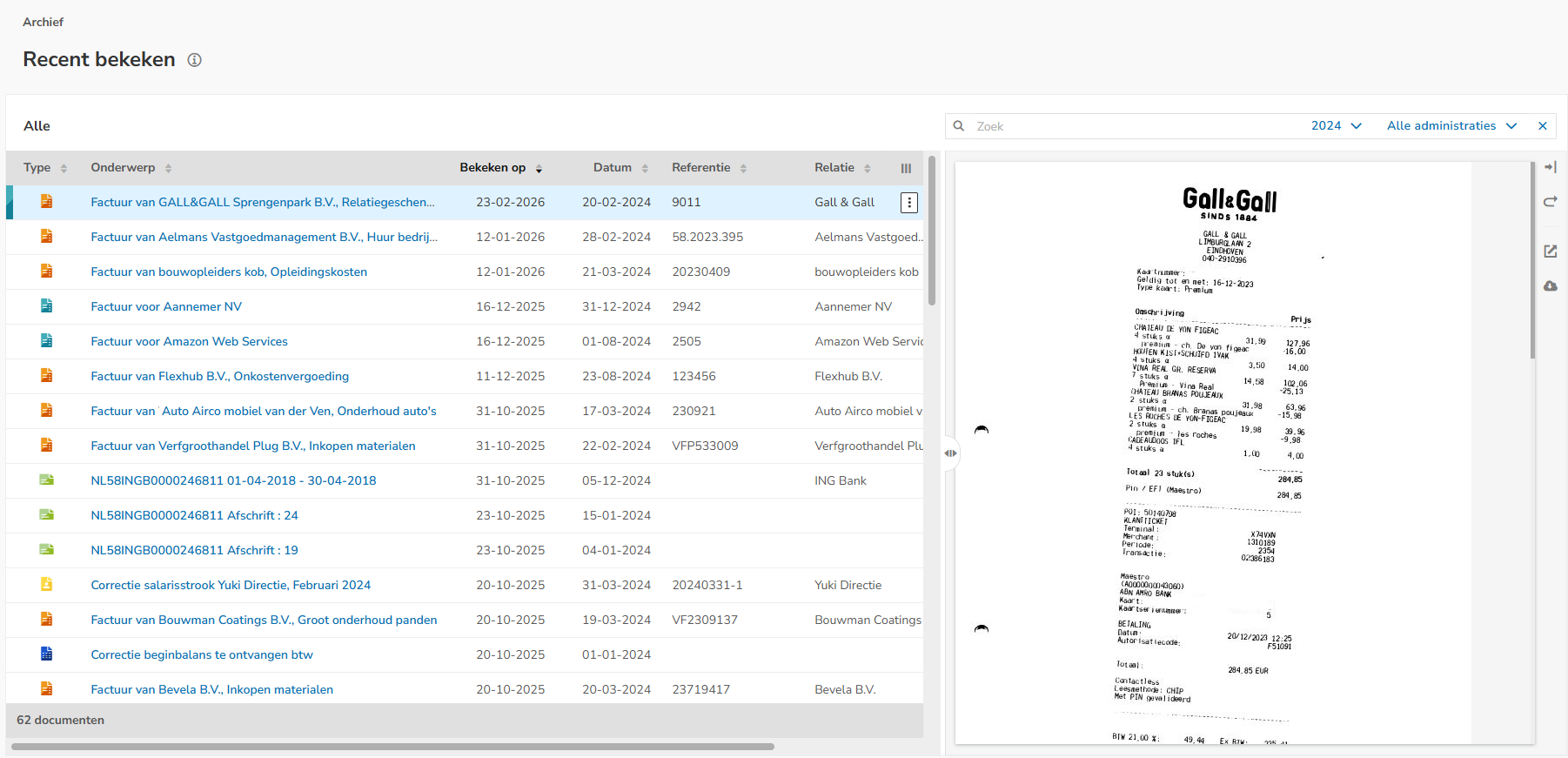
By default, this overview is sorted by the Viewed column.
Resizeable document viewer
Click on the relevant invoice line and then on the Show / Hide button (icon with a right / left arrow) to show or hide the document preview on the screen.
To enlarge the displayed document preview, move your mouse over the two arrows to the left of the document preview and resize it to the final size.
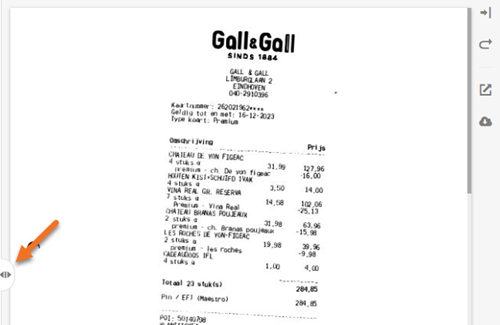
Additionally, in the document viewer you can:
- reset the document preview to the default size (curved arrow icon)
- open the document in the browser (square icon with a top-right arrow)
- download the document (cloud icon with a down arrow).
View document
To view a document.
- click on the subject of the document
OR - hover your mouse over the line of the document in question
- click on the button with the three dots
- then select the View document menu option from the dropdown menu.
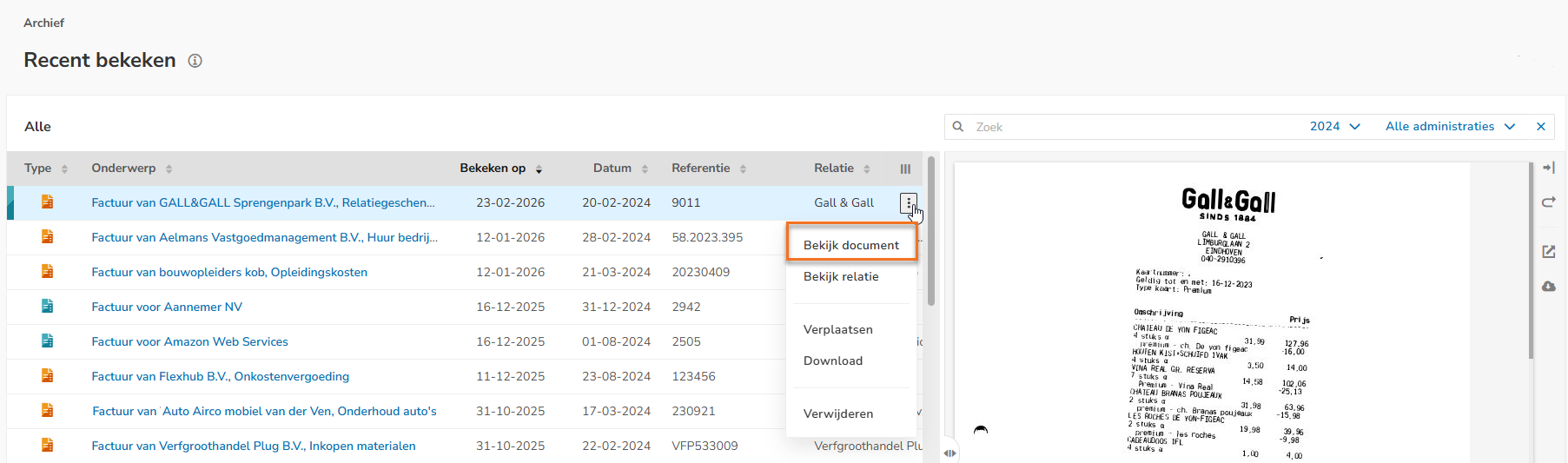
In the now-opened screen, the document can be changed, if necessary, or actions can be performed on the document.
View contact
To view the contact of a document:
- hover your mouse over the line of the document in question
- click on the button with the three dots
- then select the View contact menu option from the dropdown menu.
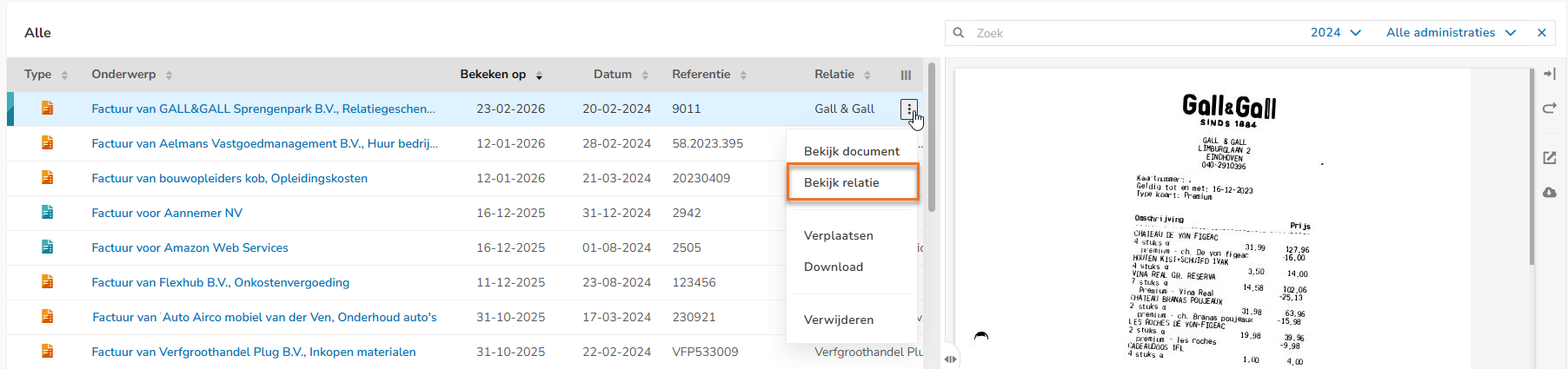
The contact card of the corresponding contact is now opened.
Move document
To move a document:
- hover your mouse over the line of the document in question
- click on the button with the three dots
- then select the Move menu option from the dropdown menu.
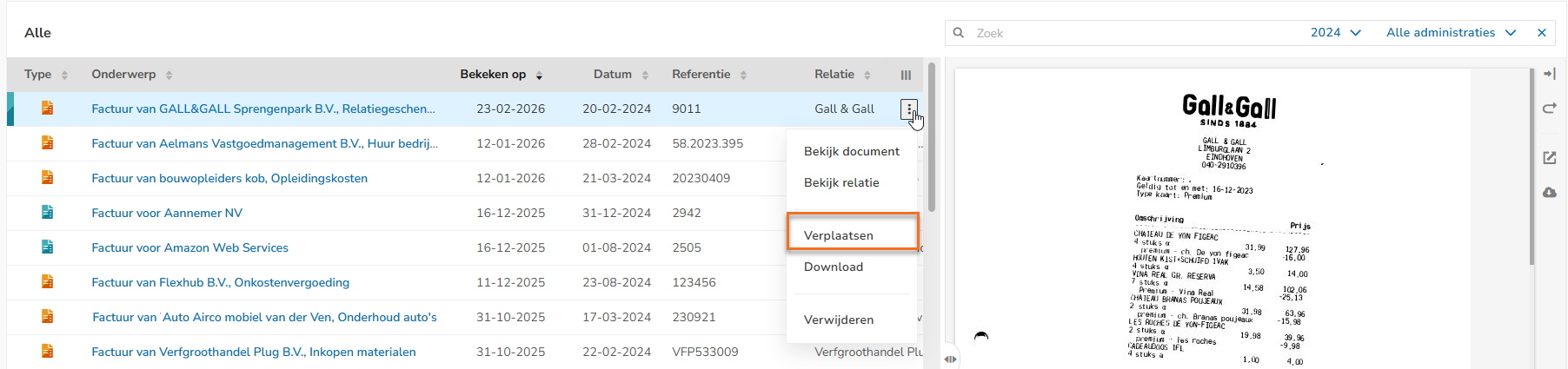
The following screen is opened: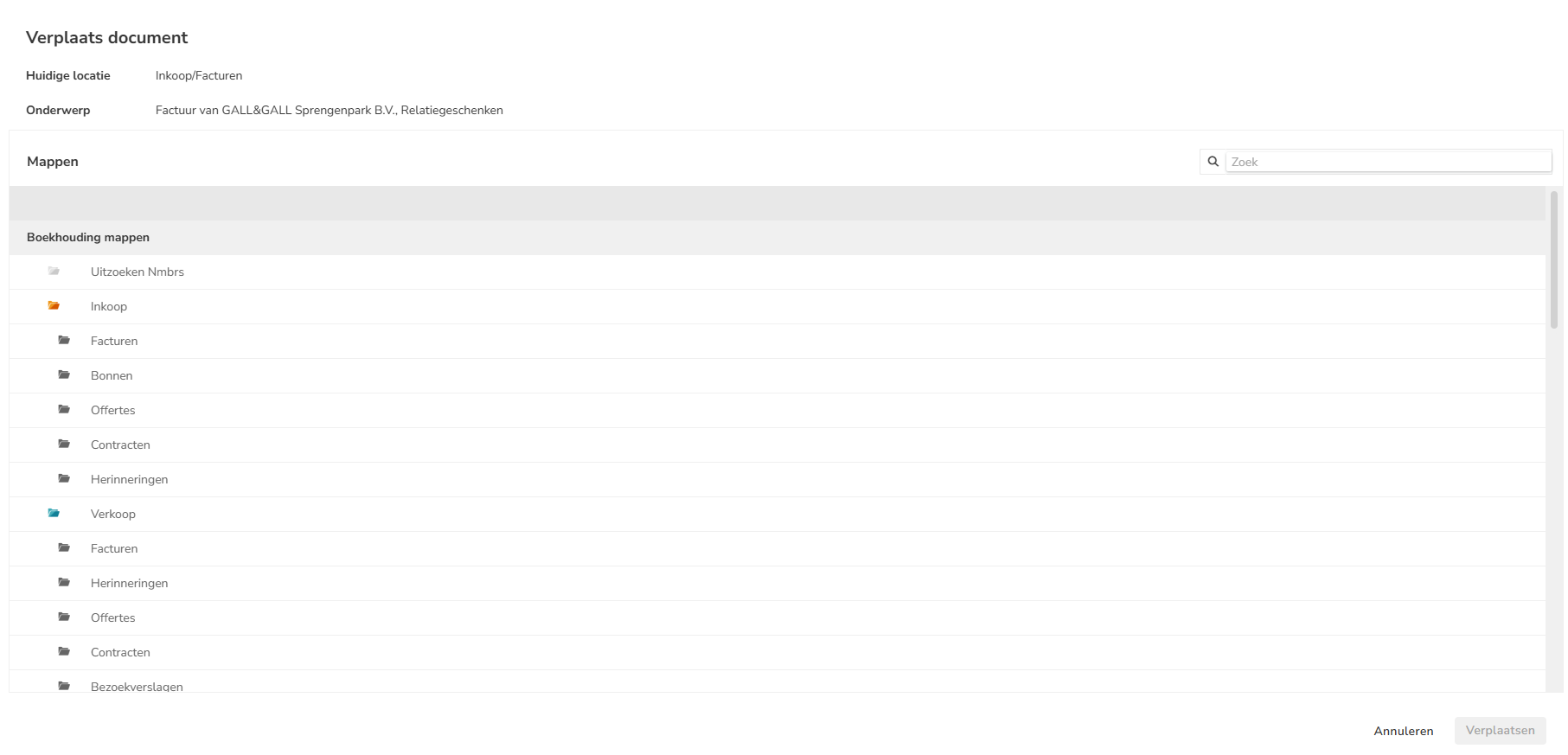
- select the (sub)folder to which to move the document
- then click on the Move button.
Download document
To download a document:
- hover your mouse over the line of the document in question
- click on the button with the three dots
- then select the Download menu option from the dropdown menu.
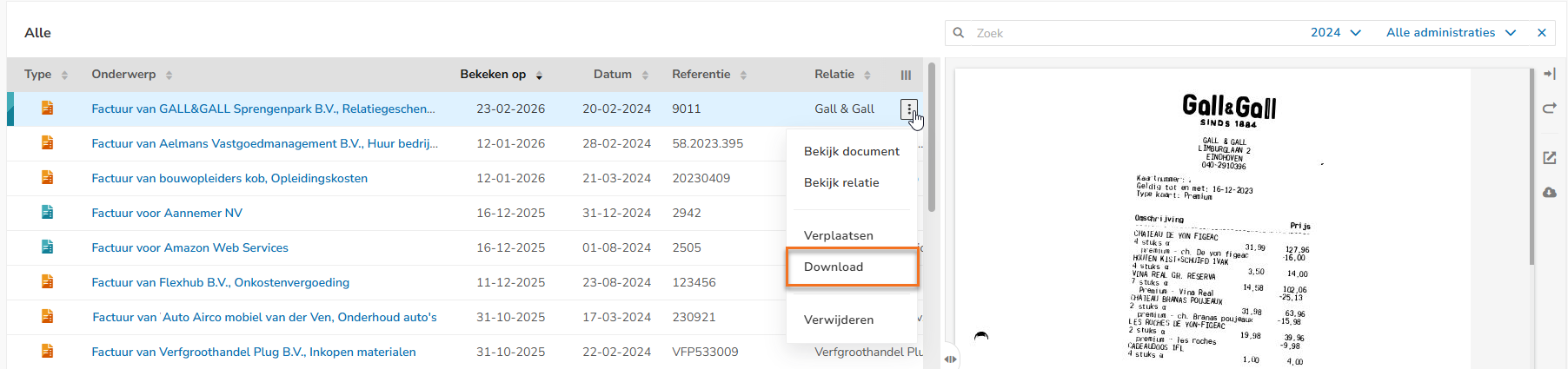
The document will now be downloaded to the hard disk of your laptop or computer.
Delete document
To delete a document:
- hover your mouse over the line of the document in question
- click on the button with the three dots
- then select the Delete menu option from the dropdown menu.
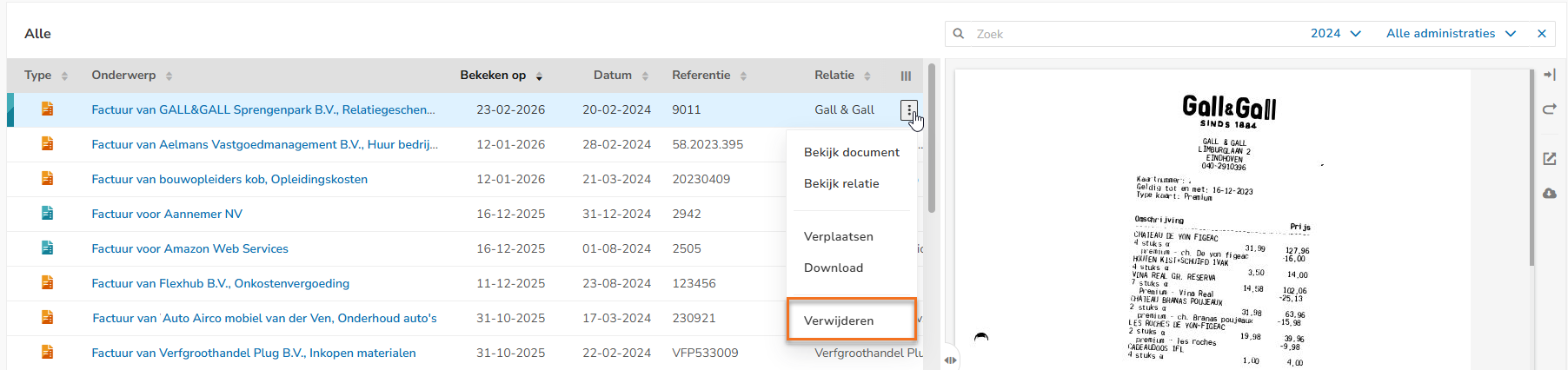
The following screen is opened: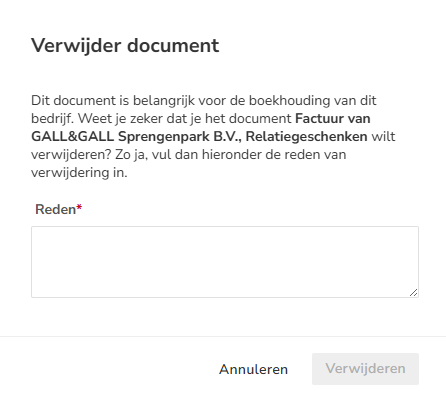
- enter a mandatory reason why the document is being deleted
- then click on the Delete button.
The document will now end up in the trash bin (Deleted documents).
Was this article helpful?
That’s Great!
Thank you for your feedback
Sorry! We couldn't be helpful
Thank you for your feedback
Feedback sent
We appreciate your effort and will try to fix the article