Disclaimer
All screenshots in the article were taken in the Dutch version of Nmbrs Accounting.
In Nmbrs Accounting, it is possible to manually create a quotation and then send it to your customer by mail or email. Then, if necessary, the quotation can be handled correctly.
To send a new sales invoice to your customer, follow these steps:
prepare the quotation for sending to the customer
- if necessay, add notes
check and, if necessary, change the quotation date and/or sending method
process the quotation in the administration (this will cause the quotation to be sent to the potential customer).
Access to draft quotation
To access:
- click on the Sales icon in the navigation bar
- click on Quotations
- then, in the now-opened screen, select the Drafts work list
- open the quotation you want to prepare for sending by clicking on the subject of the relevant quotation.
Draft quotation
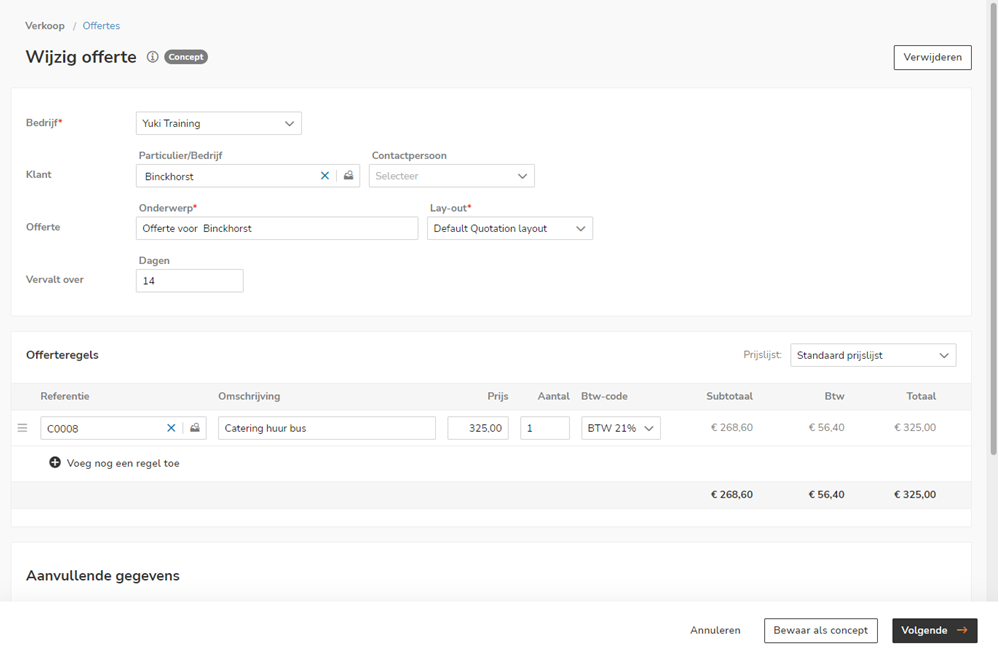
AVAILABLE USER ACTIONS
From this screen, a user can:
- prepare the quotation for sending
- save the quotation as 'Draft'
- delete the quotation.
Prepare quotation for sending
A quotation can be prepared for sending from an opened quotation or from the 'Drafts' work list.
From an opened draft quotation
Once you have created a draft quotation and entered all the necessary information, you can easily prepare it for sending. To do this, click on the Next button.
Check the quotation
After clicking on the ‘Next’ button, a screen is opened where you can view a preview of the quotation. This gives you the opportunity to check the quotation for accuracy and formatting before it is sent.
The quotation in question disappears from the ‘Drafts’ work list and is moved to the ‘Ready to send’ work list.
From the 'Drafts' work list
You can also mark one or more draft quotations as ready for sending without opening them:
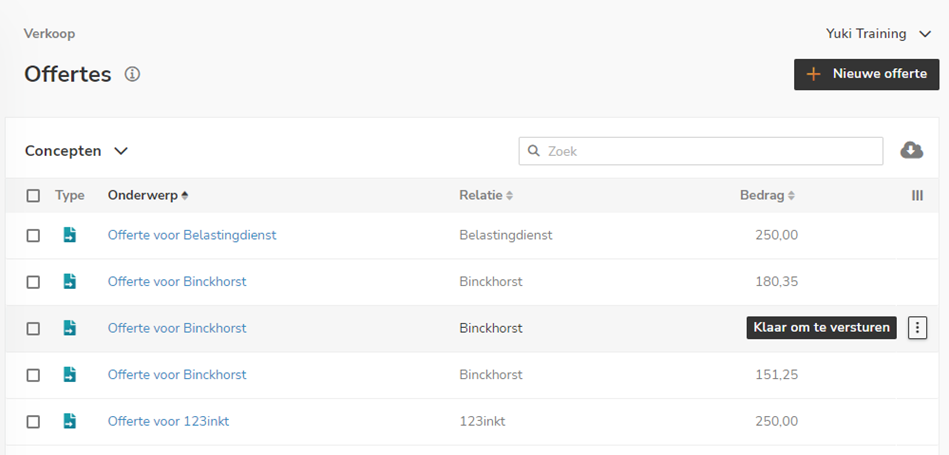
- hover your mouse over the quotation you want to prepare for sending and click on the Ready to send button
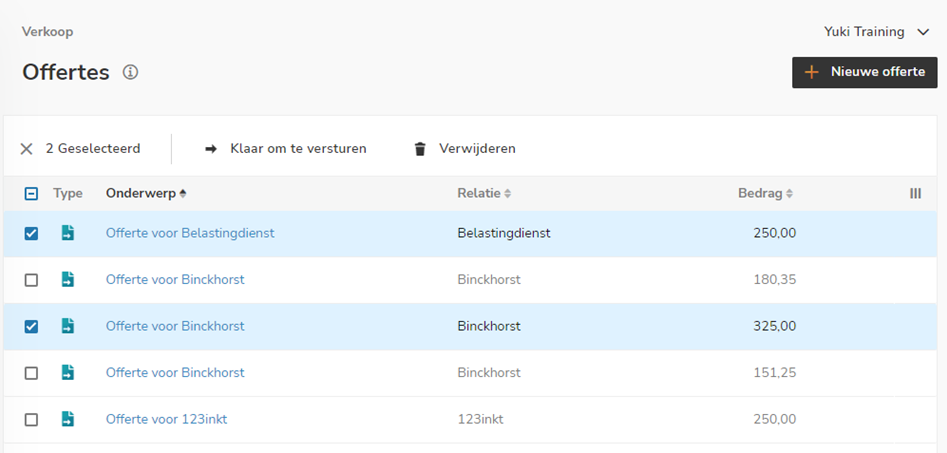
- select more than one quotation and then click on Ready to send at the top of the screen
Before you actually process and send the quotation, you must first check the quotation date and the sending method and change them if necessary.
Save quotation as 'Draft'
To save the opened quotation as a draft quotation again, click on the Save as draft button.
Delete quotation
To delete an opened draft quotation, click on the Delete button.
The following message appears on your screen:
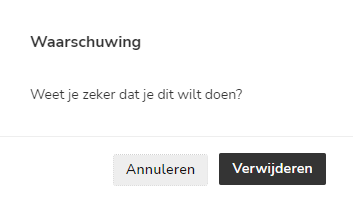
Click on the Yes button to actually delete the quotation.
Was this article helpful?
That’s Great!
Thank you for your feedback
Sorry! We couldn't be helpful
Thank you for your feedback
Feedback sent
We appreciate your effort and will try to fix the article