Disclaimer
All screenshots in the article were taken in the Dutch version of Nmbrs Accounting.
In Nmbrs Accounting, it is possible to manually create a quotation and then send it to your customer by mail or email. Then, if necessary, the quotation can be handled correctly.
To send a new sales invoice to your customer, follow these steps:
- if necessay, add notes
check and, if necessary, change the quotation date and/or sending method
process the quotation in the administration (this will cause the quotation to be sent to the potential customer).
Access to quotation ready to send
To access:
- click on the Sales icon in the navigation bar
- click on Quotations
- then, in the now-opened screen, select the Ready to send work list
- open the quotation you want to prepare for sending by clicking on the subject of the relevant quotation.
Quotation ready to send
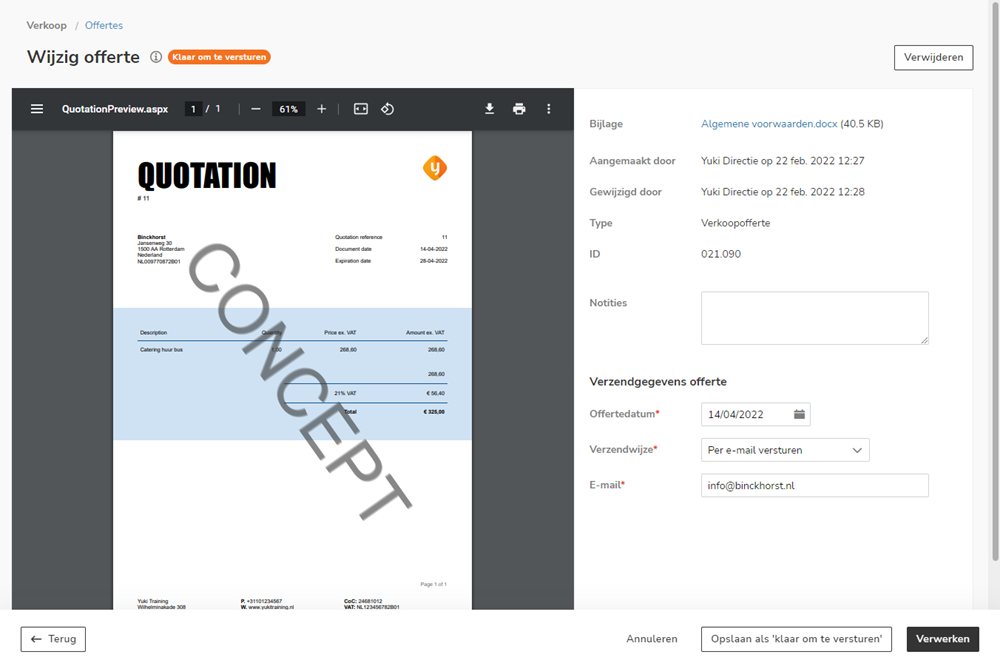
AVAILABLE USER ACTIONS
From this screen, a user can:
- process and send the quotation
- save the quotation as 'Ready to send'
- delete the quotation.
Process and send quotation
After checking the quotation date, sending method and screen preview, the quotation can then be processed directly in the administration and sent to the customer by clicking on the Process button.
The following message appears in the screen:

The quotation disappear from the 'Ready to send' work list and is moved to the 'Sent' work list
TIP!
The processed quotation can also be found in the Sales folder, on the Quotations tab in the Archive.
Sending methods
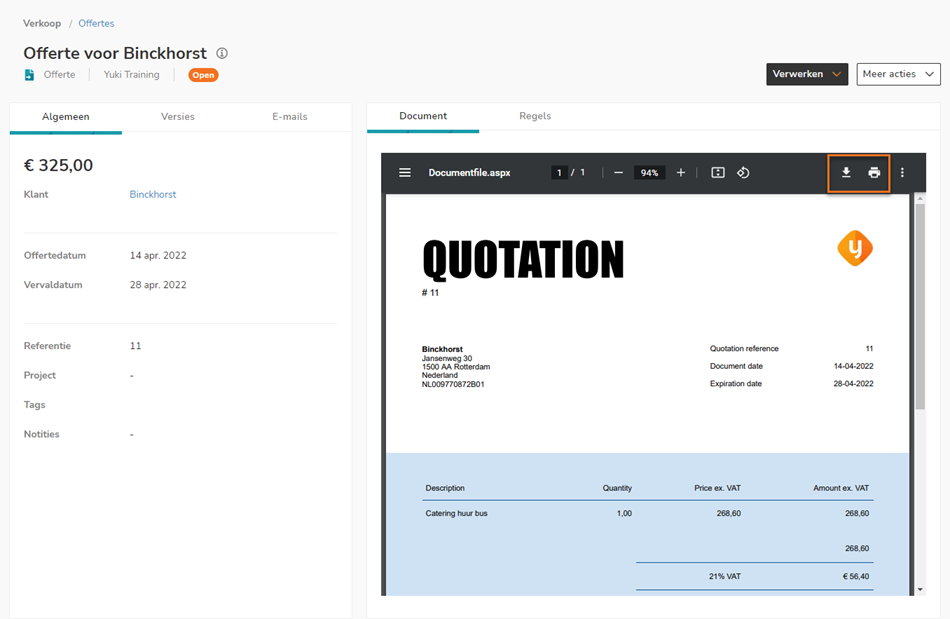
- Sent by post: after processing the quotation, the quotation can be opened and downloaded as a PDF document in the follow-up screen by clicking on the Open this document with Adobe Reader button. After opening the PDF document, the quotation can be printed if required.
TIP!Use the Printer labels feature in Contacts (CRM) to address envelopes .
sent by email: the customer receives an e-mail with the quotation attached in PDF.
ATTENTION!Make sure the login credentials (username or password) for the SMTP server (which handles email) are correct. If the credentials are incorrect, the following message will appear: “Check your username and/or password. 535 5.7.8 Error: authentication failed: authentication failure.”
Nmbrs Accounting does not support two-step authentication for email sending. Clear the mail server settings so that the Nmbrs Accounting server can handle the email.
not sent by email: the quotation is processed in the administration but not sent to your customer.
Save quotation as 'Ready to send'
To save the opened quotation again as a quotation ready to send, click on the Save as 'Ready to send' button.
Delete quotation
To delete a quotation ready to send, click on the Delete button.
The following message appears on your screen:
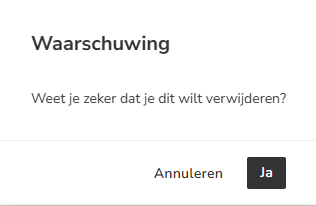
Click on the Yes button to actually delete the quotation.
Was this article helpful?
That’s Great!
Thank you for your feedback
Sorry! We couldn't be helpful
Thank you for your feedback
Feedback sent
We appreciate your effort and will try to fix the article