Disclaimer
All screenshots in the article were taken in the Dutch version of Nmbrs Accounting.
In Nmbrs Accounting, you can view a work list of all sales invoices that have not yet been paid or collected in full or in part within the set payment period.
Change overdue invoices details
The details of an overdue invoice can not be updated and saved again.
For these overdue sales invoices, a reminder or demand for payment can be sent manually or automatically from Nmbrs Accounting.
Send reminders or demands for payment automatically
You can send reminders or demands for payment automatically in Nmbrs Accounting by:
- the Reminder and demand for payment service (see article Reminder and demand for payment service (automated reminders)
- the API link with Outstanding24 (see https://www.nmbrs.com/nl/koppelingen/outstanding24).
Block invoice reminders
If further inquiries or research are needed regarding an overdue invoice, you can block the sending of a reminder or demand for payment for that invoice.
Check reminder settings
To check and/or change the settings for your reminders or demands for payment:
- click the Settings icon in the navigation bar
- in the now-opened screen, click on Reminder settings
- then open the Manual reminders tab to change the sending method if necessary
- then open the Layouts tab to change the default layout of one of the four standard reminders: payment notification, reminder, demand for payment and formal notice.
Access to Overdue invoices
To access:
- hover your mouse over the Sales icon in the navigation bar
- click on Invoices
- then, in the now-opened screen, select the Overdue invoices work list from the dropdown menu.
Overdue invoices work list
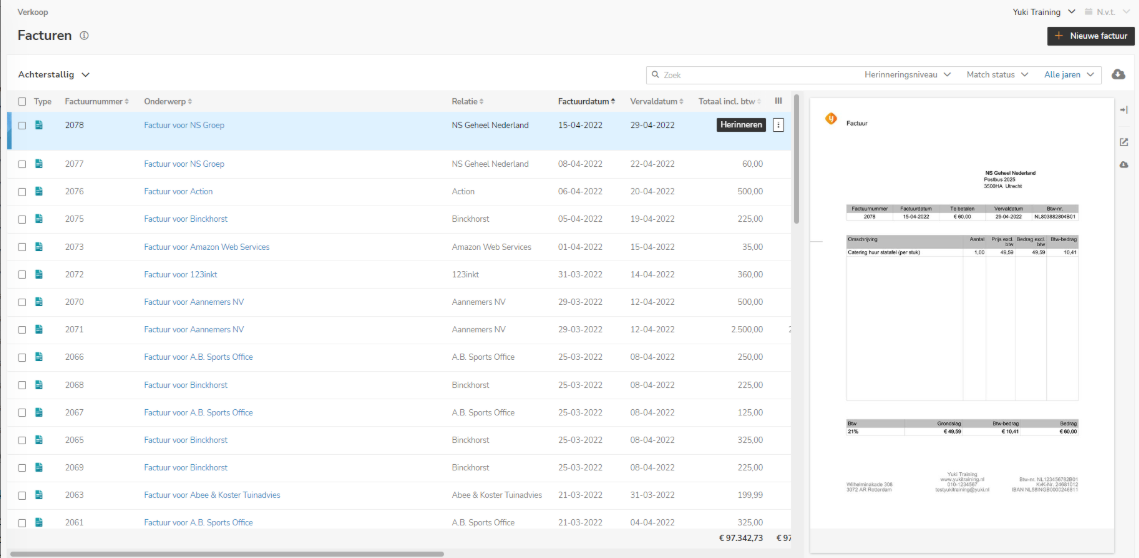
On this screen, you can see the details of all sales invoices that have not been paid, or have been paid only in part, by the due date.
The default By and Status columns show how sales invoices were sent and whether or not they were delivered.
Document viewer
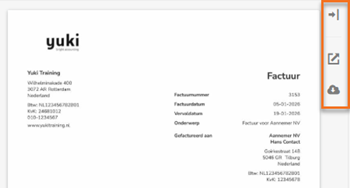
In this overview, you can use the so-called document viewer to:
- to hide or show a preview of the document
- to open the document in the browser
- to download the document.
Click on the line of the relevant invoice and then click on one of the buttons on the right side of the screen:
AVAILABLE USER ACTIONS
From this work list, a user can:
- change the reminder level of invoices
- manually send reminders or demands for payment (in bulk)
(see article Manually send reminder or demand for payment (in bulk) by email) - block reminders for invoices
- view the document
- view the contact
- (re)send the sales invoice via email.
Change reminder level of invoices
To change the reminder level of invoices:
- select the invoices in the work list whose reminder level you want to change
- then click on Change reminder level at the top of the screen.

The following screen is opened: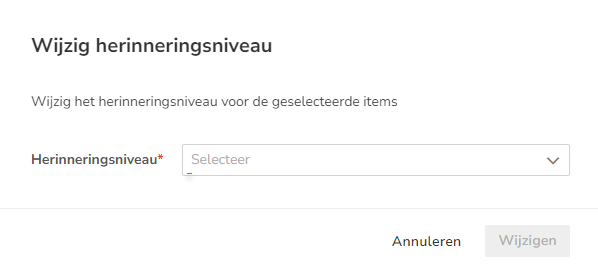
- select one of the following available reminder levels:
- 0 - No reminder
- 1 - Payment notification
- 2 - Reminder
- 3 - Demand for payment
- 4 - Formal notice
- 5 - With debt collection agency
- 6 - With bailiff.
- then click on the Edit button.
The reminder level of all selected invoices is now changed.
Block reminders for invoices
To block reminder for invoices:
- select the invoices in the work list for which sending a reminder or demand for payment should be blocked
- then click on Block reminders at the top of the screen.
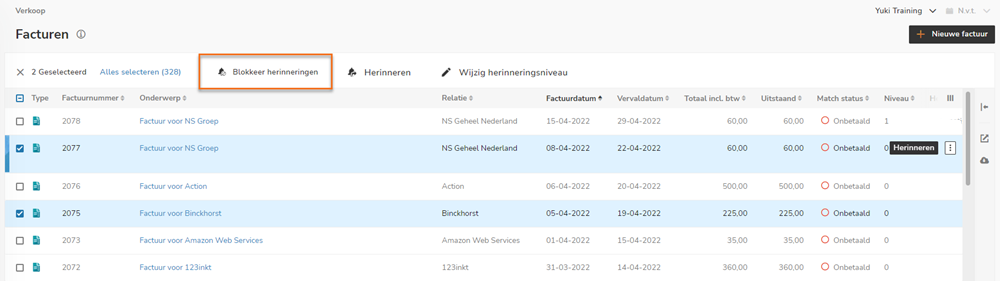
The following screen is opened: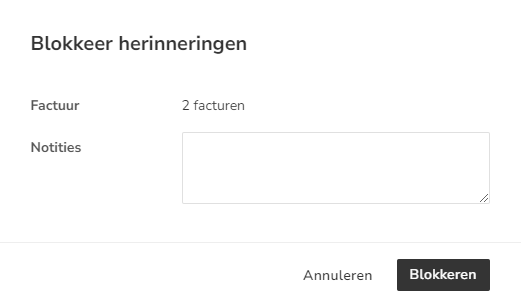
- add notes if required
- then click on the Block button.
The following message appears on the screen: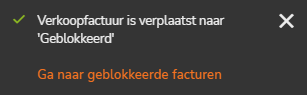
The invoices disappear from the 'Overdue invoices' work list and reappear in the 'Blocked invoices' work list.
Block reminder for one invoice
To block the sending of a reminder or demand for payment for one invoice:
- hover your mouse over the line of the relevant invoice
- click on the button with the three dots
- select Block from the drop-down menu.
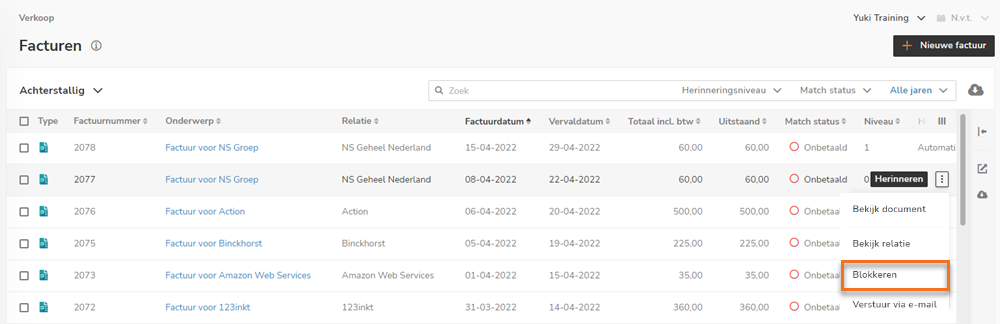
The invoice disappears from the 'Overdue invoices' work list and reappears in the 'Blocked invoices' work list.
View document
To view a document:
- click on the subject of the document
OR - hover your mouse over the line of the relevant invoice
- click on the button with the three dots
- then select View document from the drop-down menu.
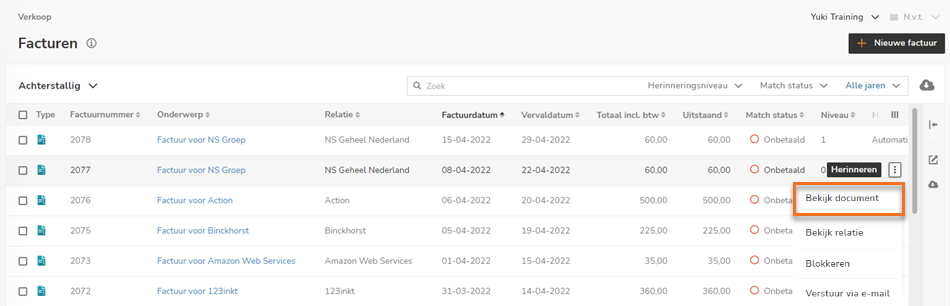
In the now-opened screen, the overdue invoice can be changed, if necessary, or actions can be performed on the invoice.
View contact
To view the contact of an invoice:
- hover your mouse over the line of the relevant invoice
- click on the button with the three dots
- then select View contact from the dropdown menu.
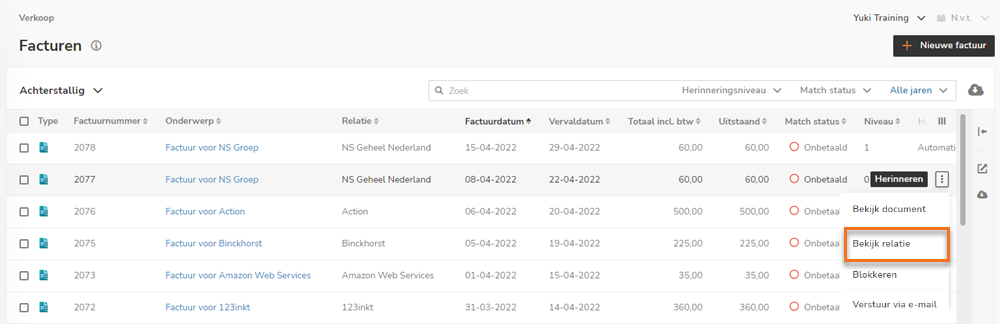
The contact card of the contact is now opened.
(Re)send the sales invoice via email
To send a sales invoice by email:
- hover your mouse over the line of the relevant invoice
- click on the button with the three dots
- then select Send via email from the drop-down menu.
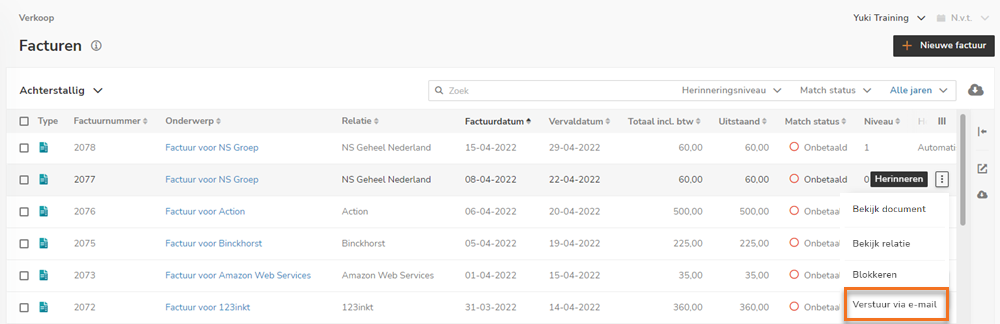
The following screen is opened: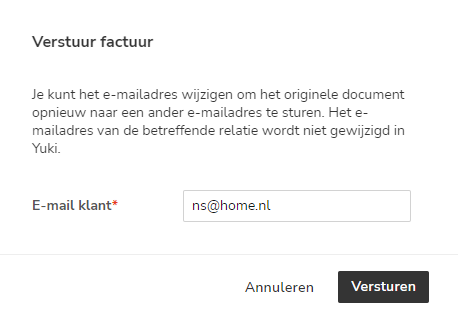
- click on the Send button to actually (re)send the sales invoice.
The sending method in the 'By' column is then changed to 'Email'.
Was this article helpful?
That’s Great!
Thank you for your feedback
Sorry! We couldn't be helpful
Thank you for your feedback
Feedback sent
We appreciate your effort and will try to fix the article