Disclaimer
All screenshots in the article were taken in the Dutch version of Nmbrs Accounting.
The Projects feature provides an additional way to segment and classify documents and transactions in your accounting system. Projects are often used for project-based or analytical accounting. This allows you to work with cost centers and/or cost objects to accurately break down costs and revenue by employee, department, or product. A specific Profit & Loss report can then be generated for each project.
The Projects feature is only available if a user with the “Management” role has selected the Medium, Large, or Unlimited package via the Store within the domain.
FOR FREQUENTLY ASKED QUESTIONS ABOUT THIS FEATURE, SEE PROJECTS (FILES) FAQ!
Access management
Access can be configured specifically for each project. This allows you to grant employees access to a relevant portion of the financial project records without giving them access to the entire domain’s records.
Nmbrs® link
Do you import your payroll journal entries from Nmbrs®? If so, a project can be automatically created in Nmbrs Accounting for each department. All payroll costs for a specific department are then immediately assigned to the correct project.
- Activation: To do this, check the “Split payroll journal entries by department” option in the Nmbrs® web service (this can be done at the domain or administration level).
- Permissions: Only a user with the “Back office” role can activate this link/setting.
What can you link to a project?
Within a project (or file), you can collect all relevant data related to a single topic. This can be done either manually or automatically. A project can contain the following elements:
- Documents
- Bank transactions
- Financial transactions
- Tasks
- Work assignments (hours)
- Contacts
- Calendar appointments
- Email and correspondence (including letters).
Thanks to the customizable start and end dates, you always maintain structure and can see at a glance which projects are currently active, which tasks are still pending, and what communication has recently taken place.
Access to Projects
To access the Projects home screen, click on the Projects icon in the navigation bar:
Projects home screen
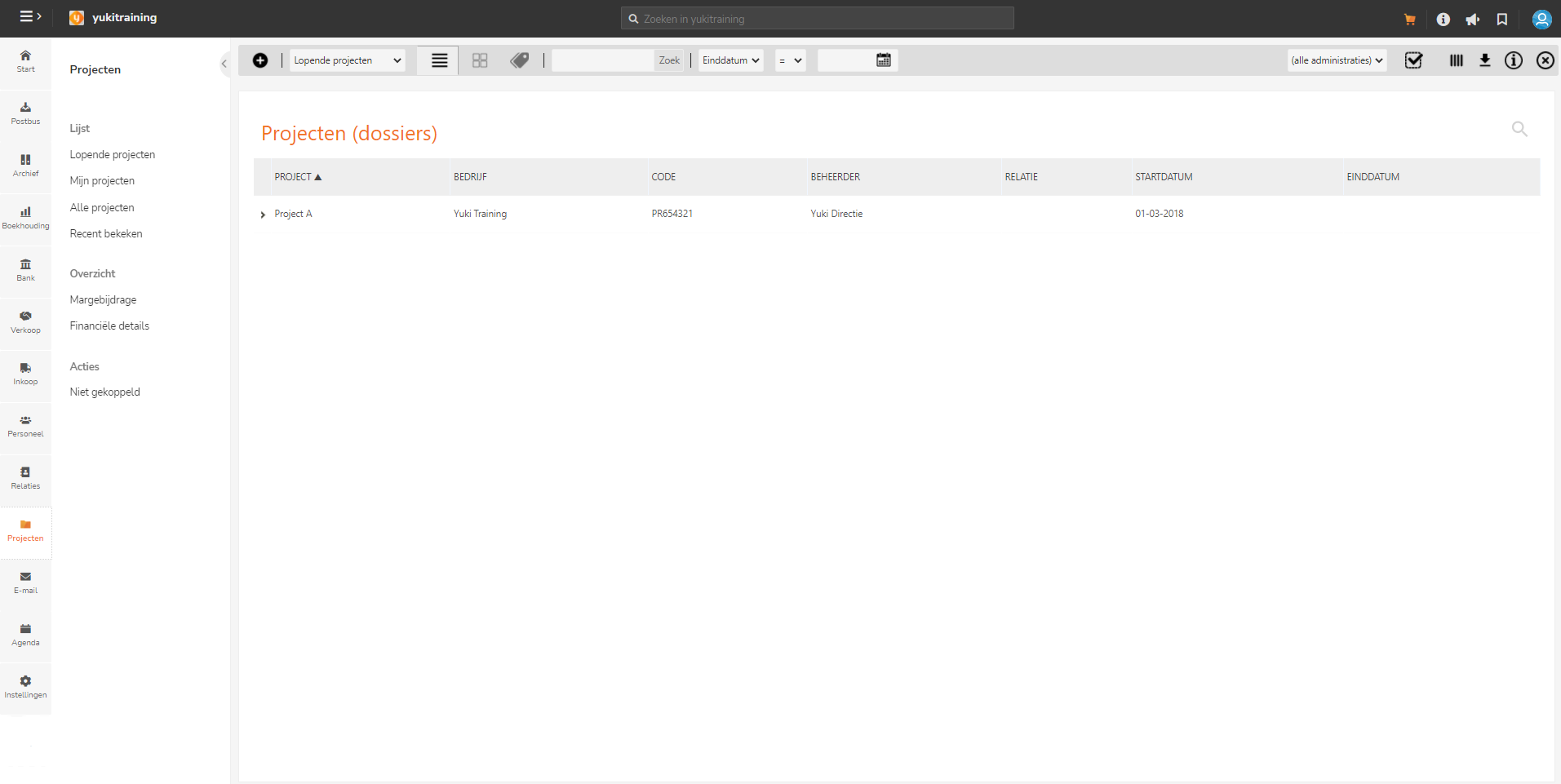
In the menu, you’ll find the most important features, divided into three categories:
Active projects
All projects you have access to and for which the end date is in the future (or has not been entered).
My projects
A specific overview of the projects to which you, as a project manager, are assigned.
All projects
A complete overview of all projects to which you have access.
Recently viewed
Quickly return to the projects you’ve recently opened.
Report
Shows the project’s progress based on the entered budgets for revenue and purchases, including variances from actual results.
Provides in-depth financial insight per project into net revenue, cost of sales, operating expenses, and other transactions.
Actions
A handy review overview that shows, for each accounting entry, which documents and financial transactions have not yet been assigned to a project.
Was this article helpful?
That’s Great!
Thank you for your feedback
Sorry! We couldn't be helpful
Thank you for your feedback
Feedback sent
We appreciate your effort and will try to fix the article