Disclaimer
All screenshots in the article were taken in the Dutch version of Nmbrs Accounting.
Only purchase invoices supplied in UBL format can be split into a number of invoice lines by means of processing rules at line level in a portal.
A default value for a supplier must first be present in the portal, after which you can start splitting at line level.
Only a user with the 'Portal administrator' role can create a UBL rule (central processing rule) for the portal.
A user with the 'Portal back office' role does not have access to the 'Defaults values' or 'Top vendors' report.
Access to Default values (via Default values report)
- in the accountant portal click on Management
- in the now-opened screen click on Reports
- in the now-opened screen click on Default values
- in the now-opened screen click on the Create... button
- then click on Default values.
Access to UBL rules (via invoices in Top vendors report)
- In the accountant portal, click on Set rules in the Increase automation tile
OR - in the accountant portal click on Management
- in the now-opened screen click on Reports
- in the now-opened screen click on Default values
- hover the mouse over the line of the relevant UBL invoice
- click on the Set automation button
- in step 1 select the domain in which the UBL invoice is located and then click on Select
- in step 2 select the UBL invoice for which you want to create a UBL_rule and then click on Select
- in step 3 hover the mouse over the relevant invoice line and click on the New UBL rule button
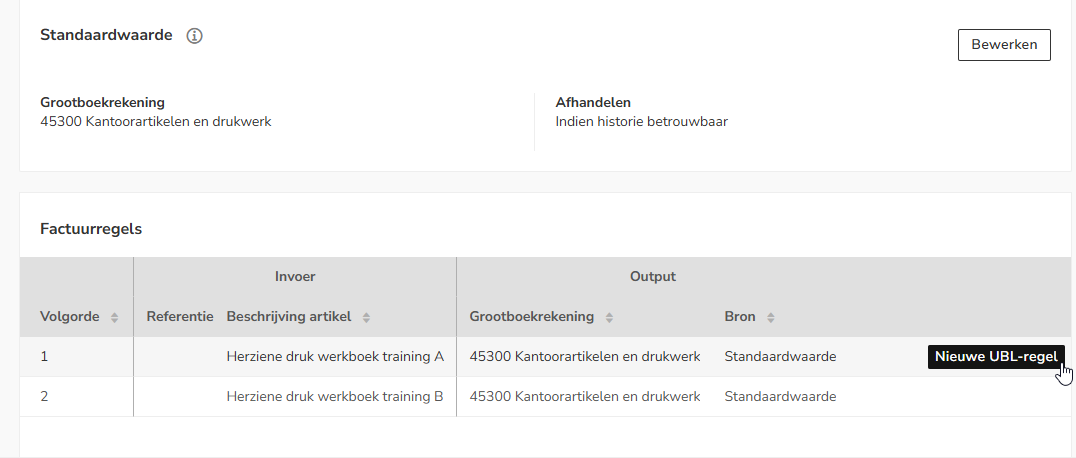
Create UBL rule
When setting up a UBL rule (processing rule), it is important to fill in the specific criteria and output fields that correspond to the purchase invoice for which you are setting up the rule.

Input
Below are the values that the 'input' on the purchase invoice must comply with:
- Supplier: name of supplier
- Document type: purchase invoice
- Priority: which processing rule at line level has the highest priority?
- UBL item code: item code equals, starts with or contains (UBL field: SellersItemIdentification (purchase invoice)
- Description (UBL): item description equals, starts with or contains
- VAT percentage % (UBL): VAT percentage in invoice.
- VAT category (UBL): VAT category in invoice (UBL field: TaxCategory)
VAT category name (UBL): VAT category name in invoice.
TIPS!
- If the value of the 'UBL item code' (SellersItemIdentification) field is missing from the UBL invoice, you will only need to enter the value of the 'Description (UBL)' (item Description) field.
- If necessary, the values in the UBL fields (item code, description, VAT percentage and VAT category) that you want to use need to look them up first.
From the input screen, Nmbrs Accounting indicates through the UBL symbol that the document is a UBL invoice.
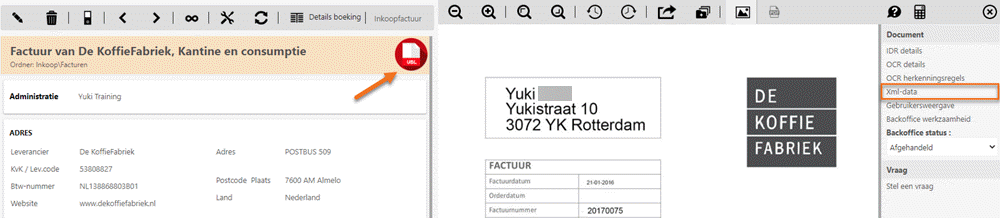
On the right side of your screen you will find the Xml-data, clicking on this will open the underlying XML document of the invoice.
In this XML document you search (on PC using Ctrl-F, on Mac using Cmd-F) for the UBL field whose value you want to use as a value in the UBL rule.
Output
Below are the values that are automatically entered as 'Output' on the purchase invoice:
- GL account: select the appropriate general ledger account.
- Dynamic ledger account: exact general ledger code of the general ledger account.
If this code also exists in the domain then it will be posted to. If the code does not exist then the general ledger account 'Account unknown' will be applied.
Then click on the Create button.
You will find the created UBL rule in the Default values report (via Settings).
Was this article helpful?
That’s Great!
Thank you for your feedback
Sorry! We couldn't be helpful
Thank you for your feedback
Feedback sent
We appreciate your effort and will try to fix the article