Disclaimer
All screenshots in the article were taken in the Dutch version of Nmbrs Accounting.
A report is available in the accountant portal that allows you to specifically increase the level of automation.
The ‘Default Values’ report shows all default values (central processing rules) currently created in the portal for supplier invoices.
Only a user with the role ‘Portal administrator’ can create default value(s) from the ‘Default Values’ report.
A user with the role ‘Portal back office’ does not have access to the ‘Default Values’ report.
Central processing rules
In the portal, to increase automatic processing of purchase invoices, there are two types of processing rules you can set: default values and UBL rules.
Default values
- Purpose: These are set at vendor level to facilitate automatic data entry in invoice processing.
- Operation: When a purchase invoice arrives from a specific supplier, predefined values are automatically populated, such as GL accounts and other relevant data.
UBL Rules (only for UBL/PDF and UBL invoices).
- Purpose: These rules are specific to purchase invoices delivered in UBL format.
- Operation: They allow posting invoice lines to different GL accounts at line level, providing more detailed and flexible processing.
ATTENTION!
Before you can start splitting at the line level with UBL lines, a default value must first exist.
ATTENTION!
Only when a validated contact has been created as a supplier in a domain within the portal, often after the first purchase invoice from this company has been processed, can a default value be created at the portal level for the supplier.
Automatic processing of invoices in multiple domains
Due to the default values, in each domain in the portal, the uploaded purchase invoices of the respective supplier will be automatically processed according to the settings of these central processing rules.
Difference between local and central processing rules
When a document is uploaded, Nmbrs Accounting first checks whether a central processing rule (default value) exists in the portal. If present, the invoice is processed according to that rule.
Then, Nmbrs Accounting checks whether a local processing rule exists within that domain. If so, the local processing rule is given priority and Nmbrs Accounting fills in the document data according to this default value and the document is then processed.
ATTENTION!
Thus, local processing rules (read default values) in a domain take precedence and override central processing rules in a portal.
Conditions to suppliers
There are some additional conditions that must be met by the used supplier of a default value:
- When creating a default value, you can only choose a supplier that is already known/used in one of the existing domains.
- The supplier must have a replication link to Nmbrs Accounting's central database, allowing the software to recognize the correct supplier (this applies to 99% of cases).
TIP!
If a default value in the portal does not work correctly, it may be because the address is stored locally in the domain without an automatic replication link to the central database.
For a detailed description of how to establish a replication link, see article Establish replication link with Nmbrs Accounting central database.
Access to 'Default values' report
All reports in the accountant portal are centralized within your portal and divided into logical sections.
To access these reports:
- in the accountant portal click on Management
- click on Reports in the now-opened screen
- then click on Default values.
'Default values' report
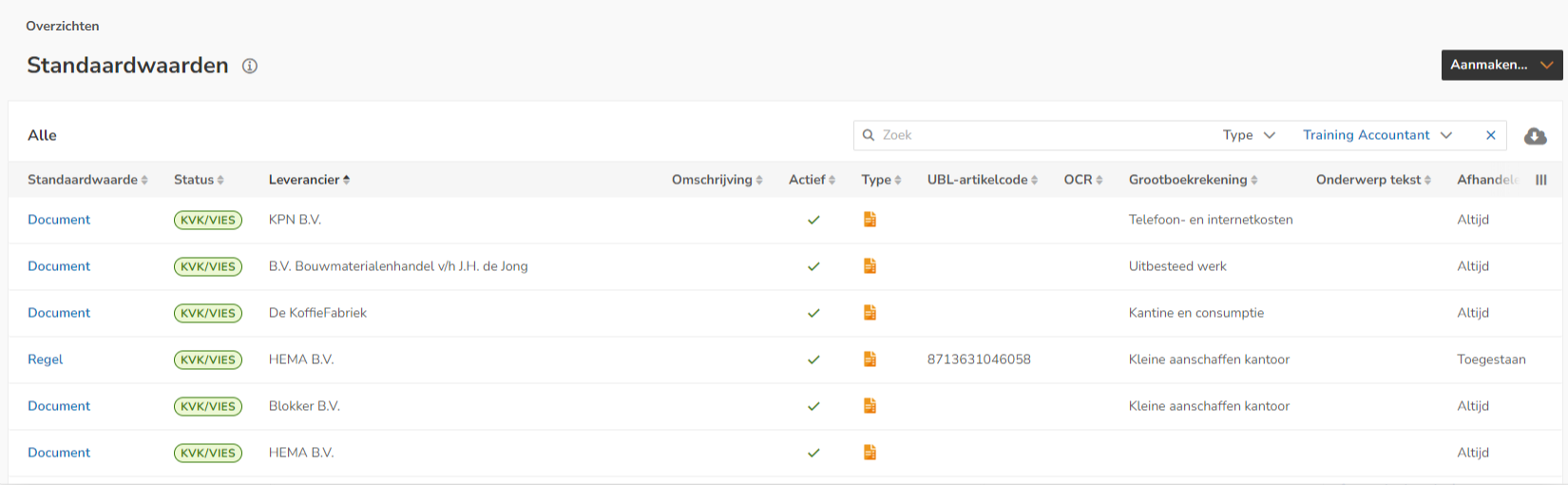
This screen shows all default values and UBL rules currently created for suppliers in the portal.
AVAILABLE USER ACTIONS
From the report of default values in the portal, a user can:
- create a new default value (on document level) for supplier
- create an UBL rule (on line level) for supplier
- view a default value or UBL rule for supplier
- change default value or UBL rule for supplier
- copy a default value or UBL rule for supplier
- activate or deactivate default value or UBL rule for supplier
- delete a default value or UBL rule for supplier.
Create default value or UBL rule for supplier
Default values (central processing rules) can be created at two different levels:
- Document level (default value)
- Line level (UBL rule), only available for UBL documents.
To create a default value, click on the New default value button and then select Default value or UBL rule from the dropdown menu.

For a detailed description of how to create a default value or UBL rule in the portal, see article Create default value (central processing rule) for portal or Create UBL rule (central processing rule) for portal.
View default value or UBL rule for supplier
To view a default value or UBL rule for a supplier:
- click on Document or Rule in the Default value column of the relevant supplier
- OR
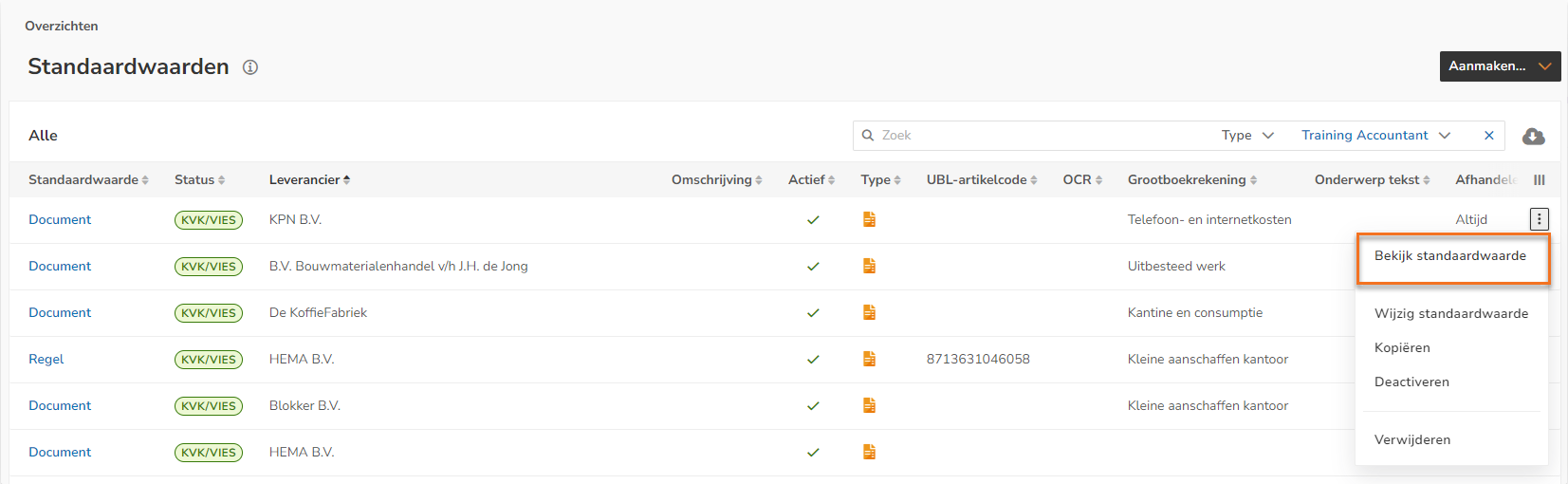
- hover your mouse over the relevant supplier's line, click on the button with the three dots and then select View default value from the dropdown menu.
Change default value or UBL rule for supplier
To change a default value or UBL rule for a supplier:
- click on Document or Rule in the Default value column of the relevant supplier
- OR
- hover your mouse over the relevant supplier's line, click on the button with the three dots and then select Edit default value from the dropdown menu.
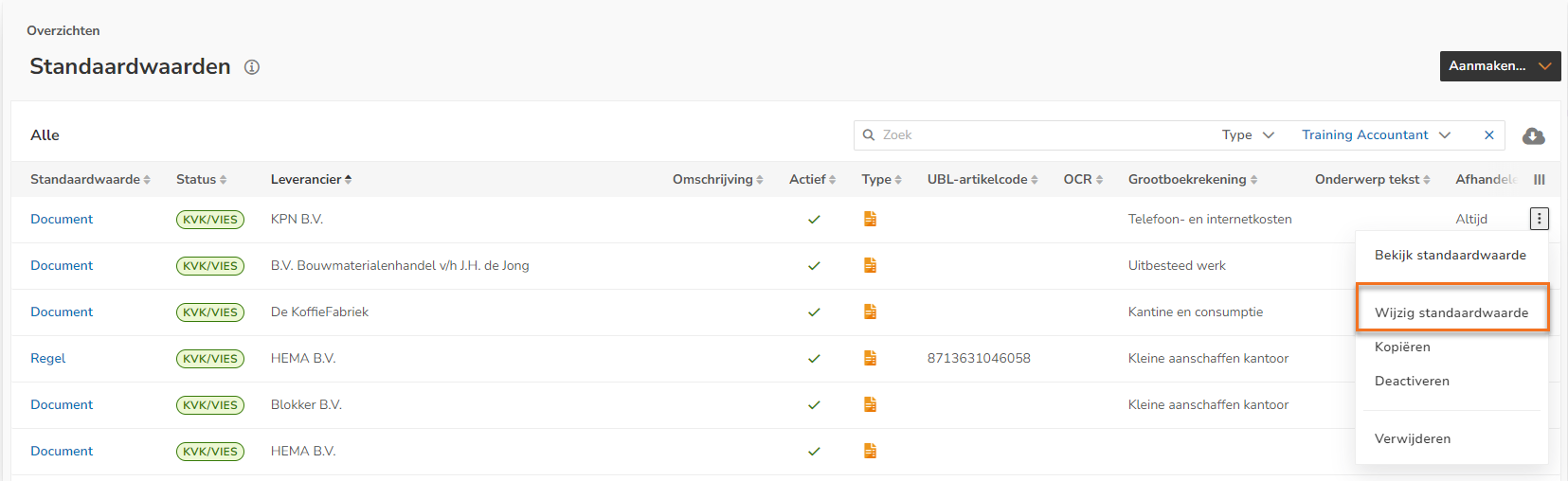
In the now-opened screen, click on the Edit button to change the default value or the UBL rule.
Copy default value or UBL rule
To copy a default value or UBL rule:
- click on Document or Rule in the Default value column of the processing rule you want to copy. In the now-opened screen, click on the Duplicate button.
- OR
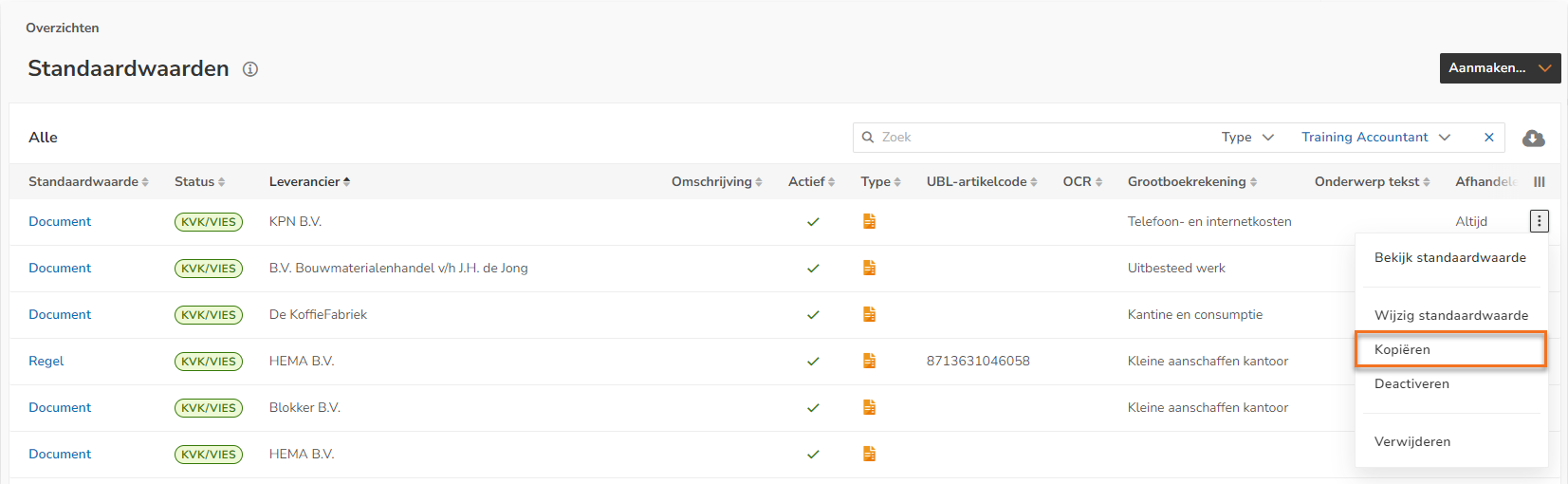
- hover your mouse over the line of the relevant supplier, click on the button with the three dots and then select Copy from the dropdown menu.
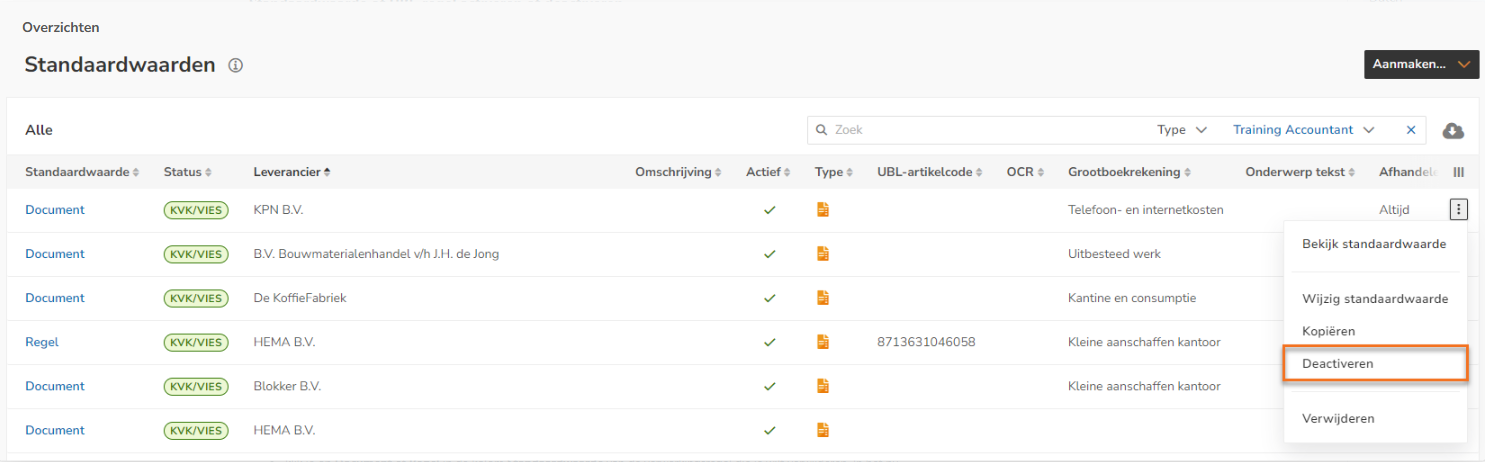
Activate or deactivate default value or UBL rule
To activate or deactivate a default value or UBL rule:
- click on Document or Rule in the Default value column of the processing rule you want to delete. In the now-opened screen, click on the Activate or Deactivate button.
- OR
- hover your mouse over the relevant supplier's line, click on the button with the three dots and then select Activate or Deactivate from the dropdown menu.
Delete default value or UBL rule
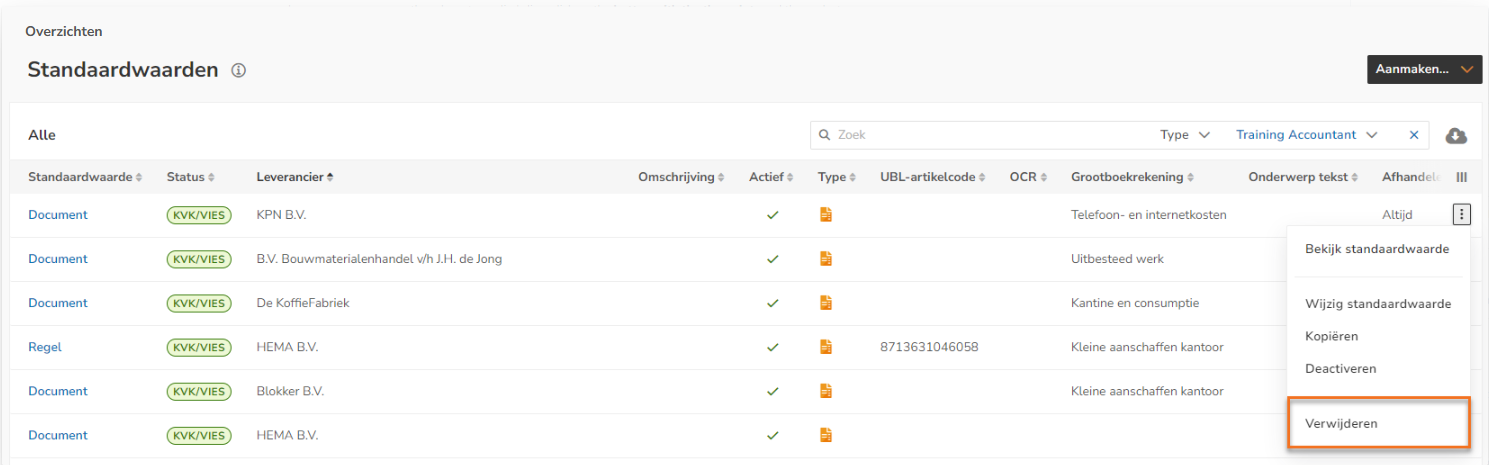
To delete a default value or UBL rule:
- click on Document or Rule in the Default value column of the processing rule you want to delete. In the now-opened screen, click on the Delete button.
- OR
- hover your mouse over the relevant supplier's line, click on the button with the three dots and then select Delete from the dropdown menu.
Was this article helpful?
That’s Great!
Thank you for your feedback
Sorry! We couldn't be helpful
Thank you for your feedback
Feedback sent
We appreciate your effort and will try to fix the article