Disclaimer
All screenshots in the article were taken in the Dutch version of Nmbrs Accounting.
In the portal, to increase automatic processing of purchase invoices, there are two types of automation rules you can set: default values and UBL rules.
Default values
- Purpose: These are set at vendor level to facilitate automatic data entry in invoice processing.
- Operation: When a purchase invoice arrives from a specific supplier, predefined values are automatically populated, such as GL accounts and other relevant data.
UBL rules (only for UBL/PDF and UBL invoices)
- Purpose: These rules are specific to purchase invoices delivered in UBL format.
- Operation: They allow posting invoice lines to different GL accounts at line level, providing more detailed and flexible processing.
ATTENTION!
Before you can start splitting at line level with UBL lines, a default value must first exist.
IMPORTANT!
Default values and UBL rules created in the portal for a supplier are applied in all domains, as long as no specific automation rules per domain are set for the supplier in question.
Permissions and roles
- Portal administrator: can create default value(s) from the ‘Top vendors’ report.
- Portal back office: does not have access to the ‘Top vendors’ report.
Access to Top vendors report
To access:
- in the accountant portal, click on Set rules in the Increase automation tile
OR in the accountant portal, click on Management
- click on Reports
- then, in the now-opened screen, click on Top vendors.
Automate UBL invoices
To set up automatic processing of UBL invoices from a supplier, the following steps must be completed:
- Step 1: Select the domain
Start by selecting the domain from a list in which UBL invoices are received from the particular supplier. - Step 2: Select the UBL invoice
Choose the specific UBL invoice from the list of UBL invoices received from the supplier. - Step 3: Create or change default value (if necessary)
Create a default value for the UBL invoice. This will automatically populate certain data when processing the invoice. - Step 4: Create or change UBL rule
Create a new UBL rule or change an existing rule. These rules ensure that invoice lines are posted to the correct GL accounts based on the UBL format.
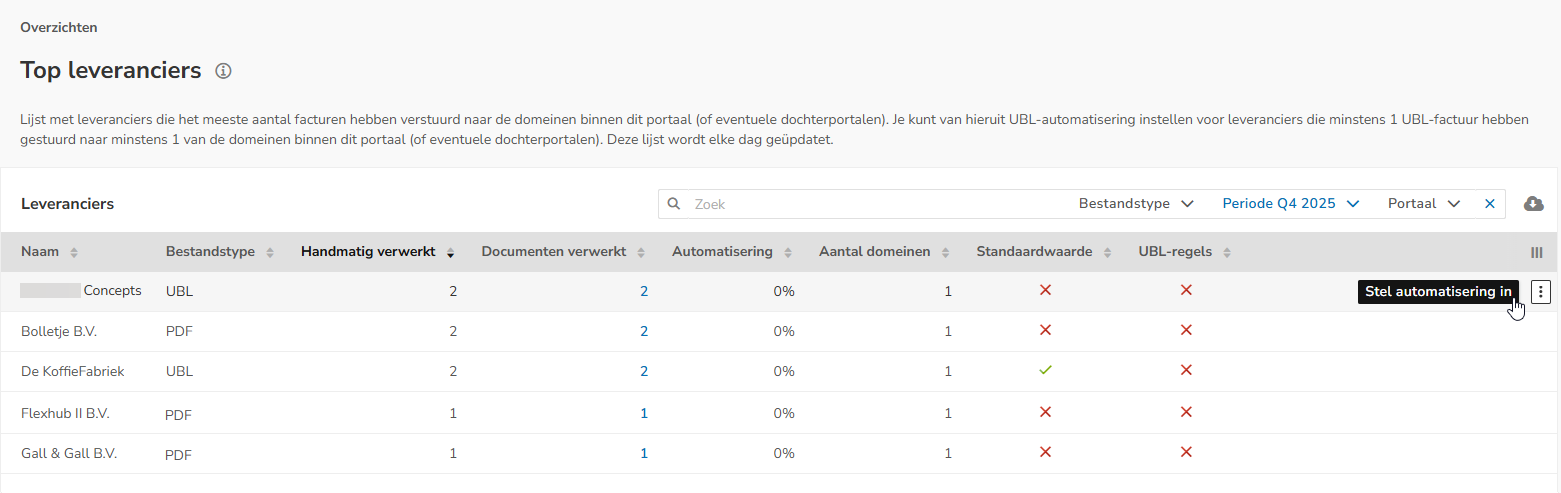
To start setting the automation of UBL invoices from a specific vendor, hover over the line for that vendor and then click on the Set up UBL automation button.
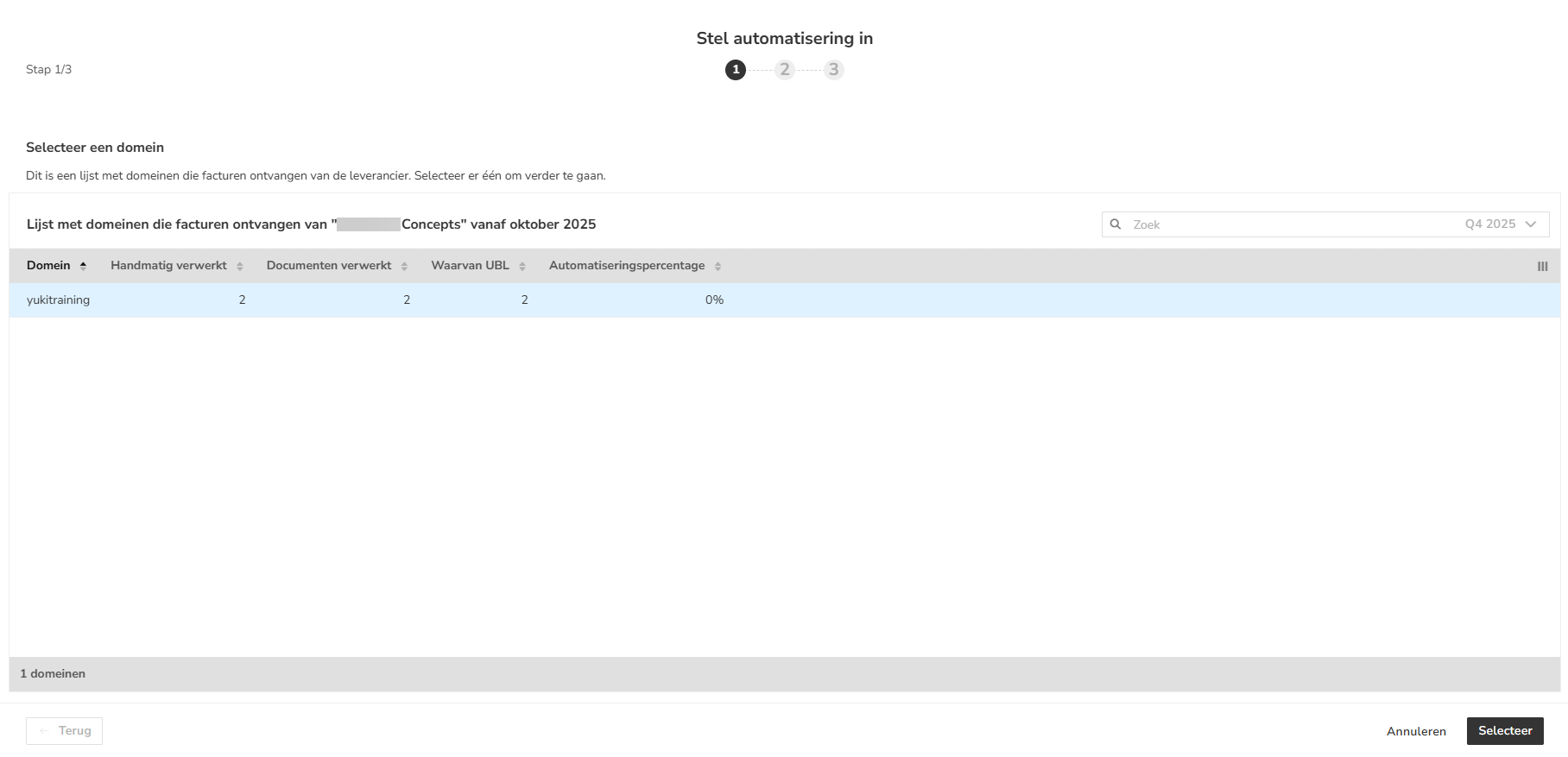
Step 1: Select domain receiving UBL invoices from supplier
Here you can see all domains in which UBL invoices have been received from the specific supplier.
ATTENTION!
When a portal user cannot access the domain because the BO access of a domain is on a different setting, the following banner appears at the top of the screen.

Select the domain in which the UBL invoice is located for which you want to set up a UBL rule and then click on the Select button.
Step 2: Select supplier UBL invoice
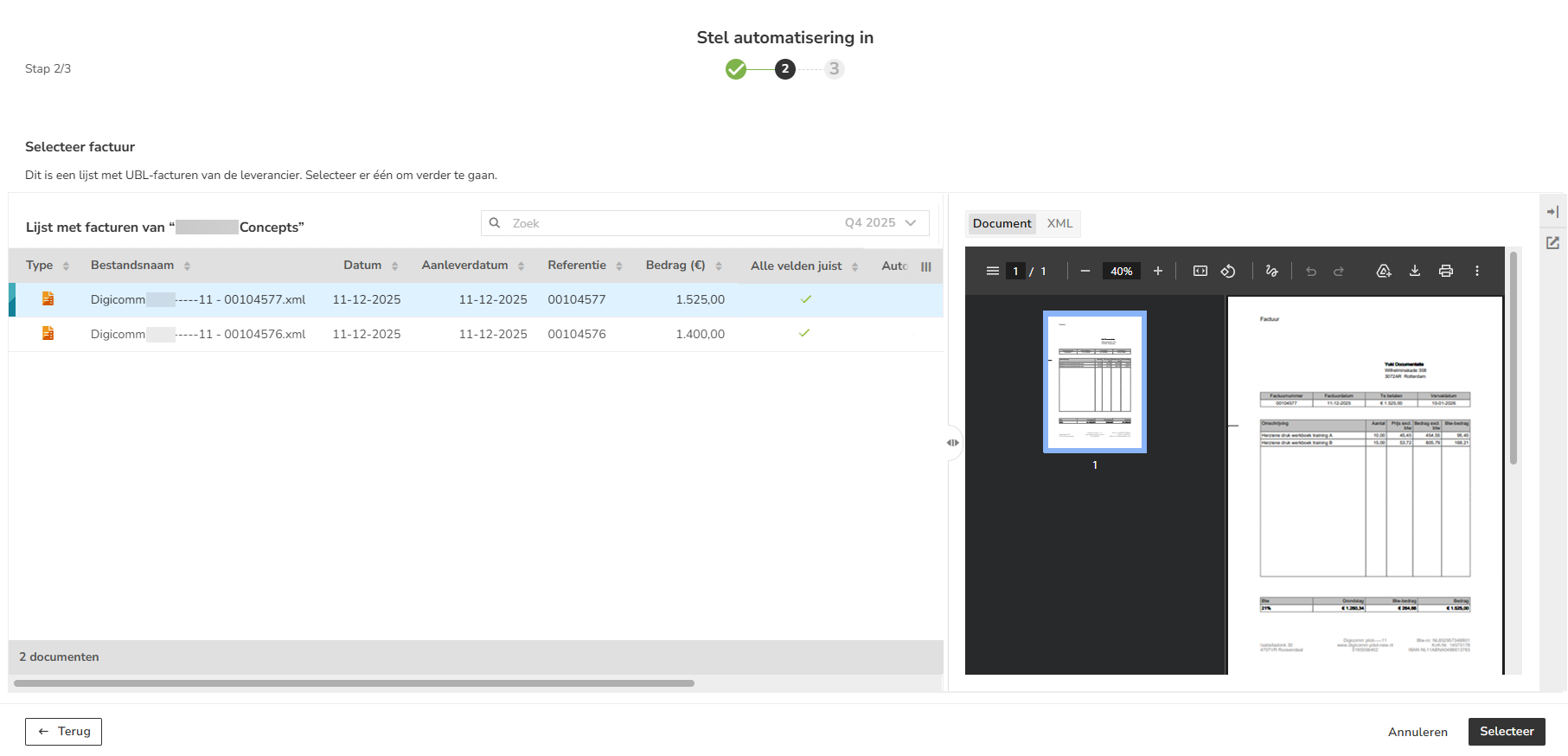
Select the UBL invoice for which you want to start setting up one or more UBL rules.
ATTENTION!
Every evening around 9 p.m., the shown list of UBL invoices is updated. Therefore, there may be supplier UBL invoices processed in a domain that are not yet shown in this list.
Display of UBL invoice
The display of the UBL invoice on the right side of the screen depends on the presence of an embedded PDF:
- Document view:
- Embedded PDF
You can view the UBL invoice as a PDF document. If required you can download and/or print the document. - No embedded PDF
You can view the UBL invoice as a socalled mockup document. This document cannot be downloaded or printed.
The following banner is shown at the top of the mockup document:
- Embedded PDF
- XML view
Here you see the structured XML file containing the data in a format intended for automated processing.
Click on the line of the UBL invoice for which you want to set up automation and then click on the Select button.
The following screen is opened:
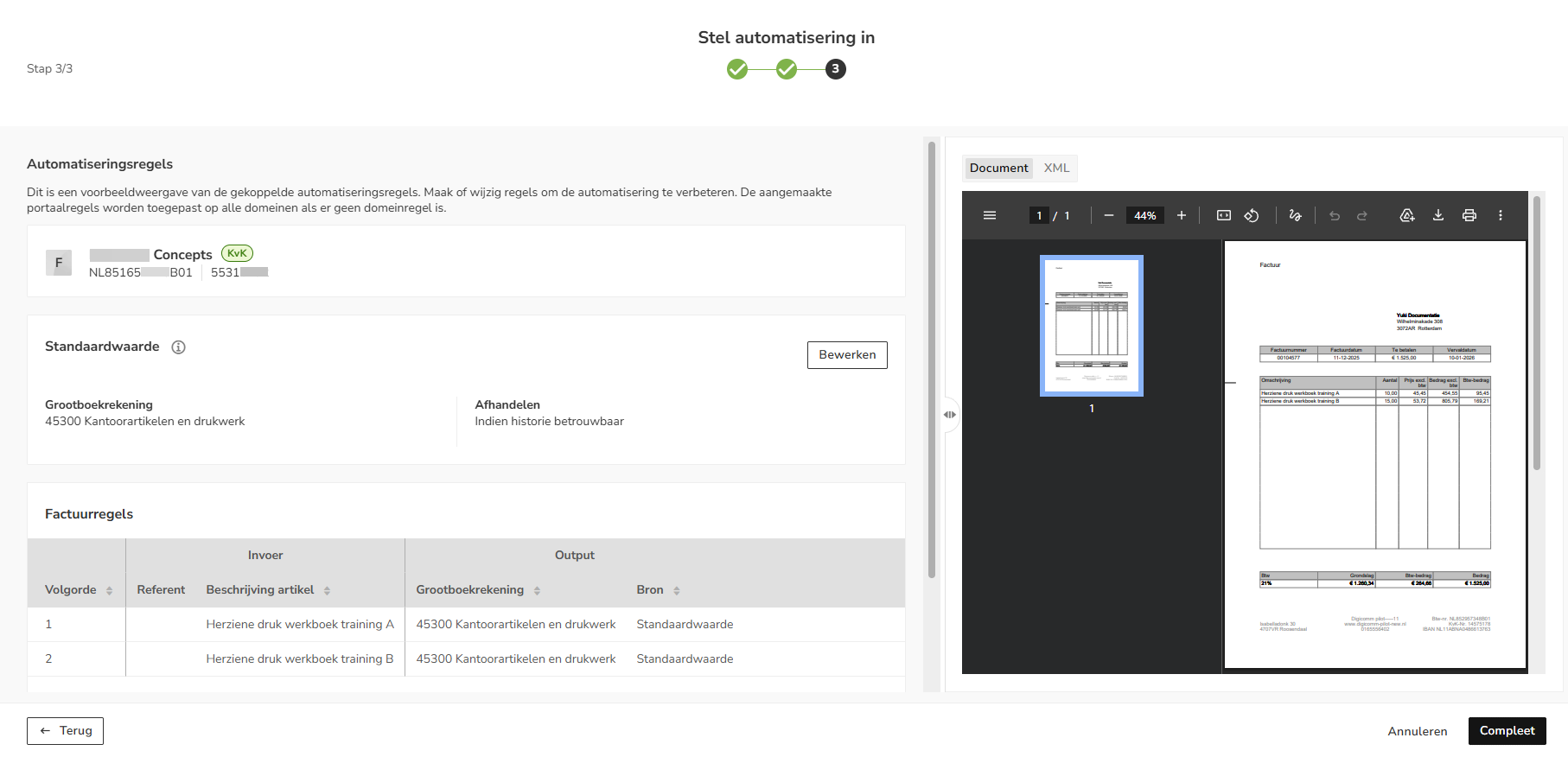
Here you see the default value currently created for the UBL invoice.
ATTENTION!
If you use the ‘Dynamic GL account’ field as Output, the dynamic GL account will not be shown in the above screen. However, the invoice line will be posted to that GL account.
Result of default value
Below, the lines in the UBL invoice are shown that meet the criteria of the default value as well as the GL account where the invoice lines will be booked.
Step 3: Create or change default value for UBL invoice (if required)
A default value for a supplier must be present in the portal before one or more UBL rules can be created for the UBL invoice.
If no default value is present the following banner will be shown on the screen:

To create a default value, click on the New default value link in the banner.
ATTENTION!
If the already existing default value does not apply to the selected UBL invoice, it must be changed by clicking on the Edit button.
The following screen is opened:
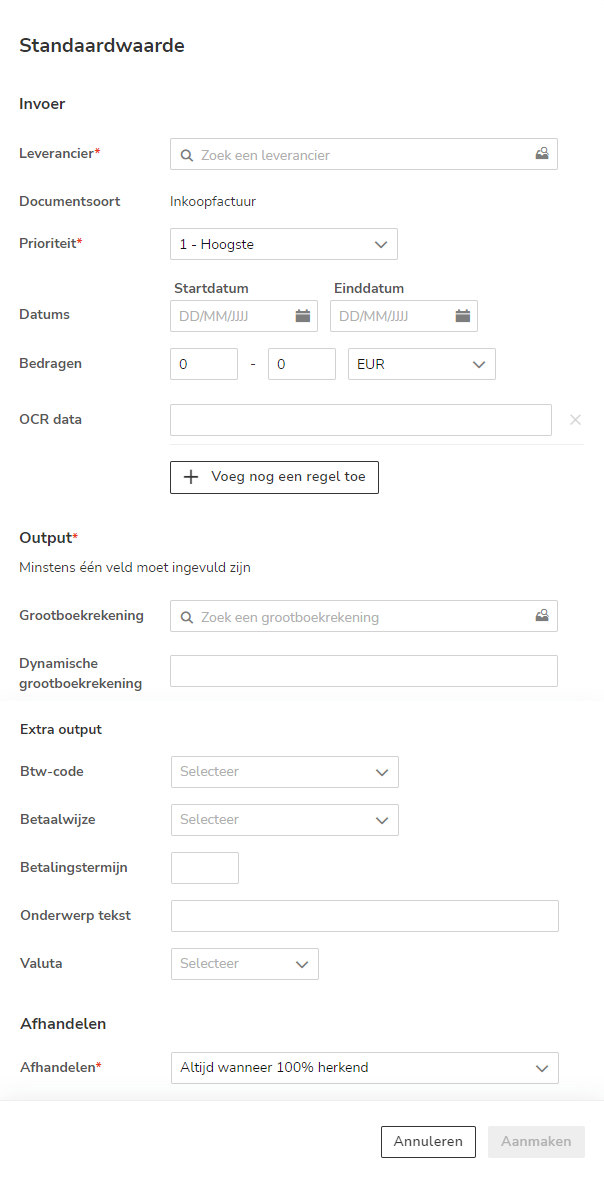
For a detailed description of the specific ciriteria and output fields of the default value, see article Create default value (central processing rule) for portal.
Then click on the Create button. The following message appears on the screen:

After creating a default value, the following information is shown:
- the GL account
- the Completion
- the invoice lines ((Source is shown: default value).
Change default value
If the existing default value does not apply to the selected UBL invoice, you can change it by:
- clicking on the Edit button
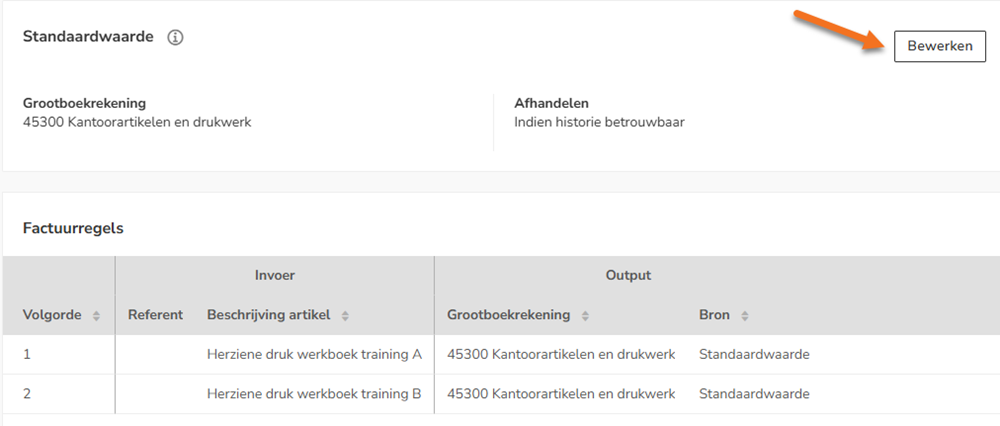
- changing the default value details in the now-opened screen
- clicking on the Save button.
Step 4: Create or change UBL rule
To create a new UBL rule, hover over the relevant invoice line and click on the New UBL rule button.
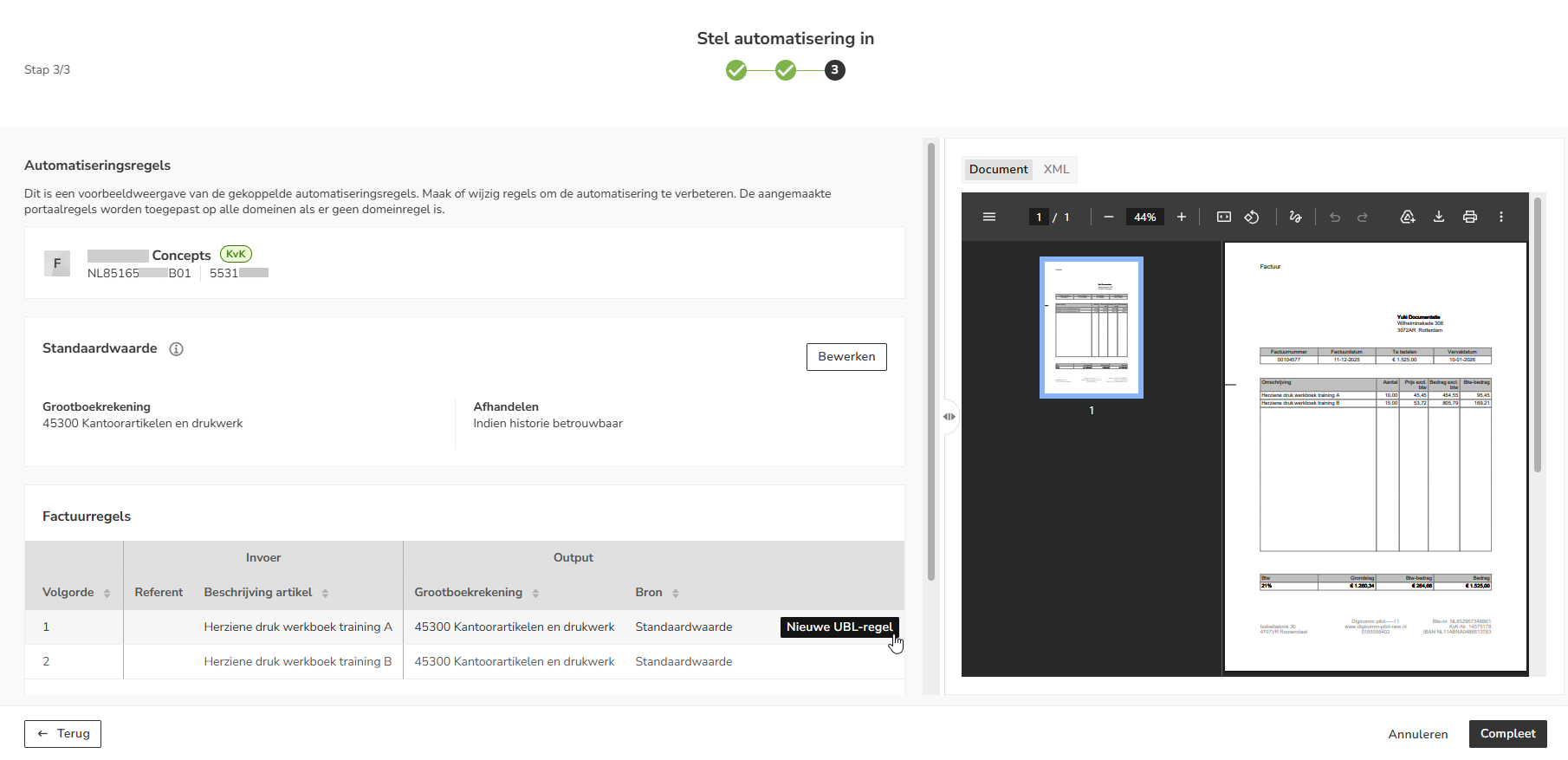
ATTENTION!
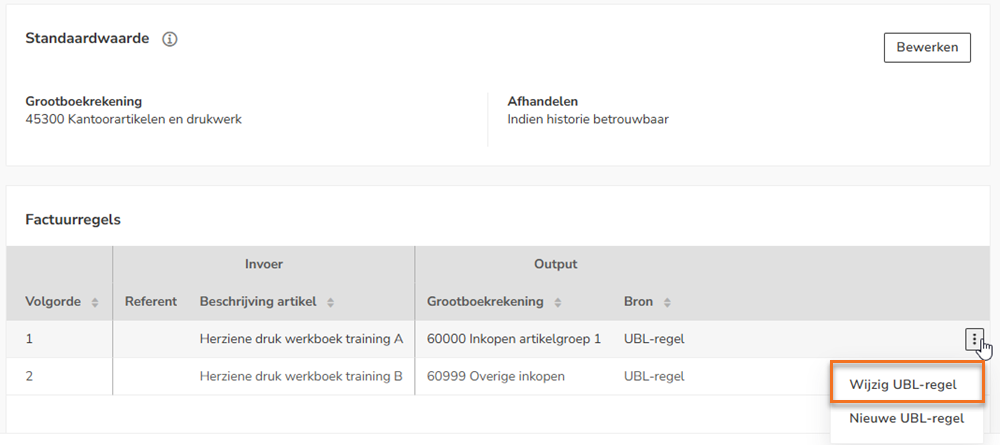
If the already existing UBL rule does not apply to the selected UBL invoice, it must be changed by clicking on the button with the three dots and then select the Edit UBL rule button.
The following screen is opened:
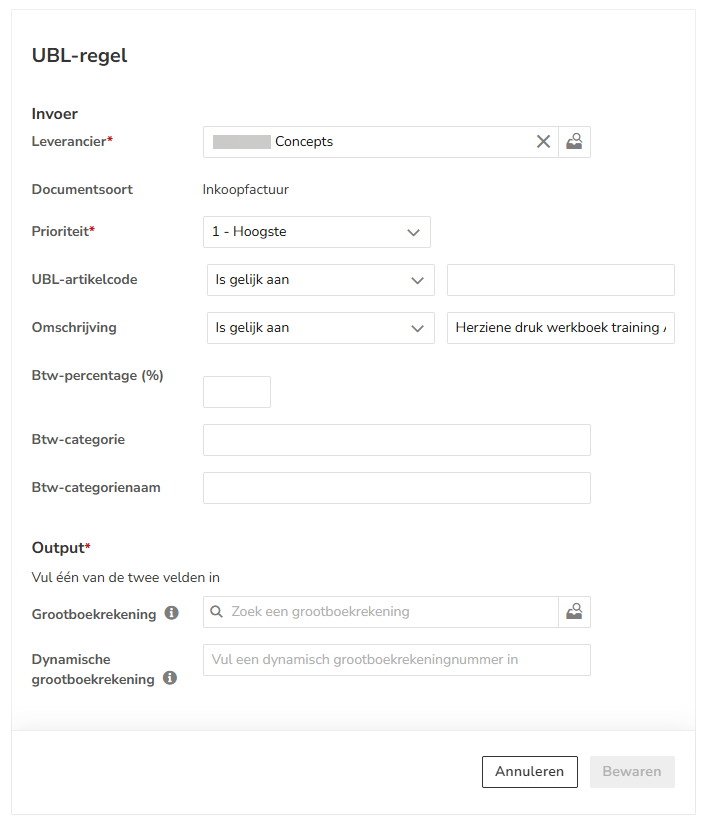
When setting up a UBL rule (processing rule), it is important to fill in the specific criteria and output fields that correspond to the purchase invoice for which you are setting up the rule.
For a detailed description of these criteria and output fields, see article Create UBL rule (central processing rule) for portal.
Then, click the Create button. The following message appears on the screen:

In the manner described above, if required, create a UBL line for all invoice lines.
TIP!
You can find the created UBL rule in the overview of Default values (via Settings).
Result of UBL rule
The result of the UBL rule is that all invoice lines of the specific item in the processed purchase invoices of this supplier will automatically be posted to the selected GL account.
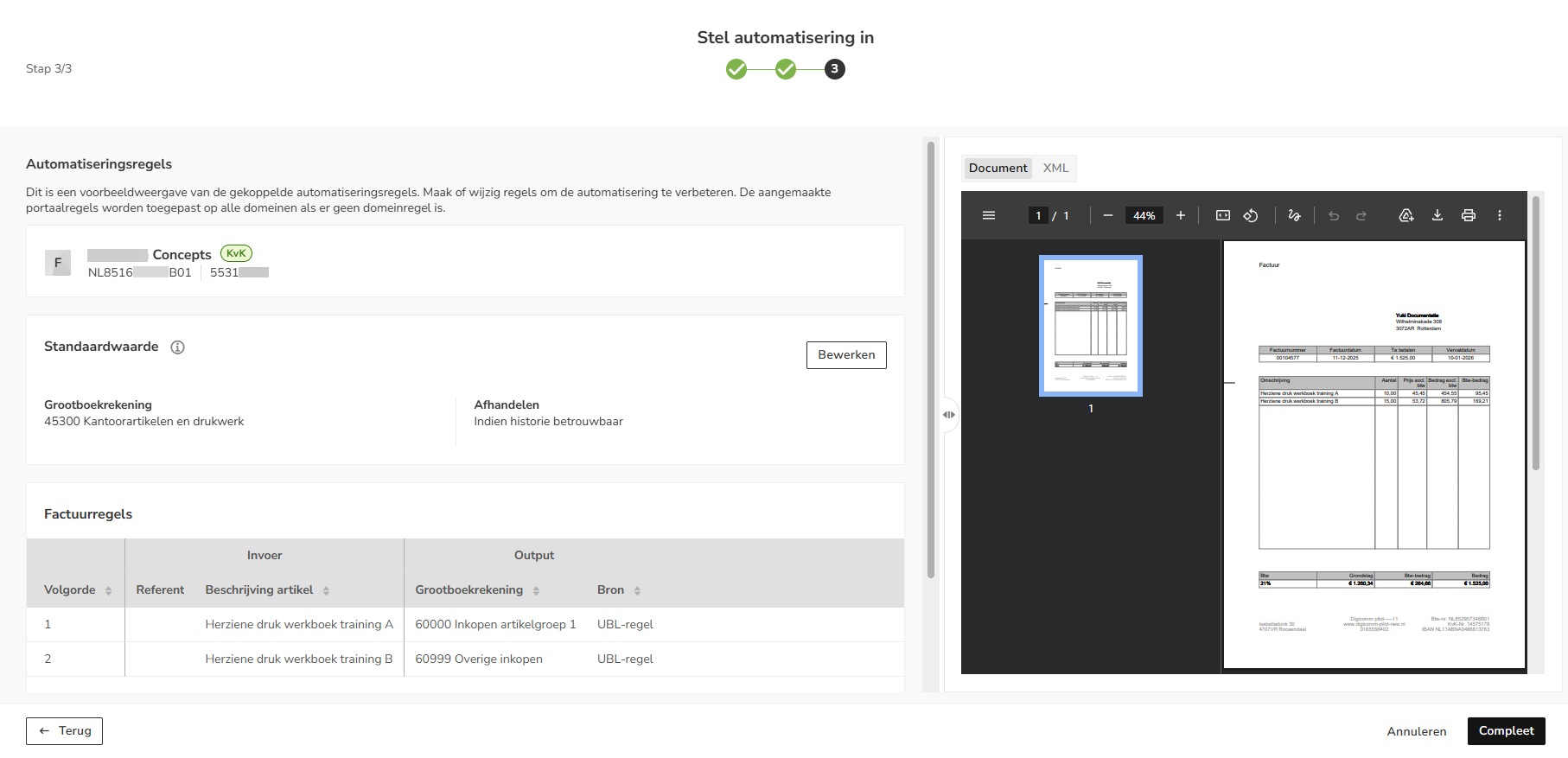
ATTENTION!
When using the ‘Dynamic GL account’ field as Output, the dynamic GL account will not be shown in the above screen. However, the invoice line will be posted to that GL account.
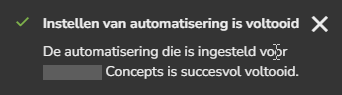
Click on the Complete button to save the set automation (default value or UBL line(s)).
The following message appears on the screen:
Change UBL rule
If the existing UBL rule does not apply to the selected UBL invoice, you can modify it by:
- hovering the mouse over the relevant UBL rule
- clicking on the button with the three dots
- selecting the Edit UBL rule menu option from the dropdownmenu
- changing the UBL rule details in the now-opened screen
- clicking on the Save button.
Was this article helpful?
That’s Great!
Thank you for your feedback
Sorry! We couldn't be helpful
Thank you for your feedback
Feedback sent
We appreciate your effort and will try to fix the article