Disclaimer
All screenshots in the article were taken in the Dutch version of Yuki.
For a supplier or customer in a domain, you can set two types of automation rules (read: processing rules) to enhance the automatic processing of purchase invoices, sales invoices, and/or Yuki sales invoices (sales invoices generated using the Sales functionality): default values and UBL rules.
The default values are crucial settings for fully automated document processing!
These values can be entered per company.
Default values
- Purpose: These are set at the supplier or customer level to facilitate automatic data entry during invoice processing.
- How it works: When a purchase or sales invoice from a specific supplier or customer arrives, predefined values are automatically filled in, such as GL accounts and other relevant data.
UBL rules (only for UBL/PDF and UBL invoices)
- Purpose: These rules are specific to purchase or sales invoices submitted in UBL format.
- How it works: They allow you to post invoice lines to different general ledger accounts at the line level, allowing for more detailed and flexible processing.
ATTENTION!
Before you can split at the line level using UBL rules, a default value must first exist.
Only a user with the 'Back office' role in the domain or the 'External accountant' role can set default values.
A number of defauilt values from a single supplier or customer together form a document processing rule. It's also possible to create multiple default values (processing rules) at the document and line level.
Access to default values for contacts
To access them:
- click on the Contacts icon in the navigation bar
- then click on Default values.
Available default values (auto-filled data)
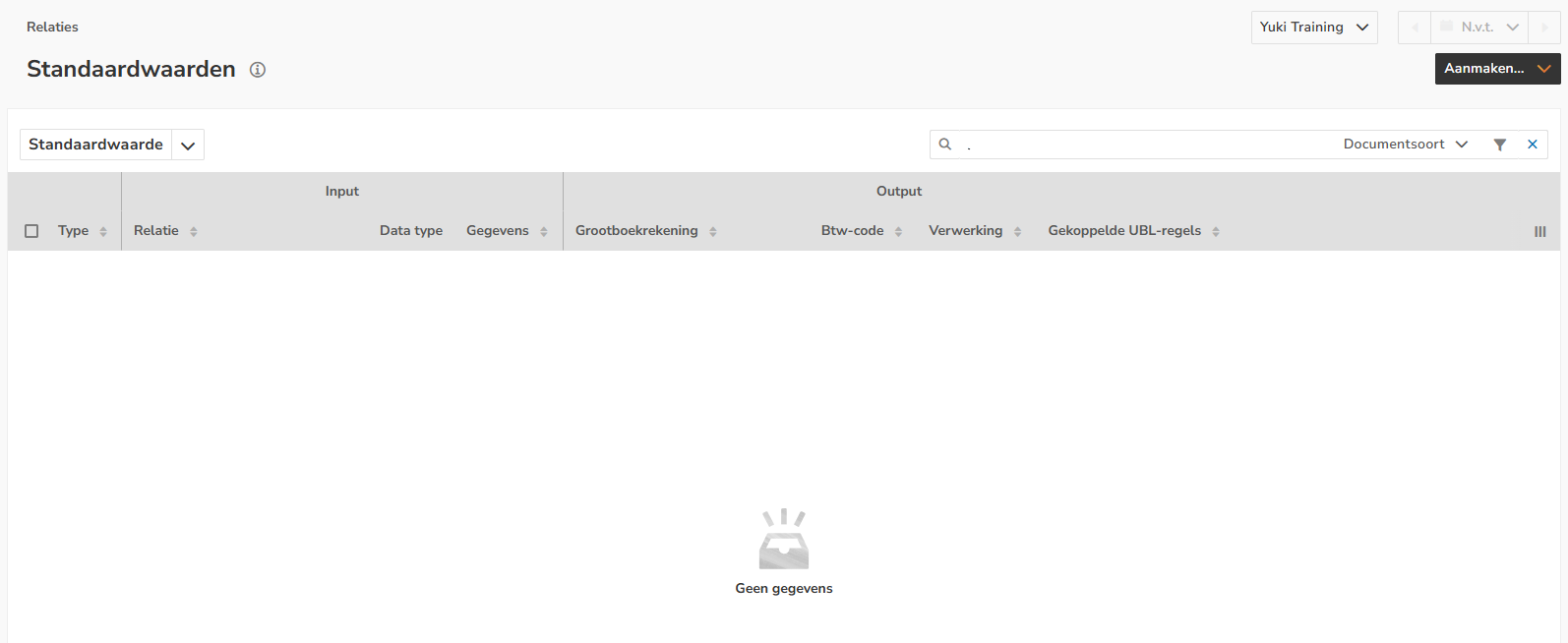
Default value Output
Depending on the document type, you can specify the following default values as output:
- GL account: GL account to which costs or revenue should be recorded
- VAT code: VAT code to be applied
- Payment method: method used to pay the invoice
- Payment term: number of days within which an invoice must be paid
- Payment discount (%): discount (in percentages) on the invoice amount
- Subject template: subject of the invoice according to a template (with placeholders)
- Currency: currency of the invoice amount (selection from all currencies active within the domain).
- Project: the project linked to the invoice.
UBL rule Output
Depending on the document type, you can specify the following default values as output:
- GL account: select the correct GL account.
- VAT code: VAT code used in the invoice line of the purchase or sales invoice.
- Project: the project linked to the invoice line.
- Description (AiP): the 'AdditionalItemProperty' field in the UBL invoice.
All purchase invoices, sales invoices, and/or Yuki sales invoices will be automatically processed by Yuki using the default values you enter, unless you specify when creating a default value that invoices from this supplier or customer should always be processed manually.
Define default values
To create multiple default values (processing rules) at the document and line level, click on the Create button and then select the Default value or UBL rule menu option.
For a detailed description, see articles Create default value (local processing rule) in domain and Create UBL rule (local processing rule0 in domain.
Was this article helpful?
That’s Great!
Thank you for your feedback
Sorry! We couldn't be helpful
Thank you for your feedback
Feedback sent
We appreciate your effort and will try to fix the article