Disclaimer
All screenshots in the article were taken in the Dutch version of Nmbrs Accounting.
By creating default values (processing rules) at the document level, purchase invoices, sales invoices, and/or Nmbrs sales invoices (sales invoices generated using the Sales functionality in Nmbrs Accounting) from the same supplier or customer within a domain can be automatically posted to, for example, a specific GL account.
UBL rules (only for UBL/PDF and UBL invoices)
- Purpose: These rules are specific to purchase or sales invoices submitted in UBL format.
- How it works: They allow you to post invoice lines to different GL accounts at the line level, allowing for more detailed and flexible processing.
ATTENTION!
Before you can split at the line level using UBL rules, a default value must first exist.
Permissions and roles
Only a user with the 'Back office' role in the domain or the 'External accountant' role can create a UBL rule (local processing rule) in a domain.
Access to Default values
To access them:
- hover your mouse over the Contacts icon in the navigation bar
- find and open the contact card for the supplier or customer
- then in the now-opened screen, click on Default values.
Create UBL rule for invoice
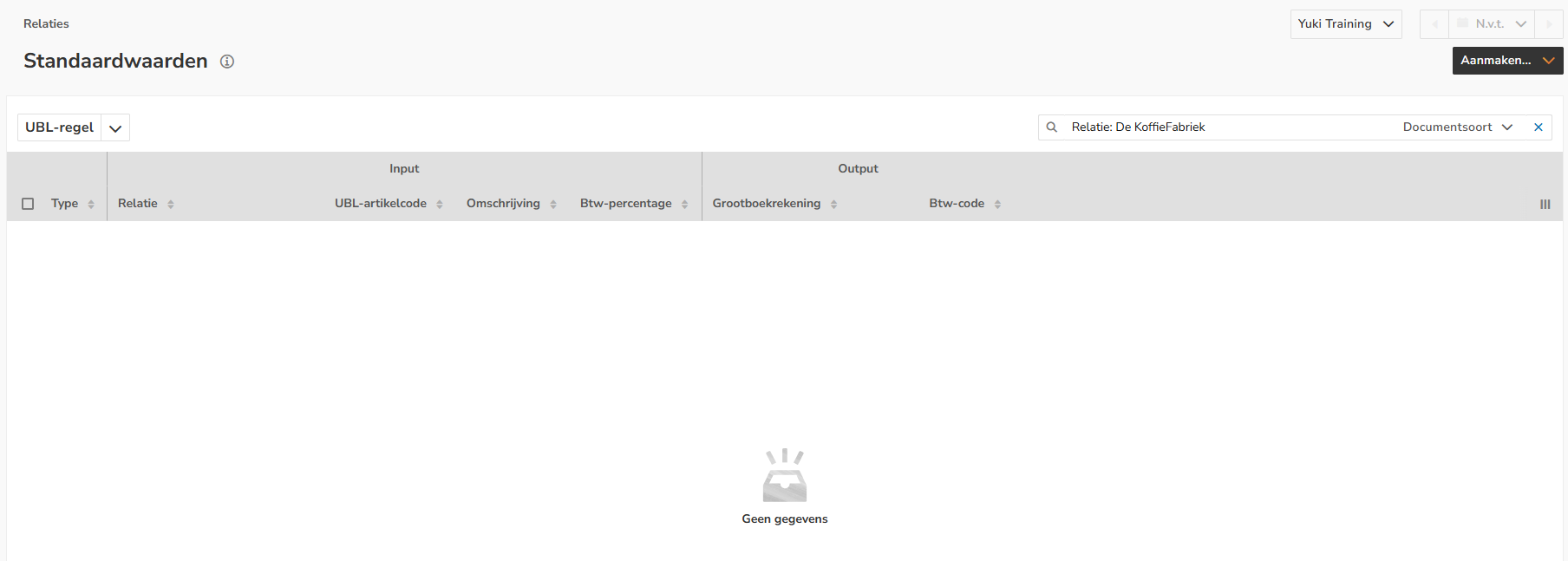
To create a new UBL rule (processing rule) at the line level for a document, click on the Create button and then select the UBL rule menu option.
The following screen is opened:
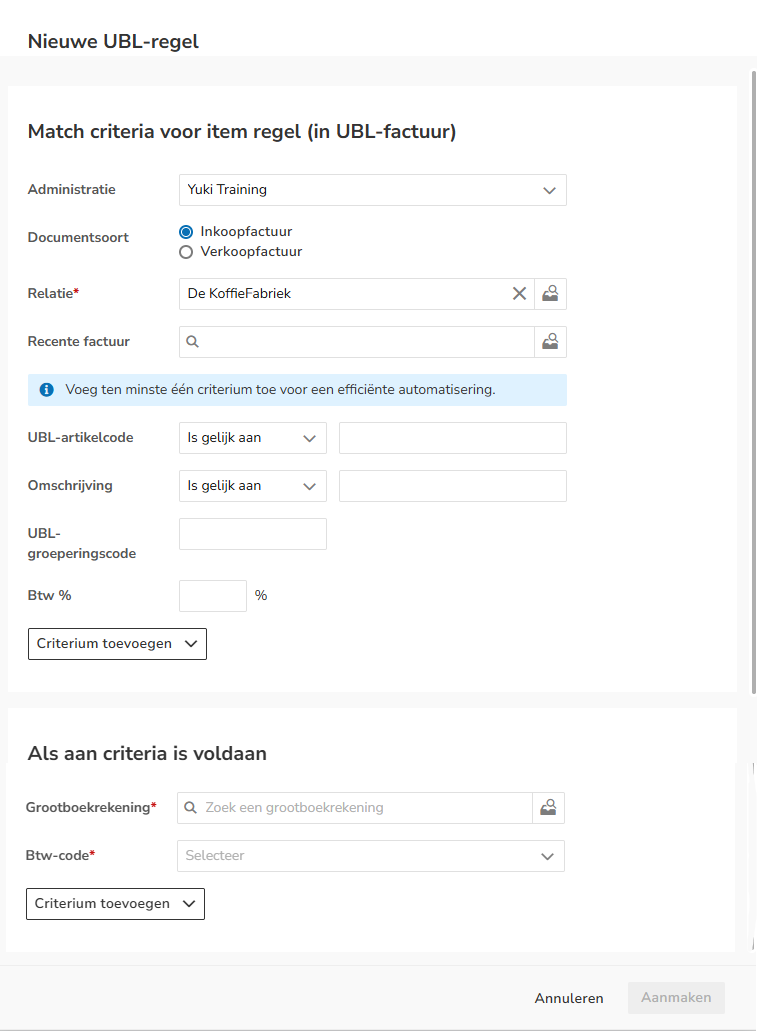
To automate invoice processing, you can set up UBL rules that meet specific criteria. Here's a step-by-step guide to how:
- Enter input criteria: Under 'Match criteria for item line (in UBL invoice)', enter the data the UBL rule must meet. These are the conditions the invoice must meet for the UBL rule to be applied.
- Set output criteria: Under 'When criteria are met', enter the data that will be automatically applied. This data varies depending on the document type for which you're creating the UBL rule.
Click on the Save button to save the UBL rule. This will apply the rule to the invoices of the relevant supplier or customer.
Example
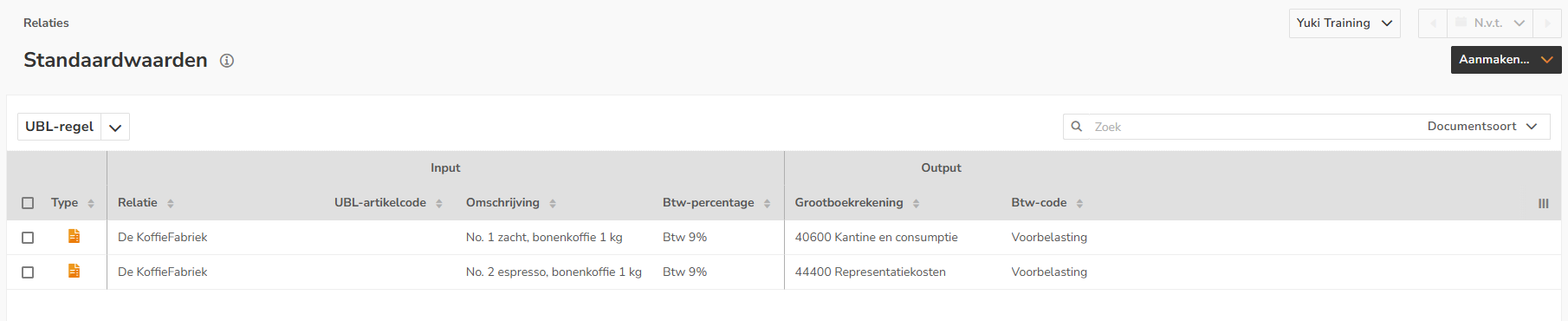
In the screenshot below, you can see that two UBL rules have been set up for purchase invoices from the supplier De Koffiefabriek. These rules ensure that all purchase invoices from this supplier are automatically split based on specific criteria:
- the first invoice line is posted to the GL account 'Canteen and Consumption costs' with the VAT code 'Input tax'.
- the second invoice line is posted to "Representation costs', also with a VAT code 'Input tax'.
TIP!
The VAT category in the invoice (UBL field: TaxCategory) can be viewed by adding the VAT category column to this overview by clicking on the Column selection button.
Match criteria for item line (in UBL invoice)
The values that the 'Input' on the purchase and/or (Nmbrs) sales invoice must meet:
- Administration: only available when multiple companies are present in the domain
- Document type: purchase invoice, sales invoice, or Nmbrs sales invoice
- Contact: name of supplier or customer
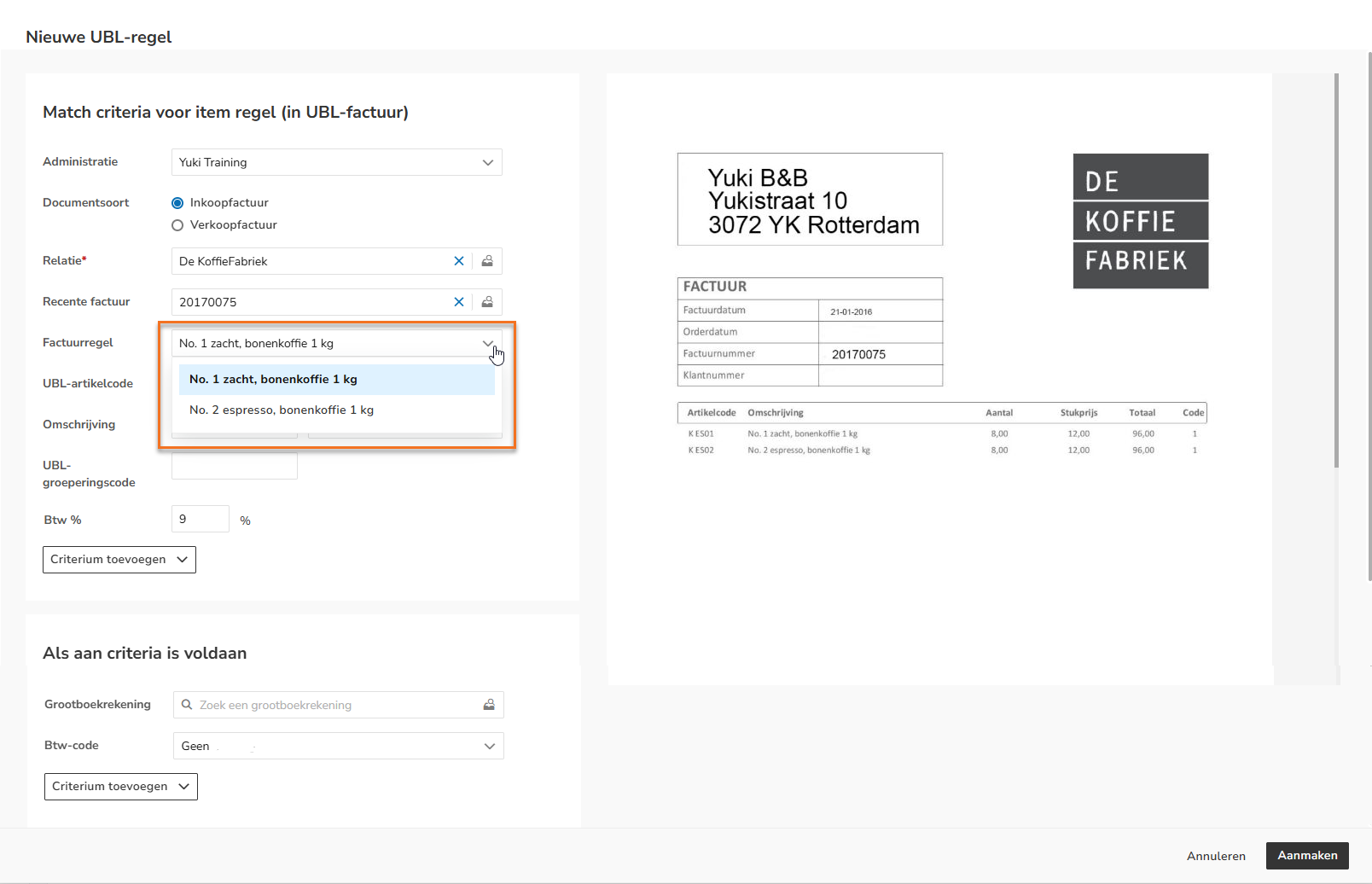
- Recent invoice: select the invoice for which you want to use one of the invoice lines as input
No embedded PDF present
If there is no embedded PDF document in the UBL invoice, you can view it as a so-called mock-up document.
The following banner is shown at the top of the mock-up document:
- Invoice line: select the correct invoice line
ATTENTION!
The UBL data present in the invoice line, such as item code, description, and VAT percentage, will be automatically filled in the corresponding UBL fields. - UBL item code: item code equals, begins with, or contains (UBL field: SellersItemIdentification (purchase invoice, BuyersItemIdentification (sales invoice))
- Description (UBL): item description equals, begins with, or contains
- UBL grouping code: the optional ‘AccountingCostCode’ field in the UBL invoice. This field refers to an internal cost center, cost carrier, project or general ledger code of the recipient of the invoice
- VAT %: VAT percentage in the invoice.
Click on the Add property button to use one or more of the matching criteria below, if required:
- VAT category (UBL): VAT category in the invoice (UBL field: TaxCategory)
- VAT category name (UBL): VAT category name in the UBL invoice.
TIPS!
- If the value of the 'UBL item code' (SellersItemIdentification) field is missing from the UBL invoice, you only need to enter the value of the 'Description (UBL)' (Item Description) field.
- If necessary, you must first look up the values in the UBL fields (item code, description, VAT percentage, and VAT category) you want to use.
From the input screen, Nmbrs Accounting will indicate that the document is a UBL invoice using the UBL symbol.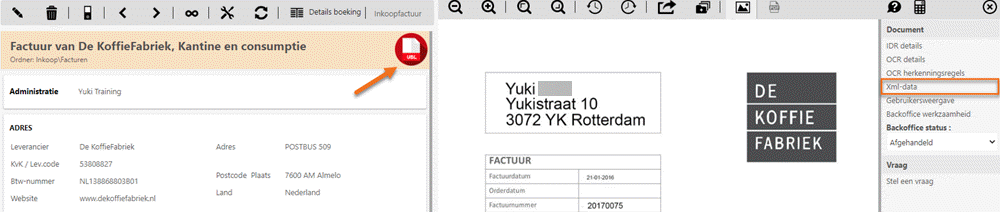
On the right side of your screen, you'll find the XML data. Clicking on it will open the underlying XML document for the invoice.
In this XML document, locate the UBL field (on PC using Ctrl-F, on Mac using Cmd-F) whose value you want to use as the value in the UBL rule.
When criteria are met
The values that are automatically entered as 'Output' on the purchase and/or sales invoice:
- GL account: select the correct GL account.
- VAT code: the VAT code used in the invoice line of the purchase or sales invoice.
Click on the Add property button to use one or more of the following criteria, if required:
- Project: the project that will be linked to the invoice line.
- Description (AiP): the 'AdditionalItemProperty' field in the UBL invoice.
Was this article helpful?
That’s Great!
Thank you for your feedback
Sorry! We couldn't be helpful
Thank you for your feedback
Feedback sent
We appreciate your effort and will try to fix the article