Disclaimer
All screenshots in the article were taken in the Dutch version of Yuki.
For a contact in a domain, you can set two types of automation rules (read: processing rules) to enhance the automatic processing of purchase invoices, sales invoices, and/or Yuki sales invoices (sales invoices generated using the Sales functionality): default values and UBL rules.
The default values are crucial settings for fully automated document processing!
These values can be entered per company.
Default values
- Purpose: These are set at the supplier or customer level to facilitate automatic data entry during invoice processing.
- How it works: When a purchase or sales invoice from a specific supplier or customer arrives, predefined values are automatically filled in, such as GL accounts and other relevant data.
UBL rules (only for UBL/PDF and UBL invoices)
- Purpose: These rules are specific to purchase or sales invoices submitted in UBL format.
- How it works: They allow you to post invoice lines to different general ledger accounts at the line level, allowing for more detailed and flexible processing.
ATTENTION!
Before you can split at the line level using UBL rules, a default value must first exist.
This overview shows all default values and UBL rules currently set for contacts in one or more administrations.
This overview is only available to a user with a 'Backoffice' role in the domain or the 'External accountant' role.
TIP!
Default values for contacts can also be set at the portal level, applying to all domains within the portal.
For a detailed description, see article Set default values (central processing rules) for portal.
Access to default values for contacts
To access them:
- click on the Contacts icon in the navigation bar
- then click on Default values.
Default values for contacts overview
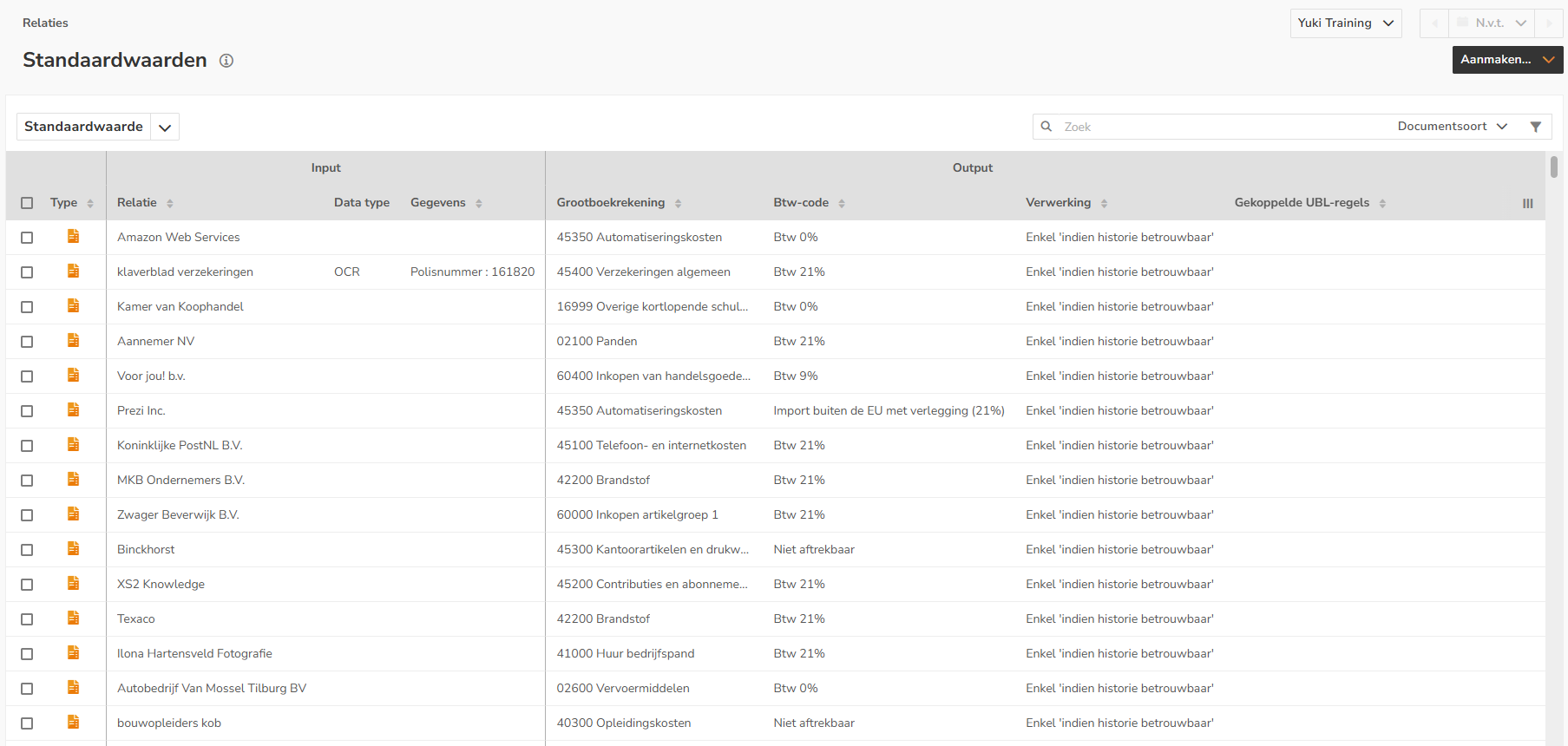
The screen containing all default values and UBL rules created for contacts in the domain always opens in the Default value view.
TIP!
You can also view the default values recorded for a supplier or customer by opening the relevant contact card and clicking on Default values.
A user with the 'Back office' role in the domain or the 'External accountant' role can create, modify, and/or delete default values (local processing rules) in a domain from this overview.
For a detailed description, see article Default values (local processing rules) in domain.
Views
In this screen, you can also specify whether the UBL rule view should be shown:
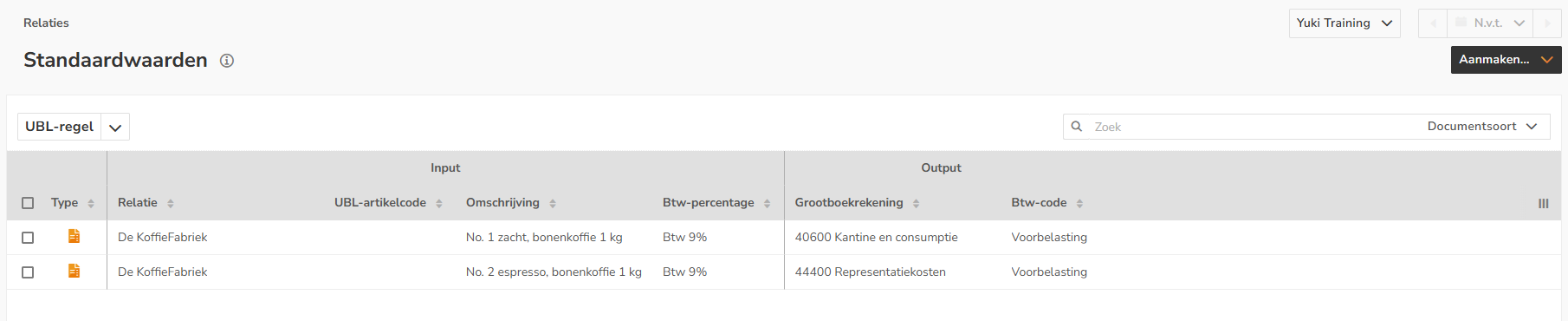
TIP!
The VAT category in the invoice (UBL field: TaxCategory) can be viewed by adding the VAT category column to this overview by clicking on the Column selection button.
Filters
In both views, you can filter the shown data by Document type:
- Purchase Invoice
- Sales Invoice
- Yuki Sales Invoice.
In addition, in the 'Default value' view, you can use an advanced filter by clicking on the filter button in the top right corner of the search bar/filter bar:

This allows you to filter the displayed data by:
- Payment method:
- Electronic transfer
- Direct debit
- Cash
- Debit card
- Credit card
- Will be refunded
- Received cash
- To be offset
- Private payment
- Received in private
- iDEAL
- Online
- Mollie
- Any custom payment methods.
- Processing:
- Always: Automatically process the document when all required fields on the invoice have been recognized.
- Reliable history: Automatically process the document when 50% of the invoices from this supplier in the past 18 months have been recognized correctly.
- Never: Yuki will recognize the invoice as usual, but it must still be manually processed from the workflow for verification.
- Data type:
- OCR
- XML.
ATTENTION!
If you select more than one filter in the advanced filter, they will be applied as AND-AND criteria.
You can search for a default value by Contact in the Search field.
Was this article helpful?
That’s Great!
Thank you for your feedback
Sorry! We couldn't be helpful
Thank you for your feedback
Feedback sent
We appreciate your effort and will try to fix the article