Disclaimer
All screenshots in the article were taken in the Dutch version of Yuki.
By creating default values (processing rules) at the document level, purchase invoices, sales invoices, and/or Yuki sales invoices (sales invoices generated using the Sales functionality in Yuki) from the same supplier or customer within a domain can be automatically posted to, for example, a specific GL account.
Default value
- Purpose: These are set at the supplier or customer level to facilitate automatic data entry during invoice processing.
- How it works: When a purchase or sales invoice from a specific supplier or customer arrives, predefined values are automatically filled in, such as GL accounts and other relevant data.
Only a user with the 'Back office' role in the domain or the 'External accountant' role can create a default value (local processing rule).
Access to Default values
To access them:
- hover your mouse over the Contacts icon in the navigation bar
- find and open the contact card for the supplier or customer
- then in the now-opened screen, click on Default values.
Create default value for invoice
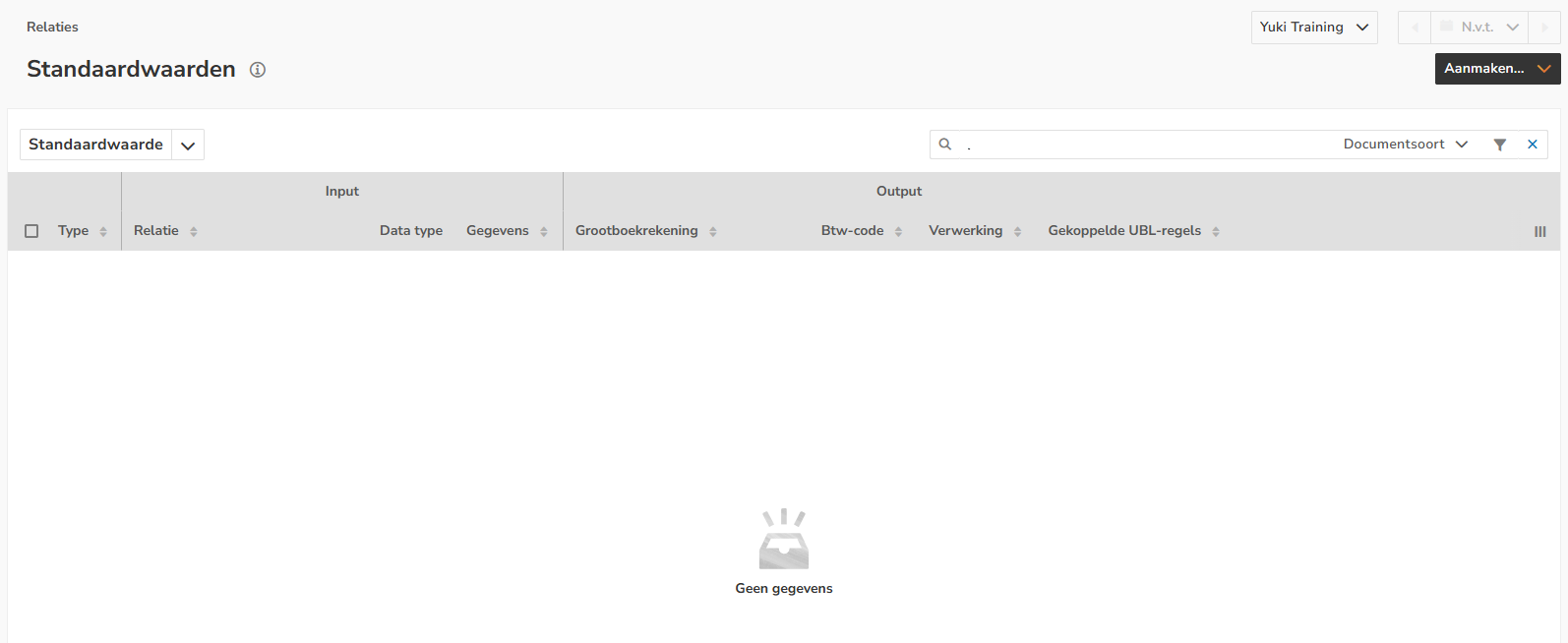
To create a new default value (processing rule) at the document level for a document, click on the Create button and then select the Default value menu option.
The following screen is opened:
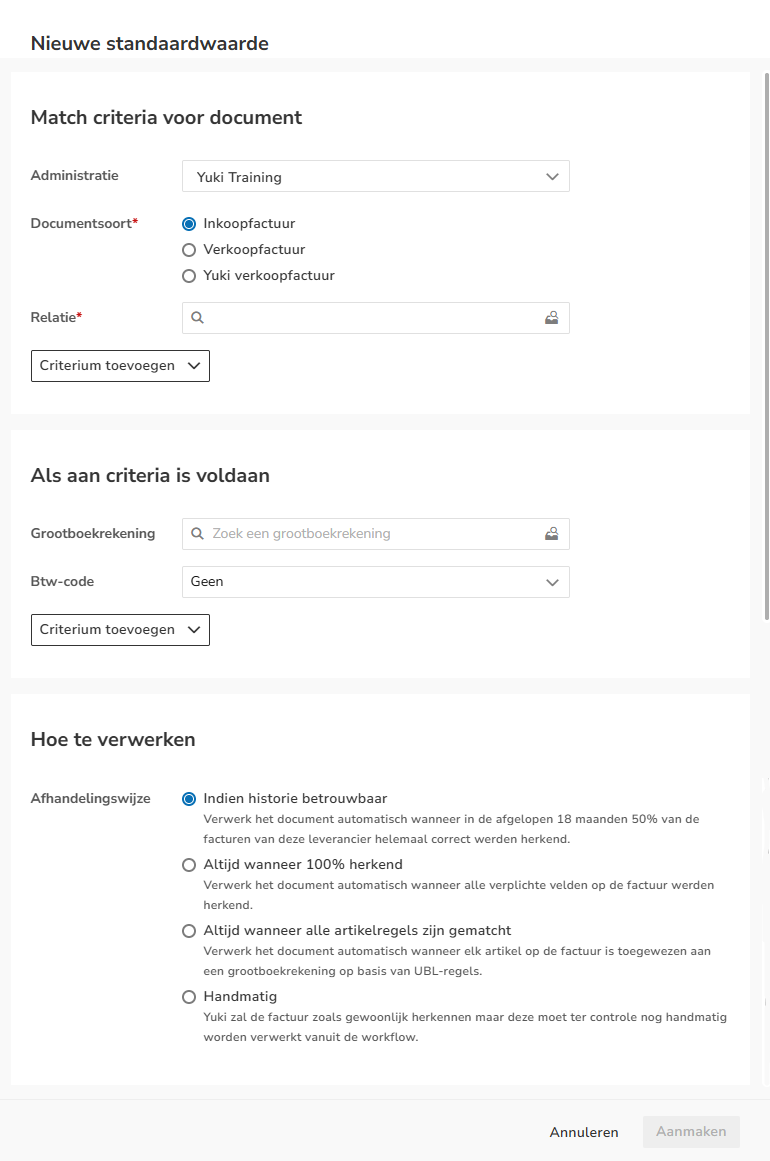
To automate invoice processing, you can set default values that meet specific criteria. Here's a step-by-step guide to how:
- Enter input criteria: Under 'Match criteria for document', enter the data the default value must meet. These are the conditions the invoice must meet to apply the default value.
- Set output criteria: Under 'When criteria are met', enter the data that will be automatically applied. This data varies depending on the document type for which you're creating the default value.
Click on the Save button to save the default value. This will apply the rule to the invoices of the relevant supplier or customer.
Example
In the screenshot below, a default value has been created for a purchase invoice from the supplier De Koffiefabriek. All purchase invoices from this supplier will automatically be posted to the GL account 'Canteen and consumption costs' with the VAT code 'Input tax'.
By default, the purchase invoice will only be processed if the history is sufficiently reliable. This means that at least 50% of the invoices from this supplier have been correctly recognized in the past 18 months.

Match criteria for document
The values that the 'Input' on the purchase and/or (Yuki) sales invoice must meet:
- Administration: only available when multiple administrations are present in the domain.
- Document type: purchase invoice, sales invoice, or Yuki sales invoice.
- Contact: name of supplier or customer.
Click on the Add property button to use one or more of the following match criteria, if required:
- Amount: invoice amount from to a specific amount.
- Priority: which default value (document processing rule) has the highest priority?
- Date: date from (start date) to a specific date (due date).
- Data (OCR/XML): part of the OCR or XML text of an invoice.
The maximum of three added OCR or XML text fields are applied as AND-AND criteria.
When criteria are met
The values that are automatically entered as 'Output' on the purchase and/or sales invoice:
- GL account: GL account to which costs or revenue should be recorded.
- VAT code: VAT code used on the purchase or sales invoice.
Click on the Add property button to use one or more of the following criteria, if required:
- Payment method: how the purchase or sales invoice should be paid.
- Payment term: the number of days within which an invoice must be paid.
- Payment discount: discount (in percentage) on the invoice amount.
- Subject template: invoice subject according to a template (with placeholders).
- Currency: currency of invoice amount (selection from all currencies active within the domain).
- Project: the project that will be linked to the invoice.
TIP!
When setting a default value in the accountant portal, you have the option to use an additional field: Dynamic GL account. A dynamic GL account is an additional GL account that has been added to the standard chart of accounts in a domain.
How to process
There are also extensive options for having Yuki process invoices automatically or not:
- When reliable history
Automatically process the document when 50% of the invoices from this supplier have been correctly recognized in the past 18 months. - Always when 100% recognized
Automatically process the document when all required fields on the invoice have been recognized. - Always when all item lines are matched
Automatically process the document when each item on the invoice has been assigned to a GL account based on UBL rules. - Manual
Yuki will recognize the invoice as usual, but it must still be manually processed from the workflow for verification.
ATTENTION!
The 'When reliable history' option is selected by default when creating a default value.
Was this article helpful?
That’s Great!
Thank you for your feedback
Sorry! We couldn't be helpful
Thank you for your feedback
Feedback sent
We appreciate your effort and will try to fix the article