Disclaimer
All screenshots in the article were taken in the Dutch version of Nmbrs Accounting.
In the portal, to increase automatic processing of purchase invoices, there are two types of automation rules you can set: default values and UBL rules.
Default values
- Purpose: These are set at vendor level to facilitate automatic data entry in invoice processing.
- Operation: When a purchase invoice arrives from a specific supplier, predefined values are automatically populated, such as GL accounts and other relevant data.
UBL rules (only for UBL/PDF and UBL invoices)
- Purpose: These rules are specific to purchase invoices delivered in UBL format.
- Operation: They allow posting invoice lines to different GL accounts at line level, providing more detailed and flexible processing.
ATTENTION!
Before you can start splitting at line level with UBL lines, a default value must first exist.
IMPORTANT!
Default values and UBL rules created in the portal for a supplier are applied in all domains, as long as no specific automation rules per domain are set for the supplier in question.
Permissions and roles
- Portal administrator: can create default value(s) from the ‘Top vendors’ report.
- Portal back office: does not have access to the ‘Top vendors’ report.
Access to Top vendors report
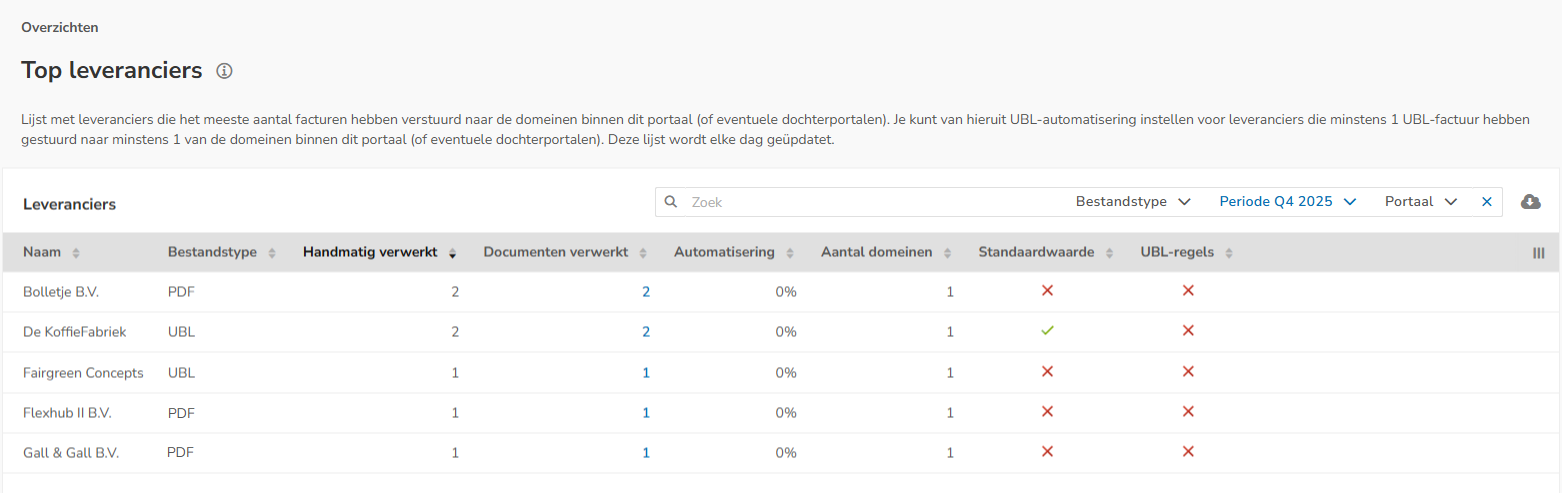
- In the accountant portal, click on Set rules in the Increase automation tile
OR
in the accountant portal, click on Management
- then click on Reports
- in the now-opened screen, click on Top vendors.
The following screen is opened:
Create default value for invoice
You can create a default value for a pdf invoice or a UBL invoice.
pdf invoice
To create a default value for a pdf invoice:
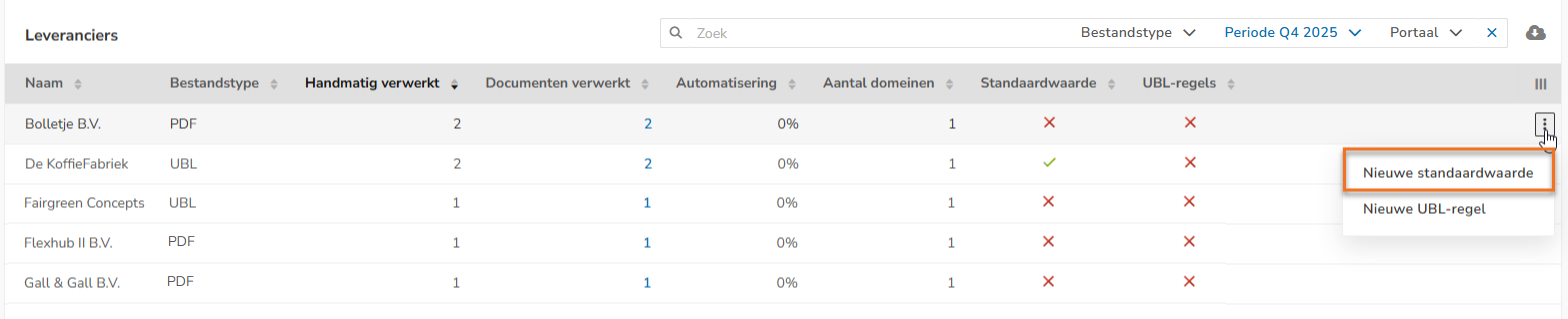
- hover your mouse over the line of the invoice in question
- click on the button with the three dots
- then select the New default value menu option from the dropdown menu
UBL Invoice
If there is no default value for a UBL invoice, you must first create it:
- hover the mouse over the line of the invoice in question
- click on the Set up UBL automation button
- in step 1 select the domain in which the UBL invoice is located and then click on the Select button
- in step 2 select the UBL invoice for which you need to create a default value and and then click on the Select button
- in step 3 click on the New default Value link in the banner shown in the now-opened screen.

The following screen is opened:
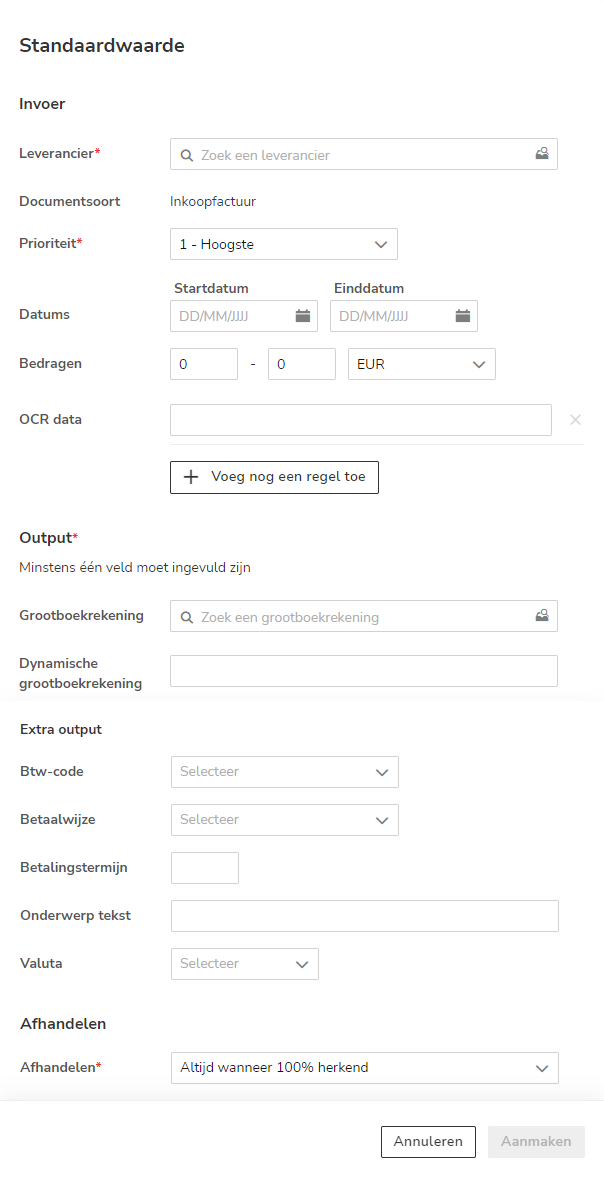
When setting a default value (processing rule), it is important to fill in the specific criteria and output fields that correspond to the purchase invoice for which you are setting the rule.
For a detailed description of these criteria and output fields, see article Create default value (central processing rule) for portal.
Was this article helpful?
That’s Great!
Thank you for your feedback
Sorry! We couldn't be helpful
Thank you for your feedback
Feedback sent
We appreciate your effort and will try to fix the article