Disclaimer
All screenshots in the article were taken in the Dutch version of Nmbrs Accounting.
When you want to credit a sales invoice that was not sent from Nmbrs Accounting, you always have to manually create a new credit invoice.
A sales invoice that you created from Nmbrd Accounting and sent to your customer can be credited in Nmbrs Accounting in two ways. This depends on whether you want to credit the sales invoice in its entirety or only partially.
Credit invoice in its entirety
To credit a sent invoice in its entirety:
- from the Sales folder in the Archive, open the invoice you want to credit
- then click on the Credit note button
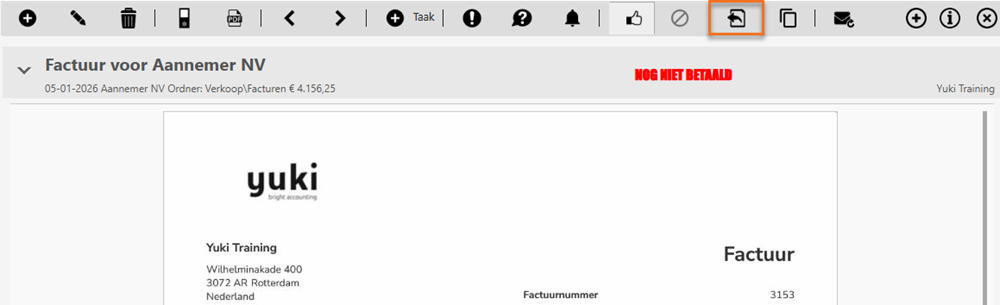
OR - from the Finalized invoices overview in Sales, open the invoice to be credited
- then click on the Credit note option.
Partially credit sales invoice (one or more sales items)
To partially credit a sent invoice:
- from the Sales folder in the Archive, open the invoice you want to partially credit
- then click on the Copy button
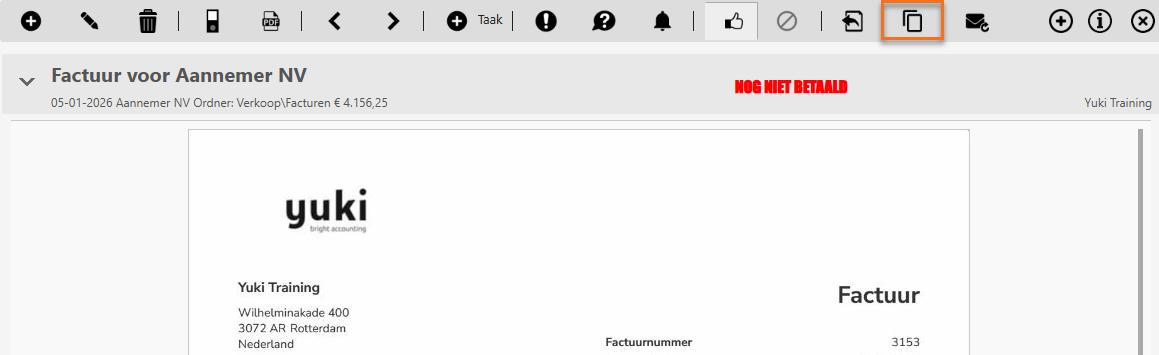
- in the now opened screen, click on the Credit note option
OR - from the Finalized invoices overview in Sales, open the invoice to be partially credited
- then click on the Credit note option.
For a detailed description of how to create, send and handle a credit invoice, see article Sales Standard - Create, send and handle credit note.
Was this article helpful?
That’s Great!
Thank you for your feedback
Sorry! We couldn't be helpful
Thank you for your feedback
Feedback sent
We appreciate your effort and will try to fix the article