Disclaimer
All screenshots in the article were taken in the Dutch version of Nmbrs Accounting.
A sales invoice you created from Nmbrs Accounting and sent to your customer can be credited in Nmbrs Accounting in two ways. This depends on whether you want to credit all or only part of the sales invoice.
Obviously, creating a credit note reduces the revenue in your administration. The excess VAT entered is automatically corrected in the draft VAT return. The overpaid VAT is automatically reclaimed in the draft VAT return of the next return period.
If you want to credit a sales invoice that was not sent from Nmbrs Accounting, you always have to create a new credit note manually.
If you use the Sales web service (API) for creating your sales invoices in Nmbrs Accounting, credit notes are automatically created from all invoices with a negative invoice amount in the supplied XML message.
Method of payment credit note
While creating the credit note, you select one of the following methods:
- To be refunded; the credit note will appear in the outstanding debtors or in the payment list (if using the Automated paymentds feature).
ATTENTION!
If payment list protection is activated in the domain, the new credit note will receive the payment status 'Pending' by default. The credit note must then first be released for payment before it enters the payment list. - To be settled: the credit note can be matched with one or more open sales invoices of the customer in question and is thus settled.
Credit invoice in its entirety
To credit a sent invoice in its entirety:
- from the Sales folder in the Archive, open the invoice you want to credit
- then click on the Credit note button
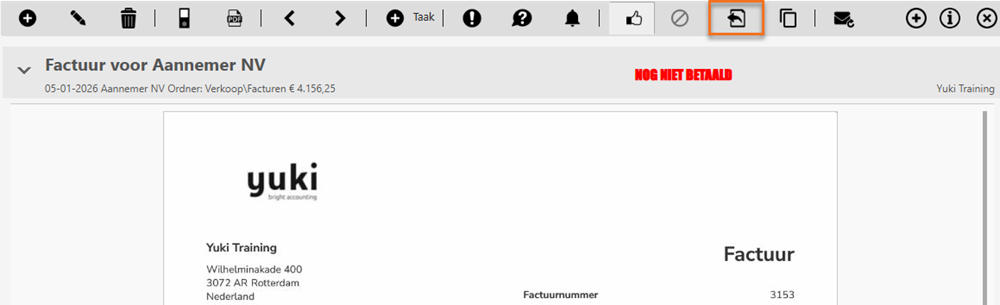
OR - open the invoice to be credited from the overview of the finalized invoices in Sales
- click on the Credit note option
In the now opened screen you can see that the total amounts of all sales items on the sales invoice have been credited.
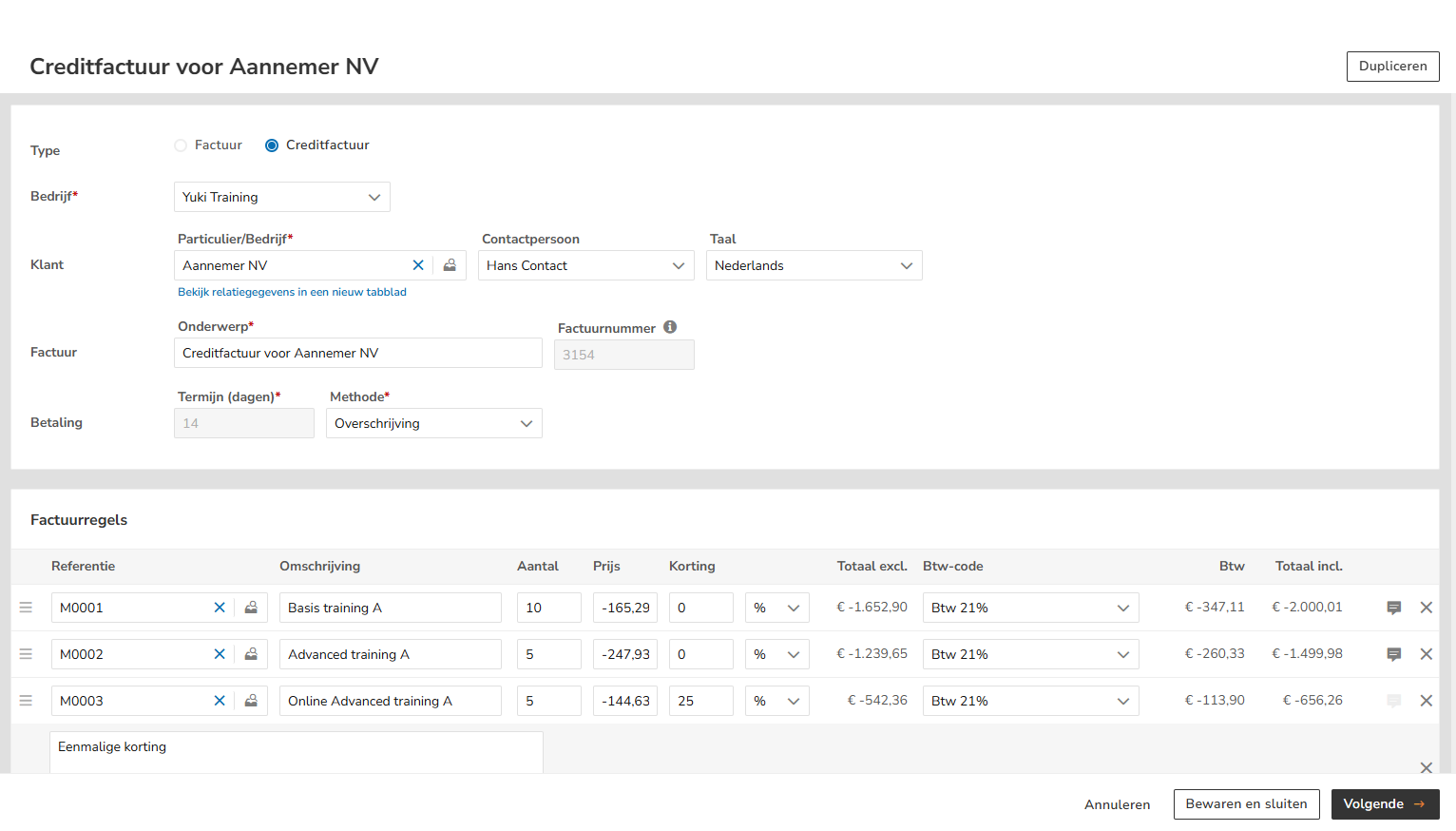
Nmbrs Accounting automatically adds the text “Credit note for invoice [invoice number]” to the subject of the invoice.
Partially credit sales invoice (one or more sales items)
To partially credit a sent invoice:
- copy the sales invoice by opening it and then clicking on the Copy button
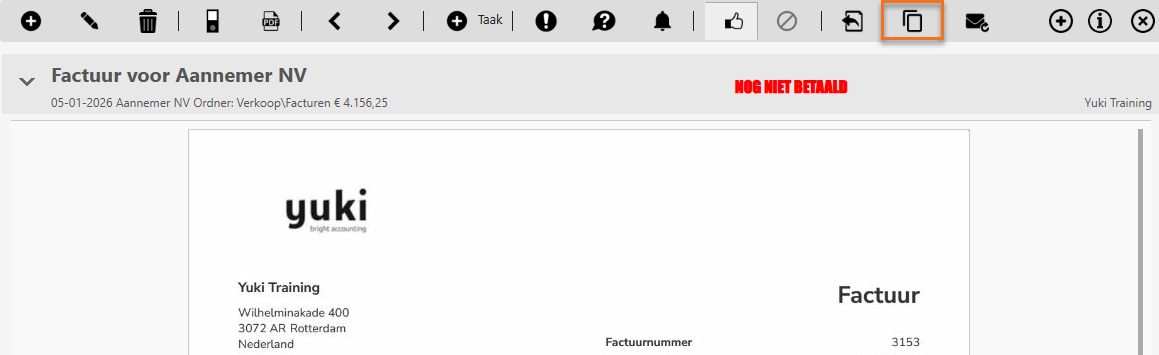
- in the nowi-opened screen, click on the Credit note option
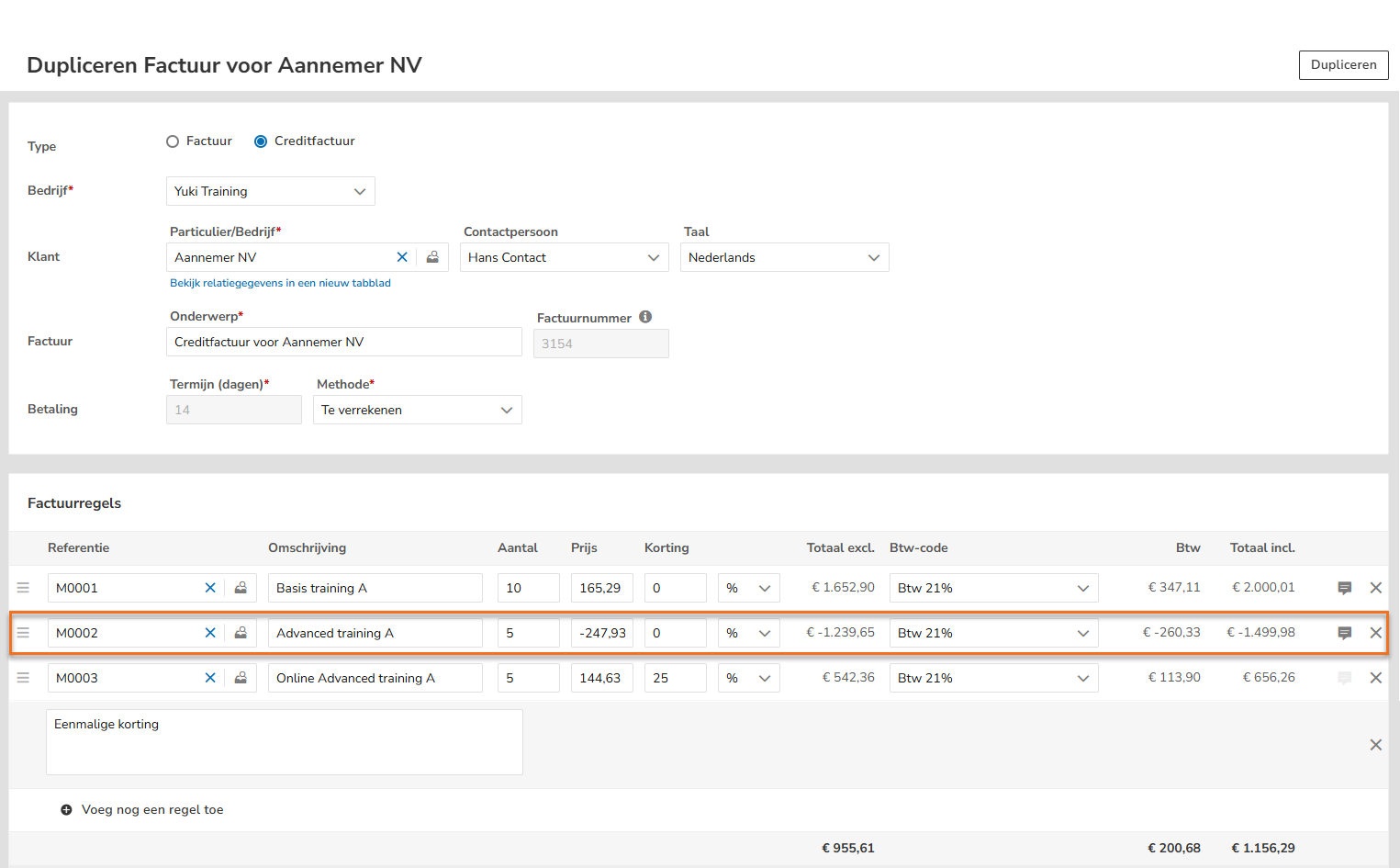
- then put a minus sign in front of the price or quantity of one or more sales items that you want to credit
OR - open the partially creditable invoice from the overview of finalized invoices in Sales
- click on the Credit note option
- then, in the now-opened screen, put a minus sign in front of the price or quantity of one or more sales items that you want to credit
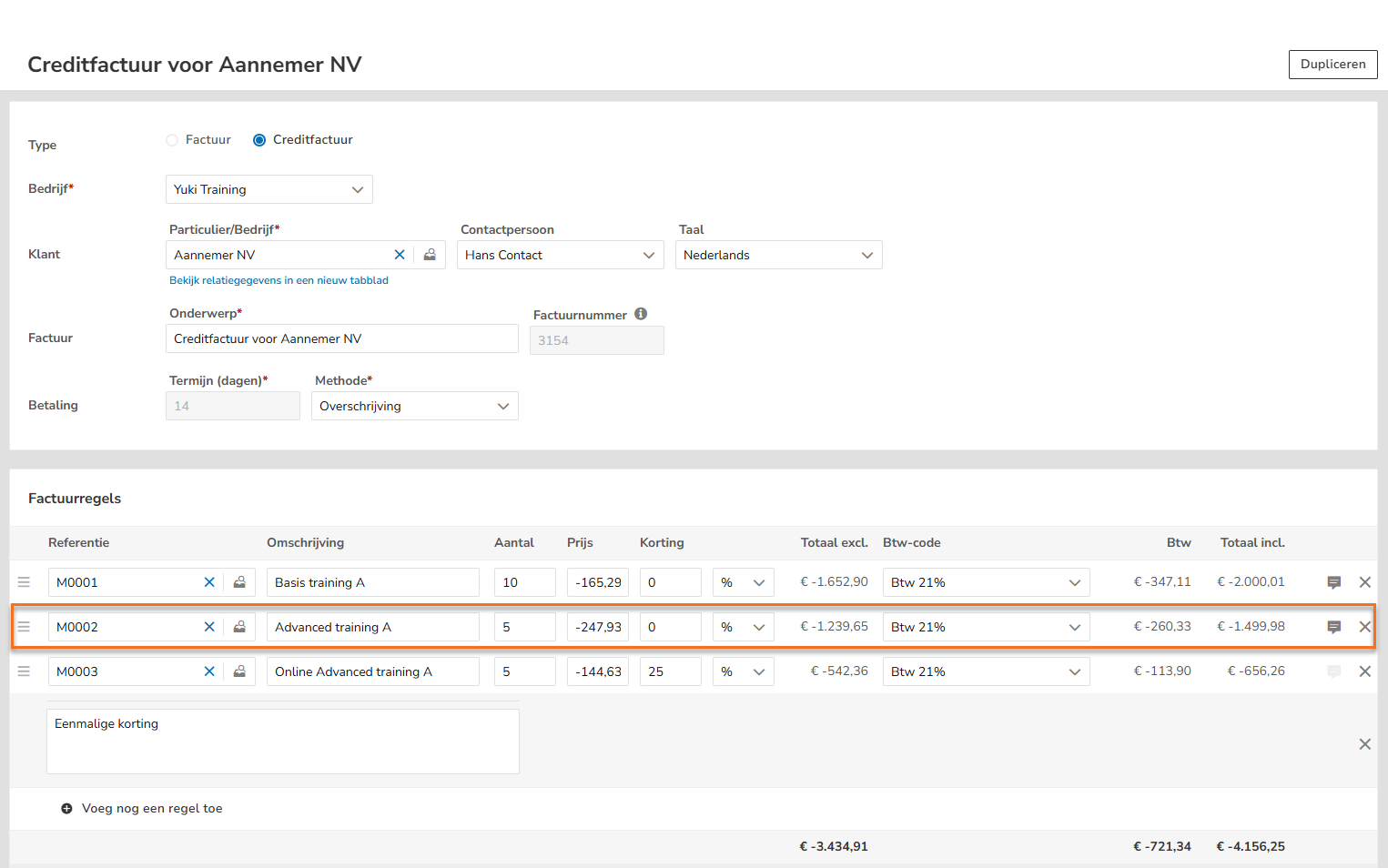
The VAT amount of the credit note is automatically adjusted.
TIP!
You can also create some credit sales items in advance.
Nmbrs Accounting automatically adds the text ‘Credit note for invoice [invoice number]’ to the subject of the invoice.
In the opened credit note, click on the Next button to view a screen preview of the invoice. The text ‘Credit note’ is added to the top right of the credit note.
The credit note can now be saved as a draft invoice (overview ‘Draft Invoices’) by clicking on the button Save and close.
Send credit note
The opened credit note can also be processed directly in the administration and sent to the customer by clicking on the Finalize and send button. Just be sure to check the invoice date and/or sending method before actually sending the credit note.
Handle credit note
After the credit note has been processed in the administration, it must be processed further compared to the original sales invoice.
Full crediting of unpaid sales invoice
The credit note sent to be settled is linked to the unpaid sales invoice, so to speak, causing both invoices to be marked as ‘Received in full’ in Nmbrs Accounting. The original sales invoice disappears from the ‘Outstanding invoices’ overview.
Partial crediting of unpaid sales invoice
The credit note sent to be settled must be manually matched with the unpaid sales invoice. The original sales invoice remains in the ‘Outstanding invoices’ overview and is marked as ‘Partially paid’. The remaining amount of the sales invoice must still be paid by the customer.
Full or partial credit of paid sales invoice
The sent to be refunded credit note will end up in:
- the outstanding debtors: the invoice amount must be transferred manually
- the payment list (if you use the Automated payments feature): the invoice amount must be transferred manually or by means of a SEPA payment file.
The credit note sent to be settled must be manually matched with one or more unpaid sales invoices from the customer. These sales invoices are then marked as ‘Fully received’ and/or ‘Partially paid’. Any remaining balance on a sales invoice must still be paid by the customer.
Was this article helpful?
That’s Great!
Thank you for your feedback
Sorry! We couldn't be helpful
Thank you for your feedback
Feedback sent
We appreciate your effort and will try to fix the article