Disclaimer
All screenshots in the article were taken in the Dutch version of Nmbrs Accounting.
To send reminders via e-mail, you must first check and, if necessary, update the reminder e-mail template.
Access to reminder email template
To access:
- click on the Sales icon in the navigation bar
- click on Sales settings
- click on the Sending method tab
- scroll to Email templates
- click on the arrow behind Reminder.
If necessary, change the subject and/or text of the email.
Send reminder via email
To send a reminder:
- click on the Sales icon in the navigation bar
- click on Invoices
- open the view Finalized
- move your mouse over the line of the invoice in question
- click on the button with the three dots
- then select the Send reminder menu option from the dropdown menu.
TIP!
Use the Show only overdue invoices filter in the overview to quickly see which invoices you want to send a reminder for.
The following screen is opened:

The following screen is opened:
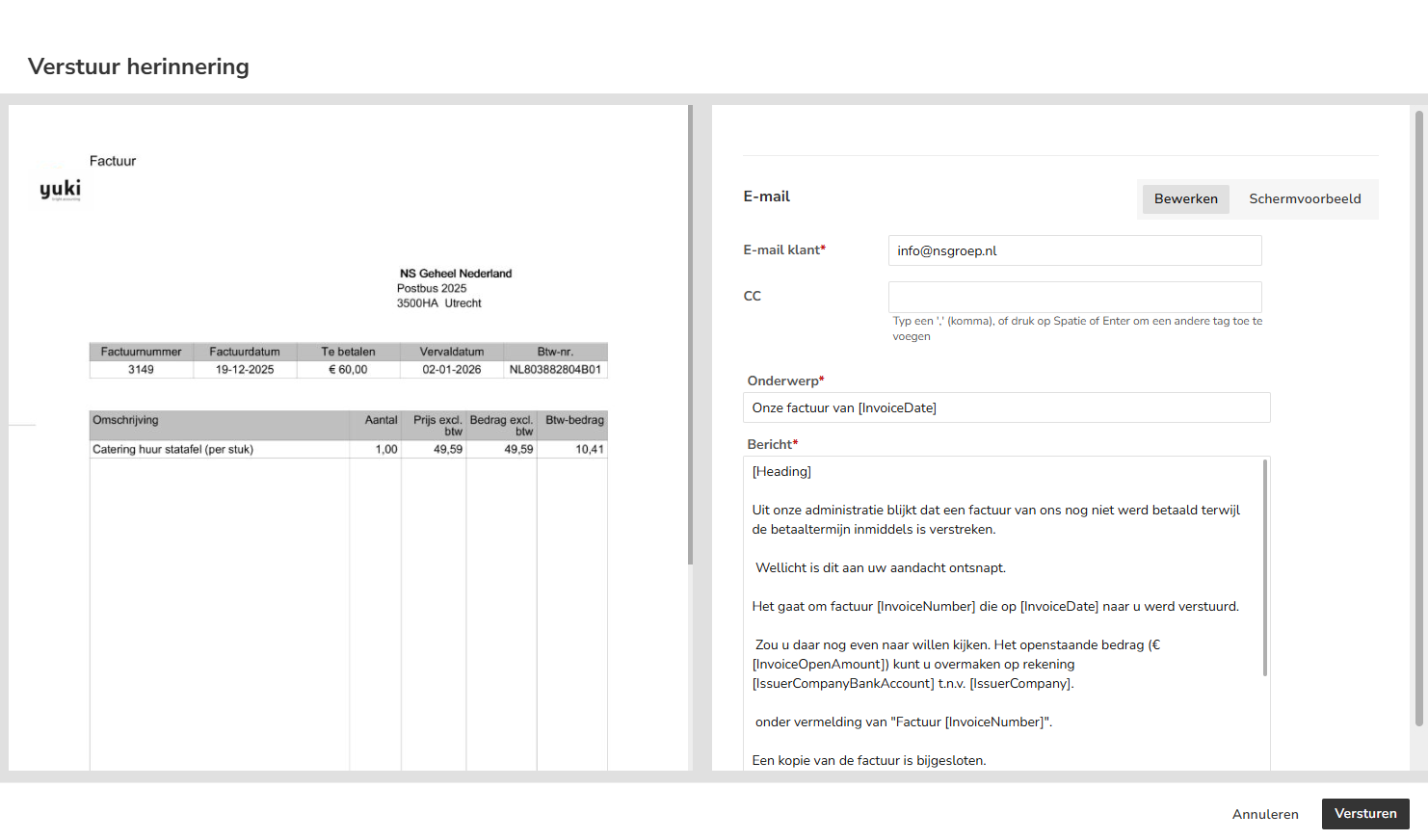
Check the customer's email address, subject and text of the email, then click the Send button.
TIP!
Selecting the English or French language when creating the sales invoice will automatically use the English or French reminder e-mail template for sending the reminder.
Check sent reminder
For the invoice in question, the Last reminder and Reminder status column will now show the date the last reminder was sent and the delivery status.

Was this article helpful?
That’s Great!
Thank you for your feedback
Sorry! We couldn't be helpful
Thank you for your feedback
Feedback sent
We appreciate your effort and will try to fix the article