Disclaimer
All screenshots in the article were taken in the Dutch version of Nmbrs Accounting.
In Nmbrs Accounting, (sub)folders and documents are protected by default based on assigned user roles, but you can also manually secure non-financial documents at the document level.
Non-financial documents are documents of the 'Standard' type (such as contracts, insurance policies, loan agreements, and amortization schedules). Since no financial entries are made for these, you or the back office can decide which folder these documents are stored in and who is allowed to view them.
Project permissions take precedence
A project’s access level always overrides the security level of the linked documents. If a user has access to a project, that user can view all documents within that project, regardless of any document restrictions or the “Private” label.
Permissions and roles
Only the following users have the permissions to restrict access to a non-financial document (document type “Standard”):
- The document owner (the user who uploaded the document).
- A user with the Management role.
Restrict access to standard document
To restrict access to a single standard document:
- click on the Archive icon in the navigation bar
- open the relevant document
- click on the Edit button

- on the now-opened screen, select which users should have access to the document
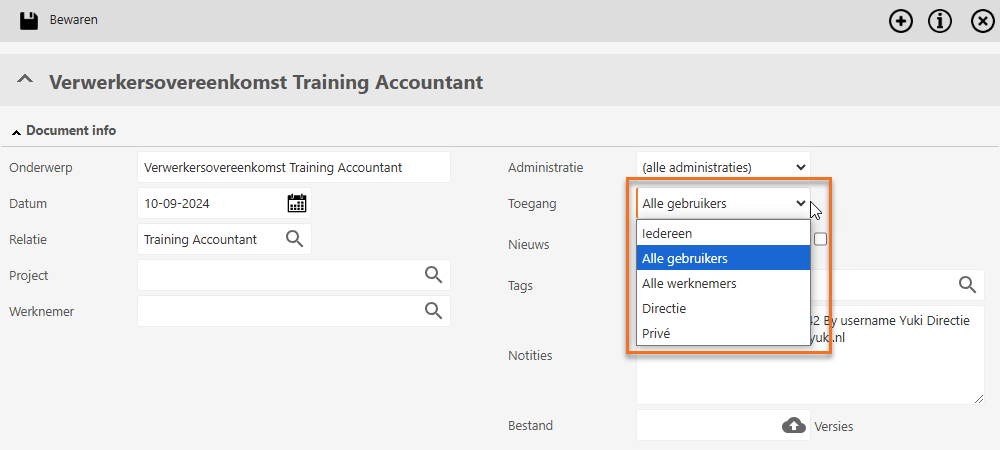
- then click on the Save button.
Result
- The document is now hidden from unselected users but remains visible to the back office.
- If you select the Private level, only the owner will have access; in that case, the document will not be visible to the back office either.
Restrict access to all standard documents at once (set default value)
If you want to avoid having to secure each document individually, you can set a general security level in the Archive for all future standard documents.
ATTENTION!
This setting does not apply retroactively. Existing standard documents in the Archive retain their current security level.
For a detailed description see article Archive settings.
Was this article helpful?
That’s Great!
Thank you for your feedback
Sorry! We couldn't be helpful
Thank you for your feedback
Feedback sent
We appreciate your effort and will try to fix the article