Disclaimer
All screenshots in the article were taken in the Dutch version of Nmbrs Accounting.
If no scanned paper document is available (yet), you can also manually create a document and then process it in the administration.
Access to new document
To access it:
- click on the Archive icon in the navigation bar
- in the now-opened screen, click on the Create... button and then select Document from the dropdown menu
- click on I want to type a document directly if you want to manually create a document
- then select the relevant document type at the top of the screen.
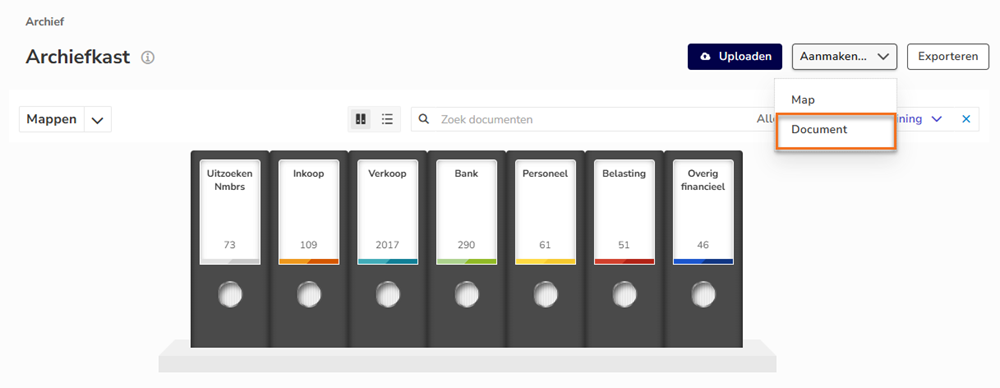
In the now-opened screen, you will be asked which way to create the document.

TIP!
To create a document manually, select the option I want to type a document directly and change the document type in the now-opened screen to the relevant document type.
Nmbrs Accounting wants to record as many documents as possible so that you can later find out why a certain entry was made. You have three options here:
- Upload a file from your PC (e.g., a PDF file or Excel sheet)

After choosing a local file, click on the Continue button and the document will be shown on the right side of your screen. - Upload a number of files that belong together (e.g., two scanned pages in JPG format)

You click on the Select files button to select them on your computer, then click on the Start uploading button. The documents are shown by page on the right side of your screen.
Depending on the selected document type, the new document is saved in the corresponding folder. - You don't have a document but want to enter it manually

Then select the correct document type from the list and process the document as usual.
Was this article helpful?
That’s Great!
Thank you for your feedback
Sorry! We couldn't be helpful
Thank you for your feedback
Feedback sent
We appreciate your effort and will try to fix the article